
If your Motorola Moto G Stylus 5G (2025) is getting uncomfortably warm, it's a sign the processor is working hard and the internal cooling can't keep up. This can happen during gaming, video calls, or even just from having too many apps open. I'd start by giving the phone a quick restart, as that clears out any stuck processes that might be overworking the chip.
Press and hold the power button for about 10 seconds until you see the Motorola logo appear. This force restart is often the fastest way to cool things down if your phone feels hot for no obvious reason.
Check for Power-Hungry Apps
Head to Settings > Battery to see which apps have been using the most power recently. An app with a surprisingly high percentage here could be malfunctioning and causing the overheating. Tap on any suspicious app and select Restrict background activity to limit what it can do when you're not using it.
For a more immediate check, open your recent apps view and swipe away everything you're not actively using. Pay special attention to camera apps, social media apps with auto-playing video, and navigation apps like Google Maps, as these are common culprits for generating extra heat.
Adjust Your Display and Performance Settings
Your phone's screen is a major source of heat. Try reducing the screen brightness manually, even if just for a little while. You can also enable adaptive brightness so it adjusts automatically to your environment. If you have the refresh rate set to the highest option, consider switching it to a standard 60Hz in Settings > Display to ease the load on the GPU.
Motorola includes helpful performance modes. Go to Settings > Battery and look for the performance mode selector. Switching from a high-performance mode to a balanced or battery saver mode will immediately reduce processor speed and heat output. This is a great temporary fix while your phone cools down.
Be Smart About Charging
The included 68W TurboPower charger is incredibly fast, but fast charging generates more heat than slow charging. If your phone is already warm, try using a standard USB-C charger (like one from an older device or a computer port) for a while. This will charge it much slower but will generate significantly less heat.
Also, avoid using the phone intensively while it's plugged in, especially for gaming or video recording. Take it off any wireless charger if it starts to feel hot, as the Qi charging process also produces warmth. Let it charge undisturbed in a cool spot.
Update Your Software
Outdated software can sometimes have bugs that cause poor power management. Go to Settings > System > System updates to check for any available updates. Motorola and Google regularly release updates that can improve thermal performance and battery efficiency.
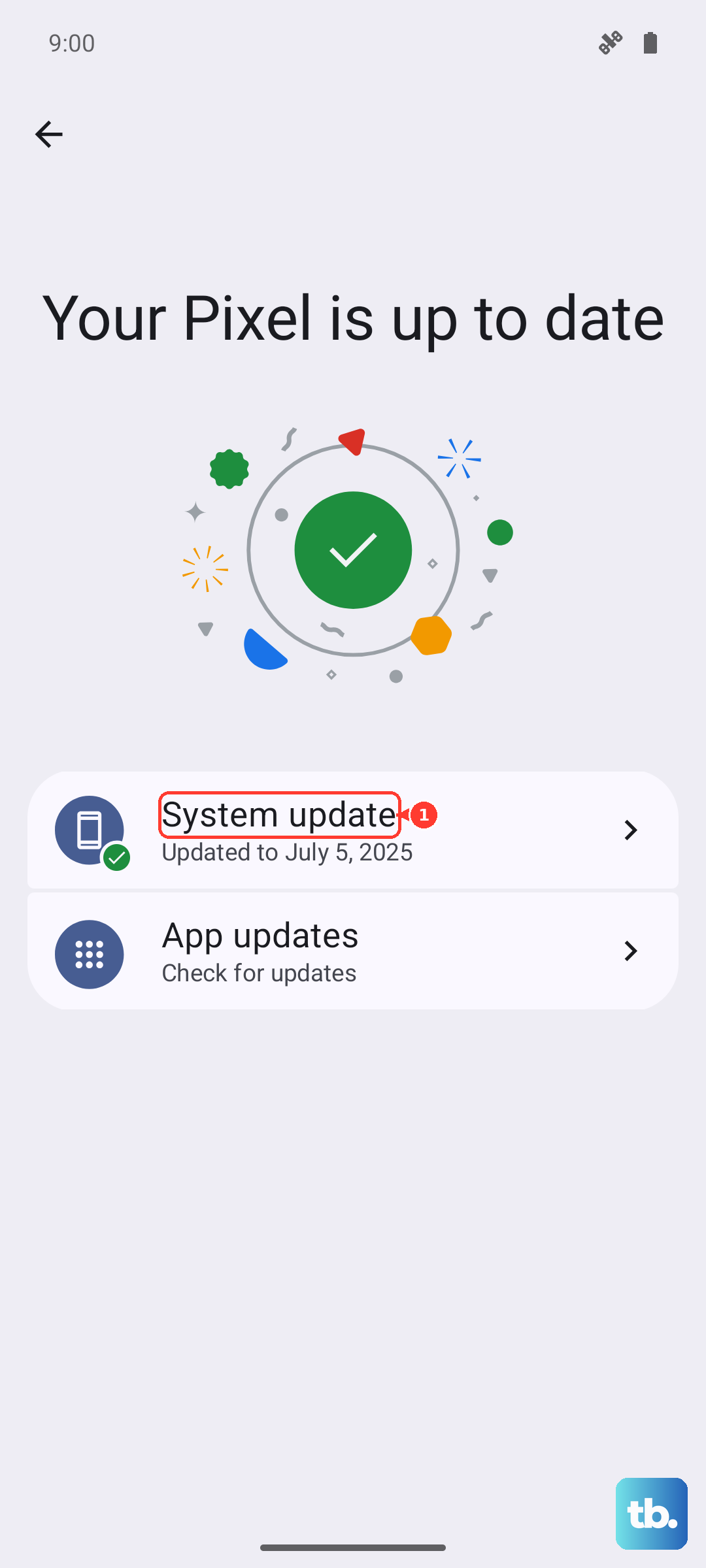
While you're there, it's a good idea to check for app updates in the Google Play Store as well. Developers fix performance issues all the time, and an update for a problematic app could resolve your overheating problem.
Improve Your Phone's Environment
Never leave your phone in direct sunlight, like on a car dashboard or by a sunny window. The dark display can absorb a lot of heat very quickly. Similarly, don't keep it under blankets or pillows while in use or charging, as this traps all the heat the phone is producing.
If you're outside on a hot day, try to keep the phone in the shade. Consider taking it out of a tight-fitting case temporarily, as some cases can act like a small insulator and prevent heat from dissipating effectively from the phone's body.
Manage Connectivity Features
When you're in an area with a weak 5G or cellular signal, your phone's modem works much harder to maintain a connection, which generates heat. If you don't need the fastest speeds, try switching to 4G/LTE in your network settings temporarily. You can also turn on Airplane mode for a few minutes to let everything cool down, then turn it off again.
Features like Bluetooth, GPS, and Wi-Fi scanning also contribute. Turn off Bluetooth if you're not using headphones or a smartwatch. Only enable high-accuracy GPS (Settings > Location) when you need it for navigation, otherwise switch it to battery-saving mode.
Reset App Preferences or Perform a Factory Reset
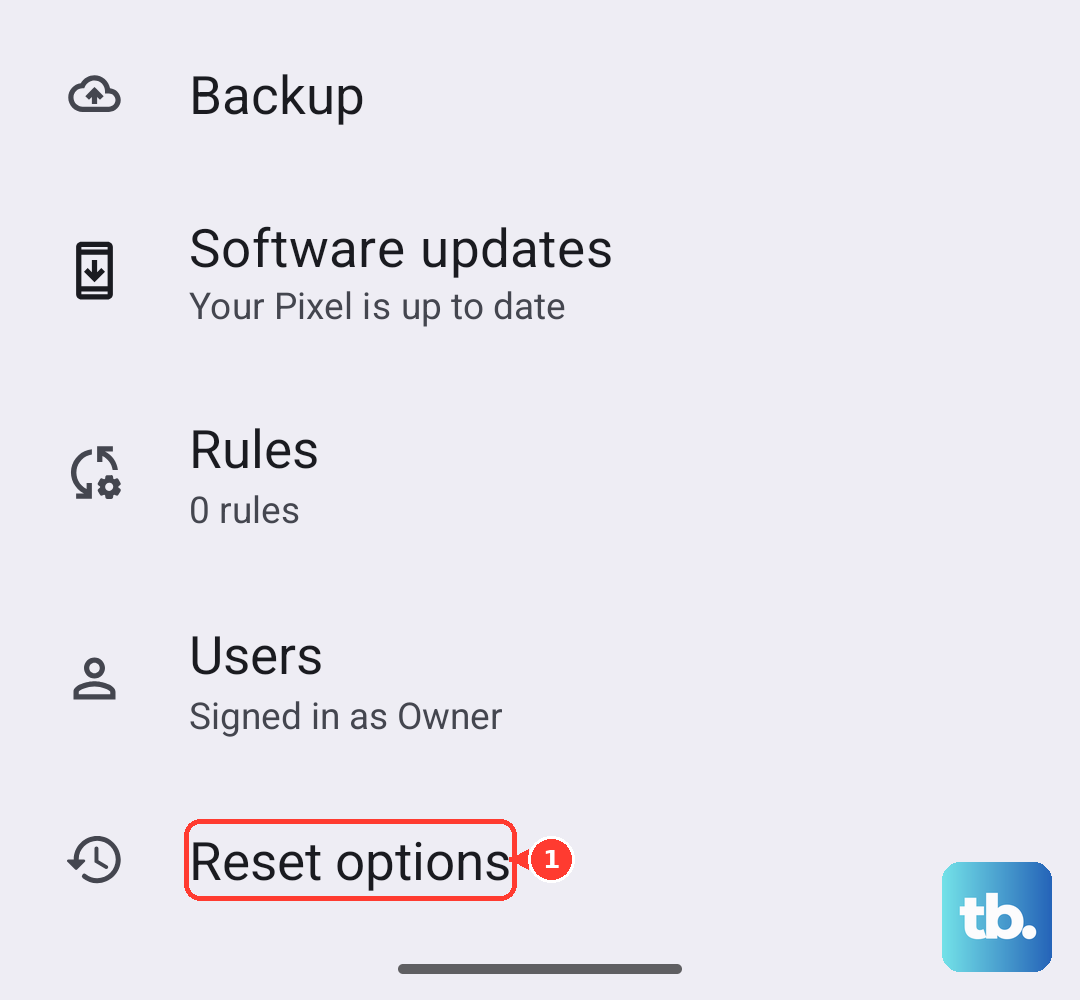
If a specific app seems to be the cause but you can't pinpoint it, you can reset all app preferences. This won't delete any app data. Go to Settings > System > Reset options > Reset app preferences. This resets permissions, background restrictions, and notification settings for all apps back to their defaults, which can stop a misbehaving app.
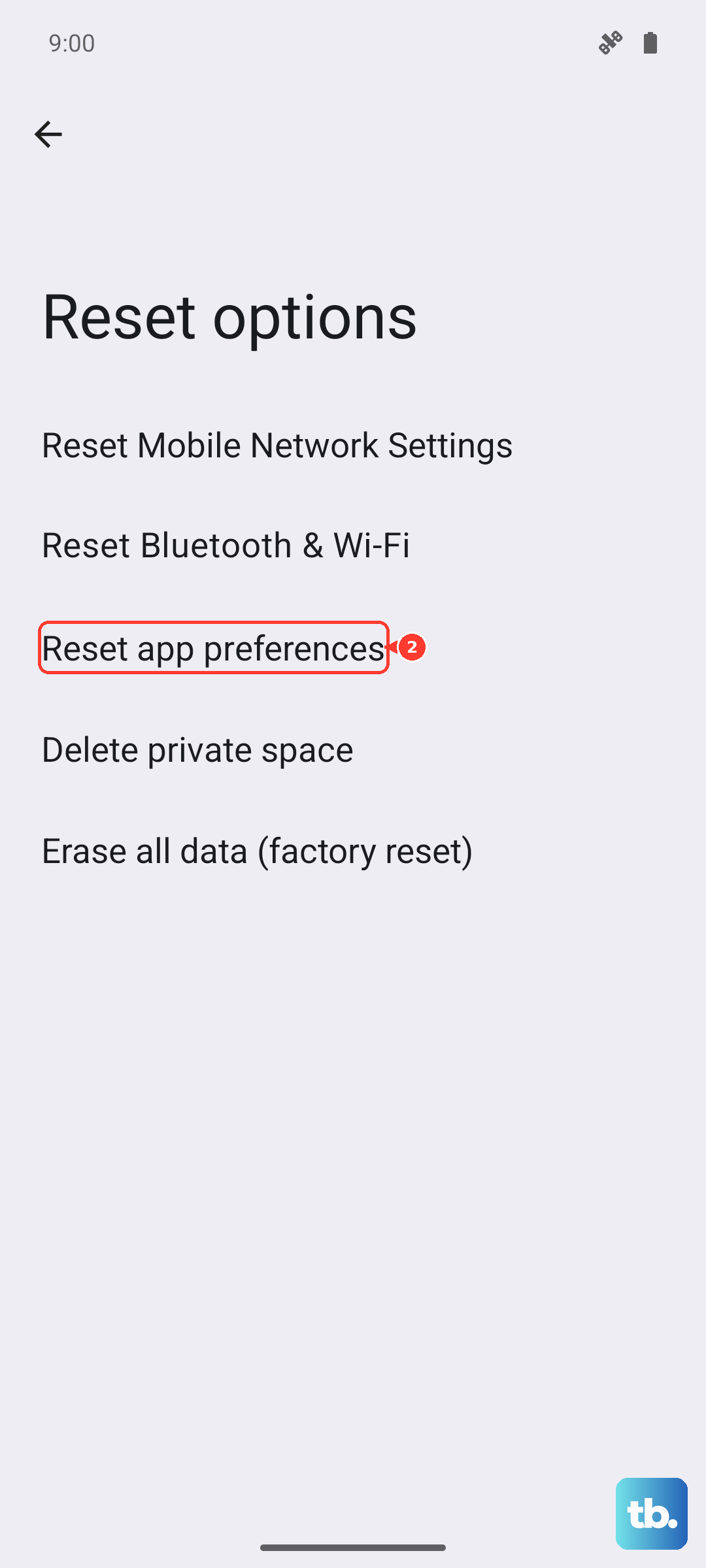
As a last resort, if the overheating started suddenly after a software update and nothing else helps, a factory reset may be necessary. Be sure to back up all your important data first. You can initiate this from Settings > System > Reset options > Erase all data (factory reset).
Consider Your Stylus Usage
While the stylus itself doesn't cause overheating, the apps you use it with might. Intensive drawing or note-taking apps that are constantly saving and processing pen input can use more processor power. Make sure the stylus is properly seated in its silo when not in use. A stylus that isn't fully clicked in might cause the phone to continuously try to connect to it, wasting battery and generating a small amount of extra heat.