
When your Motorola Moto G Stylus 5G (2025) stops ringing for incoming calls, it can feel like you're suddenly disconnected. This is a common hiccup with several straightforward fixes, often related to a setting you might have changed without realizing it. I'd start by checking the most obvious culprits first, as they usually solve the problem in under a minute.
First, pull down the notification shade from the top of your screen twice to see the full Quick Settings panel. Look for the Airplane Mode icon and make sure it's turned off. If it was on, toggle it off and wait a moment for the cellular connection to re-establish. While you're there, also check that Do Not Disturb isn't active; its icon looks like a circle with a line through it.
Next, give your phone a quick restart. Press and hold the power button until the power menu appears, then tap "Restart." This simple step clears out temporary software glitches that can sometimes interfere with the phone's radio and call handling functions. If the issue is very recent, this often fixes it immediately.
Check Your Do Not Disturb and Focus Modes
Android 15 on the Moto G Stylus includes some intelligent focus features that can silence calls. Go to Settings > Sound & vibration > Do Not Disturb. Here, you can see if the mode is on and review its rules. Make sure "Calls" are not set to "None" or "Priority only" unless you intend them to be.
Also, look at any scheduled or automatic rules that might be activating. Sometimes a rule based on your calendar or time of day can turn on Do Not Disturb unexpectedly. You can temporarily turn off all rules to see if that restores your incoming calls.
Review Call Blocking and Spam Protection
Motorola's software, combined with your carrier's services, can be aggressive about blocking suspected spam. Open your Phone app, tap the three-dot menu in the top-right corner, and go to Settings > Blocked numbers. See if any numbers you're expecting calls from have accidentally been added here.
Next, go back to the Phone app settings and look for Caller ID & spam. This feature uses Google's database to screen calls. If it's set to automatically screen and silence suspected spam, legitimate calls might be getting caught. You can adjust the sensitivity or temporarily turn it off to test.
Inspect Your SIM Card and Network
A loose or faulty SIM card is a classic cause of call issues. You'll need the SIM ejector tool that came with your phone. Gently push it into the small hole on the SIM tray, which is located on the left side of the device. Carefully remove the tray, take out the SIM card, and then re-seat it firmly in the tray before sliding it back in.
Once the phone reboots, check your signal strength. If you see "No service" or an "X" over the signal bars, the problem is likely network-related. Try moving to a different location, as building materials or geography can sometimes block signals. It's also worth quickly calling your carrier from another phone to ask if there are any known outages in your area affecting voice services.
Reset Your Network Settings
If the basic steps haven't worked, resetting your network settings can clear out any corrupted connection data. Go to Settings > System > Reset options. Tap on Reset Wi-Fi, mobile & Bluetooth.
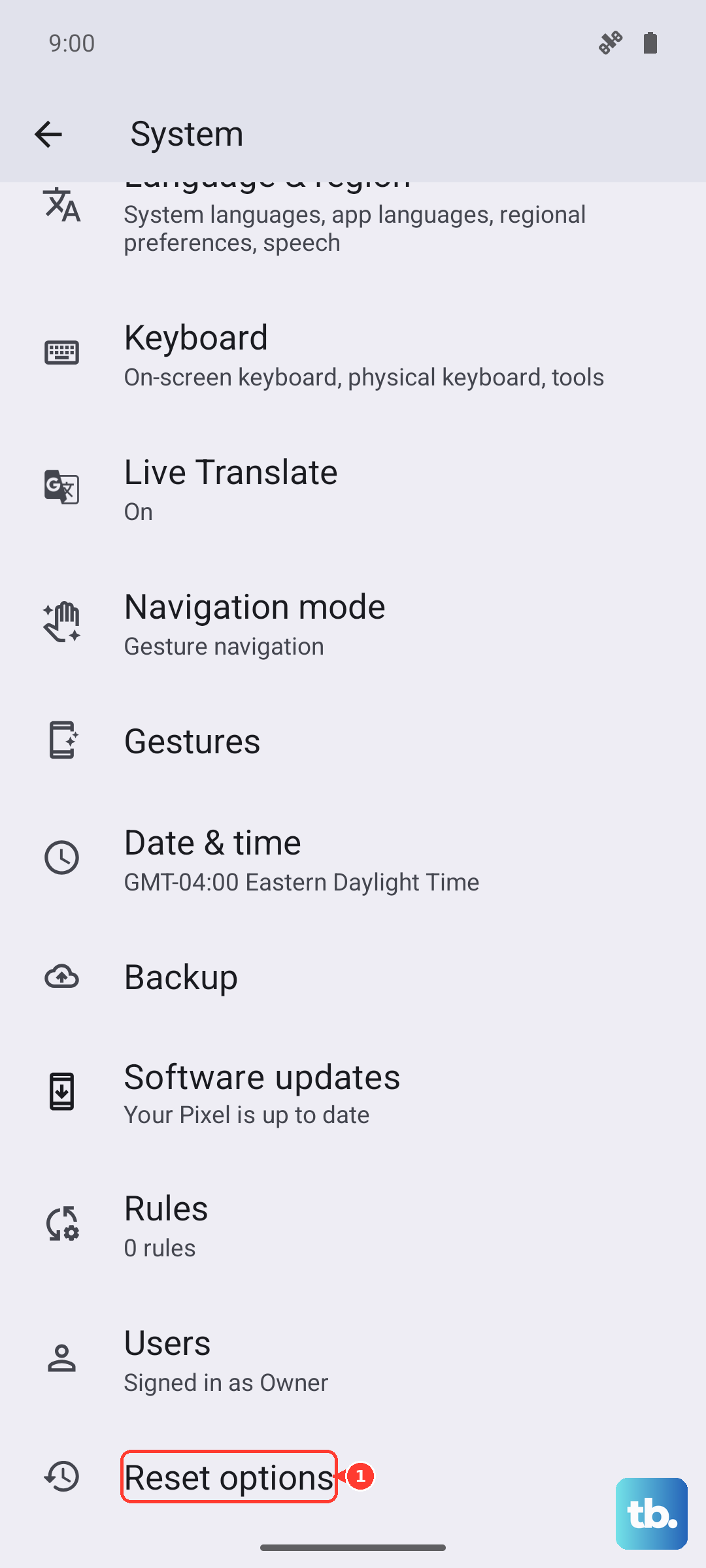
Be aware this will erase all saved Wi-Fi networks and passwords, unpair your Bluetooth devices, and reset your mobile network settings to default. It won't delete your personal files or apps. After the reset, your phone will reboot, and you'll need to reconnect to Wi-Fi and re-pair accessories like headphones or your smartwatch.
Update Your Software and Clear App Data
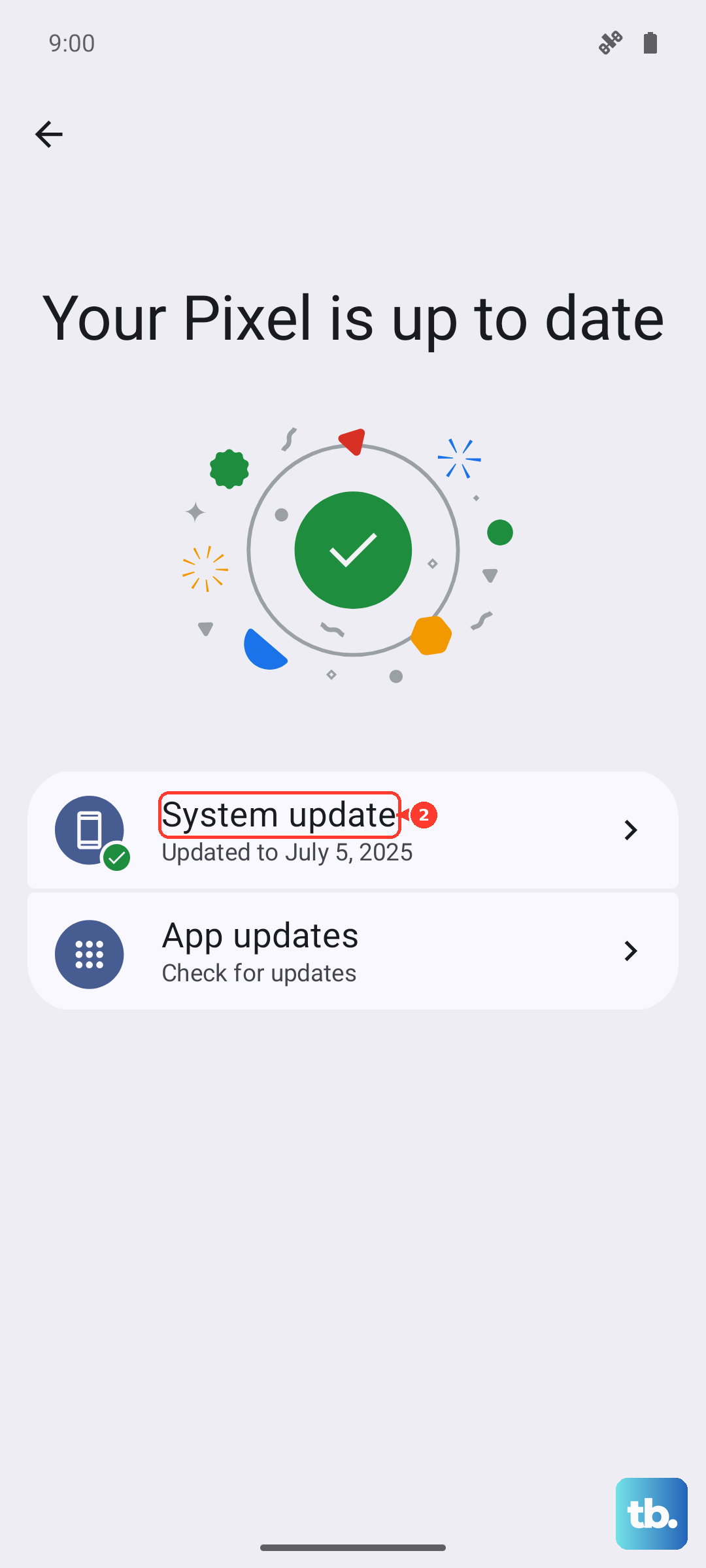
Software bugs can occasionally affect call functionality. Make sure your Moto G Stylus is running the latest available version of Android. Go to Settings > System > System updates and tap "Check for update." If an update is available, install it, as it may contain fixes specifically for network and telephony issues.
Another useful step is to clear the cache and data for the Phone app itself. Navigate to Settings > Apps > See all apps. Find and tap on "Phone," then select Storage & cache. Tap "Clear cache" first. If the problem persists, you can try "Clear storage" or "Clear data." This will reset the Phone app to its default state, so you may lose your call log and any custom settings within the app.
Check for App Interference and Call Forwarding
Consider if you've recently installed any apps that manage calls, messages, or permissions. Apps like third-party dialers, call recorders, or even certain VPNs can sometimes interfere. Try booting the phone into Safe Mode to see if the problem goes away. To do this, press and hold the power button, then tap and hold the "Power off" option on your screen until you see the Safe Mode prompt.
If calls work in Safe Mode, a recently downloaded app is likely the culprit. Uninstall apps one by one to find the offender. Also, it's worth checking that call forwarding hasn't been accidentally activated. Open the Phone app, dial # # 002 # # and tap the call button. This USSD code will disable any unconditional call forwarding that might be sending all your calls to another number or voicemail.