
When your Motorola Moto G Stylus 5G microphone stops picking up your voice, it can turn simple phone calls, video chats, and voice commands into a frustrating experience. The issue could be anything from a blocked port to a software setting that got flipped. Let's start with a quick test to confirm the problem before we jump into the fixes.
If you are not sure whether the mic is dead or just misconfigured, open a mic test first. A moving level meter means the hardware is healthy, which rules out the worst case before you touch any settings.
Test Your Moto G Stylus Microphone
Open the Voice Recorder app that came pre-installed on your phone. Tap the record button and speak for a few seconds, then play it back. If your voice sounds muffled, distant, or isn't there at all, you've confirmed the issue.
You can also try making a quick call to your voicemail or using a voice command with Google Assistant. Say "Hey Google" or hold the power button to activate it. If it doesn't respond or consistently mishears you, the microphone is likely the culprit.
Remove Your Phone Case First
This is the easiest thing to check. Some cases, especially rugged or poorly designed ones, can partially cover the microphone holes. Take the case off and run the voice recorder test again. I've seen this solve the problem more times than you'd think.
While the case is off, take a close look at the microphone openings. Your Moto G Stylus has a primary microphone at the bottom next to the USB-C port and secondary microphones for noise cancellation. Check for any lint, dust, or pocket debris clogging these tiny holes.
Disconnect Any Bluetooth Accessories
If you have wireless earbuds, a headset, or a smartwatch connected, your phone might be routing all audio through that device. Swipe down from the top of your screen to open the Quick Settings panel and tap the Bluetooth icon to turn it off temporarily.
Now try your microphone test again. If it works, you know the issue was with the audio routing. You can go into Settings > Connected devices and manage your Bluetooth connections more specifically later.
Restart Your Phone
A simple reboot clears out temporary glitches that can affect hardware like the microphone. Press and hold the power button until you see the power menu, then tap "Restart."
If your screen is unresponsive, you can force a restart by holding the power button down for a solid 10 seconds or more until the Motorola logo appears. This doesn't erase any data, it just gives the system a fresh start.
Check App Permissions in Android 15
In Android 15, app permissions are more granular. If your microphone only fails in specific apps like WhatsApp, Zoom, or Discord, it's likely a permission issue. Go to Settings > Privacy & security > Permission manager.
Tap on "Microphone" and look through the list of apps. Find the app giving you trouble and make sure it's set to "Allow only while using the app" or "Allow all the time," depending on your preference. Sometimes updates can reset these permissions.
Close and Reopen Problem Apps
For an app-specific microphone problem, force stopping it can help. Go to Settings > Apps, select the app, and tap "Force stop." Then open the app fresh and try the microphone again.
You can also swipe up from the bottom and hold to enter the recent apps view, then swipe the app's preview all the way up to close it. This is a quicker method if you just need to refresh one app.
Clean the Microphone Openings Carefully
Over time, the microphone ports can get clogged. Take a can of compressed air and give short, gentle bursts aimed at the holes at the bottom of the phone. Don't use a vacuum, as it can create static.
For more stubborn debris, you can very carefully use a dry, soft-bristled toothbrush or a plastic toothpick. Be extremely gentle to avoid pushing material further in or damaging the internal microphone mesh.
Update Your Software
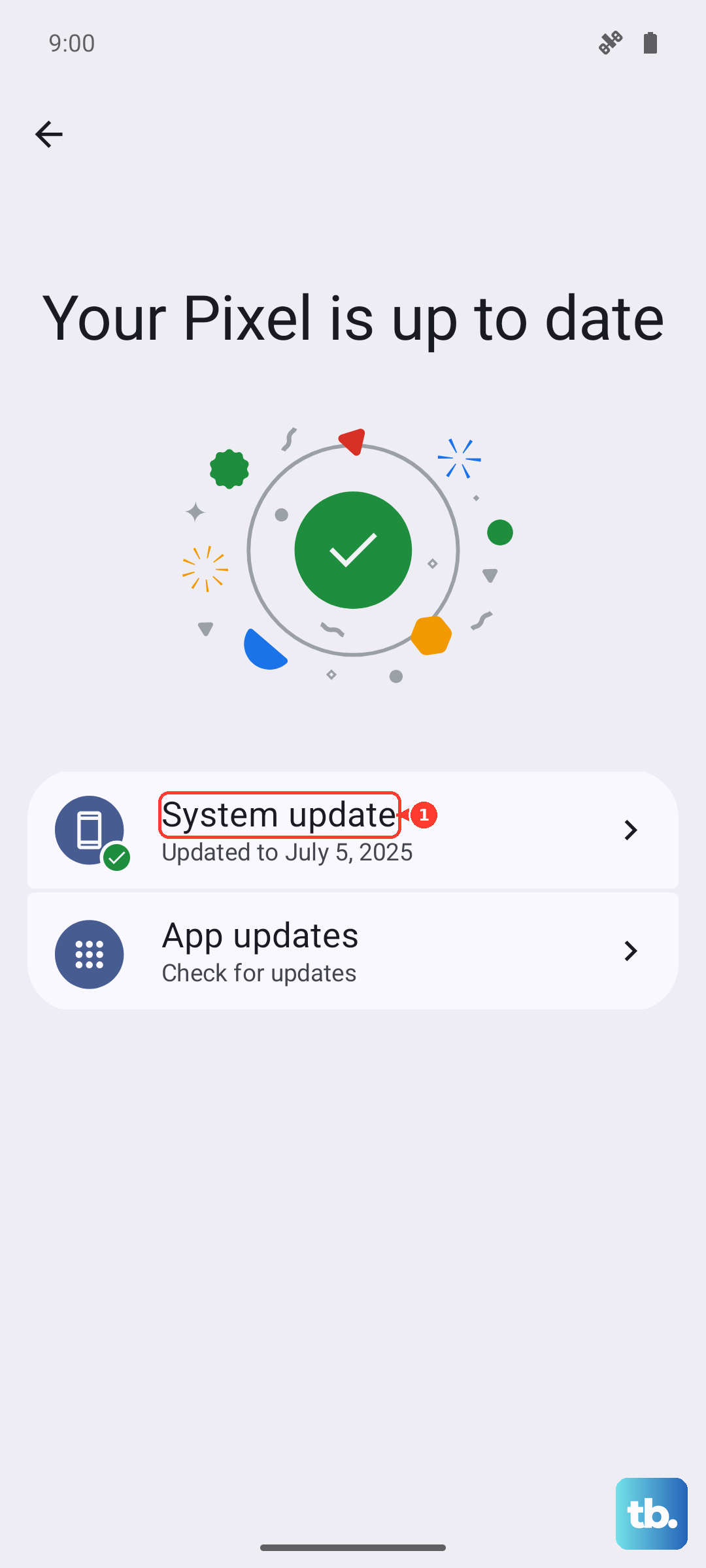
Motorola regularly releases updates that fix bugs, including audio issues. Go to Settings > System > System updates and tap "Check for update." If one is available, install it. Make sure your phone is connected to Wi-Fi and has at least a 50% charge first.
It's also a good idea to check for updates to the specific app where the microphone is failing. Open the Google Play Store, tap your profile icon, and go to "Manage apps & device" to see available updates.
Check for Sound Amplifier Settings
Your Moto G Stylus has accessibility features that can interfere. Go to Settings > Accessibility > Sound Amplifier. Make sure this feature is turned off, as it can sometimes redirect or process microphone input in a way that causes problems for normal calls and recordings.
Also, look in Settings > Sound & vibration for any "Audio effects" or "Adaptive sound" settings. Try disabling these temporarily to see if they are causing any conflict with the microphone's input.
Reset All App Preferences
This is less drastic than a full factory reset. It resets permissions, notification settings, and background data restrictions for all your apps back to their defaults. Your personal data like photos and messages remains safe.
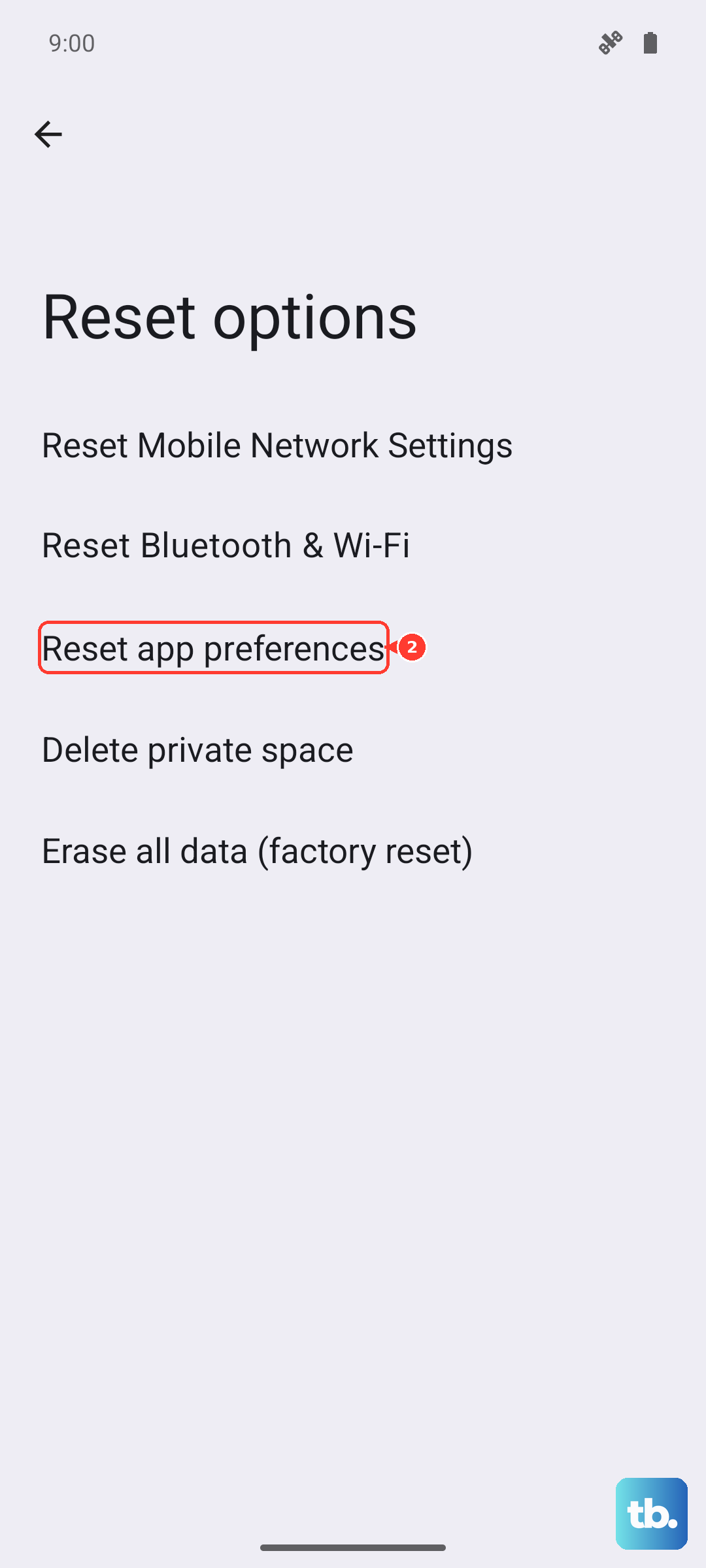
Go to Settings > System > Reset options. Tap "Reset app preferences" and confirm. After your phone restarts, you'll need to re-grant microphone permissions when you open apps for the first time, but this often clears up obscure software conflicts.
Boot Into Safe Mode
Safe mode temporarily disables all third-party apps. If your microphone works perfectly in safe mode, you know a downloaded app is causing the conflict. To enter safe mode, press and hold the power button until the power menu appears.
Then, tap and hold the "Power off" option on your screen. You'll get a prompt to reboot to safe mode. Tap "OK." Test your microphone with the basic voice recorder. To exit, just restart your phone normally.
Consider the Stylus Silo
While it's a long shot, ensure the stylus is fully seated in its silo on the bottom of the phone. A stylus that isn't clicked all the way in could theoretically interfere with the internal layout. Remove it and reinsert it firmly until it clicks.
Try using the microphone with the stylus removed entirely. The silo mechanism on this model can be a bit finicky, and it's worth eliminating as a variable, even if it's an uncommon cause.