You reach for your Moto G Stylus (2025) in a dark hallway, tap the flashlight tile, and the rear LED stays dead, or it flicks on for a second and shuts itself off the moment you actually need it. A torch that will not light is annoying, but it usually traces back to a handful of fixable causes, the wrong control, a stuck gesture, a temporary software glitch, heat, or a misbehaving app, rather than a broken phone.
This model (sold as the Moto G Stylus 5G (2025) and listed by Motorola as "moto g stylus - 2025") does have a flashlight, which is the rear camera flash used as a torch, and Motorola documents several ways to control it. There is no separate companion app to install for this, so every fix below runs right on the phone. Work through them in order, starting with the quickest, safest checks and saving the reset and repair options for the end.
Start With the Quick Settings Flashlight Tile
The most reliable way to turn the light on is the flashlight icon in Quick Settings, so start there before assuming anything is wrong. Make sure you are tapping the flashlight tile itself and not a camera flash setting, since those control different things and are easy to confuse.
Open Quick Settings by swiping down from the top of the screen and tap the flashlight icon to toggle it.
If the light does not respond, tap the tile off and then on once more to reset its state.
For faster access later, add the flashlight to your lock screen; then you can simply wake the screen and tap the flashlight without unlocking.
Reset the Fast Flashlight Chop Gesture
If you prefer the motion shortcut, Motorola calls it Fast flashlight, and you turn the light on or off by making a chopping motion with the phone in your hand. A common reason this seems broken is using the wrong motion. Motorola notes that if the camera opens instead of turning on the flashlight, be sure to use a chop gesture, not a twist gesture.
If the gesture still will not respond, switch it off and back on to reset it.
Go to Settings > Gestures > Fast flashlight.
Turn the feature off, wait a moment, then turn it back on.
Test it again with a clear chopping motion, not a wrist twist.
Restart the Phone to Clear a Temporary Glitch
Phones accumulate background processes over days of uptime, and a simple restart clears the kind of temporary software glitch that can stop the flashlight or the camera flash from firing. If the screen is responsive, restart the phone normally and test the light again.
If the screen is frozen or the phone will not respond, you can force a restart instead. Press and hold the Power key for 10 to 20 seconds until the phone restarts. Motorola confirms this is a forced reboot and that data on your phone will not be deleted, so it is safe to use when the phone is stuck.
Let a Warm Phone Cool Before the Flash Will Fire
Heat is an underrated cause of a dead torch. Motorola builds in a thermal safeguard, noting that the device will shut down if the temperature reaches a certain level, and a hot phone can limit power-hungry features like the LED flash in the meantime.
If you have been gaming, recording video, fast charging, or leaving the phone in direct sunlight, move it somewhere cooler, stop the heavy apps, and unplug it from the charger. Give it several minutes to cool down, then open Quick Settings and try the flashlight again.
Check for an Android System Update
Software updates bundle Google security and OS fixes that can resolve flashlight and camera bugs, so an outstanding update may be all that stands between you and a working torch. Connect to Wi-Fi first so the download does not eat into mobile data.
Go to Settings > System updates > Check for updates.
If an update is available, follow the onscreen instructions to download and install it.
Let the phone restart if it prompts you, then test the flashlight.
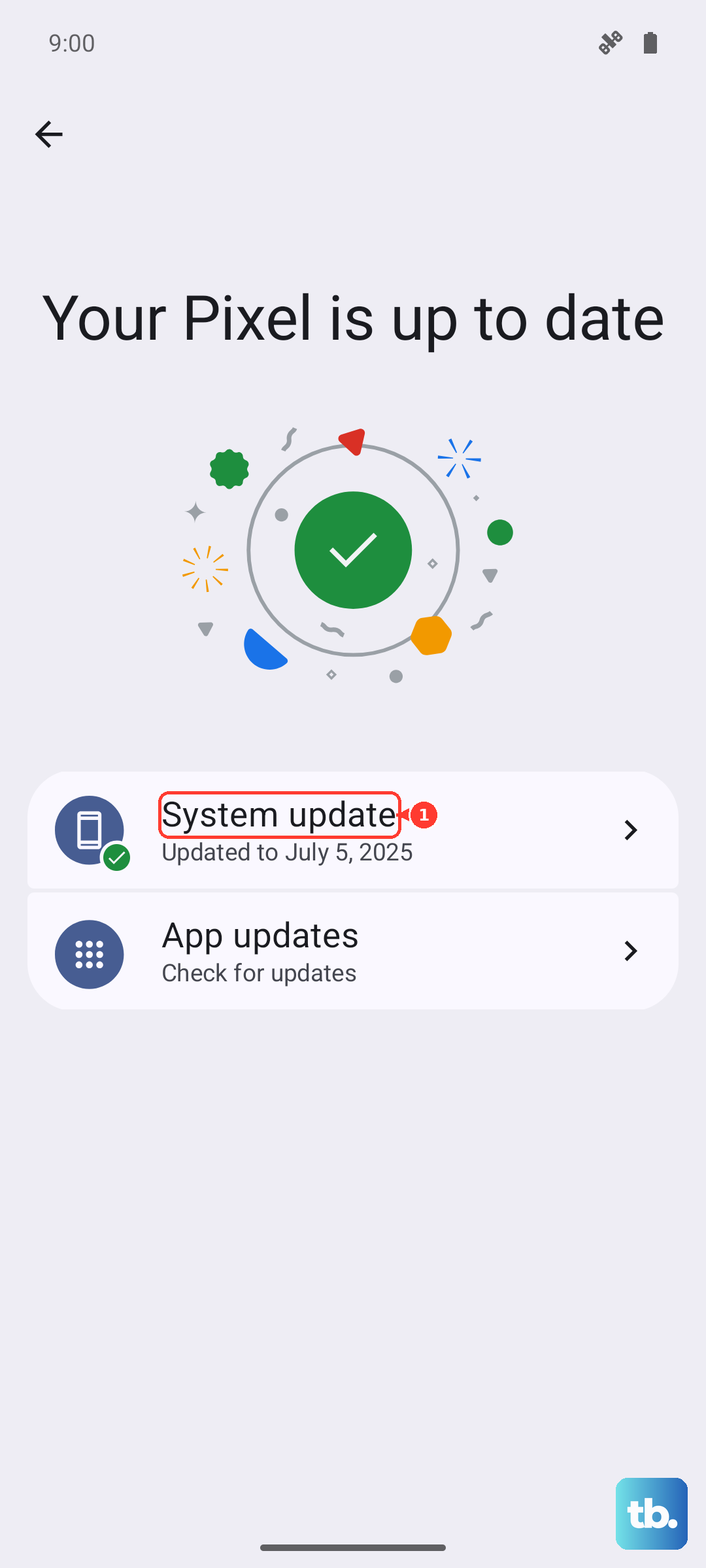
Update Your Apps Through the Play Store
If a third-party flashlight or camera app is what controls the light for you, an out-of-date app can be the culprit rather than the system itself. Keeping your apps current is a separate step from the system update above, and it often clears app-level flash bugs that an OS update would not touch.
Open the Play Store, check for pending updates, and install any that are waiting, especially for your camera or any dedicated flashlight app. Then reopen the app and try the light again.
Use Safe Mode to Expose a Misbehaving App
Safe mode starts the phone with downloaded apps disabled, which is the cleanest way to find out whether one of them is blocking the flashlight. If the light works in Safe mode, a downloaded app is the cause.
- 1.Press and hold the Power and Volume up buttons at the same time, then touch OK to restart in Safe mode.
- 2.Confirm you see "Safe mode" at the bottom of the screen, which means downloaded apps are disabled.
- 3.Test the flashlight from Quick Settings.
- 4.Restart the phone normally to exit Safe mode, then uninstall the app you suspect (recently installed flashlight, camera, or automation apps are the usual offenders).
Erase and Reset the Phone as a Last Resort
If nothing above works and the flashlight still fails, a factory reset returns the software to a clean, out-of-box state. This is a destructive step. Motorola warns that it erases all data and returns the phone to out-of-box condition, so back up your photos, accounts, and files first. Before you reset, remove your screen lock and Google account(s) so Factory Reset Protection does not lock you out afterward.
Go to Settings > System > Reset options > Erase all data (factory reset) and follow the prompts.
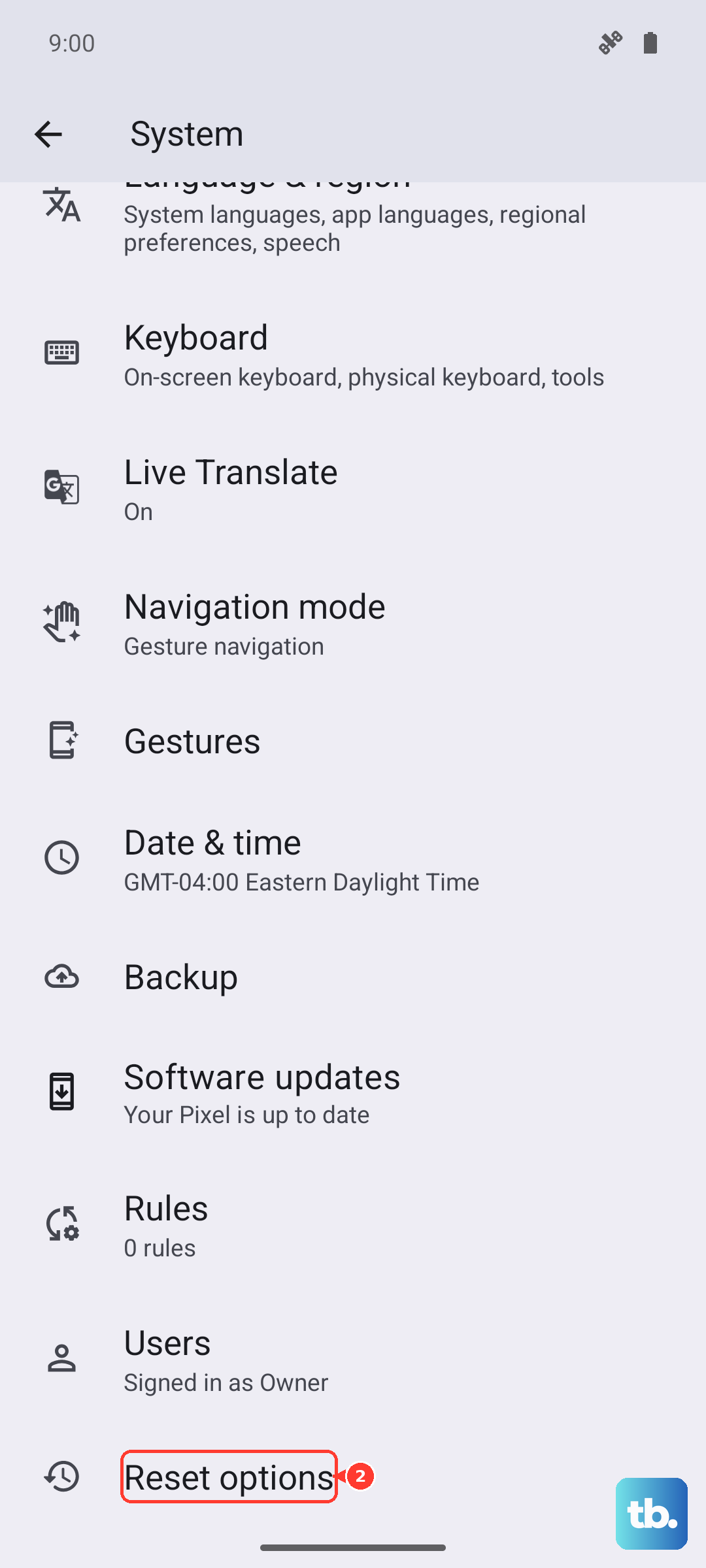
If Settings will not open, you can run an external reset from Recovery mode instead, and it erases all data in the same way. Charge the phone to at least 30 percent, power it off, then press and hold Volume Down and Power until it turns on. Use the Volume keys to highlight Recovery mode, then choose Wipe data/factory reset > Factory data reset > Reboot system now.
Reach Motorola Support if the LED Flash Is Faulty
A flashlight that still will not light after a full reset points to a possible hardware fault in the LED flash module. At that point, the fix is service rather than settings, and it is worth letting Motorola assess the phone.
Use the moto g stylus 2025 support product page to contact Motorola through Repair & Service or Contact us, and check whether your phone is still covered under warranty before arranging any paid repair.
Frequently Asked Questions
Does the Moto G Stylus (2025) actually have a flashlight?
Yes. The phone uses its rear LED camera flash as a torch, and Motorola documents controlling it from the Quick Settings flashlight icon, from the lock screen, and with the Fast flashlight chop gesture.
Why does the camera open instead of the flashlight when I use the gesture?
You are likely using the wrong motion. Motorola advises that if the camera opens instead of turning on the flashlight, be sure to use a chop gesture, not a twist gesture. You can also turn the feature off and back on under Settings > Gestures > Fast flashlight.
Will a force restart or factory reset delete my data?
A force restart will not delete data. Motorola confirms that holding the Power key for 10 to 20 seconds simply reboots the phone. A factory reset is different, because it erases all data and returns the phone to out-of-box condition, so back everything up first.
Why does my flashlight cut out when the phone feels hot?
Motorola has safeguards that shut the device down if the temperature reaches a certain level, and heat can limit power-hungry features in the meantime. Move the phone out of the sun, stop heavy apps and charging, let it cool, then try the light again.