
A blurry camera on your Moto G Stylus 5G (2025) can ruin a perfect shot, whether it's a portrait that's soft or a document that's unreadable. The issue might be constant, happen only in low light, or affect just one of the lenses. Before you worry about a hardware failure, work through these practical fixes.
Clean the Camera Lenses
Start with the simplest solution. Grab a soft microfiber cloth and gently wipe the entire camera module on the back of your phone. Fingerprints, dust, and pocket lint on the lens are the most common culprits for hazy, unfocused photos. Pay special attention to the area around the stylus silo, as debris from there can easily transfer to the lenses.
Remove Your Phone Case
Take your case off completely. Some cases, even well-reviewed ones, can have a camera cutout that's slightly misaligned or sits too close to the lenses. This can cause a shadow or a soft blur around the edges of your photos. Without the case, take a few test shots to see if the focus improves.
Use Tap to Focus and Lock
Open the Camera app and tap directly on your subject on the screen. You'll see a focus box appear. The camera's autofocus is good, but it can sometimes guess wrong, especially with busy scenes. For more control, tap and hold on your subject to lock both the focus and exposure (AE/AF Lock), which is great for consistent shots.
Switch Between Camera Lenses
Your phone has multiple lenses. If your main camera is blurry, try switching to the ultra-wide or macro lens within the Camera app. If only one specific lens is consistently out of focus, it points to an issue with that particular sensor or its lens cover, which might need a more thorough cleaning or inspection.
Force Close and Reopen the Camera App
Swipe up from the bottom of your screen and hold to enter the recent apps view. Find the Camera app and swipe it away to close it completely. Then, reopen it from your home screen or app drawer. This clears any temporary glitch in the app that could be causing the autofocus motor or image processing to malfunction.
Perform a Force Restart
If the app restart didn't help, a full system restart can clear deeper software hiccups. Simply press and hold the Power button on the right side of the phone for about 10 seconds, or until you see the Motorola logo appear and the phone reboots. This resets all background processes, including those for the camera.
Check Your Camera Mode and Settings
Make sure you're not in a specialized mode that's affecting focus. For instance, if you're in Portrait mode but too far from your subject, it may struggle. Also, navigate to the camera settings within the app and ensure features like "Shot optimization" or any manual focus assists haven't been accidentally enabled or set incorrectly.
Look for Condensation or Moisture
Moving your phone from a cold environment to a warm, humid one can cause condensation to form on the inside of the camera lens cover. This creates a permanent foggy blur in your photos. Let the phone sit at room temperature for 20-30 minutes to allow any internal moisture to dissipate naturally.
Update Your Android Software
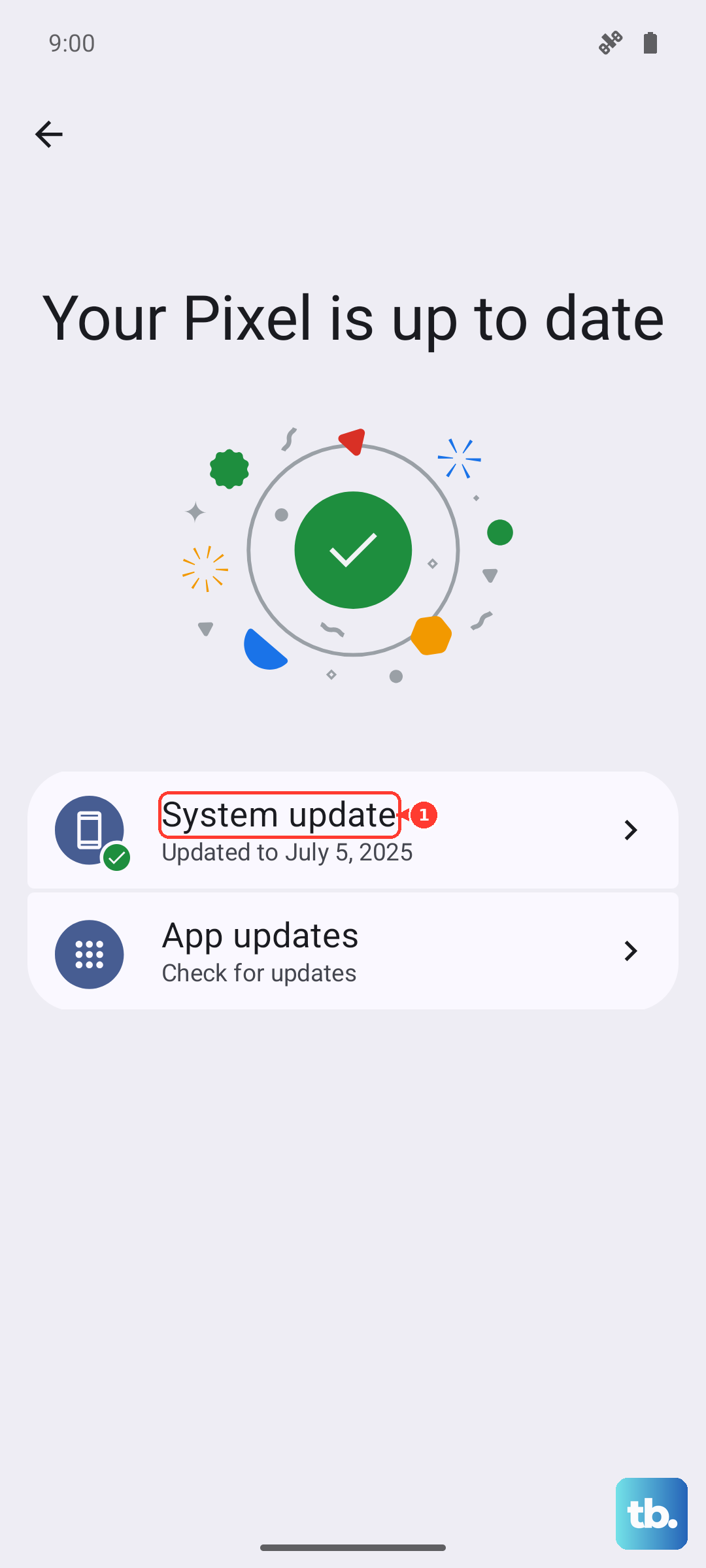
Go to Settings > System > System updates and check for any available updates. Motorola and Google frequently release updates that include camera performance improvements and bug fixes. An update might contain a patch for a known autofocus issue you're experiencing.
Reset the Camera App Preferences
If all else fails, you can reset the camera app to its default state without losing your photos. Go to Settings > Apps > See all apps. Find and tap on "Camera," then select Storage & cache. Tap on "Clear storage" or "Manage space," then confirm. This will reset all camera settings back to factory defaults.