
If your Motorola Moto G Stylus 5G (2025) is running out of juice way too quickly, the first thing to do is check the battery usage stats. Go to Settings > Battery and tap on Battery usage. This screen will show you exactly which apps and services have been consuming power over the last 24 hours. It's the fastest way to spot a rogue app that's draining your battery in the background.
Manage Your Display Settings
The big, bright screen is often the biggest battery user. Start by pulling down the Quick Settings panel and lowering the brightness slider. You can also set it to Adaptive Brightness, which lets the phone adjust automatically based on your environment. It's a good balance between visibility and battery savings.
Next, shorten the screen timeout. Head to Settings > Display > Screen timeout. Setting it to 30 seconds or one minute means your display turns off faster when you're not using it. Every little bit helps over the course of a day.
I'd also recommend enabling Dark theme. On phones with OLED-like displays, showing black pixels actually turns them off, saving power. You can find it under Settings > Display > Dark theme. You can set it to turn on automatically at night.
Control Background Activity and Location
Apps refreshing in the background are a major culprit. Go to Settings > Apps and select any app you suspect. Tap on Mobile data & Wi-Fi and look for the Background data option. You can restrict it for apps that don't need to update constantly.
Location services are another big drain. Swipe down and long-press the Location icon in Quick Settings, or go to Settings > Location. Review which apps have recent access. For apps like weather or social media, consider changing their permission to "Allow only while using the app" instead of "Allow all the time."
Optimize Connectivity Features
Turn off Wi-Fi and Bluetooth when you're not actively using them. Your phone will otherwise keep scanning for networks and devices, which uses power. The Quick Settings panel is the easiest place to toggle these off with a single tap.
If you have weak cellular signal, your phone works harder to maintain a connection, which drains the battery faster. In areas with poor reception, try enabling Airplane mode if you don't need calls or texts, or connect to Wi-Fi if it's available. The 5G modem can also be a power hog, so if you're in an area with spotty 5G, you might switch your preferred network type to 4G/LTE in the network settings.
Update Your Software and Apps
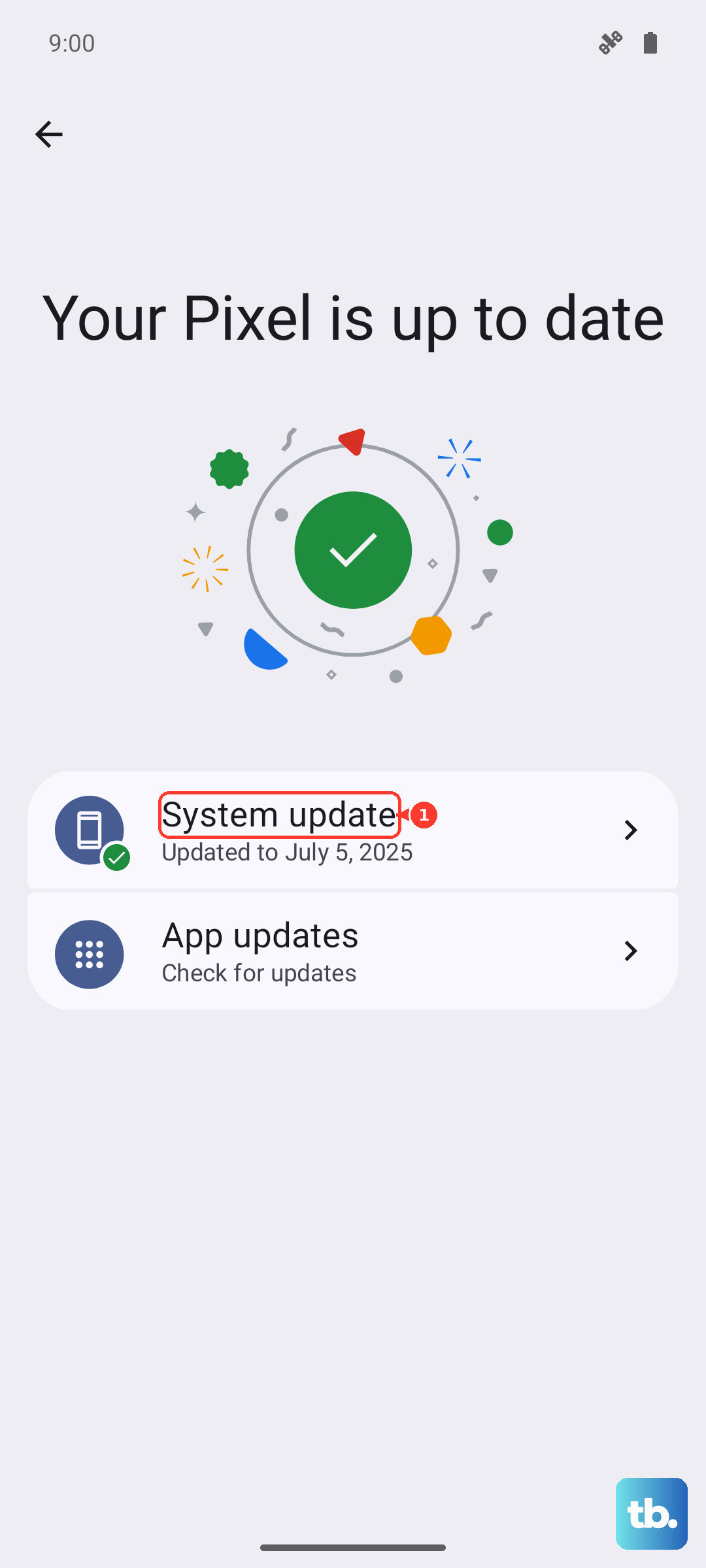
Software updates often include optimizations and bug fixes that can improve battery life. Check for the latest system update by going to Settings > System > System updates. Make sure your apps are updated too, as developers frequently release patches for battery-draining bugs. Open the Google Play Store, tap your profile icon, and go to Manage apps & device to see available updates.
Use Battery Saver and Adaptive Features
Don't forget about the built-in Battery Saver. You can turn it on manually from the Quick Settings panel or in Settings > Battery. It limits background activity, reduces visual effects, and can really stretch your last bit of charge. You can also set it to turn on automatically at a certain battery level, like 15% or 20%.
Motorola includes some helpful adaptive battery features. Go to Settings > Battery > Battery Saver and look for "Adaptive preferences." Features like "Adaptive charging" can help by learning your routine and optimizing how the battery charges overnight.
Check for Problematic Apps and Widgets
Go back to Settings > Battery > Battery usage. If you see an app using a surprisingly high percentage, it might be misbehaving. Try force-stopping it, clearing its cache (in Settings > Apps), or uninstalling and reinstalling it. Live wallpapers and widgets that constantly update, like a detailed weather widget, can also drain power. Consider removing any you don't actively use.
Reset All Settings
If you've tried everything and the drain is still mysterious, a settings reset can help. This won't delete your photos or apps, but it will reset all your system preferences like Wi-Fi passwords, Bluetooth pairings, and display settings back to default. It can clear out any incorrect configuration causing a drain. You'll find it under Settings > System > Reset options > Reset all settings.
Consider Your Charging Habits and Stylus
For the fastest charge, use the official 68W TurboPower charger if you have one. It can get you from zero to a full charge in about 41 minutes. If your phone feels warm during normal use, take it out of its case while charging to help with heat dissipation. Also, remember to store the stylus in its silo when you're not using it. The silo keeps the stylus's internal battery topped up, so it's ready to go and isn't trying to pair or charge wirelessly in a way that could affect the main battery.