
Is your Motorola Moto G Stylus 5G (2025) stuck in one orientation and refusing to flip when you turn it sideways? It's a common hiccup where the auto-rotate feature just stops responding.
The cause can be anything from a quick settings toggle to a deeper software glitch. Here are the most effective ways to get your screen rotating properly again on your Moto G.
Check the Quick Settings Toggle
The absolute first thing to check is the auto-rotate toggle in your notification shade. It's incredibly easy to tap it by accident, locking your screen in place.
Swipe down from the top of your screen twice to open the full Quick Settings panel. Look for the icon that looks like a phone with circular arrows around it. If it's highlighted or says "Auto-rotate," it's on. If it's grayed out or says "Portrait," tap it to enable rotation.
Restart Your Moto G Stylus
If the toggle is on but nothing happens, give your phone a fresh start. A simple restart clears out temporary system glitches that can confuse the sensors.
Open the power menu, then tap Restart. If pressing and holding Power does not show the power menu, press Power + Volume up at the same time instead. Wait for the phone to boot back up, then test rotation in an app that supports landscape mode.
Try a Force Restart
When a normal restart doesn't cut it, a force restart is the next step. This is a stronger refresh for the system that doesn't delete any of your personal data.
On the Moto G Stylus 5G (2025), you press and hold the power button for about 10 seconds. Keep holding it until you see the Motorola logo appear, then release. The phone will boot up normally.
Test in Different Apps
Before you dig deeper, make sure the problem isn't with a specific app. Not all apps support landscape mode, and some might have their own rotation settings locked.
Open a few different apps like Google Photos, the camera, or a video streaming service to see if rotation works anywhere. If it's just one app acting up, the issue is likely with that app, not your phone's system.
Check for a Software Update
The Moto G Stylus 2025 runs Android 15, and Motorola recommends keeping the phone updated with the latest available Android software for best performance.
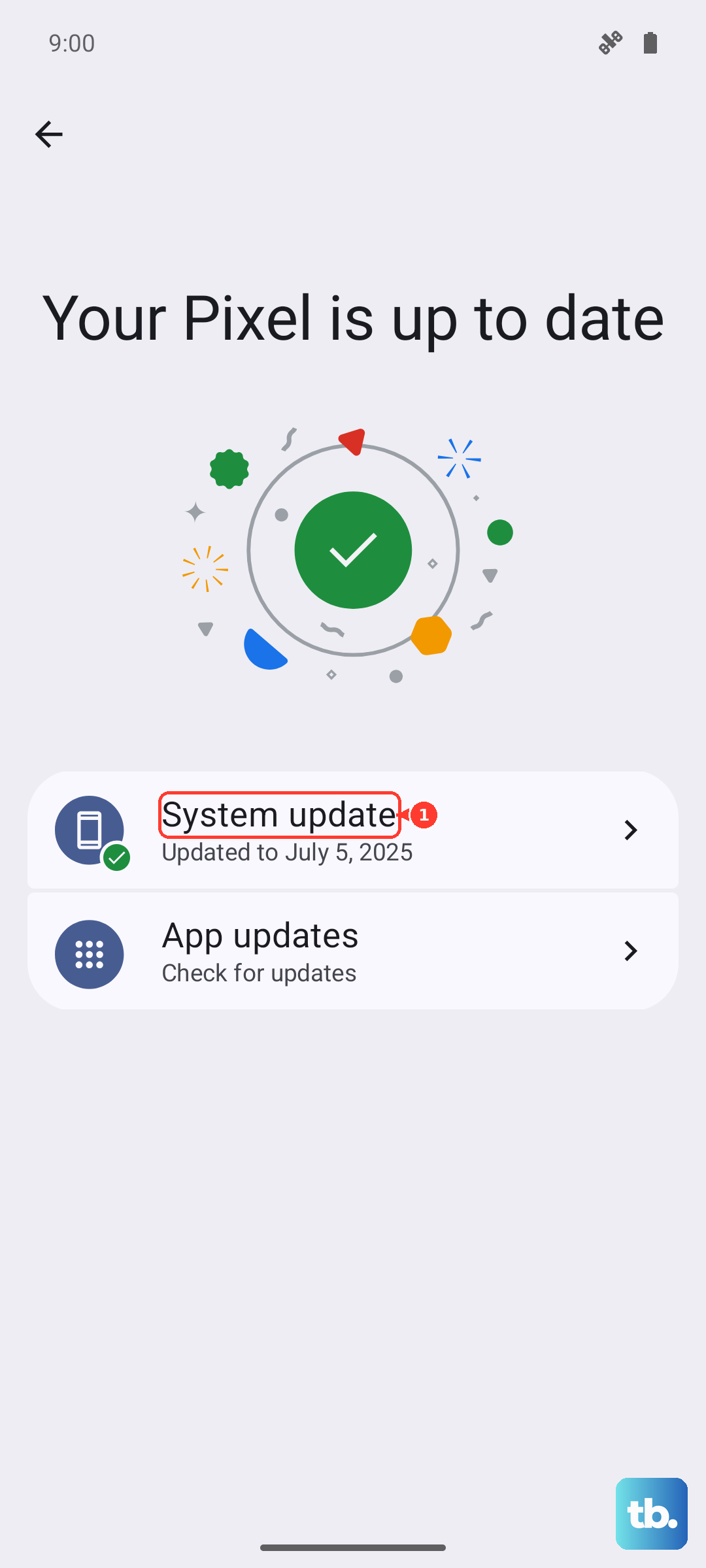
Go to Settings > System updates > Check for updates. If an update is available, follow the onscreen instructions to install it, then test auto-rotate again.
Escalate Possible Hardware Issues
The Moto G Stylus 2025 includes motion sensors, but a third-party Play Store sensor app is not an official pass/fail test for auto-rotate hardware. If auto-rotate is on and the issue survives restart, updates, multiple supported apps, and Safe Mode, stop troubleshooting and use Motorola support or repair options.
Boot into Safe Mode
If rotation works in Safe Mode, a downloaded app is probably causing the problem. Safe Mode starts the phone with only the original software and apps.
To enter Safe Mode, press Power + Volume up at the same time to open the power menu. Touch and hold Power off, then tap OK to restart in Safe Mode. If auto-rotate works there, exit Safe Mode, delete recently downloaded apps one by one, and restart after each removal to test.
Consider a Factory Reset
This is your last resort software fix. A factory reset will wipe all your data and return the phone to its original out-of-the-box state, which can clear any corrupted system files causing the issue.
Back up everything important first. To do it, go to Settings > System > Reset options > Erase all data (factory reset). Follow the prompts. After the reset, set the phone up as new and test rotation before restoring your apps and data.