
When your Motorola Moto G Stylus 5G (2025) won't download apps, it can bring your productivity to a halt. You might see the download stuck on "Pending" or get an error message that doesn't make sense. This is a common Android headache, but it's usually something you can fix yourself in a few minutes.
Let's get your Play Store working again. I'd start with the quick checks first, as they solve the majority of problems.
Check Your Connection and Restart
First, make sure your phone is actually online. Pull down the notification shade and look at your Wi-Fi or mobile data icon. If you're on Wi-Fi, try turning it off and using your 5G data instead, or vice versa. Some public Wi-Fi networks block the ports the Play Store needs.
Next, give your phone a fresh start. Press and hold the power button for about 10 seconds until you feel a vibration and see the Motorola logo. This force restart can clear out any temporary software glitches that are blocking downloads.
Verify Your Date and Time
This one catches a lot of people off guard. If your phone's clock is wrong, it can confuse Google's servers and stop downloads. Go to Settings > System > Date & time.
Make sure "Use network-provided time" is switched on. If it's already on and you're still having trouble, try turning it off, manually setting the correct date and time, and then turning the automatic setting back on.
Clear the Google Play Store Cache
The Play Store stores temporary data to run faster, but this cache can get corrupted. Clearing it is a safe first step that won't delete your apps or account. Go to Settings > Apps > See all apps.
Find and tap "Google Play Store." Tap Storage & cache, then tap "Clear cache." Open the Play Store again and try your download. If that doesn't work, come back here and tap "Clear storage" (this will reset the app's settings but not your downloads).
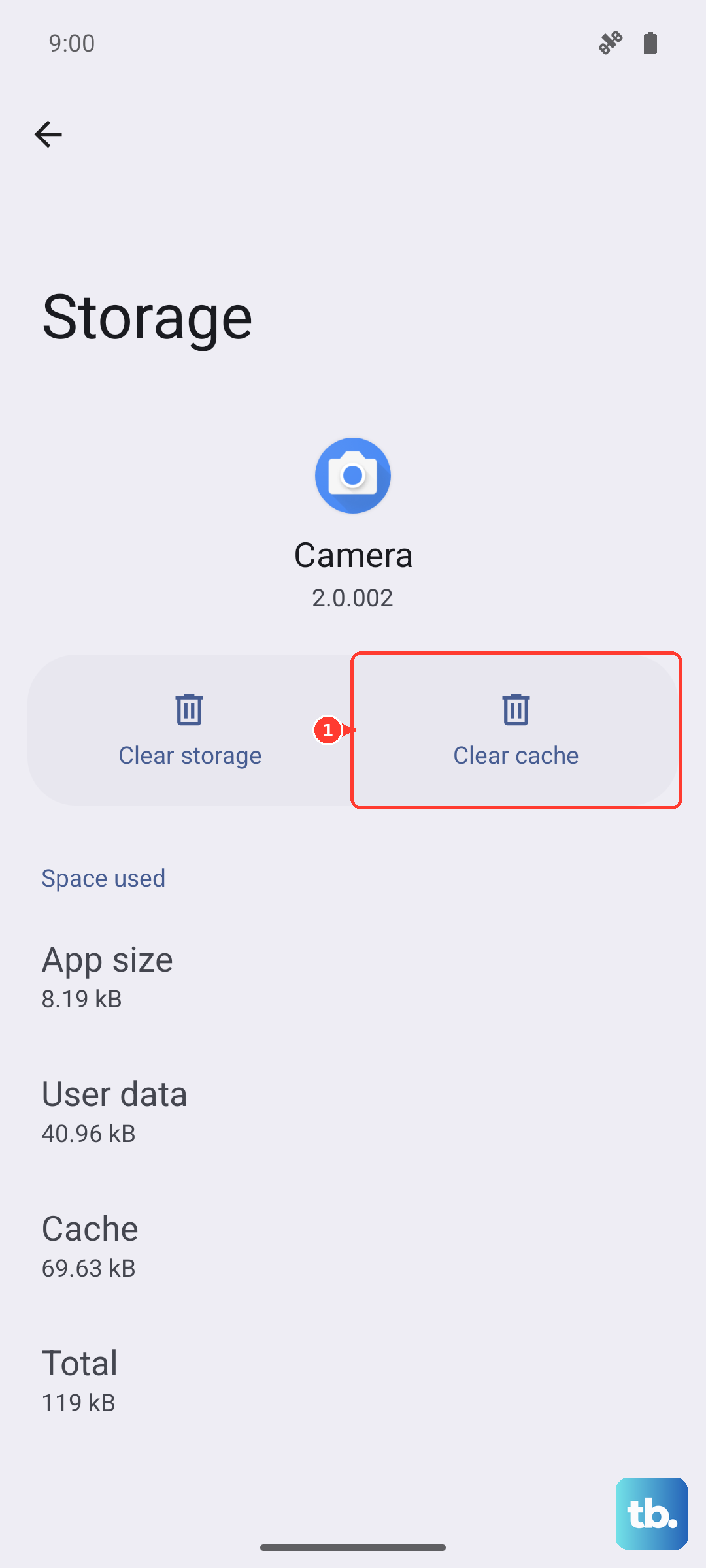
Clear Google Play Services Data
Google Play Services is the background engine that makes downloads and updates happen. Problems here are a frequent cause of download failures. Head back to Settings > Apps > See all apps.
Find "Google Play Services." Tap Storage & cache. First, tap "Clear cache." Then, tap "Manage space." On the next screen, tap "Clear all data." Don't worry, this won't harm your personal data. Restart your phone after doing this.
Check for App Download Restrictions
There's a setting that can block app downloads over cellular data to save your data plan. It's worth a look. Open the Google Play Store app and tap your profile icon in the top right.
Go to Settings > Network preferences > App download preference. Make sure it's not set to "Over Wi-Fi only" if you're trying to use mobile data. You can also check Settings > Apps > Special app access > Install unknown apps to ensure the Play Store has permission, though this mainly affects apps from outside the store.
Review Your Google Account Sync
Sometimes your account just needs a quick refresh. Go to Settings > Passwords & accounts. Tap on your Google account.
Tap "Account sync." You'll see a list of everything syncing, like Gmail and Contacts. Tap the three-dot menu in the top right and select "Sync now." If things seem stuck, you can also tap "Remove account" here, restart your phone, and then add the account back in Settings > Passwords & accounts > Add account.
Ensure You Have Enough Storage
The Moto G Stylus 5G comes with a good amount of space, but if you've filled it with photos, videos, and large apps, there might not be room for new downloads. Go to Settings > Storage to see what's using your space.
You can free up space quickly by clearing cached data from other apps or removing downloaded movies and music. The Moto Note app, great for stylus notes, can also store large files. Consider backing up older notes to Google Drive.
Check for System Updates
Your phone runs Android 15, and a bug in the current version could be interfering with the Play Store. Motorola regularly releases updates to fix these kinds of issues. Go to Settings > System > System updates.
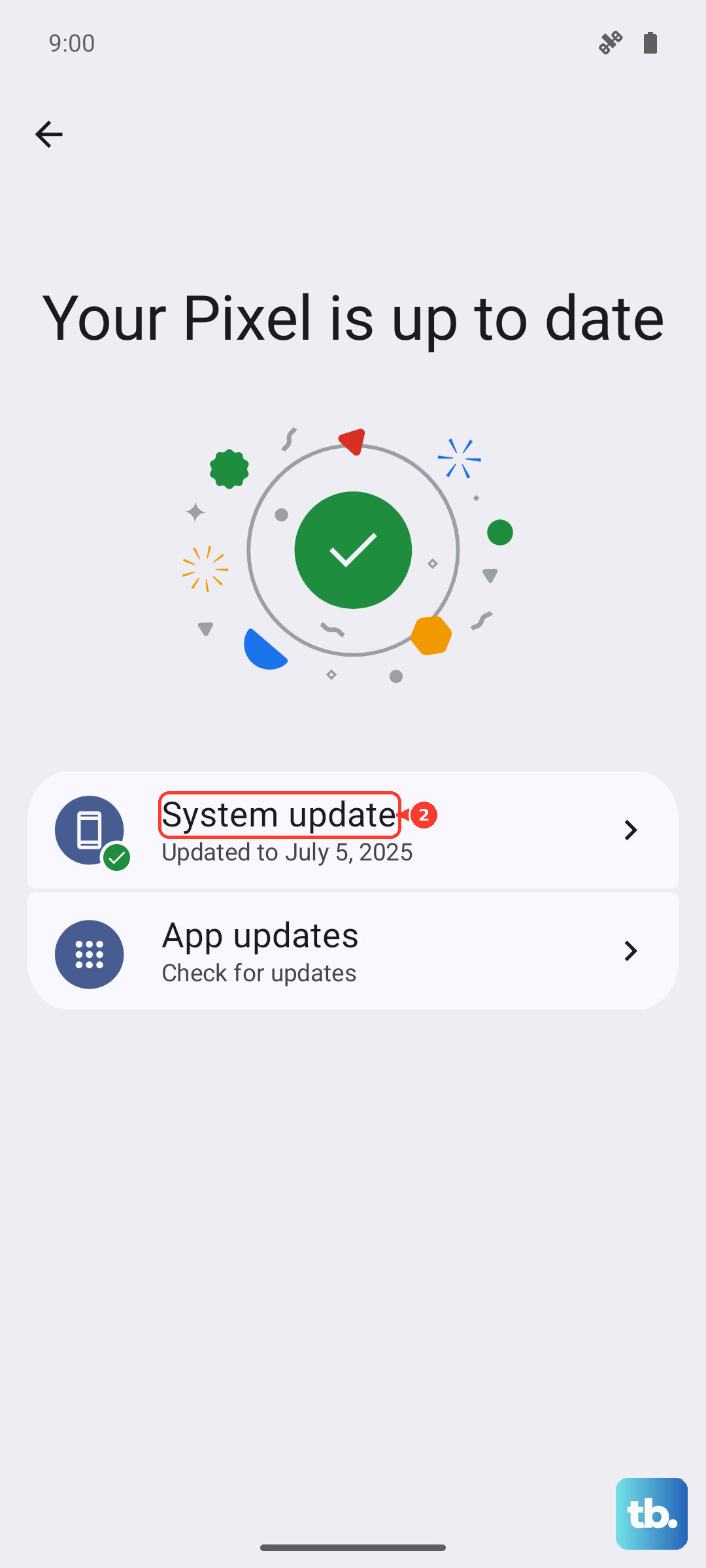
Tap "Check for update." If an update is available, I'd recommend installing it. Plug in your 68W TurboPower charger first to ensure the update doesn't get interrupted. These updates often include important stability fixes.
Reset the Download Manager
The Download Manager is a system app that handles all downloads, not just from the Play Store. If it's glitching, app installs can fail. Go to Settings > Apps > See all apps.
Tap the three-dot menu and select "Show system." Now search for "Download Manager." Tap on it, then tap Storage & cache. Tap both "Clear cache" and "Clear storage." This will reset the manager without affecting your files.
Address Specific Play Store Errors
If you're seeing an error code, it can point you to the right fix. For error DF-BPA-09, you need to clear data for Google Services Framework. Find it in Settings > Apps > See all apps (show system apps), then clear its storage.
Error 911 is usually a network problem. Try the download on a different Wi-Fi network or switch to mobile data. The generic "Something went wrong" error often means you need to clear the main Play Store and Play Services data, which we've already covered.