
When your Moto G Stylus 5G starts closing apps unexpectedly, it pulls you right out of whatever you're doing. It's a common hiccup that can usually be straightened out pretty quickly. I'd start with a simple restart, as that clears out temporary glitches that can cause this.
Restart Your Moto G Stylus 5G
Press and hold the power button on the right side of the phone for about ten seconds. You'll feel it vibrate and see the screen go black before the Motorola logo appears. This force restart is often the fastest way to stop apps from misbehaving.
Check for App Updates
Outdated apps are a prime suspect for crashes. Open the Google Play Store and tap your profile icon in the top right corner. Go to Manage apps & devices and then look under "Updates available." Tap "Update all" to get everything current. Developers for apps you use with the stylus, like note-taking apps, frequently push out stability fixes.
Force Stop and Restart the Problem App
If it's one specific app that keeps closing, force stopping it gives it a clean slate. Go to Settings > Apps > See all apps. Find the troublesome app in the list and tap on it. On the app's info page, tap the "Force stop" button at the bottom. Wait a moment, then open the app again from your home screen.
Clear the App's Cache
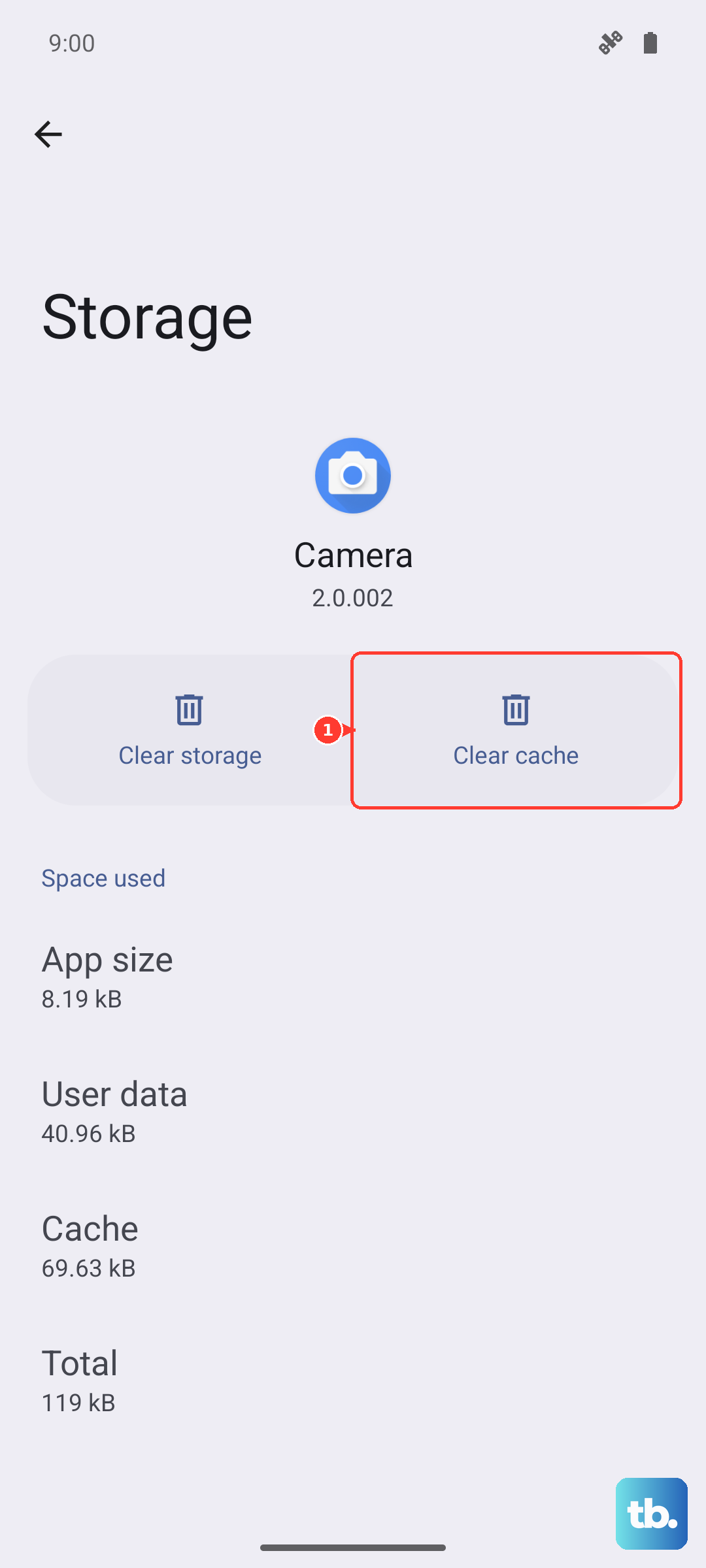
Apps store temporary data, or cache, to load faster. Sometimes this data gets corrupted. You can clear it without losing your login info or saved files. Go back into Settings > Apps, select the app, and tap Storage & cache. Tap "Clear cache." For a more thorough reset, you can tap "Clear storage," but be aware this will log you out and erase the app's saved settings on your phone.
Free Up Storage Space
Your phone needs breathing room to run apps smoothly. If your internal storage is nearly full, apps can struggle. Check your space by going to Settings > Storage. The Moto G Stylus 5G comes with a microSD card slot, so moving photos, videos, and large files to a memory card is a great way to free up the main storage. Also, consider clearing old downloads and app data you don't need.
Update Android 15
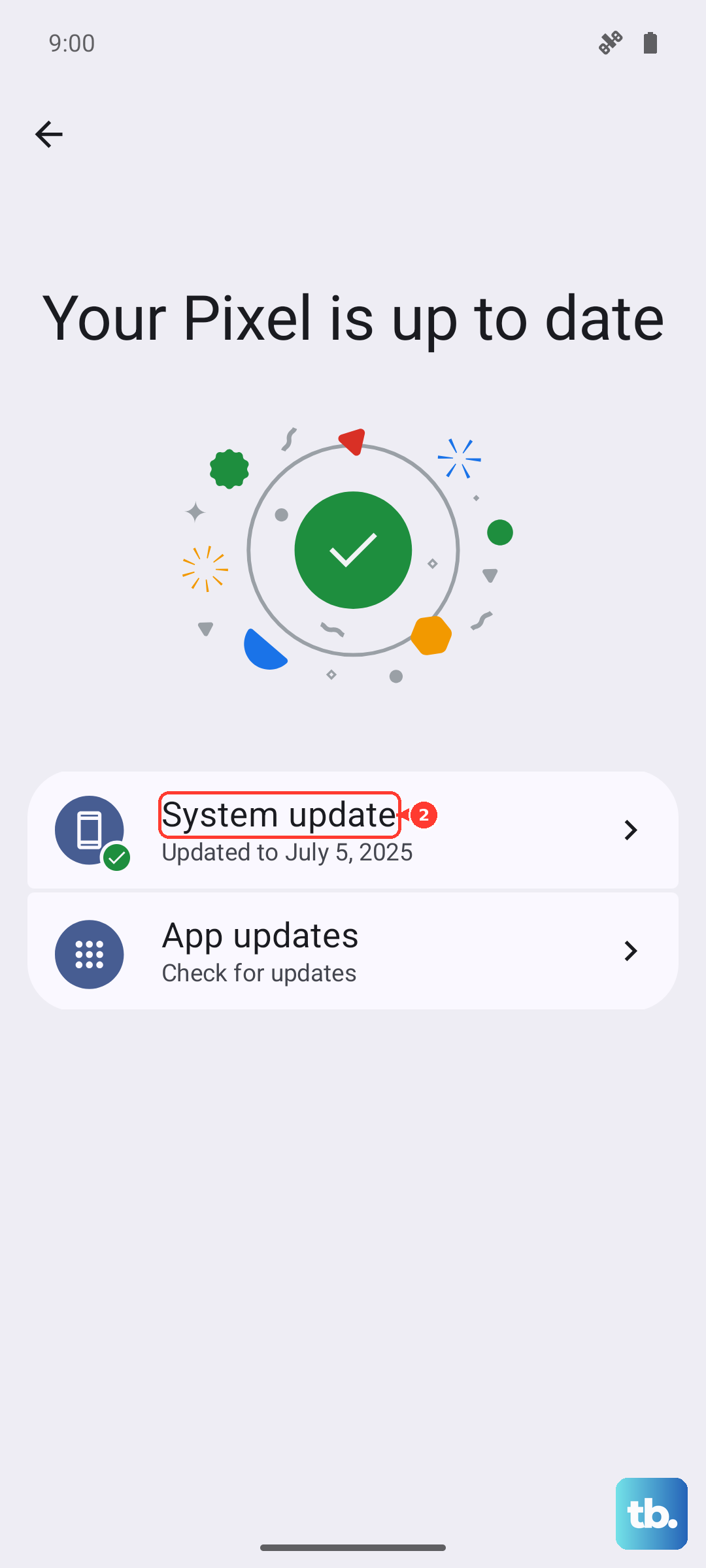
System updates include important bug fixes that can resolve app instability. Make sure your phone is running the latest available version of Android. Go to Settings > System > System updates. Tap "Check for update" and install anything that's available. It's a good idea to do this while connected to Wi-Fi and have your phone plugged into the 68W TurboPower charger.
Reinstall the Problem App
When an app is persistently crashing, a fresh install can work wonders. Press and hold the app's icon on your home screen until a menu pops up. Tap "Uninstall" and confirm. Then, head to the Google Play Store, search for the app, and install it again. This gives you a completely clean version of the app's files.
Check for Overheating
The Moto G Stylus 5G's processor can throttle performance if the device gets too warm, which might cause apps to close. If you've been using the phone intensively for gaming or video while it's charging, let it cool down. Remove it from any case temporarily and avoid using it in direct sunlight. The phone should return to normal performance once its temperature drops.
Boot Into Safe Mode
Safe mode temporarily disables all third-party apps you've downloaded. If the random closing stops in Safe Mode, you know one of your installed apps is the culprit. To enter Safe Mode, press and hold the power button until the "Power off" option appears. Then, press and hold the "Power off" text on your screen until you see a prompt to reboot to Safe Mode. Tap "OK." To exit, just restart your phone normally.