You went to share your Motorola Moto G Power (2025) data connection with a laptop or tablet, flipped on the Wi-Fi hotspot, and nothing happened. Maybe the other device cannot see the network, it connects but loads no pages, or the hotspot keeps switching itself off after a minute. The good news is that this phone fully supports Wi-Fi hotspot, Bluetooth tethering, and USB tethering, so the fix is almost always a setting, a password, or a plan detail rather than broken hardware. Work through the steps below in order, starting with the quickest checks, and you will usually have the connection sharing again in a few minutes.
Start with the plan and the data connection
Before you blame the phone, confirm the two things the hotspot cannot work without: an active mobile data connection and a plan that allows tethering. The hotspot shares your phone's cellular data, so if mobile data is off, the phone has no Internet to pass along.
Many prepaid and budget plans block or cap tethering even when regular data works fine.
Make sure mobile data is turned on and your Moto G Power is showing a 5G or 4G LTE signal with working Internet.
Confirm your plan permits data sharing. Motorola states it plainly: "Your cellular plan must support data sharing. If you don't know, contact your carrier."
If you are unsure whether tethering is included, call your carrier and ask before you spend time changing settings on the phone.
This single check resolves a surprising number of "hotspot not working" cases, because the block is on the account rather than the device.
Switch the Wi-Fi hotspot off and on again
A quick toggle clears most temporary glitches in the hotspot service. It forces the phone to rebuild the network and re-broadcast it.
Go to Settings > Network & internet > Hotspot & tethering.
Tap "Wi-Fi hotspot" and turn "Use Wi-Fi hotspot" off, then turn it on again.
Plug the phone in to charge while the hotspot runs, since sharing the connection drains the battery quickly.
If devices still cannot see or join the network after the toggle, head back to the data and plan checks above, since the hotspot may not be broadcasting at all.
Re-check the hotspot password on the device that won't connect
If your laptop or tablet sees the network but refuses to join, a wrong saved password is the usual culprit. The connecting device may be holding an old password from a previous setup.
Open Settings > Network & internet > Hotspot & tethering > Wi-Fi hotspot.
Tap "Hotspot password" to view the current password.
To set a new one, type over it. (On some Motorola builds this is under "Advanced > Hotspot password.")
On the device you are connecting, forget the hotspot network if needed, then re-enter that exact password.
Matching the password precisely on both sides clears the most common "won't connect" failure.
Change the broadcast band when devices drop or stall
If devices connect but get no data, or they keep dropping off, the broadcast band may be the problem. The Moto G Power lets you switch the band to suit your environment and the gear you are connecting.
Open the Wi-Fi hotspot screen and tap "Advanced."
Change the broadcast channel/band: choose 5GHz if there is interference, or 2GHz if the signal seems weak.
Pick 2GHz if the other device is older and cannot see a 5GHz network.
Older laptops, e-readers, and some smart-home gadgets only support 2GHz, so switching down often makes an "invisible" hotspot appear instantly.
Stop the hotspot from turning itself off
If your hotspot keeps shutting down on its own, it is likely the auto-off timer doing its job rather than a fault. By design, the hotspot turns off automatically when no devices are connected, which saves battery but can feel like a glitch if your device takes a moment to join.
Adjust this behavior under Settings > Network & internet > Hotspot & tethering > Wi-Fi hotspot > Advanced > "Turn off hotspot automatically."
Turning this off keeps the hotspot broadcasting even during a gap between connections, so a device that is slow to reconnect still finds it waiting.
Use Bluetooth or USB tethering instead
If Wi-Fi hotspot still fails, you can share the same cellular data through another method. This also helps you figure out whether the problem is specific to Wi-Fi or affects all tethering.
For Bluetooth tethering, first pair the two devices over Bluetooth, then go to Settings > Network & internet > Hotspot & tethering and turn "Bluetooth tethering" on.
For USB tethering, connect the phone to a computer with a USB cable, then go to the same menu and turn "USB tethering" on; make sure cellular data is on first.
If Bluetooth or USB sharing works while Wi-Fi does not, you have narrowed the issue to the Wi-Fi hotspot specifically.
Restart or force restart the phone
A restart clears temporary network glitches that no single toggle will fix. If the phone is responsive, restart it normally and try the hotspot again.
If the phone is frozen or unresponsive, force a reboot instead: press and hold the Power key for 10 to 20 seconds until the phone restarts.
Data on your phone will not be deleted, and the battery should be at least 5% before you do this.
Once it comes back up, turn the hotspot on and check whether devices can connect.
Install any pending software update
An outdated system build can introduce connectivity bugs that a patch later fixes. Keeping the phone current is a low-effort way to clear known issues.
- 1.Go to Settings > (System > Advanced) > System updates > Check for updates.
- 2.On Android 15 this may appear as Settings > System > System updates; if it is not visible there, look under Settings > About phone > System updates.
- 3.Install any available update and let the phone restart, then test the hotspot.
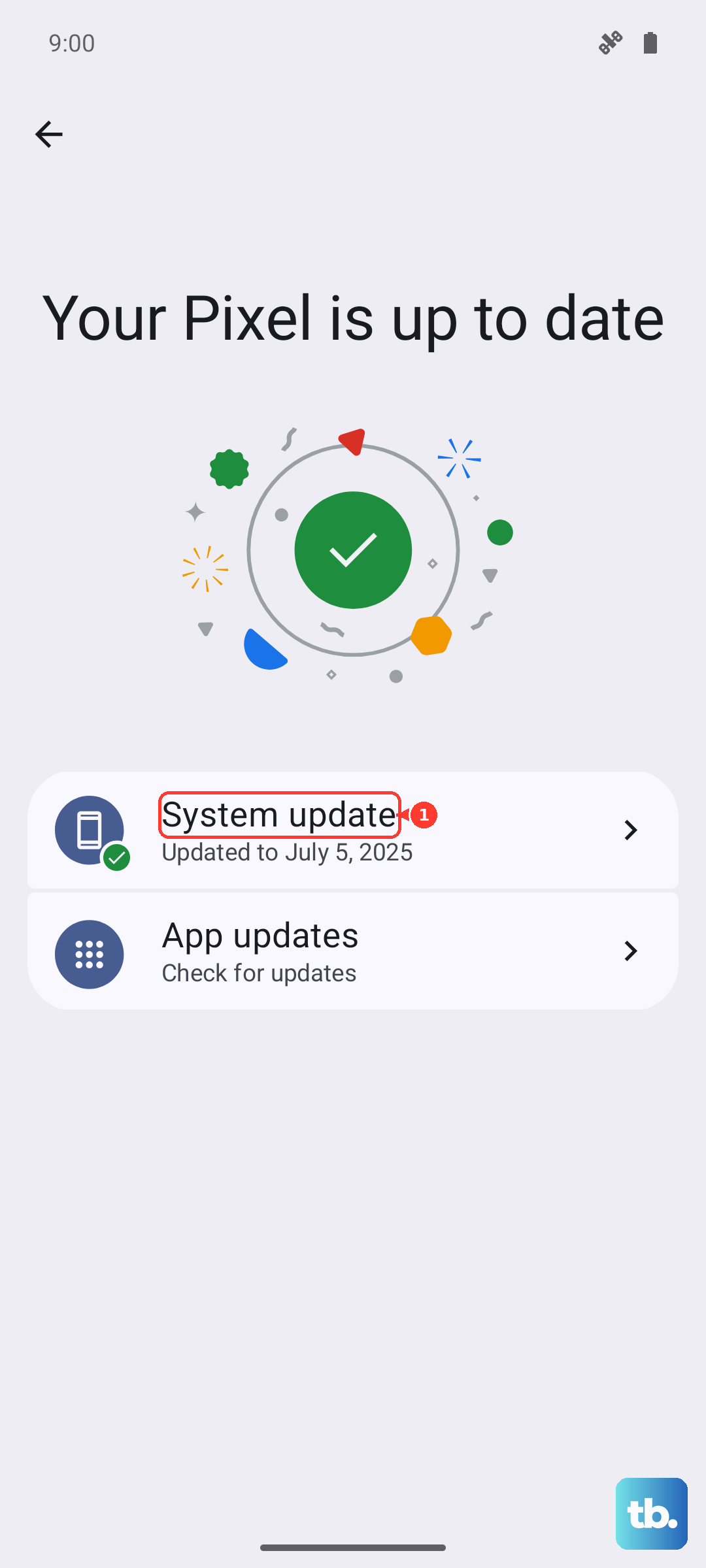
If an update is waiting, applying it before deeper troubleshooting can save you a lot of time.
Reset the phone only as a final step
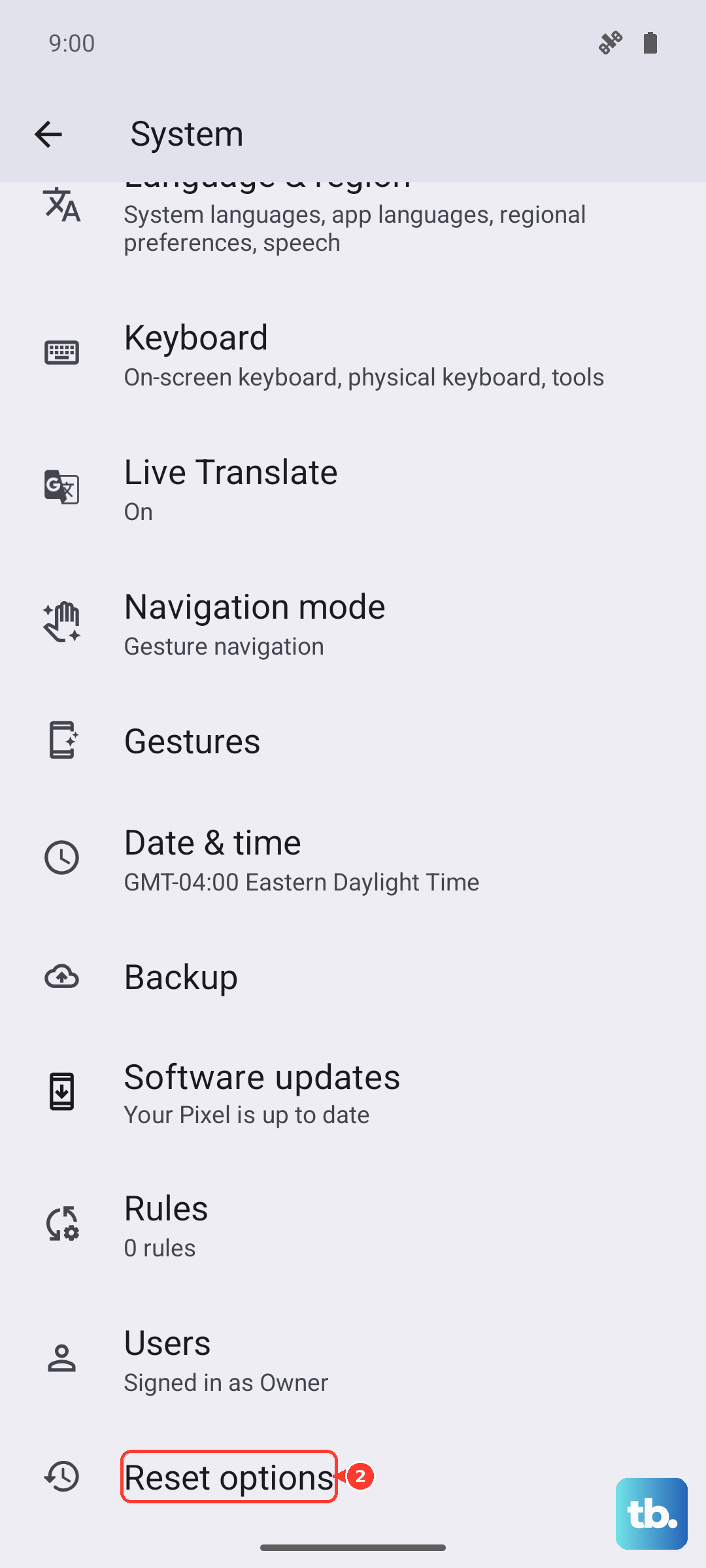
If nothing above works, a factory reset is the last resort because it erases everything. Back up your data first, since this restores the phone to its out-of-the-box condition, and make sure you know your Google account and screen-lock PIN, pattern, or password before you start.
From a working phone, go to Settings > System > Reset options > "Erase all data (factory reset)."
If Settings will not open, you can do an external reset instead: charge the phone to at least 30%, power it off, then press and hold Volume Down + Power together until the phone turns on.
Use the Volume keys to reach Recovery mode > Wipe data/factory reset.
Treat this as a genuine last step, only after the simpler fixes have failed.
When to call your carrier or Motorola
If the hotspot still fails even after a factory reset, the block is most likely on the account or plan side rather than the phone. Tethering that was never provisioned will not start working no matter how many settings you change.
Contact your carrier to confirm that tethering or data sharing is included and active on your line.
For anything that looks like a phone-side hardware or service issue, contact Motorola Support for further help.
Frequently Asked Questions
Why does my Moto G Power hotspot say it is on but no device can connect?
Check that mobile data is actually on, because the hotspot has nothing to share without it. Then confirm the password on the connecting device matches the one shown under Settings > Network & internet > Hotspot & tethering > Wi-Fi hotspot > "Hotspot password." If the device still cannot join, switch the broadcast band to 2GHz under "Advanced," since older devices often cannot see a 5GHz network.
Why does my hotspot keep turning itself off?
The phone turns the hotspot off automatically when no devices are connected, to save battery. You can change this under Settings > Network & internet > Hotspot & tethering > Wi-Fi hotspot > Advanced > "Turn off hotspot automatically." Keep the phone plugged in while sharing, since the hotspot drains the battery quickly.
Can I share data without using Wi-Fi hotspot?
Yes. You can use Bluetooth tethering by pairing the two devices and turning "Bluetooth tethering" on, or USB tethering by connecting a cable and turning "USB tethering" on, both found under Settings > Network & internet > Hotspot & tethering. These share the same cellular data and help you tell whether the problem is specific to Wi-Fi.
Will my hotspot work if my plan does not include tethering?
No. Motorola states that your cellular plan must support data sharing for the hotspot to work, and many prepaid or budget plans block or cap tethering. If you are unsure, contact your carrier to confirm tethering is provisioned on your line.
How do I force restart a frozen Moto G Power (2025)?
Press and hold the Power key for 10 to 20 seconds until the phone restarts. Your data will not be deleted, and the battery should be at least 5% before you do this. This often clears temporary network glitches affecting the hotspot.