You plugged a pair of wired headphones into the Moto G Power (2025), or paired your Bluetooth earbuds, and got nothing useful back: dead silence, sound stuck on the phone's stereo speakers, audio in only one ear, or a set that shows as connected yet refuses to play. It is a frustrating spot, because this phone genuinely supports all of those options, a 3.5mm headset jack, wired headphones over the bottom USB-C port, and Bluetooth 5.3 for wireless earbuds. That means a no-sound problem is almost always a software hiccup or a pairing glitch rather than a missing feature, and most of the time you can clear it yourself in a few minutes.
A browser based headphone test makes this easy to confirm. If both sides play test tones correctly there, the headphones are fine and the problem is in the device or app.
Work through the fixes below in order. They start with the quickest, safest taps and move toward the heavier repair tools, so you only reach the data-erasing steps if the simple ones do not solve it.
Reboot First to Clear a Stuck Audio Route
A plain restart is the single most effective first move, because it clears the temporary audio-routing glitches that can leave wired or Bluetooth headphones silent even when everything looks connected. Turn the phone off and back on the normal way, then test your headphones again before doing anything else.
If the screen is frozen or unresponsive and a normal restart will not go through, do a forced reboot instead.
Press and hold the Power button for 10 to 20 seconds until the phone restarts.
Motorola notes that this does not delete any data, and that the battery should be at least 5% charged before you try it.
Check Your Volume and Moto Audio Output Profile
Before assuming the headphones are broken, rule out a muted stream or a mismatched sound profile. With audio playing, press Volume up and confirm the media volume is not muted or sitting at zero.
Then open Settings > Sound & vibration to review the output. The phone uses Dolby Atmos and Moto Audio, which let you pick a sound profile (Music, Movie/Film, Game, Podcast) for connected headphones and external speakers, and you can adjust the spatial effect under Settings > Sound & vibration > Spatial Sound. If your headphone audio sounds distorted, hollow, or one-sided, switching or turning off the profile here often restores normal sound.
Toggle Bluetooth Off and On, Then Reconnect
For wireless headphones, the simplest step is often the one that works. Turn Bluetooth off and back on, restart both the phone and the headphones, and make sure the headphones are charged and within range of the phone.
Then confirm Bluetooth is on under Settings > Connected devices and select your headphones to reconnect. Google's Android guidance recommends exactly this, turning Bluetooth off and on and restarting the devices, as the first thing to try when a Bluetooth audio connection misbehaves.
Forget the Pairing and Add the Headphones Again
A corrupted pairing is one of the most common reasons headphones show as connected but produce no sound. Removing the old pairing and creating a fresh one usually clears it. Forgetting the headphones removes the saved pairing, so you will need to pair them again afterward.
- 1.Go to Settings > Connected devices > Saved devices > See all.
- 2.Tap the gear or settings icon next to your headphones.
- 3.Tap Forget device.
- 4.Put the headphones back into pairing mode.
- 5.On the phone, go to Settings > Connected devices > Pair new device and tap the headphones' name.
- 6.If prompted, confirm the matching code, or enter 0000 or 1234.
Update the App You Are Listening Through
If your headphones work everywhere except inside one program, such as a particular music, video, streaming, or calling app, the app itself is the likely cause. Updating it to the latest, more stable version frequently fixes app-specific audio bugs.
Open the Google Play Store.
Tap your profile icon.
Tap Manage apps & device.
Under 'Updates available', tap See details.
Tap Update next to the app, or tap Update all to install everything waiting.
Boot Into Safe Mode to Expose a Rogue App
Safe mode starts the phone with only its original built-in software, so it is the cleanest way to tell whether a downloaded app is hijacking your audio output. If headphones work in Safe mode but fail in normal mode, a third-party app is to blame.
Press & hold the Power and Volume up buttons at the same time.
Touch & hold Power off.
Touch OK to restart in safe mode.
You will see 'Safe mode' at the bottom of the screen. Test your headphones now. To leave Safe mode, simply restart your phone, then uninstall recently added apps one at a time until the audio behaves again.
Install Any Waiting System Update
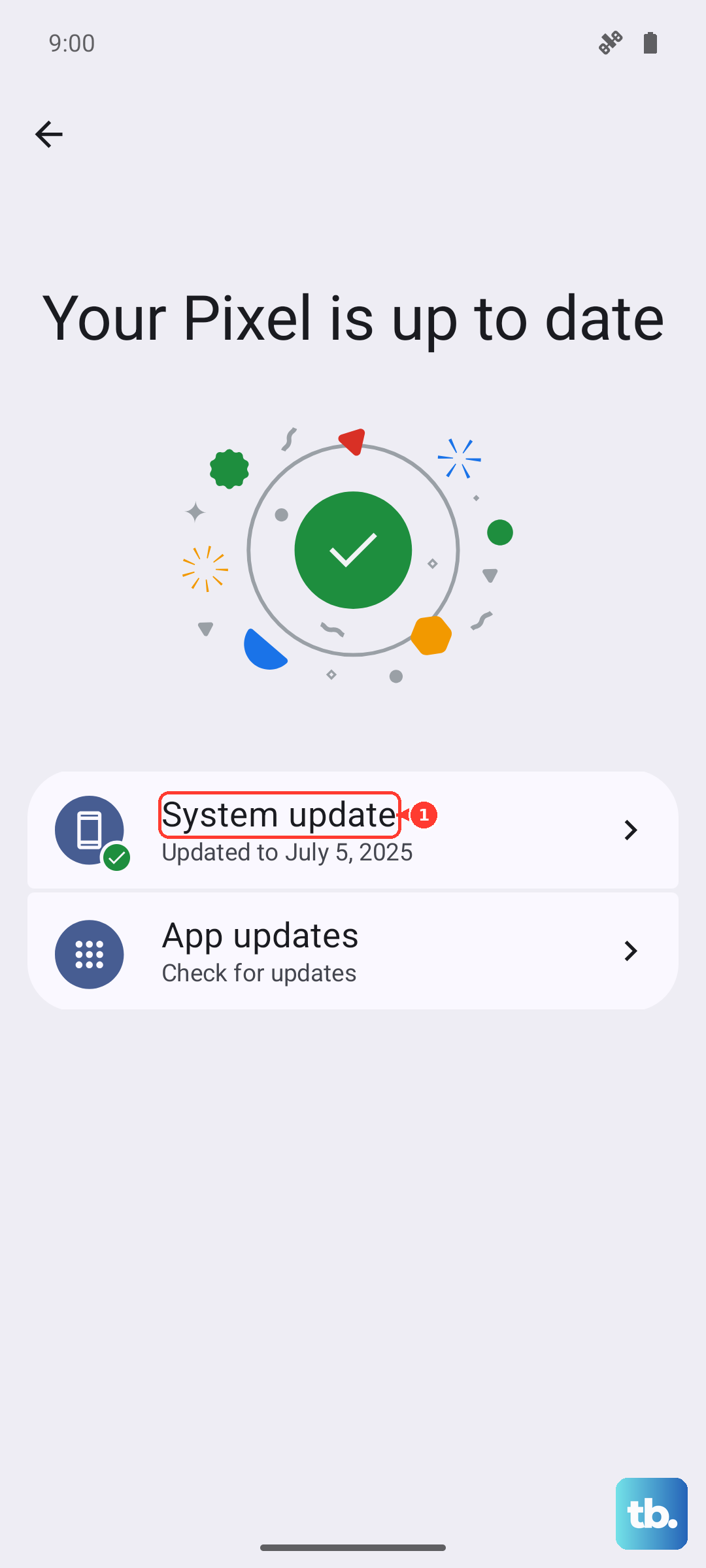
Motorola periodically pushes software updates that fix audio and Bluetooth bugs, so an outstanding update can be the actual cure. The Moto G Power (2025) ships on Android 15 and is slated to receive Android 16 and Android 17 upgrades along with security updates.
Go to Settings > System > System updates > Check for updates. (On some builds, look under Settings > System > Advanced > System updates.)
If an update is offered, follow the onscreen instructions to download and install it.
Erase Everything as a Last-Resort Reset
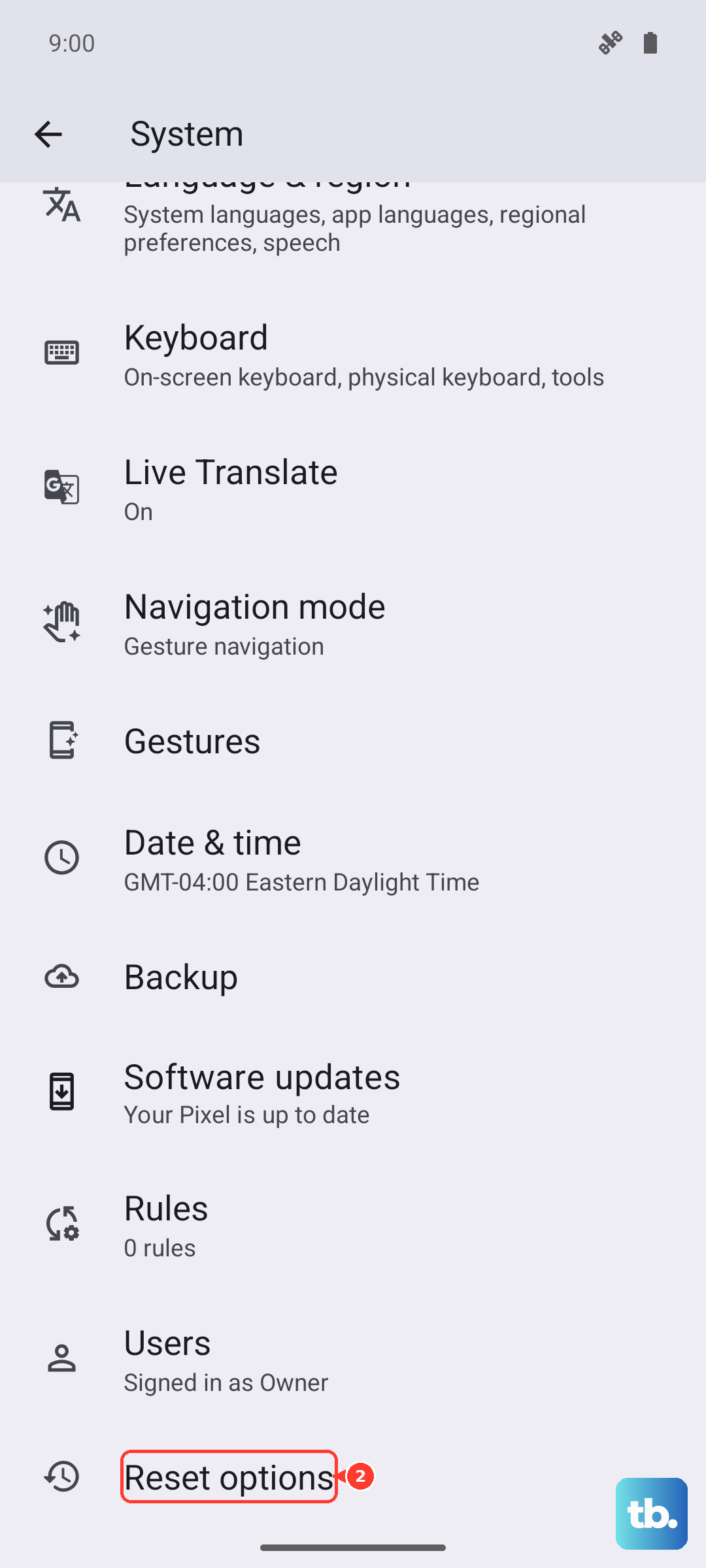
If none of the steps above help, a factory reset clears deeper software faults that ordinary fixes cannot reach. This is a destructive step, so treat it as a genuine last resort. Motorola warns that a reset 'erases all data and brings it back to out-of-the-box condition,' including your accounts, apps, settings, and media, so back up everything you care about first.
Back up your data.
Go to Settings > System > Reset options. (On some builds this is under Settings > System > Advanced > Reset options.)
Tap Erase all data (factory reset).
Tap Erase all data and confirm.
Rebuild the Software With Rescue and Smart Assistant
If the audio fault looks like software corruption that a factory reset did not fix, Motorola's official PC tool can reinstall the phone's original software cleanly. Rescue and Smart Assistant runs on a Windows computer and reinstalls the official software over a USB connection.
Reinstalling the software can erase the data on your phone, so back up anything you care about first. Download Rescue and Smart Assistant from Motorola Support, install it on the computer, connect the phone with a USB cable, and follow the tool to reinstall the official software. If the audio still fails after a clean reinstall, the problem is more likely hardware than software.
When the Jack or Bluetooth Radio Needs Motorola
If your headphones still will not work after all of the above, the trouble may be physical, a fault in the 3.5mm or USB-C jack, or in the Bluetooth radio itself. At that point it is worth letting Motorola take a look.
Use the official Moto G Power (2025) support page to chat, request a call, or start a repair or warranty claim. Back up your phone before you send it in, in case the service resets or replaces the device.
Frequently Asked Questions
Does the Moto G Power (2025) have a headphone jack?
Yes. Motorola's specifications list a 3.5mm headset jack under Audio, and the bottom USB-C port can also be used with wired headphones. The phone additionally supports Bluetooth 5.3 for wireless headphones and earbuds, so you have three ways to listen.
Why do my Bluetooth headphones say connected but play no sound?
This is most often a corrupted pairing or a mismatched output setting. Forget the headphones under Settings > Connected devices > Saved devices > See all, then pair them again, and check your sound profile under Settings > Sound & vibration. Restarting both the phone and the headphones also clears many of these cases.
Will a factory reset delete my files?
Yes. Motorola states that resetting the phone 'erases all data and brings it back to out-of-the-box condition,' which includes your accounts, apps, settings, and media. Always back up your data before you run a reset, and treat it as a last resort after the simpler fixes.
How do I get my Moto G Power (2025) looked at if nothing works?
Use the official Moto G Power (2025) support page to chat with Motorola, request a call, or start a repair or warranty claim. Back up your data first, because a repair or replacement can erase or swap the device.
Can I fix headphone audio without erasing my phone?
Usually, yes. Most headphone problems clear with a restart, a volume and Moto Audio profile check, re-pairing Bluetooth, updating the app you are using, or installing a pending system update, all of which keep your data intact. The factory reset and Rescue and Smart Assistant steps are only needed when those gentler fixes fail.