You reach for your moto g power (2025) in a dark room, tap what you think is the flashlight, and the rear LED stays stubbornly dark. Maybe the tile lights up but no beam appears, maybe the camera keeps opening when you try the chop gesture, or maybe the phone feels warm and the light simply refuses to fire.
The good news is that the flashlight on this model is just the rear camera LED controlled by Android, so most of the time the cause is a software hiccup, another app using the camera, or heat protection rather than a failed LED. Work through the fixes below in order, starting with the quickest and safest checks before moving on to the heavier resets.
Start with the right Quick Settings tile
Before assuming anything is broken, make sure you are turning the flashlight on the way Motorola intends. The documented method is simple, so it is the first thing to confirm.
Open Quick Settings and tap the Flashlight tile.
Swipe down from the top of the screen to open Quick Settings.
Tap the Flashlight tile.
Confirm the tile is actually highlighted (on) and not stuck in a half-pressed or greyed state.
If you prefer access without unlocking, you can add a flashlight icon to your lock screen, then just wake the screen and tap it.
Tapping the tile twice to toggle it fully off and back on also clears a tile that has gotten stuck.
When the chop gesture launches the camera instead
The moto g power (2025) supports a "Fast flashlight" chop gesture, where you make a chopping motion to turn the flashlight on or off.
A common source of frustration is that the wrong motion fires the camera instead of the light. As Motorola puts it, if the camera opens instead of turning on the flashlight, be sure to use a chop gesture, not a twist gesture.
If the gesture does nothing at all, confirm it is enabled.
Go to Settings > Gestures, or open the Moto app and tap the menu > Gestures, then tap Fast flashlight and turn it on or off.
Toggling it off and back on can reset the feature if it has stopped responding.
Close the Camera app and retry the flashlight
The flashlight uses the same rear LED as the camera, so it is worth making sure no other app is actively using the camera or its flash. Fully closing those apps and trying again is a quick check before you move on to a restart.
Open the recent apps view and swipe away the Camera app to fully close it.
Close any other app that might be using the flash, such as a barcode scanner or a video app.
Reopen Quick Settings and tap the Flashlight tile again.
Give an overheating phone time to cool
Heat protection is one of the most overlooked reasons a flashlight will not light. Motorola is explicit about this behavior.
If your phone gets hot, it will slow charging, reduce brightness, and limit other functions until it cools down, or automatically shut off if it gets too hot.
If the device feels warm, stop heavy use such as gaming, GPS navigation, or running a mobile hotspot, and unplug it if it is charging.
Remove any case that traps heat, set the phone down for several minutes, and try the flashlight again once it has returned to a normal temperature.
The LED should respond again as soon as the phone is back within its safe operating range.
Restart the phone, or force it if the screen is frozen
A simple restart clears the temporary software glitches that can leave the flashlight disabled.
Power the phone off and back on normally first, then test the light again.
If the screen is unresponsive, frozen, blank or black, or not responding to the Power button, you can force a reboot.
Press and hold the Power button for 7 to 10 seconds, and the phone will restart normally.
This is safe and does not erase any of your data.
Install any pending system update
The moto g power (2025) ships on Android 15, and a pending update can quietly fix camera and flash bugs that block the LED.
Keeping the system current is a low-effort fix that often resolves issues you cannot otherwise reach.
Connect to Wi-Fi so the download does not use mobile data.
Go to Settings > System updates > Check for updates.
If an upgrade is available, follow the onscreen instructions to install it.
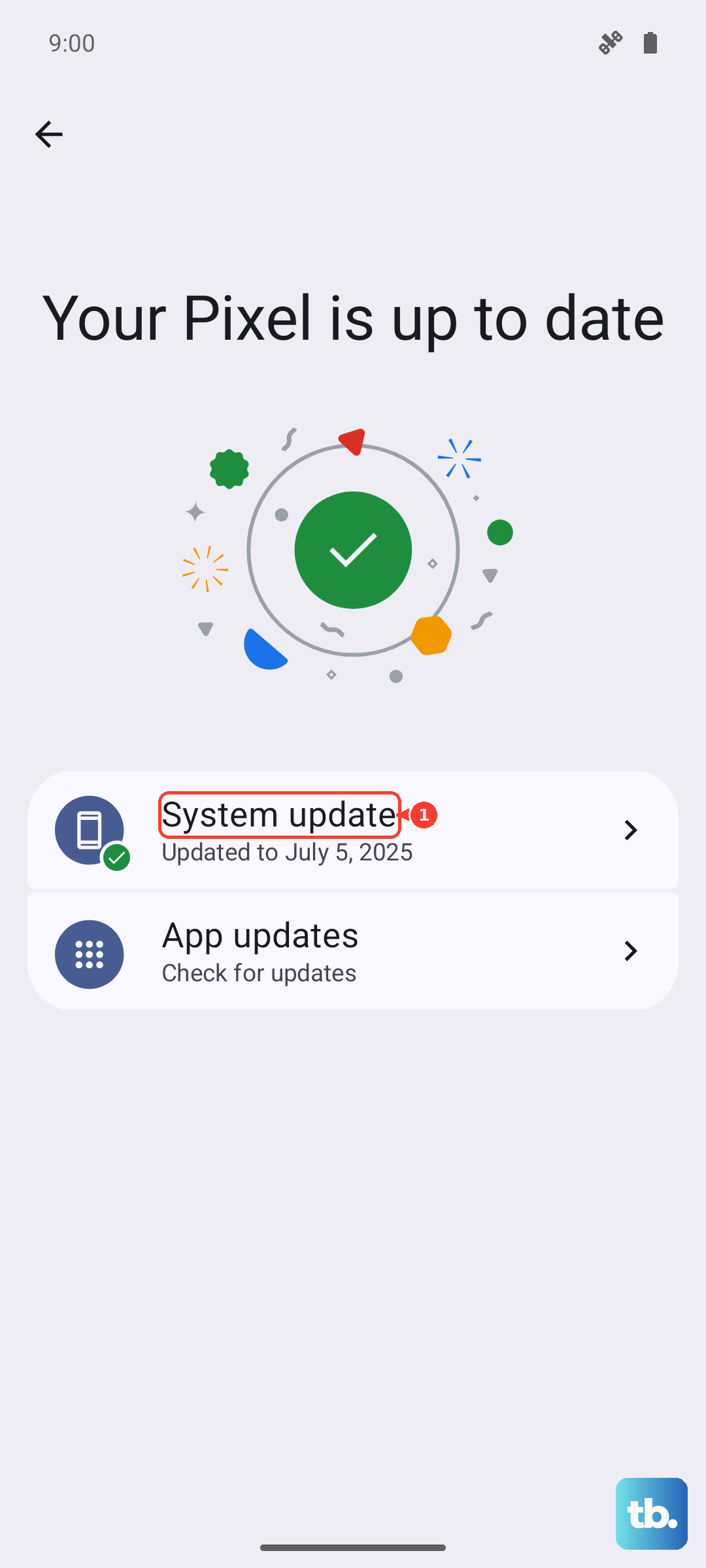
Let the phone finish the update and reboot, then test the flashlight from Quick Settings.
Clear the Camera app's cache
A corrupted camera cache can leave the LED in a bad state even after a restart.
Clearing it forces the app to rebuild its temporary files without touching your photos or settings.
Open Settings > Apps.
Choose the Camera app and tap its name.
Tap Storage & cache > Clear cache.
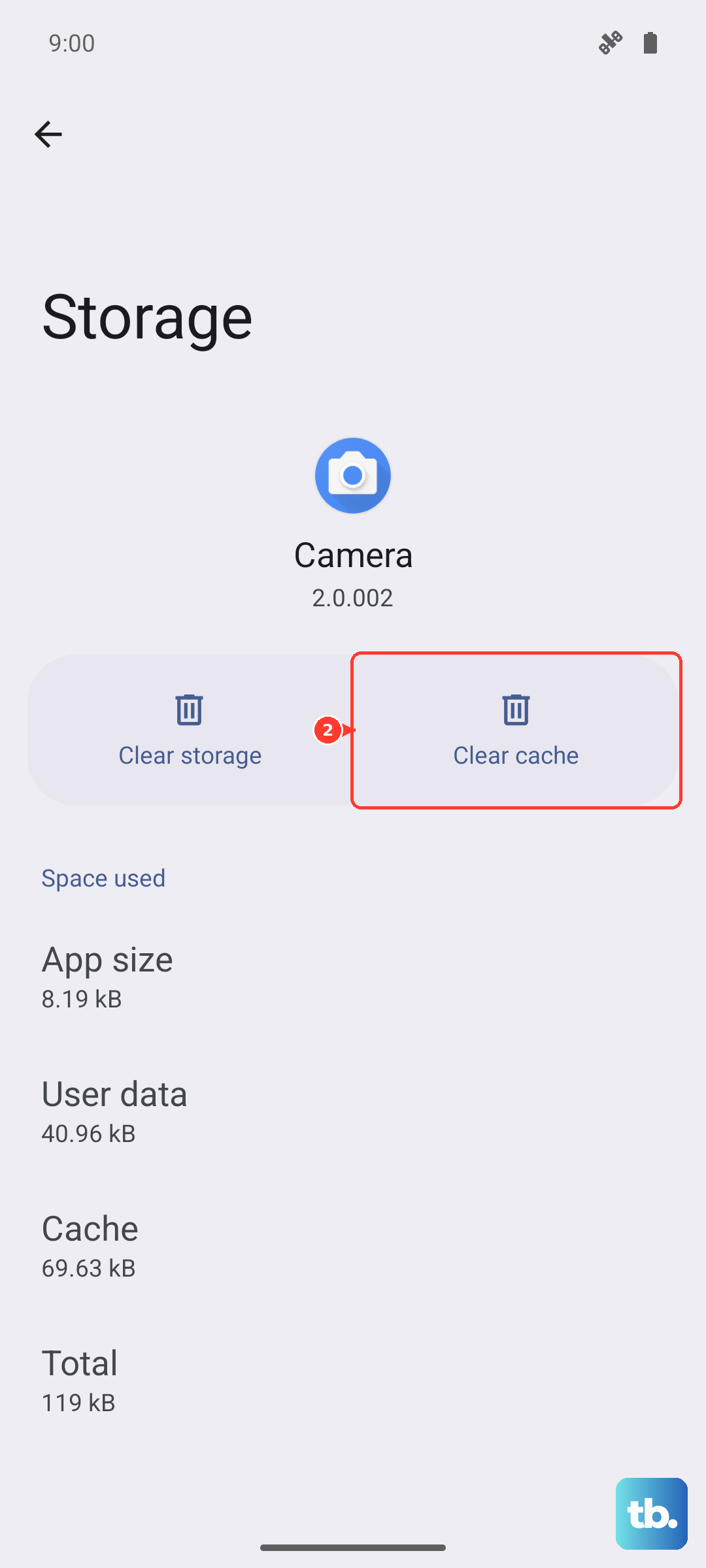
Reopen Quick Settings and test the flashlight.
Because you are only clearing the cache, none of your saved images are removed.
Boot into Safe mode to expose a rogue app
If a downloaded app is interfering with the camera or flash, Safe mode will reveal it.
Safe mode starts your phone with only the original software and apps, so if the issue goes away in Safe mode, the problem is probably from an app you downloaded.
Press and hold the Power and Volume up buttons at the same time.
Touch and hold Power off.
Tap OK to restart in safe mode.
Once in Safe mode, test the flashlight.
If it works there, an installed app is the culprit, so uninstall recently added apps one at a time after you exit.
To leave Safe mode, press and hold the Power and Volume up buttons simultaneously, then tap Restart.
Alternatively, hold the Power button for about 30 seconds, or until your phone restarts.
Back up, factory reset, and reach Motorola if the LED stays dark
A factory reset is a last resort that returns the software to its original state, and it can clear deep glitches the earlier steps could not.
Be aware of the cost first.
A factory data reset will remove all data from your phone, so back up your photos, contacts, and anything else important before you begin.
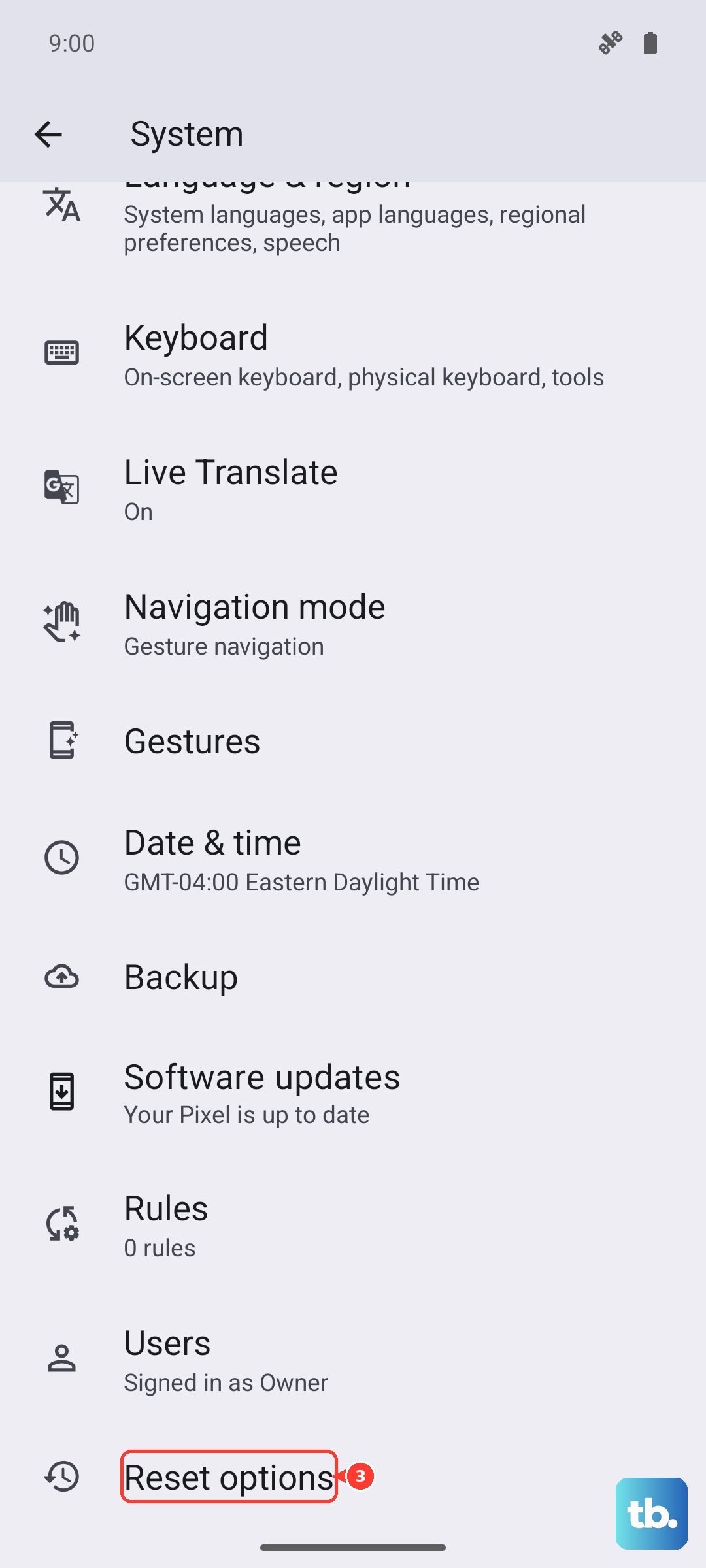
If you can open Settings, go to Settings > System, then tap Reset options > Erase all data (factory reset) and follow the prompts.
If you cannot open Settings, you can run an external reset from recovery instead.
- 1.Charge your battery 30% or more.
- 2.Turn off the phone.
- 3.Press and hold the Volume Down button and the Power button at the same time until the phone turns on.
- 4.Press the Volume Down button until you see Recovery mode.
- 5.Press the Power button to restart in Recovery mode.
- 6.Use the Volume buttons to scroll to Wipe data/factory reset, then press the Power button to select it.
This recovery reset also erases everything on the phone, so only use it once your data is backed up.
If the LED still will not light after a reset, the problem is likely a hardware fault, and the right move is to use a different phone, tablet, or computer to contact Motorola support so you can arrange service.
Frequently Asked Questions
Why does my moto g power (2025) open the camera when I try the chop gesture?
That happens when the motion is read as a twist rather than a chop. Motorola advises that if the camera opens instead of turning on the flashlight, you should be sure to use a chop gesture, not a twist gesture. You can also confirm the feature is on under Settings > Gestures, or in the Moto app under the menu > Gestures, by tapping Fast flashlight.
Can my phone shut off the flashlight on its own?
Yes. The phone actively manages heat, and Motorola states that if it gets hot it will slow charging, reduce brightness, and limit other functions until it cools down, or automatically shut off if it gets too hot. If the flashlight stops while the phone is warm, let it cool before trying again.
Will clearing the Camera cache delete my photos?
No. Clearing the cache only removes temporary files that the app rebuilds automatically. To do it, open Settings > Apps, choose the Camera app, then tap its name and tap Storage & cache > Clear cache. Your saved photos and settings remain untouched.
How do I restart the phone if the screen is frozen?
If the screen is unresponsive, frozen, blank or black, or not responding to the Power button, press and hold the Power button for 7 to 10 seconds and the phone will restart normally. This force restart does not erase your data.
What should I do if the flashlight still will not work after a factory reset?
If the LED stays dark even after a reset, it is likely a hardware fault rather than a software problem. Use a different phone, tablet, or computer to contact Motorola support so you can arrange service.