
Press and hold the power button for at least 10 seconds until you feel the phone vibrate and the screen goes black. This force restart is the quickest way to clear out any temporary software glitch that's freezing the touchscreen. I'd start with this one, as it works for most unresponsive screen issues on the Edge 50 Pro.
Clean the Screen and Remove Any Protector
Turn the phone off and give the screen a thorough wipe with a microfiber cloth. Look for any smudges, grease, or moisture that could be interfering with the touch sensors. If you're using a screen protector, especially a cheap or poorly fitted one, try peeling it off completely to see if that restores touch function.
Some thicker glass protectors or wet-application films can cause touch sensitivity problems. The Edge 50 Pro's curved display can be particularly finicky with third-party protectors.
Check for Software Updates
Plug your phone into its included 125W TurboPower charger to ensure it has plenty of power. Then, hold the power button to turn it on and immediately connect to a Bluetooth mouse to navigate. Go to Settings > System > System updates.
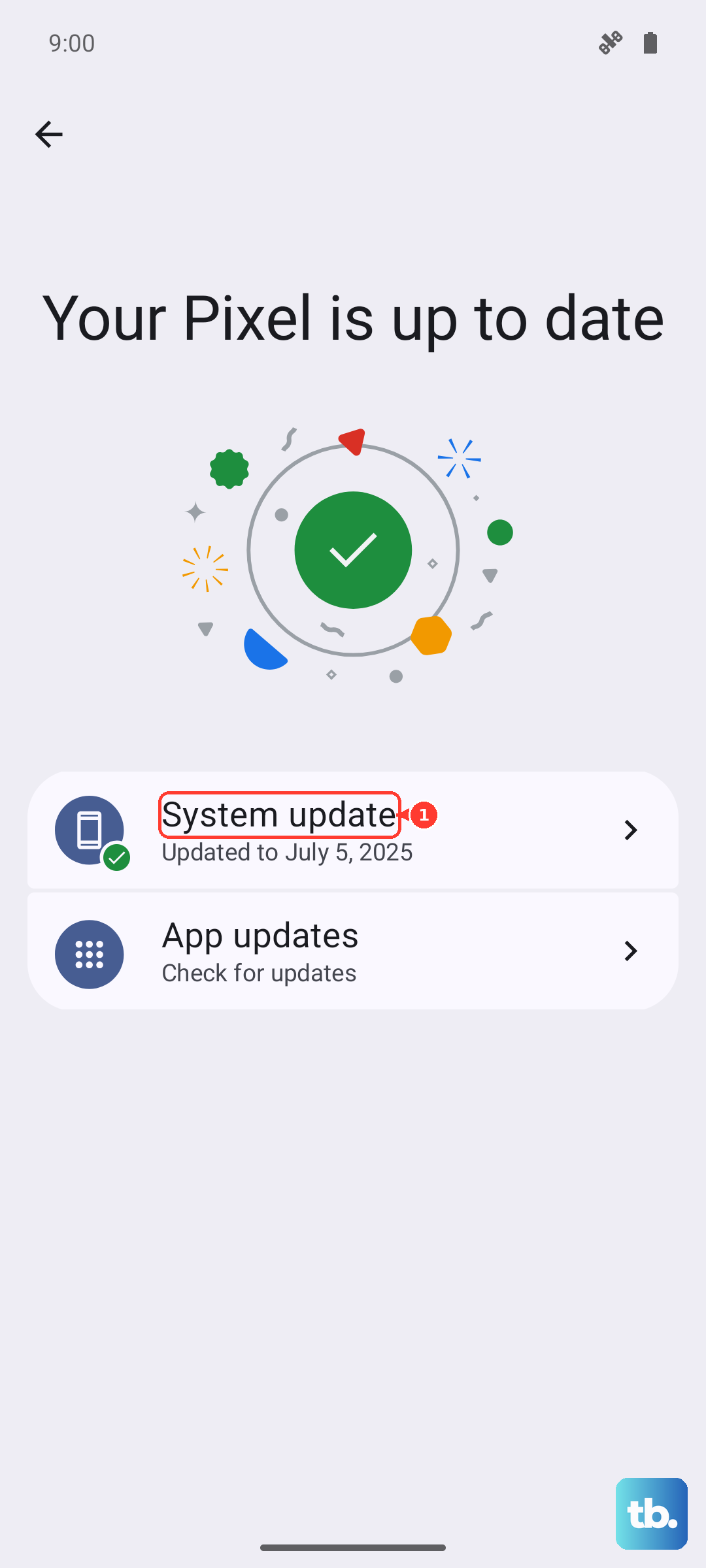
If an update is available, install it. Motorola can be slower with updates than Samsung or Google, but pending updates sometimes contain critical bug fixes for touchscreen drivers. This process takes about 10-15 minutes.
Boot Into Safe Mode
This helps determine if a recently installed app is causing the problem. With the phone on, press and hold the power button until the power off menu appears. Then, tap and hold the "Power off" option on your screen.
You'll see a prompt to reboot to Safe Mode. Tap "OK". If the touchscreen works perfectly in Safe Mode, you've got a problematic app. Start uninstalling your most recent downloads one by one until the issue is resolved.
Check for Physical or Liquid Damage
Inspect the screen closely for any new cracks, even hairline ones, especially around the curved edges. Also, look at the USB-C port for any lint, debris, or signs of corrosion. A dirty charging port can sometimes cause weird system-wide issues.
If the phone has been exposed to moisture, even high humidity, let it dry out completely in a bag of silica gel or uncooked rice for at least 24 hours before trying to use it again.
Calibrate the Touchscreen
While you can't access a traditional calibration tool without touch, you can try a diagnostic test. Use the Bluetooth mouse method to open the phone dialer and enter *#*#2486#*#* to access the "CQATest" menu.
Navigate with the mouse or volume buttons to find the touchscreen test. Running this can sometimes reset the touchscreen's calibration. If the test fails, it points more definitively to a hardware problem.
Perform a Factory Reset
This will erase all your data, so it's a last resort. If you can't use the touchscreen to initiate it, you'll need to use the hardware keys. First, power the phone off completely.
Then, press and hold the Volume Down button and the Power button together. When the Motorola logo appears, release the Power button but keep holding Volume Down until you see the Recovery Mode menu. Use the volume buttons to highlight "Wipe data/factory reset" and press the power button to select it.
Consider the Charger and Battery Health
Try using a different, lower-wattage USB-C charger for a while. The 125W TurboPower charging is incredibly fast, but that intense power delivery can sometimes cause temporary system instability. I've seen this trigger odd bugs on other fast-charging phones.
It's also a good idea to enable battery protection in your settings to extend long-term health. If the battery is severely degraded, it can lead to unpredictable performance, though this is less common on a 2024 device like the Edge 50 Pro.