
When your Motorola Edge 50 Pro won't send texts, it's incredibly frustrating. Messages might get stuck on "Sending," fail with an error, or just disappear into the void. The good news is this is usually a quick fix, and I'd start with the simplest solution first.
Restart Your Phone
This is the universal first step for a reason. A simple restart clears temporary glitches in the messaging app and your network connection. Just press and hold the power button for about 10 seconds until you feel a vibration and see the Motorola logo appear. This force restart is often all it takes.
Check Your Mobile Data and Signal
Texts (SMS) need a cellular signal, and picture messages (MMS) require mobile data to be active. Look at the top of your screen. If you see an "X" or no signal bars, you're in a dead zone. Try toggling Airplane Mode on and off from the Quick Settings panel to force the modem to reconnect. Also, swipe down and make sure your mobile data is turned on.
Clear the Messages App Cache
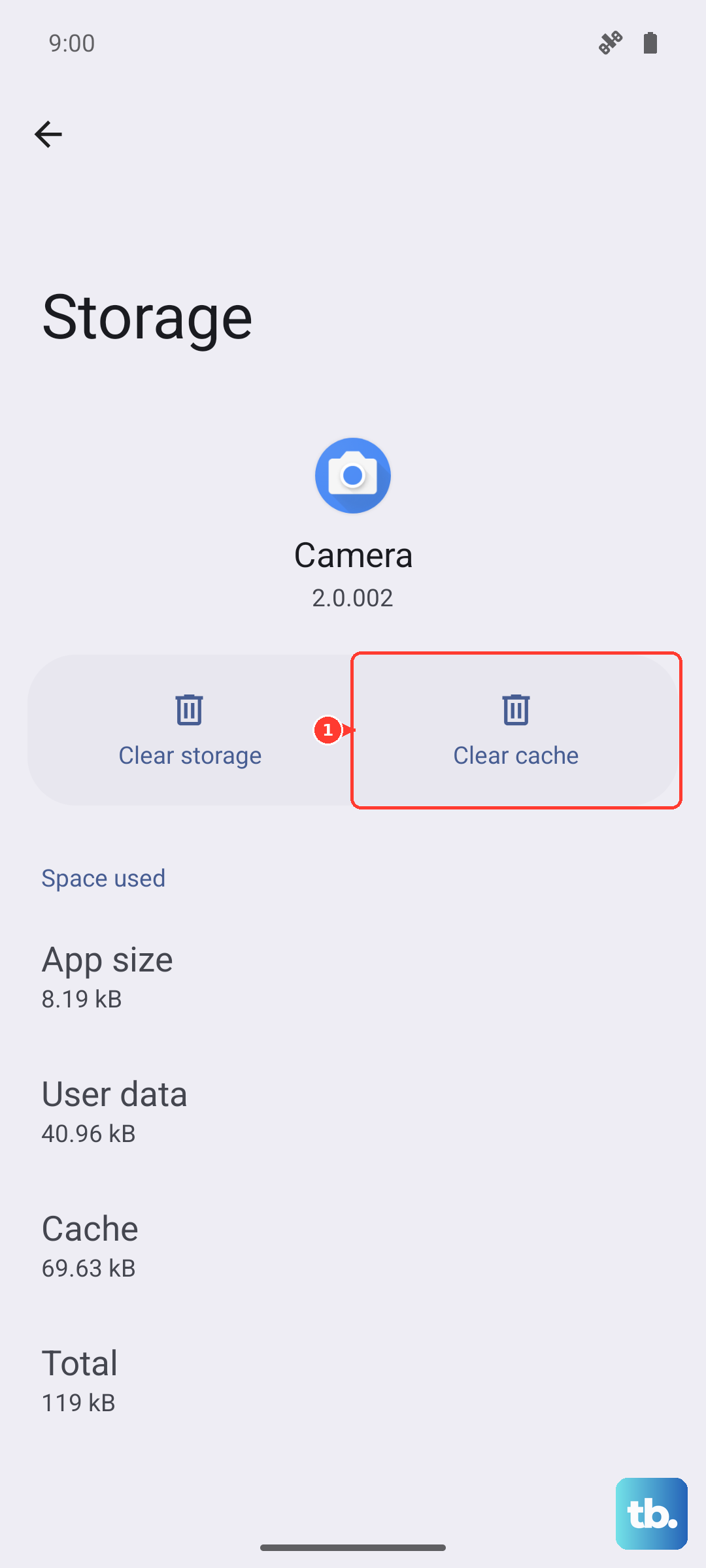
Corrupted temporary files in the messaging app can cause sending failures. Go to Settings > Apps > See all apps. Find and tap on Messages. Select Storage & cache and then tap Clear cache. This won't delete your messages, just the temporary data. After clearing, try sending a text again.
Check for App and System Updates
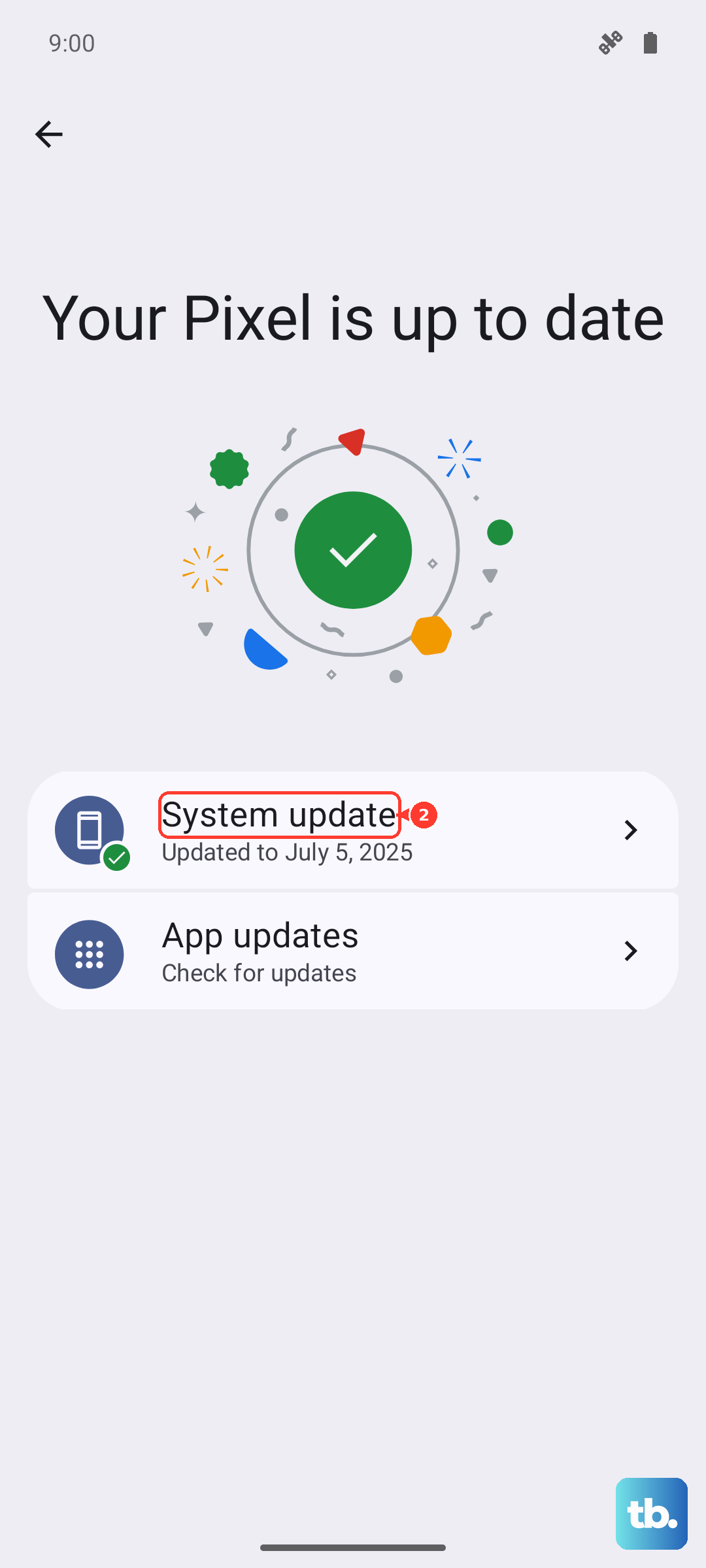
An outdated messaging app or Android system can have bugs that break texting. First, open the Google Play Store, tap your profile icon, and go to Manage apps & device > Updates available. See if the "Messages by Google" app has an update. Next, check for a system update by going to Settings > System > System updates. Motorola can be slower with updates than some brands, so it's worth checking manually.
Verify Your APN Settings
APN settings are your phone's roadmap to your carrier's network for data and MMS. If they're wrong, picture messages won't send. Go to Settings > Network & internet > Mobile network > Access Point Names. Your carrier's APN should be selected (filled circle). If it's missing or looks wrong, you'll need to get the correct settings from your carrier's support website and enter them here.
Reset Your Network Settings
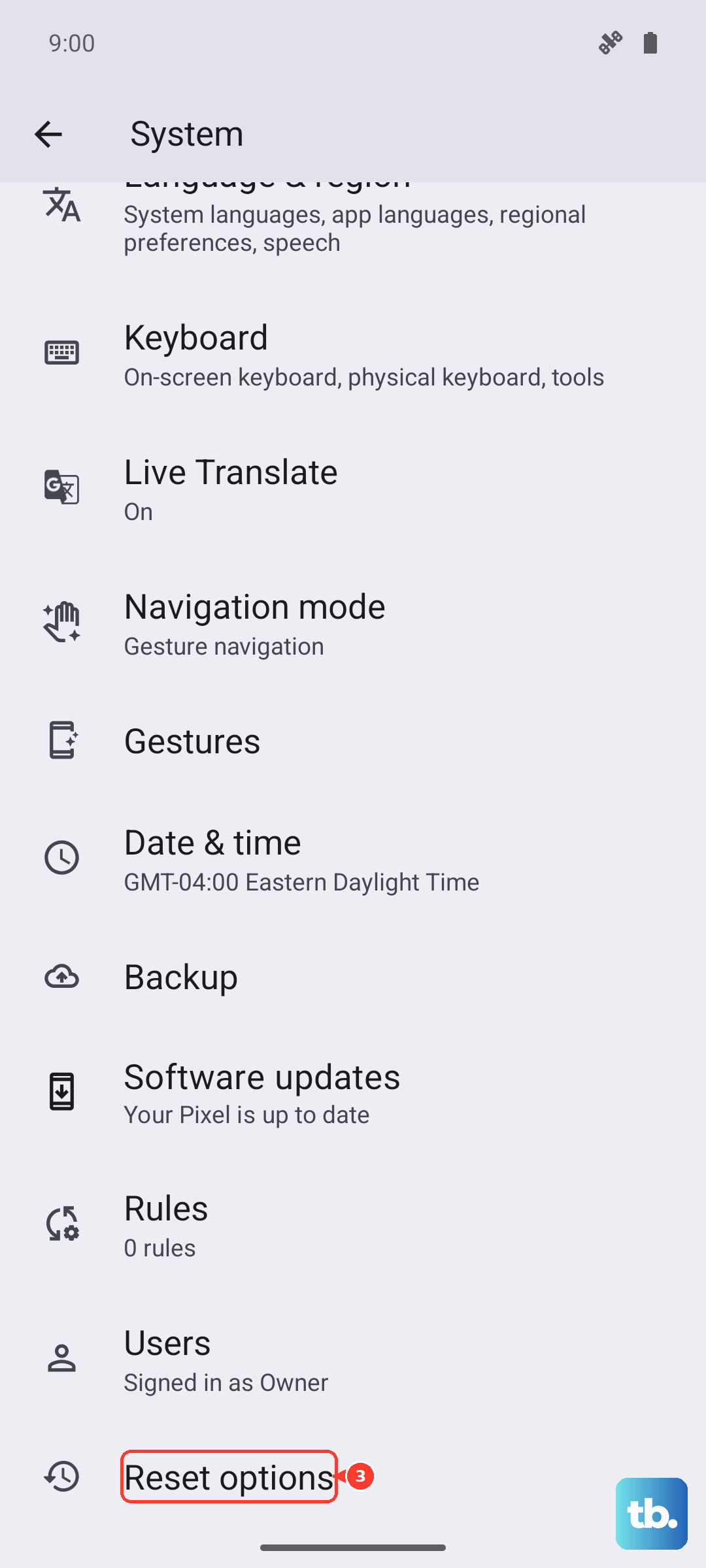
This is a more thorough step if the simpler ones don't work. It will reset all Wi-Fi, mobile data, and Bluetooth connections back to factory defaults. Go to Settings > System > Reset options. Tap on Reset Wi-Fi, mobile & Bluetooth and confirm. You'll need to reconnect to Wi-Fi networks afterward, but it can resolve deep-seated network configuration errors.
Try a Different Messaging App
To rule out a problem with the default "Messages by Google" app, try installing a popular alternative like Textra or Pulse SMS from the Play Store. Set it as your default app when prompted and see if texts send. If they do, the issue is with the original app. You can stick with the new app or try clearing the data for the default one (which will erase your message history) as a last resort.
Reinsert Your SIM Card
A loose or dirty SIM card can cause intermittent network issues. Power off your Edge 50 Pro completely. Use the SIM eject tool that came in the box to pop out the tray. Remove the SIM card, gently wipe the gold contacts with a soft cloth, and reinsert it firmly. Power your phone back on and wait for it to fully register on the network.
Check for Carrier Outages or Account Issues
Sometimes the problem isn't your phone at all. Visit your carrier's website or social media to see if they're reporting a service outage in your area. If there's no outage, it's worth giving them a call. A provisioning error on your account or a suspended service can sometimes block texting, even if calls and data work.