
Missing calls on your Motorola Edge 50 Pro because it won't ring is a common headache. You might see the notification pop up, but there's no sound, even when you're sure the phone isn't on silent. This usually comes down to a setting that got changed or a minor software hiccup.
Let's start with the quickest fix, which solves the problem more often than not.
Check Your Physical Alert Slider
The Motorola Edge 50 Pro has a handy physical alert slider on the right side, above the power button. Slide it down towards the back of the phone. You should see a bell icon appear on your screen, confirming the ringer is on. If it's slid up, you'll see a circle with a line through it, which means all sounds are muted.
This is the first thing I'd check, as it's easy to bump the slider without realizing it.
Turn Off Do Not Disturb and Moto's Modes
Do Not Disturb is a common culprit. Swipe down from the top of your screen twice to open the full Quick Settings panel. Look for the tile that says "Do Not Disturb" or has a moon icon. If it's highlighted or says "On," tap it to turn it off.
You can also check within settings. Go to Settings > Sound > Do Not Disturb. Make sure the main toggle at the top is off. Also, review any schedules or rules you might have set up that could be activating it automatically.
Motorola's software includes features like "Moto Gametime" or other situational modes that can silence notifications. It's worth opening the Moto app and checking if any of these are active and configured to mute calls.
Increase Your Ringer Volume
Your ring volume might just be turned all the way down. While your phone is unlocked, press the volume up button on the right side. A volume bar will appear on screen. Before you let go, tap the little settings gear icon next to the bar.
This opens the individual volume sliders. Make sure the "Ring" volume is maxed out. Sometimes media volume is high, but the ringer volume is separate and can be set to zero.
Change Your Ringtone
A corrupted ringtone file can cause silence. Try switching to a different one to test. Go to Settings > Sound > Phone ringtone. Pick a new, standard ringtone from the list and tap "OK."
Then, have a friend call you or use a second phone to test. If the new tone works, you can try switching back to your preferred one later, or keep the new one if the issue returns.
Disconnect Bluetooth Accessories
If your Edge 50 Pro is connected to a Bluetooth speaker, headphones, or your car, incoming call audio might be routing there instead of your phone's speaker. To check, swipe down to the Quick Settings panel and see if the Bluetooth icon is blue.
Tap the Bluetooth icon to turn it off temporarily, then test a call. If the ring returns, you know the issue is with the Bluetooth connection. You can then go into Settings > Connected devices to manage individual device settings for calls.
Check for Blocked Numbers
You might have accidentally blocked the person trying to call you. Open your Phone app and tap the three-dot menu in the top right. Go to Settings > Blocked numbers.
Review the list. If the number is there, tap the "X" next to it to unblock. Blocked calls typically go straight to voicemail without ringing.
Disable Call Forwarding
Call forwarding sends your calls to another number before your phone even has a chance to ring. Open your Phone app, tap the three-dot menu, and go to Settings > Calling accounts.
Select your carrier SIM and look for "Call forwarding." Tap it and ensure all forwarding options (like always forward, when busy, etc.) are set to "Turn off" or your carrier's equivalent.
Turn Off Silence Unknown Callers
This helpful feature can sometimes be too aggressive. It sends calls from numbers not in your contacts directly to voicemail. Open the Phone app, tap the three-dot menu, and go to Settings > Blocked numbers.
Look for "Silence unknown callers" or a similar option. Toggle it off. Now, calls from numbers you don't know should ring through normally.
Restart Your Motorola Edge 50 Pro
A simple restart clears out temporary glitches in the software that could be affecting the sound system. Press and hold the power button until the power menu appears, then tap "Restart."
If the screen is unresponsive, you can force a restart by pressing and holding the power button for about 10 seconds or until you feel it vibrate and see the Motorola logo.
Check for a Software Update
Motorola periodically releases updates that fix bugs, including audio issues. Since software updates can be slower than some brands, it's good to check manually. Go to Settings > System > System updates.
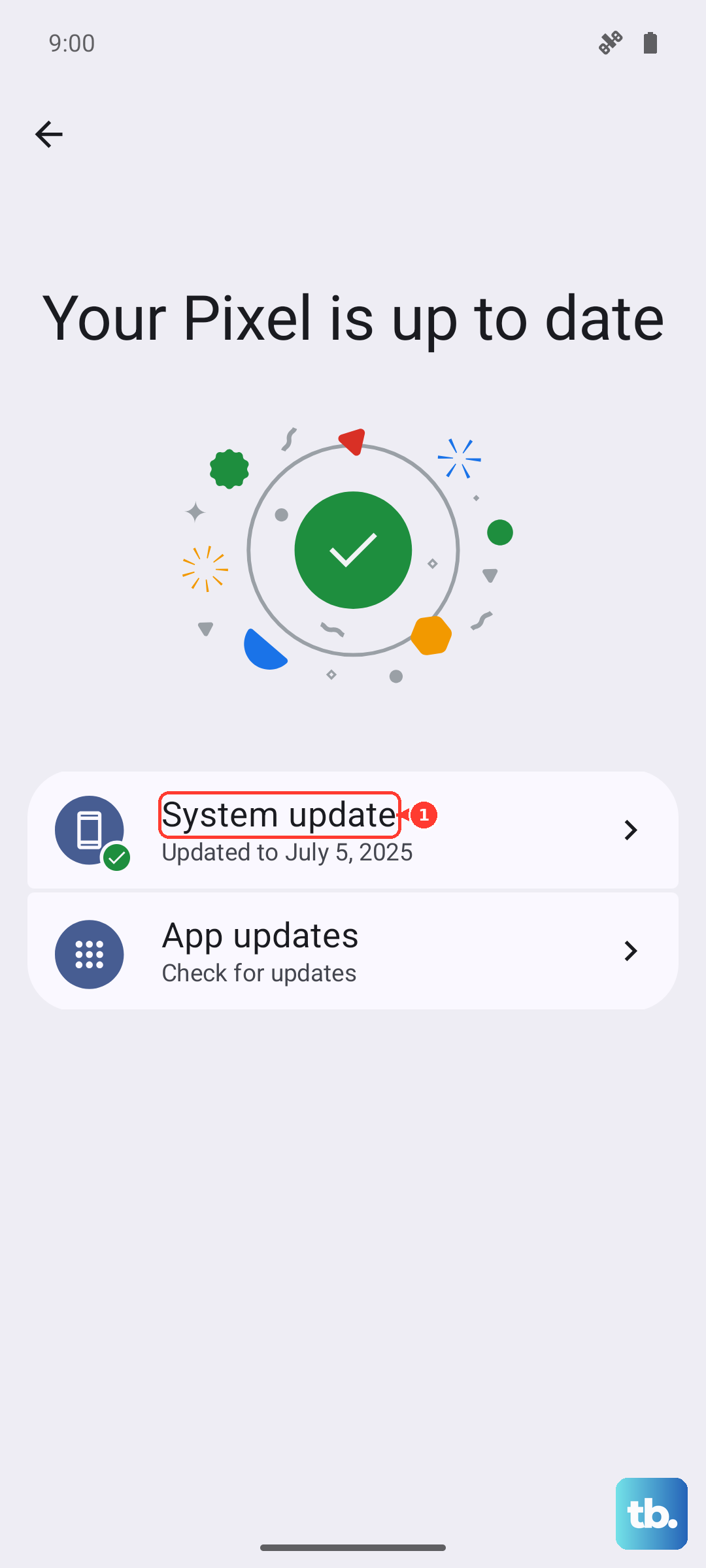
Tap "Check for update." If one is available, connect to Wi-Fi and plug in your 125W TurboPower charger to install it. A full charge takes about 18 minutes, so you'll have plenty of power.
Reset App Preferences
This is a less drastic reset that won't delete your personal data. It resets notification policies, app permissions, and background data restrictions that might be stopping the Phone app from ringing. Go to Settings > System > Reset options.
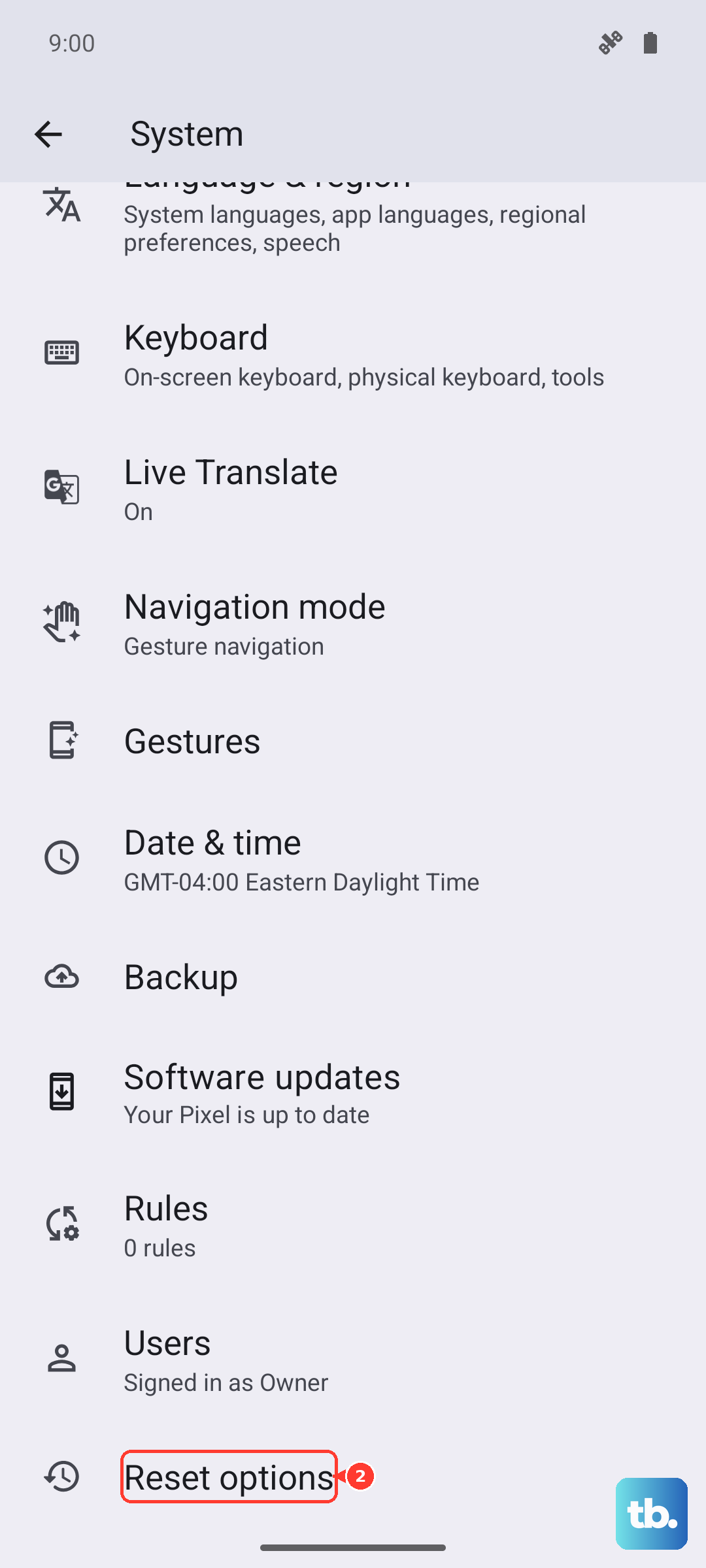
Tap "Reset app preferences." Confirm. After the phone reboots, you'll need to re-grant permissions to apps when you use them next, but it often clears up strange behavior.
Check App-Specific Notification Settings
If you're missing calls from apps like WhatsApp, Facebook Messenger, or Skype, the issue is with that app's notifications, not your phone's main ringer. Open Settings > Apps.
Find the app in question (e.g., WhatsApp), tap it, and go to "Notifications." Ensure all notification categories, especially those related to calls or messages, are turned on and set to make sound. Also check that they aren't marked as "Silent."
Reset Network Settings
This can help if the issue seems related to cellular network connectivity or VoIP calls from apps. Be aware this will erase all Wi-Fi passwords and paired Bluetooth devices. Go to Settings > System > Reset options.
Tap "Reset Wi-Fi, mobile & Bluetooth." Confirm and enter your PIN if asked. After the reset, you'll need to reconnect to Wi-Fi networks and your Bluetooth devices again.
Perform a Factory Reset
If nothing else has worked, a factory reset is the final step. This will erase all data from your phone, so you must back up everything important first. Use Google's backup in Settings > System > Backup.
Once backed up, go to Settings > System > Reset options > Erase all data (factory reset). Follow the prompts. After the reset, set up your phone as new initially to test if the ringing works before restoring your backup.