Your Motorola Edge 50 Pro pairs to your earbuds but plays nothing, or you plug a headset into the USB-C port and the sound stays trapped in the phone's speakers. Maybe an on-screen warning pops up the moment you connect, or one earbud drops out while the other keeps going. Because this phone has no 3.5mm headphone jack at all, every headphone problem comes down to one of two routes, USB-C for wired audio and Bluetooth 5.4 for wireless. Work through the checks below in order, starting with the quickest and safest, and you will usually find the culprit long before you reach a reset.
Before working through the fixes, run a quick headphone test in your browser. It plays the left and right sides separately, so you can tell right away whether one channel is actually dead.
Start by pinning down how your headphones connect
The Edge 50 Pro sends audio out through dual stereo speakers, the USB-C port, or Bluetooth, and there is no analog jack anywhere on the frame. That single fact changes how you troubleshoot, because a wired headset only works if it is the right kind of accessory.
Motorola lists the moto edge 50 pro as supporting USB-C digital wired headsets only. A plain analog headset, or a cheap passive 3.5mm-to-USB-C dongle that has no chip inside, will not produce sound and instead triggers the message "Analog audio accessory detected. The attached device is not compatible with this phone." To use older 3.5mm headphones you need an active USB-C Analog-to-Digital adapter (a DAC), not a passive one. Confirming which accessory you are actually holding prevents you from chasing a software bug when the real issue is an unsupported plug.
Reconnect your Bluetooth earbuds first
Before you change anything, try the simplest wireless fix and reconnect the earbuds. A connection can hang so that the earbuds show as paired yet receive no audio, and forcing a fresh handshake often restores sound on its own.
Make sure the earbuds are charged and within a few feet of the phone.
Open Settings > Connected devices, toggle Bluetooth off, wait a few seconds, then turn it back on.
Tap your headphones in the list of saved devices to reconnect them.
Play something to confirm whether sound now routes to the earbuds.
If they reconnect but still play nothing, move on to clearing the pairing entirely.
Forget and re-pair your Bluetooth earbuds
If your wireless headphones show as connected but stay silent, or they keep cutting out, the cleanest fix is to remove them and add them back fresh. A corrupted pairing record is one of the most common reasons audio refuses to route to a Bluetooth device.
Open Settings > Connected devices.
Tap the gear icon next to your headphones (tap "See all" under Saved devices first if you do not see them listed).
Choose "Forget device."
Put the headphones into Bluetooth pairing or discovery mode.
Tap the headphones in the list of available devices and touch "Pair," confirming on both the phone and the accessory if asked.
Pairing only needs to be done once per accessory, so after this the headphones should reconnect on their own whenever they are in range.
Match your wired headset to the USB-C port
For wired listening, the headset plugged into the USB-C port must be a USB-C digital model. If nothing plays, or you see the "not compatible with this phone" message, the accessory is the problem rather than the phone.
Swap in a USB-C Digital Wired Headset, or if you specifically want to use a standard 3.5mm headset, connect it through a USB-C Analog-to-Digital adapter. The moto edge 50 pro sits on Motorola's official list of phones that support USB-C digital headsets only, so once you are using the correct adapter or headset, audio should route to it normally.
Install any pending software update
Glitchy audio routing, where sound ignores a connected headset, can be a firmware issue that a maintenance update resolves. Keeping the phone current is a low-effort fix that costs you nothing but a few minutes.
Go to Settings > System updates > Check for system update, and if one is offered, follow the onscreen instructions to install it. Download over a Wi-Fi connection. The phone also notifies you on its own when an update becomes available, so it is worth acting on those prompts rather than dismissing them.
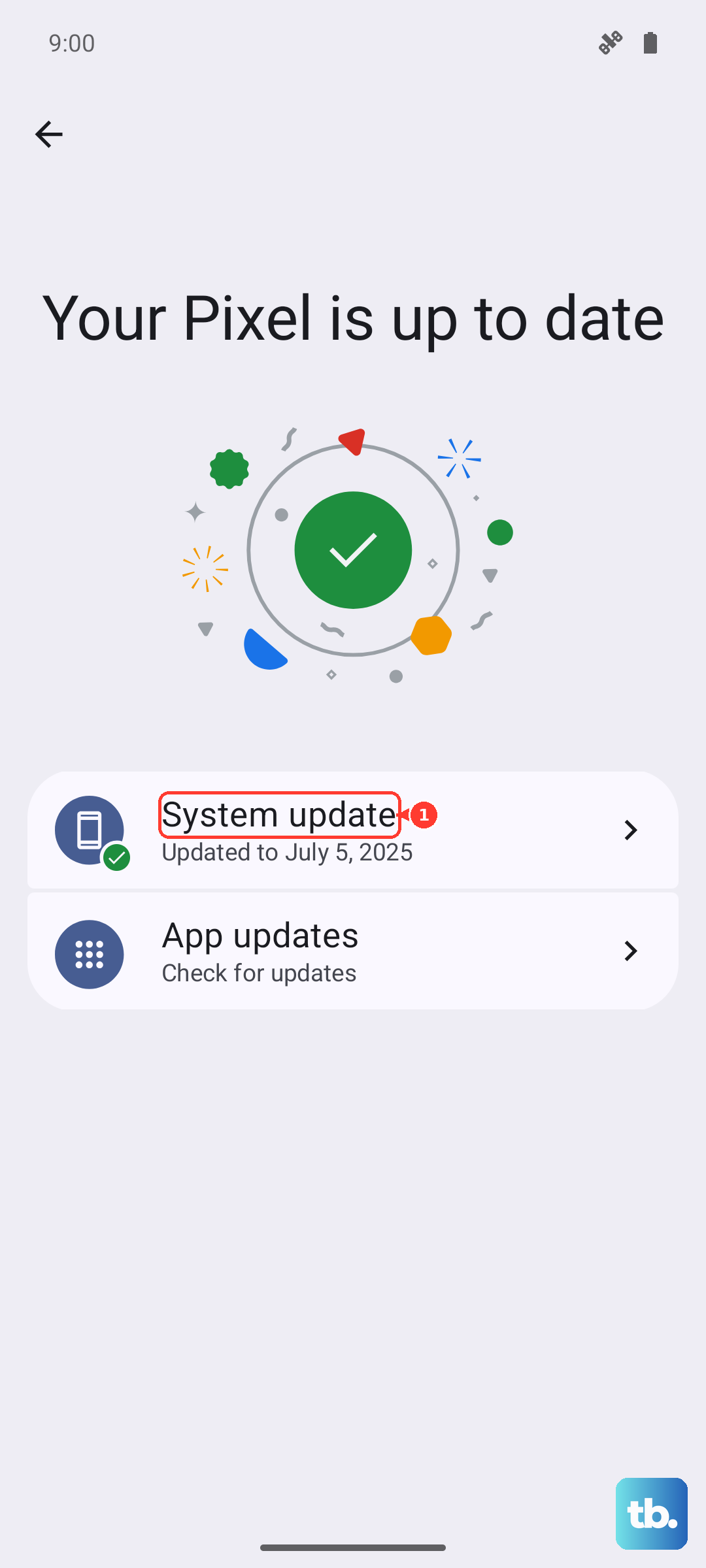
Note that this model launched on Motorola's Hello UI / My UX based on Android 14, and Motorola committed to three OS upgrades plus four years of security maintenance releases, so your unit may already be on a newer version. Checking for updates keeps the audio software stack patched whatever version you are running.
Boot into Safe mode to expose a misbehaving app
A downloaded app such as an equalizer, a volume booster, or a third-party music player can seize control of audio output and break it for your headphones. Safe mode loads only the original software so you can see whether one of your installed apps is to blame.
Press and hold the Power and Volume up buttons at the same time.
Touch and hold "Power off."
Touch "OK" to restart in safe mode.
With the phone in safe mode, test your headphones. If they work fine here, a downloaded app is the cause; uninstall recently added apps one at a time, restarting after each, until the audio stays healthy. To leave safe mode, simply restart your phone normally.
Force a restart when sound is stuck or the phone is frozen
If the phone is unresponsive, or audio is stuttering and refusing to switch outputs, a forced reboot clears the temporary state behind it. This is safe to do; Motorola notes that "Data on your phone will not be deleted."
Press and hold the Power key for 10-20 seconds until the phone restarts. Make sure the battery is at least 5% before you try this, and if it has drained completely, charge it for a minimum of 15 minutes with the provided charger first so it has enough power to boot.
Run Motorola's Rescue and Smart Assistant hardware test
When you cannot tell whether the fault is software or a physical port, Motorola's free Windows tool can settle it. Install Rescue and Smart Assistant (RSA), the "Software Fix" utility, on a Windows PC and connect the phone with a USB cable, then let the tool find your software.
RSA includes an interactive testing app that checks the microphone and other hardware features, which helps confirm whether a component or port has genuinely failed. As a deeper repair, "Rescue Now" can reinstall the original firmware. Be aware of Motorola's warning that "Reinstalling the device firmware erases all files and apps that you added to the device and resets the device to the original factory condition," so back up your files before you use it.
Back up and factory reset as your last solo move
If audio still fails on every headset and adapter you try, a factory reset is the final do-it-yourself option. This erases everything on the phone, so back up your data first. If you plan to give the phone away afterward, also remove the screen lock and your Google accounts so Factory Reset Protection does not lock the next owner out.
From a working phone, go to Settings > System, then touch Reset options > Erase all data (factory reset) and confirm.
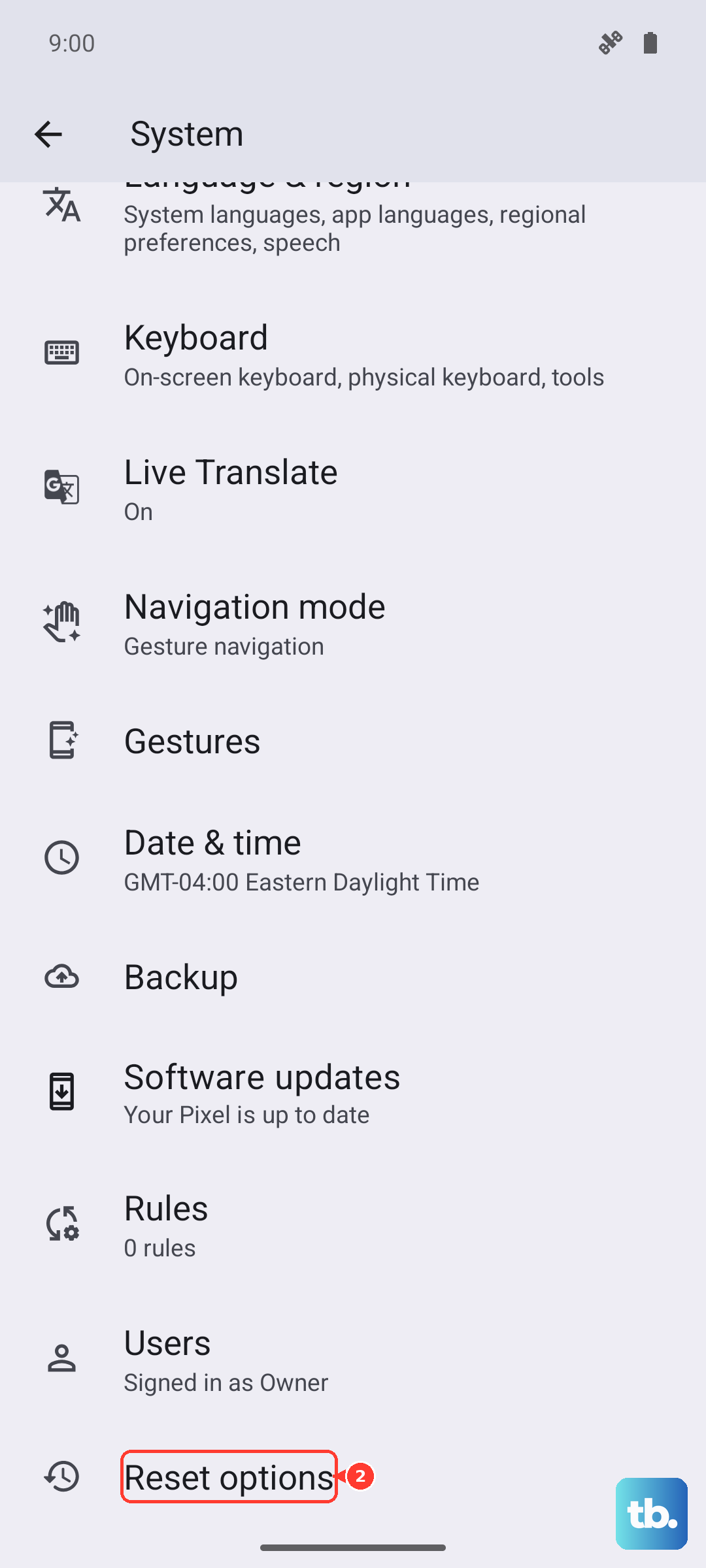
If you cannot open Settings, use recovery mode instead.
- 1.Charge the phone to at least 30%, then turn it off.
- 2.Press and hold Volume Down + Power until it turns on.
- 3.Press Volume Down to highlight "Recovery mode," then press Power to select it.
- 4.Use the volume keys to select "Factory data reset" and confirm with the Power key.
Reach Motorola Support when the hardware is at fault
If none of the steps above restore sound, the USB-C port, the Bluetooth radio, or the audio hardware itself may be defective. At that point a software fix will not help. Use Motorola's official support site to start a Software Fix or diagnosis, or to arrange a repair under warranty, rather than continuing to reset the phone on your own.
Frequently Asked Questions
Does the Motorola Edge 50 Pro have a headphone jack?
No. The Edge 50 Pro has dual stereo speakers and no 3.5mm headphone jack, so wired audio runs only through the USB-C port and wireless audio runs through Bluetooth 5.4.
Why does my phone say "Analog audio accessory detected"?
That message means you have connected an analog headset or a passive adapter that the phone does not support. The Edge 50 Pro supports USB-C digital wired headsets only, so connect a USB-C Digital Wired Headset, or use a USB-C Analog-to-Digital adapter if you want to keep using 3.5mm headphones.
Can I still use my old 3.5mm headphones?
Yes, but only through an active USB-C Analog-to-Digital adapter (a DAC). A simple passive 3.5mm-to-USB-C dongle will not work and triggers the not-compatible message.
Will a force restart delete my files?
No. Holding the Power key for 10-20 seconds reboots the phone, and Motorola states that "Data on your phone will not be deleted." A factory reset is the step that erases data, so back up first only before resetting.
How do I know if the problem is the headphones or the phone?
Test a different headset and, for wireless, forget and re-pair the device. If audio fails across every accessory, run the interactive testing app in Motorola's Rescue and Smart Assistant on a Windows PC to check whether the hardware itself is at fault.