
That grayed-out flashlight icon on your Motorola Edge 50 Pro is a real nuisance, especially when you need it. The quick-access button in the notification shade just won't light up. Let's get it working again.
Close the Camera App First
The flashlight and camera flash are the same LED. If your camera app is open, even in the background, the system reserves that light. Swipe up from the bottom to see your recent apps and swipe the Camera app away to close it. I've found this instantly fixes the grayed-out button nine times out of ten.
Force Restart Your Phone
This clears out any temporary software glitch that's locking the flashlight. Press and hold the Power button on the right side for about 10 seconds. Keep holding it until you see the Motorola logo appear, then let go. Your phone will restart and the flashlight function should be restored.
Check for an Overheating Phone
Android will disable certain features, including the flashlight, if the phone gets too hot. This can happen during long gaming sessions or if you're using the 125W TurboPower charger in a warm room. If the back of your Edge 50 Pro feels unusually warm, set it down in a cooler spot for 10-15 minutes and try again.
Use Google Assistant to Toggle It
Say "Hey Google, turn on the flashlight." If Assistant can activate the light but your quick settings button remains grayed out, it points to a minor interface bug. You can try turning it off with your voice as well. A simple force restart after this will usually clear up the button's state.
Adjust the Flashlight Brightness Level
You might not have a grayed-out button, but a dim light. Tap and hold the flashlight icon in your quick settings panel. A small menu should pop up with a brightness slider. Slide it all the way to the right to the brightest setting. In a well-lit room, the lowest setting can be almost invisible.
Clear the Camera App's Cache
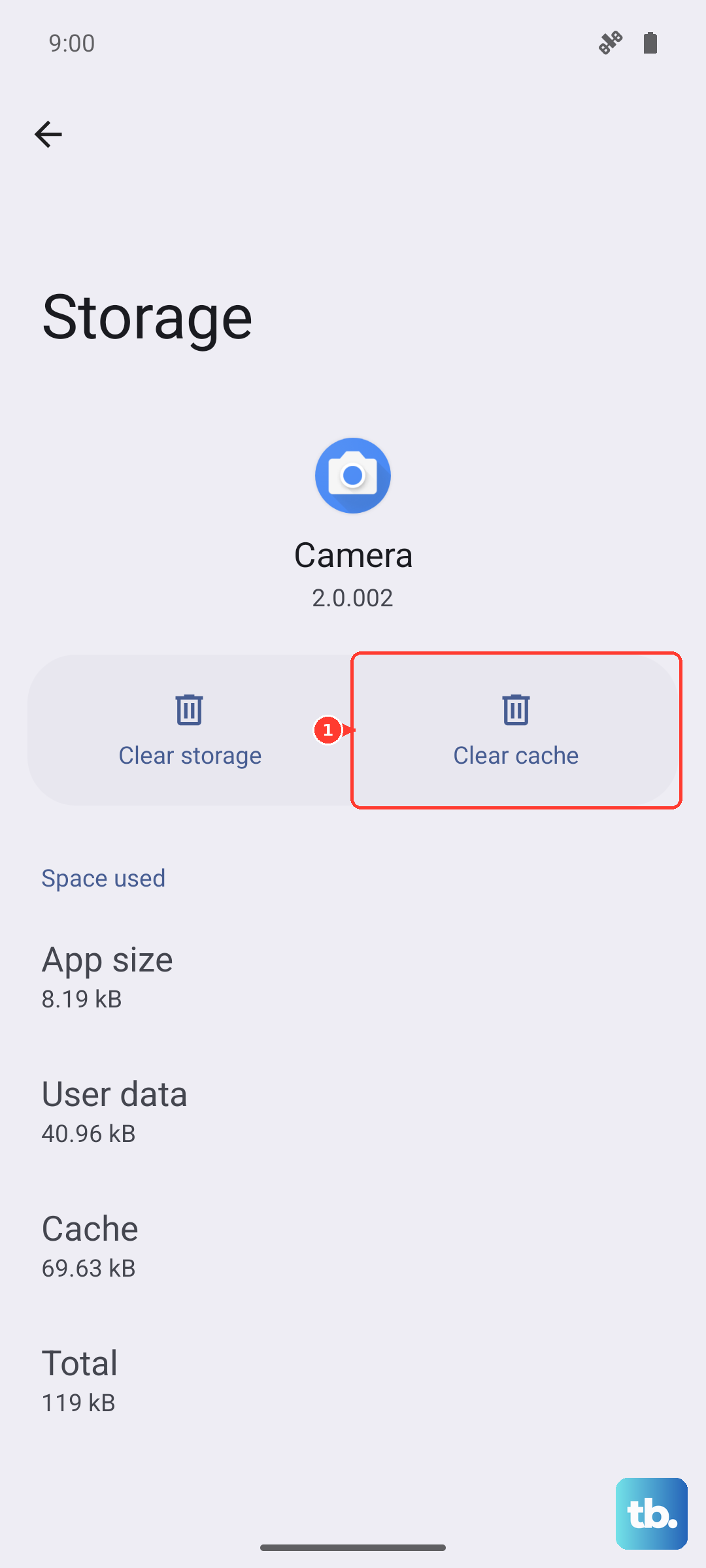
Since the camera and flashlight are linked, a corrupted cache in the camera app can cause issues. Go to Settings > Apps > See all apps. Find and tap on Camera, then select Storage & cache. Tap Clear cache. This won't delete any of your photos.
Check for a System Update
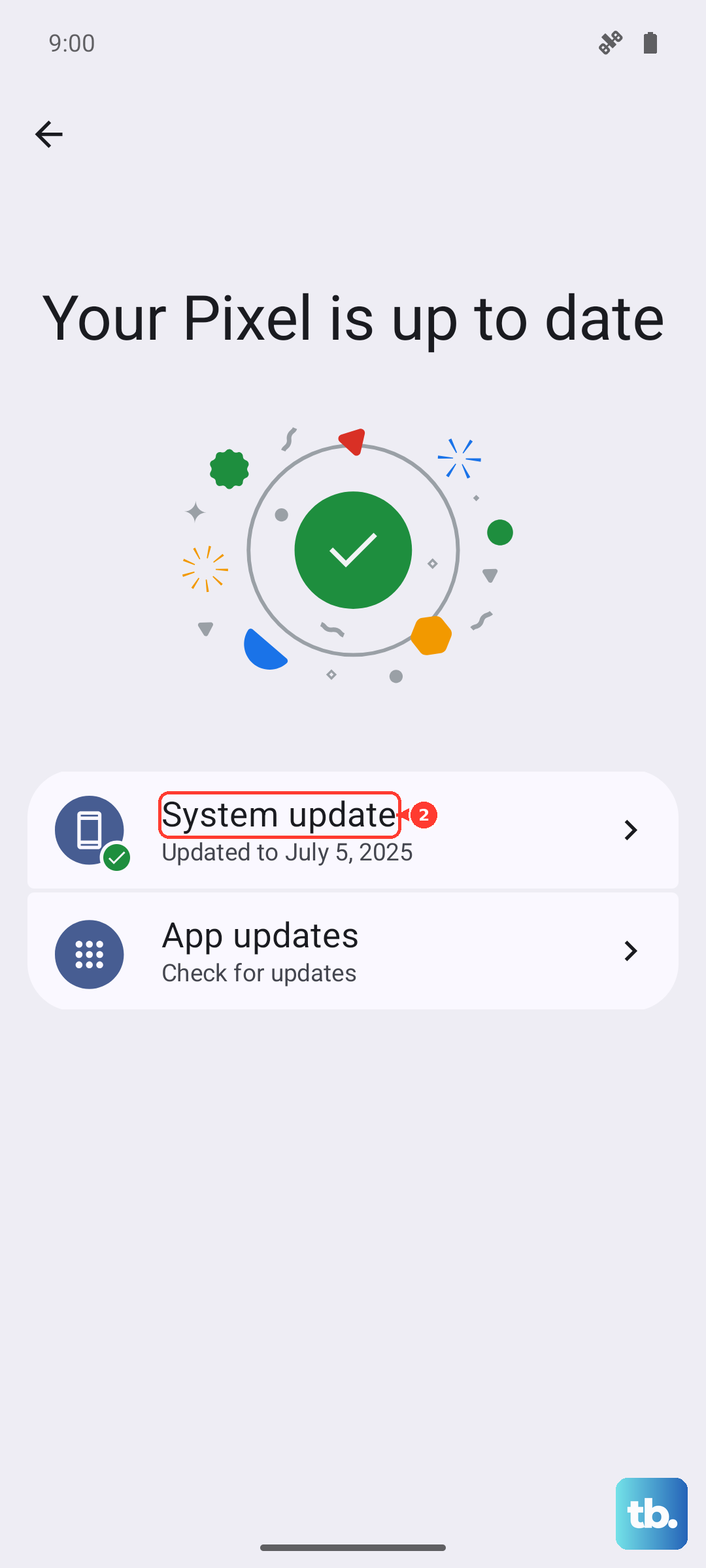
Motorola does release patches for software bugs. Go to Settings > System > System updates and tap Check for update. Install any available update. While Motorola's updates can be slower than some brands, they have addressed similar hardware control issues in the past.
Reset App Preferences
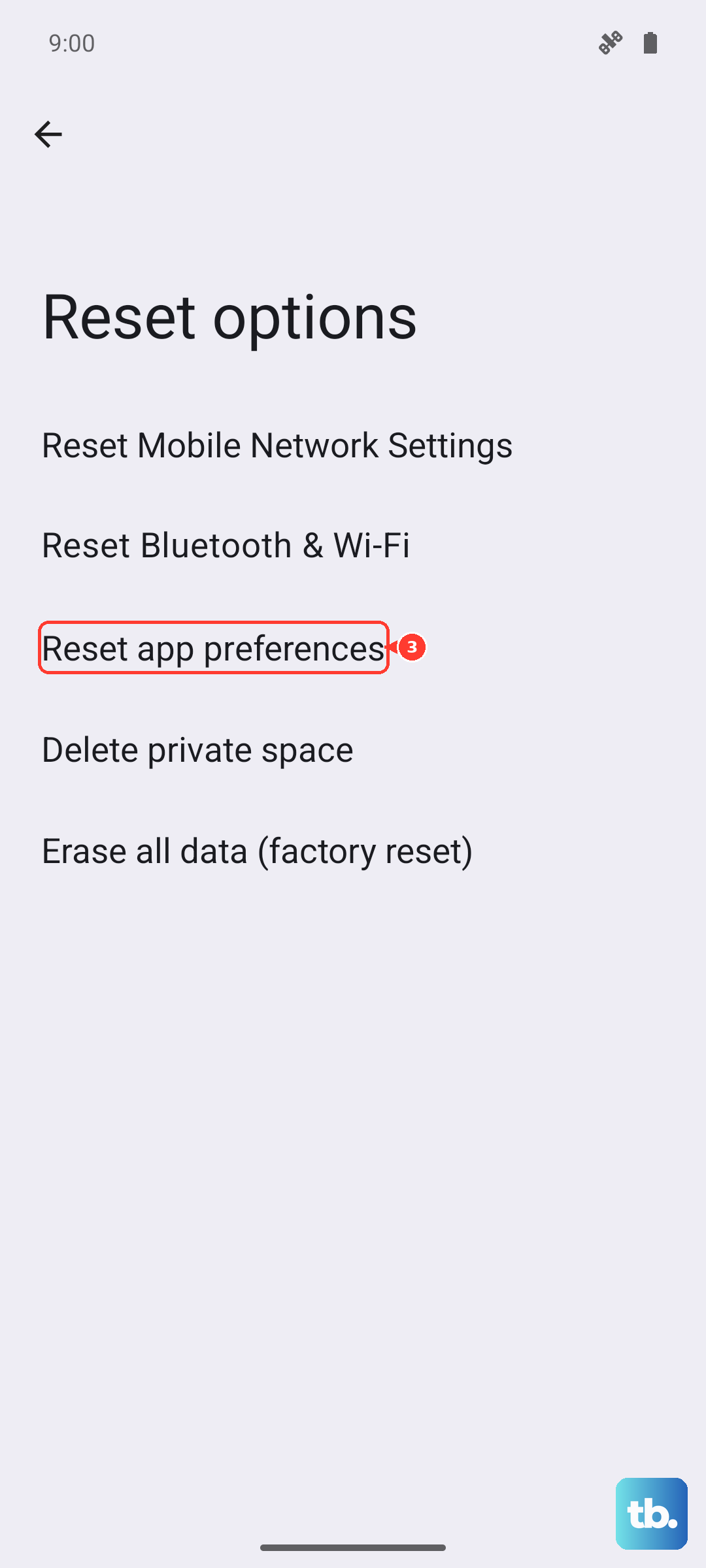
This resets permissions and default apps without touching your personal data. Navigate to Settings > System > Reset options. Tap on Reset app preferences and confirm. You'll need to re-grant permissions for apps afterward, but it can resolve conflicts affecting system controls like the flashlight.
Test the Camera Flash
If every software fix fails, it's time to check the hardware. Open your Camera app and take a photo in a dark room with the flash set to "On." If the flash doesn't fire during the photo, the LED itself might be damaged. Since the Edge 50 Pro is a 2024 model, it should still be under warranty for a repair like this.