
If your Motorola Edge 40 won't turn on, the first thing to try is a force restart. Press and hold the Volume Down button and the Power button together for a solid 10 to 15 seconds. Keep holding until you see the Motorola logo appear on the screen, then you can let go. This simple step can clear out a temporary software glitch that's preventing a normal boot.
Check Your Charging Setup Thoroughly
It's possible the battery is just completely drained. Plug your phone into the wall using the original Motorola 68W charger and cable, then leave it alone for at least 30 minutes. A deeply drained battery needs a bit of time before it will even show a charging indicator.
If you don't see anything after that half hour, inspect your gear. Try a different USB-C cable and a different wall adapter if you have them. Look closely at the phone's USB-C port for any packed-in lint or debris, which is a common issue. You can gently clean it out with a wooden toothpick or a plastic flosser pick.
Since your Edge 40 supports Qi2 wireless charging, you can also try placing it on a compatible wireless charger for an hour. Make sure the phone is centered on the charging pad and that you've removed any thick or metal case that might be blocking the connection.
Boot Into Safe Mode
If the phone turns on but gets stuck on the logo or crashes during startup, a recently installed app might be the culprit. Booting into Safe Mode temporarily disables all third-party apps.
To do this, first force restart the phone as described earlier. The moment you see the Motorola logo appear, immediately release the Power button but keep holding the Volume Down button. Keep holding it until you see "Safe Mode" in the bottom corner of the screen. If the phone starts successfully this way, you'll know a downloaded app is causing the problem.
From there, you can go to your settings and uninstall apps you recently added, one by one, restarting normally after each one to find the offender.
Try Recovery Mode Options
If Safe Mode doesn't help, you can try accessing the Recovery Menu to clear the system cache. This doesn't delete any personal data like photos or messages. First, power the phone off completely.
Then, press and hold the Volume Down and Power buttons together. When you feel a vibration, release the Power button but keep holding Volume Down. You should now see the Android Recovery screen. Use the volume buttons to scroll to "Wipe cache partition" and press the Power button to select it. Confirm the action, and once it's done, select "Reboot system now."
Consider a Software Update or Repair
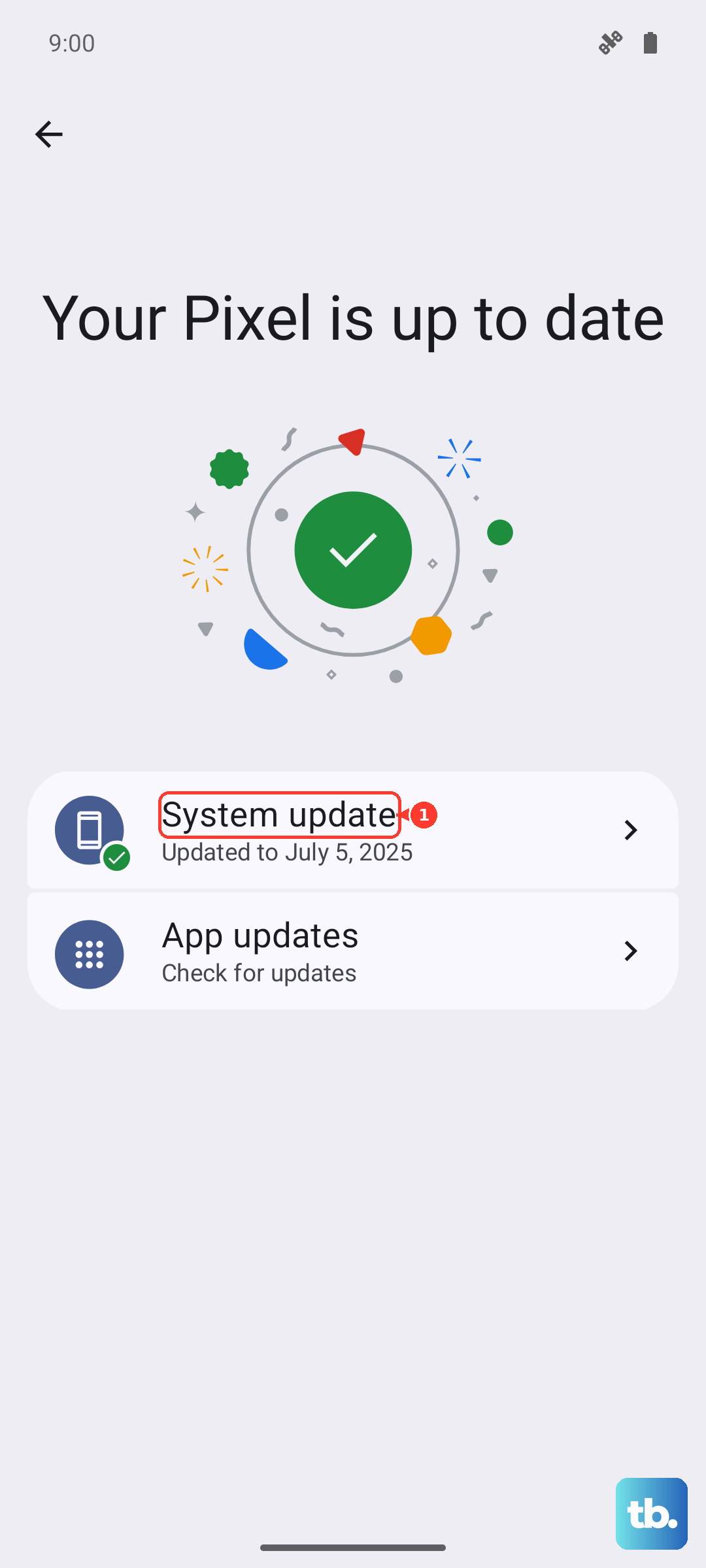
If your phone turns on but is extremely buggy or unstable, check for a software update. Motorola has been known to release optimizations for charging and system stability. Go to Settings > System > System updates to see if anything is available. Installing an update can sometimes resolve deep-seated software conflicts.
For issues that feel more physical, like a power button that doesn't click properly or a charging port that feels loose, the problem could be hardware. I've seen phones that won't turn on simply because the power button mechanism is stuck or damaged internally.
Factory Reset as a Last Resort
If every other step fails and the phone still won't boot normally, a factory reset is the final software option. This will erase all data on your phone, so it's truly a last resort. You'll need to initiate it from the same Recovery Menu.
Navigate to "Recovery mode" using the button combination, then select "Wipe data/factory reset." You'll have to confirm this choice. After the process finishes, select "Reboot system now." If the phone's software was the issue, this should allow it to start fresh. If it still doesn't turn on after a full reset, the problem is almost certainly a hardware fault that requires professional repair.