
Seeing your Motorola Edge 40's screen flicker, flash, or show weird lines is incredibly distracting. It can make using your phone feel broken. This problem usually stems from a software hiccup, a misbehaving display setting, or, less commonly, a hardware fault. Let's get it sorted.
Force Restart Your Phone
This is the first thing I'd try. A force restart clears out temporary glitches that can cause the display to act up. Press and hold the Volume Down button and the Power button together for about 10 to 15 seconds. Let go when you see the Motorola logo appear on the screen. If the flickering just started, this often fixes it right away.
Disable Adaptive Brightness
Your phone's ambient light sensor adjusts brightness automatically, and if it's confused, it can cause flickering. Swipe down twice for the quick settings and tap the gear icon, or go to Settings > Display. Look for Adaptive brightness and turn it off. After that, manually set your brightness level using the slider and see if the screen stabilizes.
Check for a Software Update
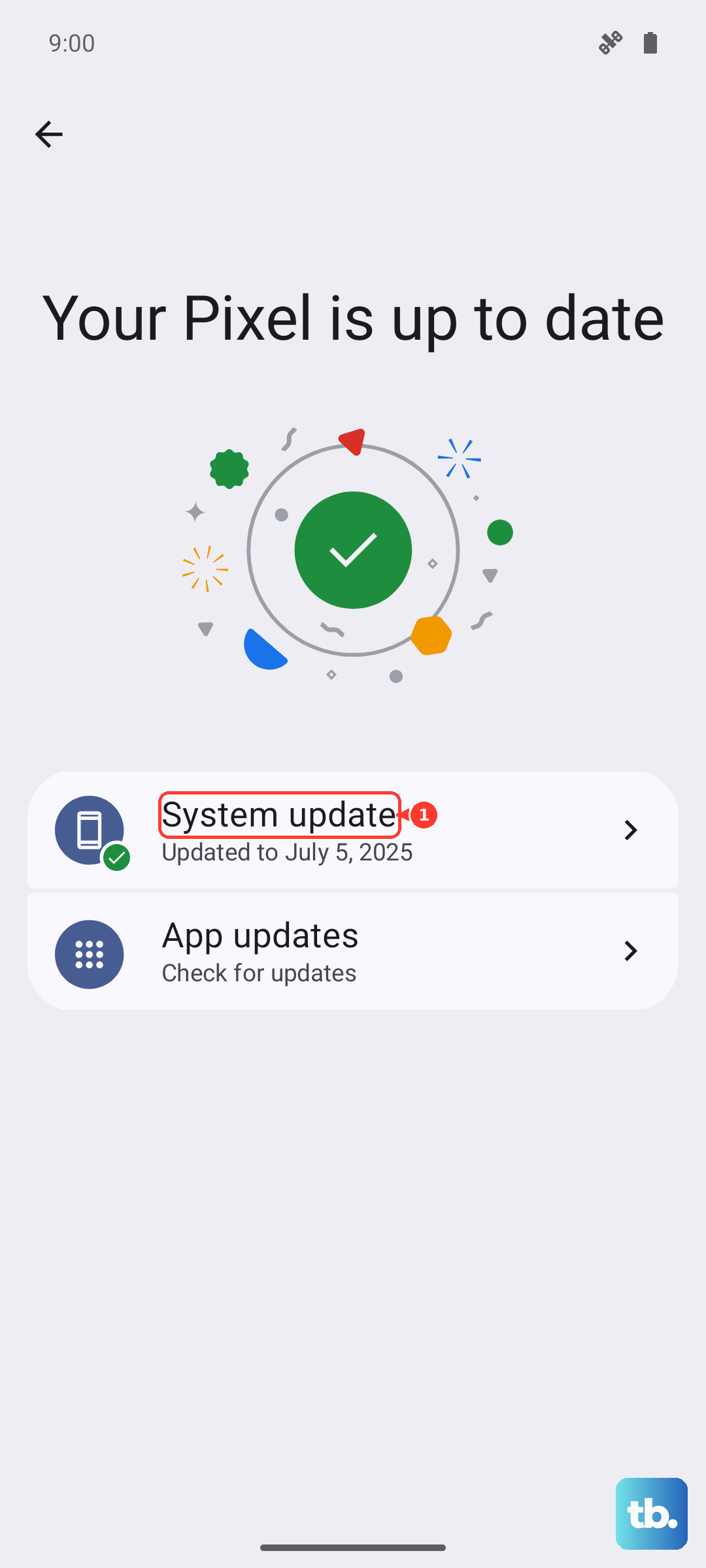
Motorola regularly releases updates that fix bugs, including display-related ones. Go to Settings > System > System updates and tap Check for update. Installing the latest Android 15 patch can resolve software conflicts causing the flicker. Make sure your phone is connected to Wi-Fi and has a good charge before updating.
Close Recent Apps and Check for Culprits
A specific app, especially one with heavy graphics or overlay permissions, might be causing trouble. Swipe up from the bottom and hold to see your recent apps, then swipe each one up to close it. If the flickering stops, reopen your apps one at a time to see which one triggers the issue again. Some gaming or video apps are common offenders.
Turn Off High Refresh Rate
The Edge 40 has a smooth 144Hz display, but sometimes forcing a lower refresh rate can stop flickering. Go to Settings > Display and look for Refresh rate or a similar option. Switch it from Auto or High to Standard (which is usually 60Hz). If the flickering disappears, you've found a software compatibility issue, and keeping it on Standard until an update fixes it is a good workaround.
Boot Into Safe Mode
Safe Mode temporarily disables all third-party apps. If the flickering stops in Safe Mode, you know a downloaded app is the cause. To enter Safe Mode, press and hold the power button until the power off menu appears. Then, tap and hold the Power off option on your screen. You'll get a prompt to reboot to Safe Mode. Tap it. Once in Safe Mode (you'll see "Safe mode" in the bottom corner), use your phone normally to see if the problem is gone. Restart normally to exit.
Reset App Preferences
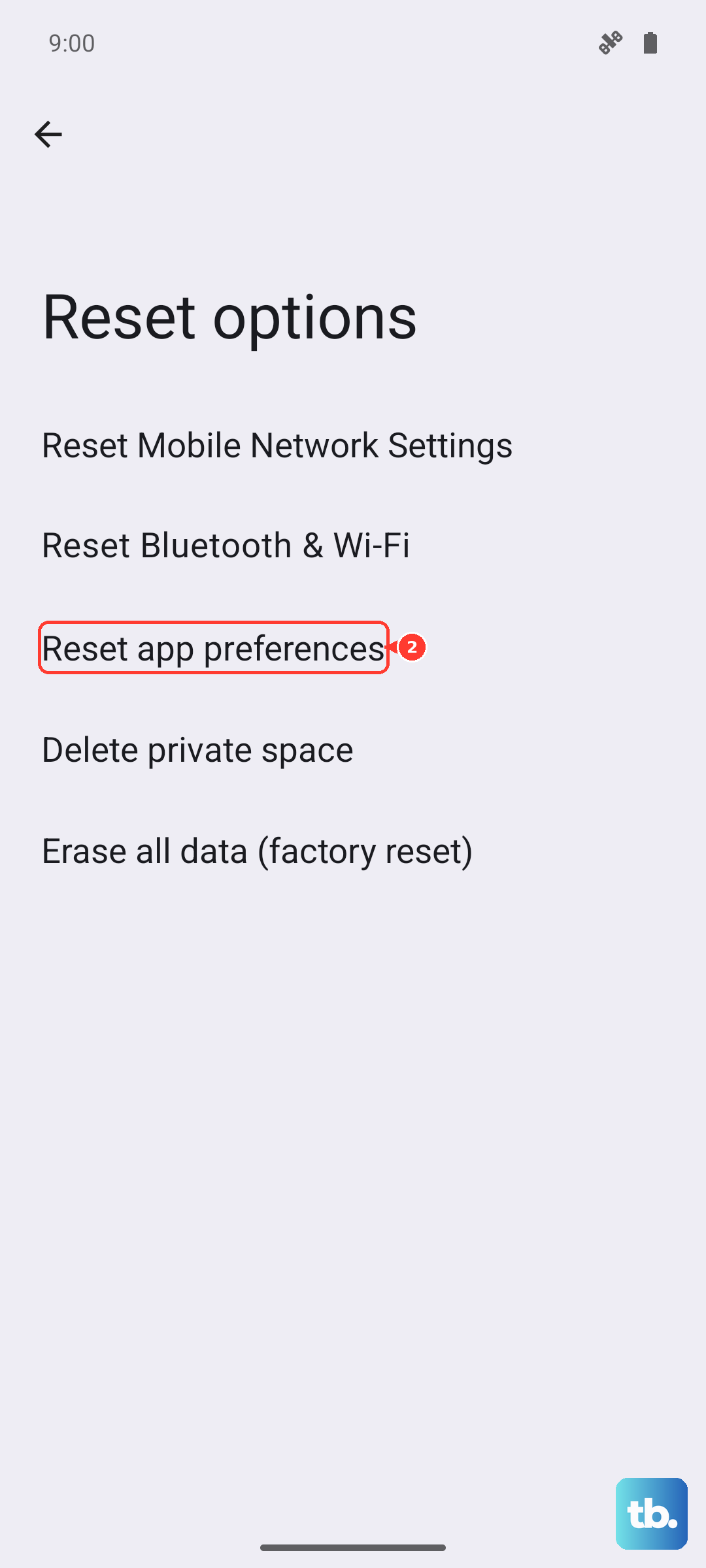
This resets permissions, notifications, and background restrictions for all your apps without deleting any app data. It can fix display issues caused by an app's settings. Go to Settings > System > Reset options. Tap Reset app preferences and confirm. You'll need to re-grant permissions to apps as you use them again, but it's a quick way to clear bad configurations.
Inspect for Physical Damage
If the flickering began after a drop or impact, you might be dealing with hardware. Look closely at the screen for any new cracks, even tiny ones, or areas where the display shows unusual colors or pressure marks. A loose internal display cable or a damaged OLED panel can cause persistent flickering and will require a professional repair.
Perform a Factory Reset
This is your last software step before concluding it's a hardware fault. Back up all your important data first. Then, go to Settings > System > Reset options > Erase all data (factory reset). Follow the prompts to reset your phone. After it reboots and you go through setup, don't install any apps immediately. If the screen is perfectly fine on a fresh system, a software corruption was the cause. If the flickering remains on a clean factory state, the issue is almost certainly with the display hardware itself.