
When your Motorola Edge 40's hotspot disappears or won't connect, it leaves your other gadgets stranded without internet. Whether other devices can't find it, fail to connect, or get kicked off, you can usually get your mobile Wi-Fi sharing back online with a few checks.
Turn Mobile Hotspot Off and Back On
Open your Settings app and tap on Network & internet > Hotspot & tethering. Find the Wi-Fi hotspot toggle and switch it off. Wait a solid 10 seconds, then flip it back on. This quick cycle can clear out a temporary software hiccup that's stopping the service from starting properly.
Restart Your Motorola Edge 40
A full reboot is a classic fix for a reason. Press and hold the Volume Down button and the Power button together for about 10-15 seconds until you see the Motorola logo. This force restart is more thorough than a standard shutdown and can resolve deeper system processes related to your cellular and Wi-Fi radios that a simple toggle won't touch.
Verify Your Mobile Data is Active
Your hotspot runs on your phone's cellular data connection. First, make sure you're not in Airplane mode. Then, go to Settings > Network & internet > Mobile network and ensure Mobile data
Check the Connected Device Limit
The Edge 40 has a limit on how many devices can connect to its hotspot at once. If you're trying to add a new device, one might need to be disconnected first. You can manage this in Settings > Network & internet > Hotspot & tethering > Wi-Fi hotspot > Manage devices. I've seen this catch people off guard when a tablet or smartwatch is connected in the background.
Reset Your Phone's Network Settings
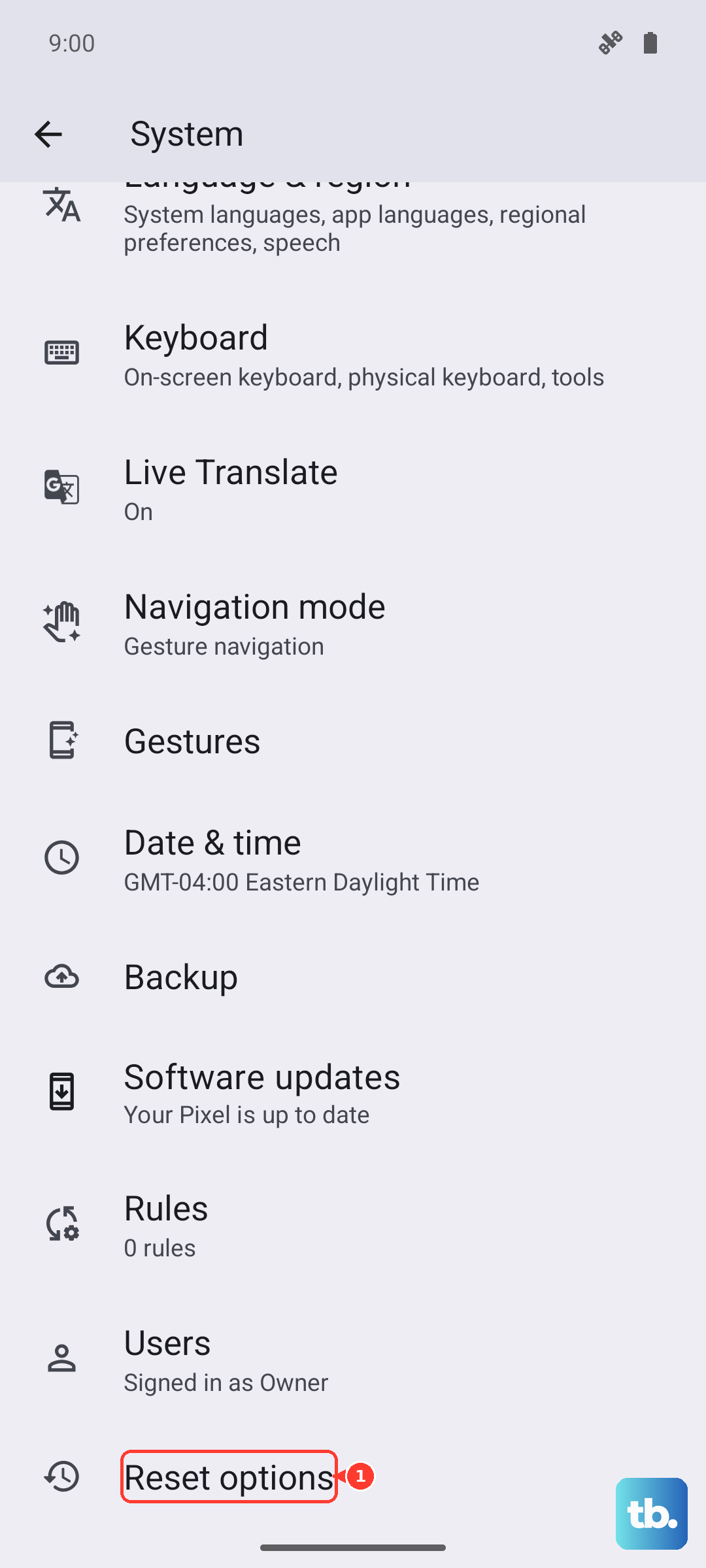
This is a stronger step that often fixes persistent connection woes. Navigate to Settings > System > Reset options > Reset Wi-Fi, mobile & Bluetooth. Tap to confirm. This will erase all saved Wi-Fi networks, Bluetooth pairings, and cellular network preferences, so you'll need to reconnect to your home Wi-Fi afterward. It forces your phone to rebuild all its network connections from a clean slate.
Forget the Network on the Other Device
The problem might not be with your Edge 40, but with the laptop or tablet trying to connect to it. On that device, go into its Wi-Fi settings, find your phone's hotspot network name (the SSID), and choose to "Forget" or "Remove" it. Then, search for available networks again, select your phone, and enter the password fresh. This clears any corrupted connection data on the client side.
Change Your Hotspot Name and Password
Head back to Settings > Network & internet > Hotspot & tethering > Wi-Fi hotspot. Tap on Hotspot name (SSID) to change the network name, and tap on Password to set a new one. Saving these changes does more than just update the info; it restarts the hotspot's broadcasting service with the new credentials, which can resolve authentication handshake failures.
Try USB or Bluetooth Tethering Instead
If the Wi-Fi hotspot is being stubborn, use a different path. For USB tethering, connect your Edge 40 to your computer with a USB-C cable, then go to the Hotspot & tethering menu and enable USB tethering. Your computer should recognize it as a network connection. For Bluetooth, pair your phone with the other device first, then come back and enable Bluetooth tethering on your phone.
Install Any Available Software Updates
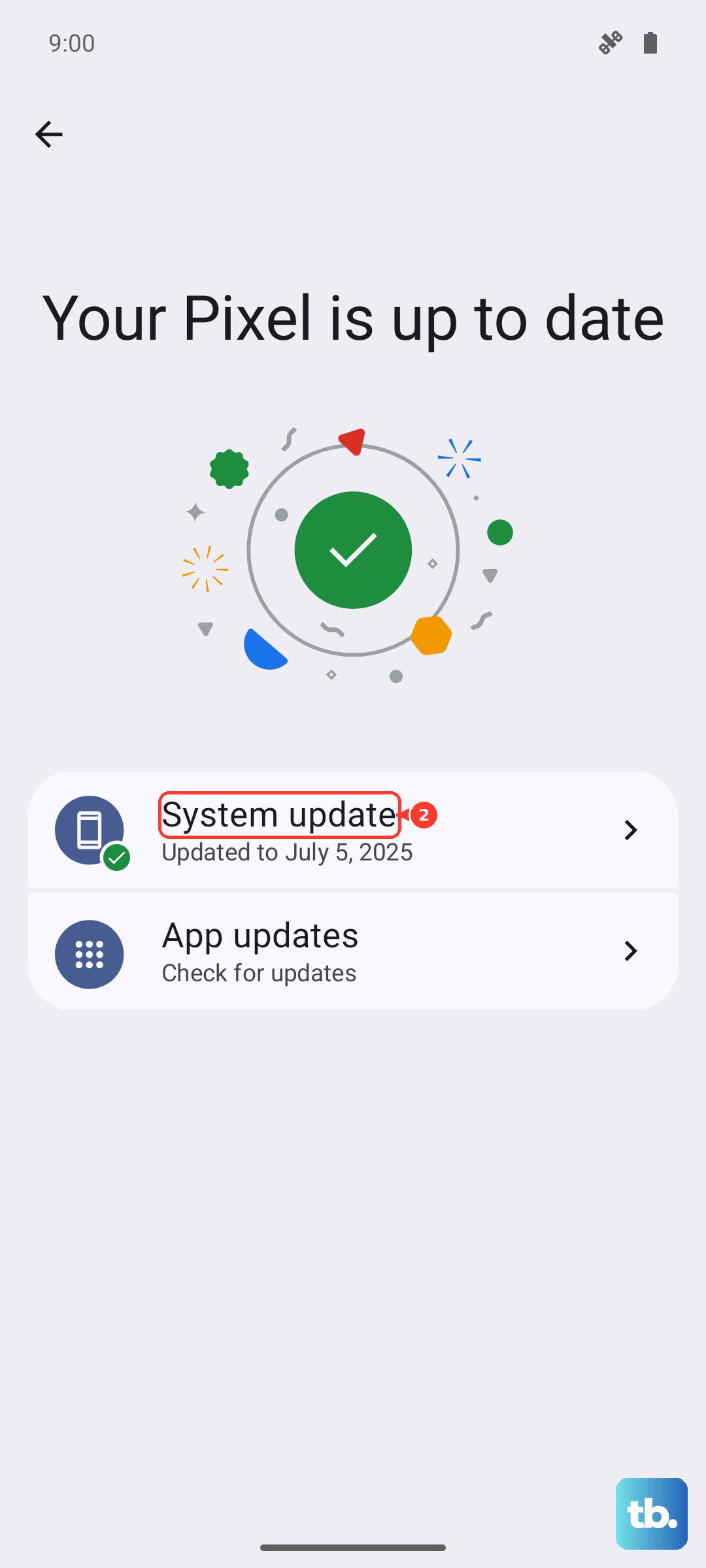
Software bugs can definitely break hotspot functionality. Motorola and Google regularly patch these issues. Go to Settings > System > System update and tap Check for update. If an update is available, install it. These updates often include stability improvements for the modem and network stack that directly impact tethering.
Confirm Hotspot Access with Your Carrier
If you've tried everything and the hotspot still won't turn on or connect, the block might be on your carrier's side. They can sometimes disable the feature due to plan restrictions or account issues. A quick call or online chat with your carrier's support can confirm that mobile hotspot is active on your line and that there are no outages in your area affecting tethering services.