Your Motorola Edge 40 should be turning out clean, detailed shots, so it is frustrating when every photo lands soft, hazy, or smeared no matter how steady you hold the phone. Blurry results usually trace back to a handful of causes, a smudged lens, a missed focus point, a setting that quietly lowers image quality, or a software hiccup in the camera app. The good news is that most of these are quick to rule out, and you rarely need anything beyond the phone itself. Work through the fixes below in order, starting with the easiest and safest, and stop as soon as your shots come back into focus.
Start with the lens, not the settings
Before you touch a single menu, look at the glass. A thin layer of fingerprint oil, dust, or pocket lint on the rear lens is the single most common reason photos come out soft or hazy, and no amount of focusing will fix it.
Motorola's official guidance for blurry photos is direct: "Wipe the lens clean with a soft, dry cloth and retake the photo." Do this first, then check whether the next shot looks sharper before moving on.
Tap where you want sharpness
If the photo is out of focus rather than dirty, the camera may simply be focusing on the wrong part of the scene. The Motorola Edge 40 supports tap-to-focus, so you can tell it exactly where to lock.
Per Motorola: "To set focus location, touch the viewfinder then drag the focus ring. To change the exposure, touch the viewfinder then slide to the desired exposure." Give the camera a moment to settle on the subject before you press the shutter.
Step back instead of zooming in
Zoom feels convenient, but it is a frequent cause of blurry, pixelated images, because zooming in degrades sharpness. Rather than pinching to magnify a distant subject, physically move closer or shoot at the standard view, then crop later if you need a tighter frame.
You will keep far more detail this way.
Bump the photo size up
If your shots still look low quality after focusing correctly, check the resolution. A small photo-size setting reduces image quality, which can read as softness or a lack of fine detail.
Open the Camera app's settings and increase the photo size to a higher resolution, then take a fresh test shot to compare. Higher resolution captures more detail per frame, so the difference is usually obvious.
Power the phone off and on
A temporary glitch in the camera software can leave the preview and your captures looking off until the phone clears it. Motorola's first software step for camera errors is straightforward: "Turn your phone off and then on again."
If the phone is responsive, use the normal power menu to restart it, then reopen the camera and try again.
If the phone is frozen and will not respond, force a reboot instead.
Press and hold the Power key for 10 to 20 seconds until the phone restarts.
Let it boot fully, then open the camera and take a test photo.
This force restart uses the Power key only, not a volume-button combination, and Motorola confirms that "Data on your phone will not be deleted."
Clear out the camera app's temporary files
Corrupted temporary files can make the camera misbehave, including producing blurry or failed captures. Clearing the cache removes those temporary files without touching your saved settings, so it is a safe next step.
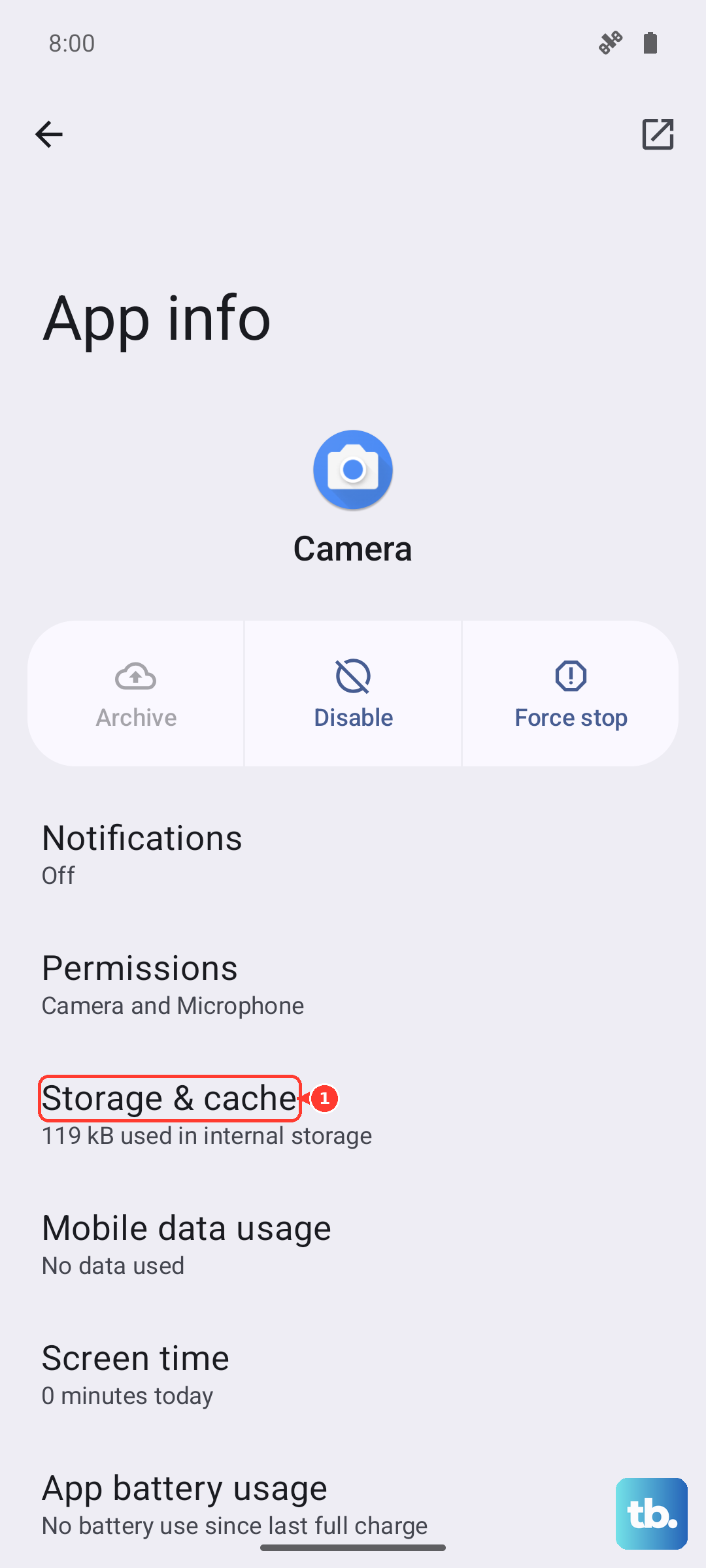
Long-press the Camera app icon, then open its app info.
Touch "Storage & cache > Clear cache."
Reopen the camera and test a photo.
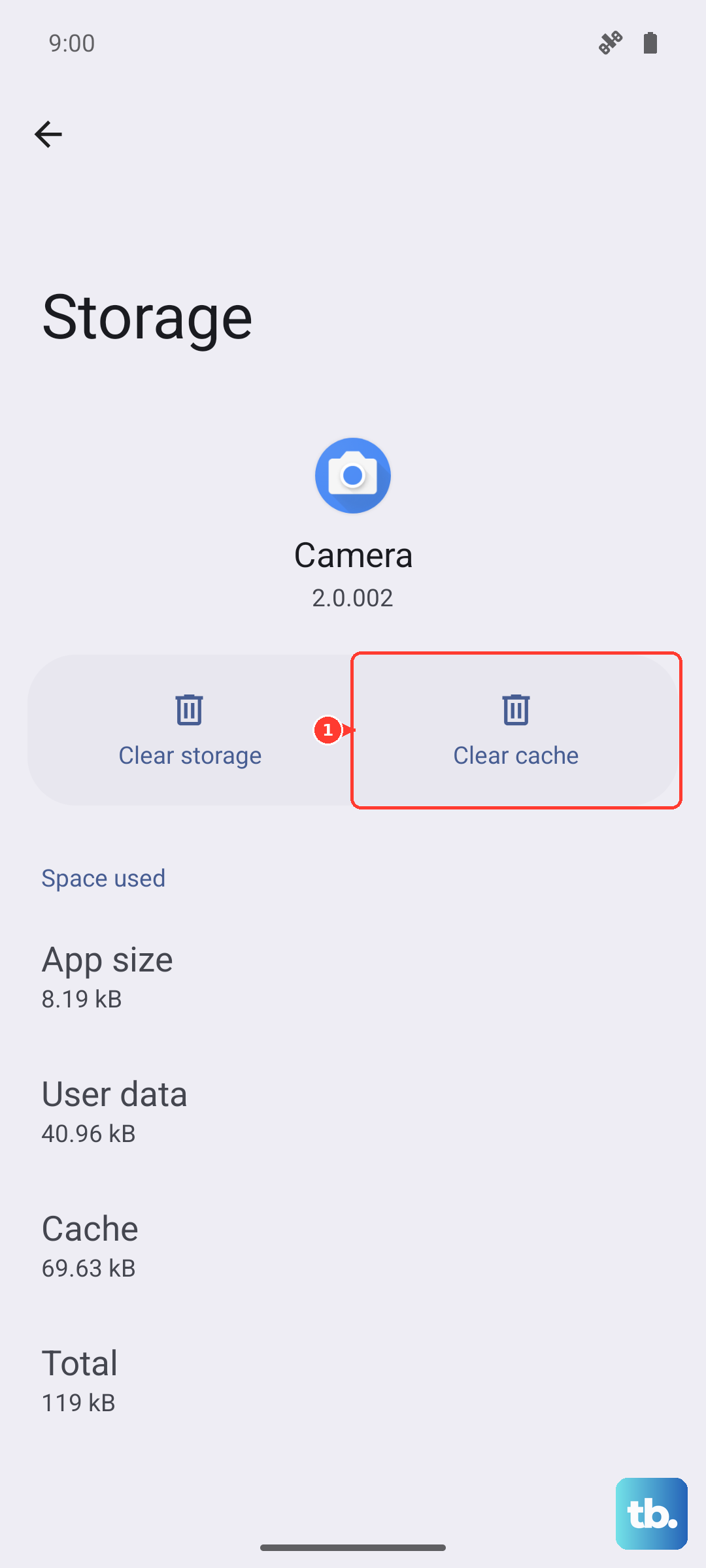
If the problem continues, you can go a step further with "Storage & cache > Clear storage," which deletes all data saved in the app. Be aware that this action cannot be undone, so only use it after the cache clear has failed.
Update Moto Camera 2 from the Play Store
The Motorola Edge 40's camera runs on the Moto Camera 2 app, and an outdated version can carry bugs that affect focus and image quality. Because the app updates through the Google Play Store, you can refresh it in a few taps.
Open the Play Store app.
"On the UPDATES tab in the Play Store app, look for the Moto Camera 2 app."
"tap Update next to its name."
If Moto Camera 2 is not listed under available updates, you already have the newest version installed and can move on.
Check permissions and isolate a rogue app
Sometimes another app interferes with the camera or holds access it should not. Review which apps can use the camera at "Settings > Security & privacy > Privacy > Permission manager > Camera," and remove access for anything you do not trust or no longer use.
Tidying this list cuts down on apps that could be tying up the camera in the background.
To find out whether an installed app is the culprit, boot the phone into Safe mode, which runs it without the apps you added yourself, and then open the camera.
If the camera works correctly in Safe mode, a third-party app is the likely cause, so uninstall recently added apps one at a time until the blur disappears.
Install the latest software for the Edge 40
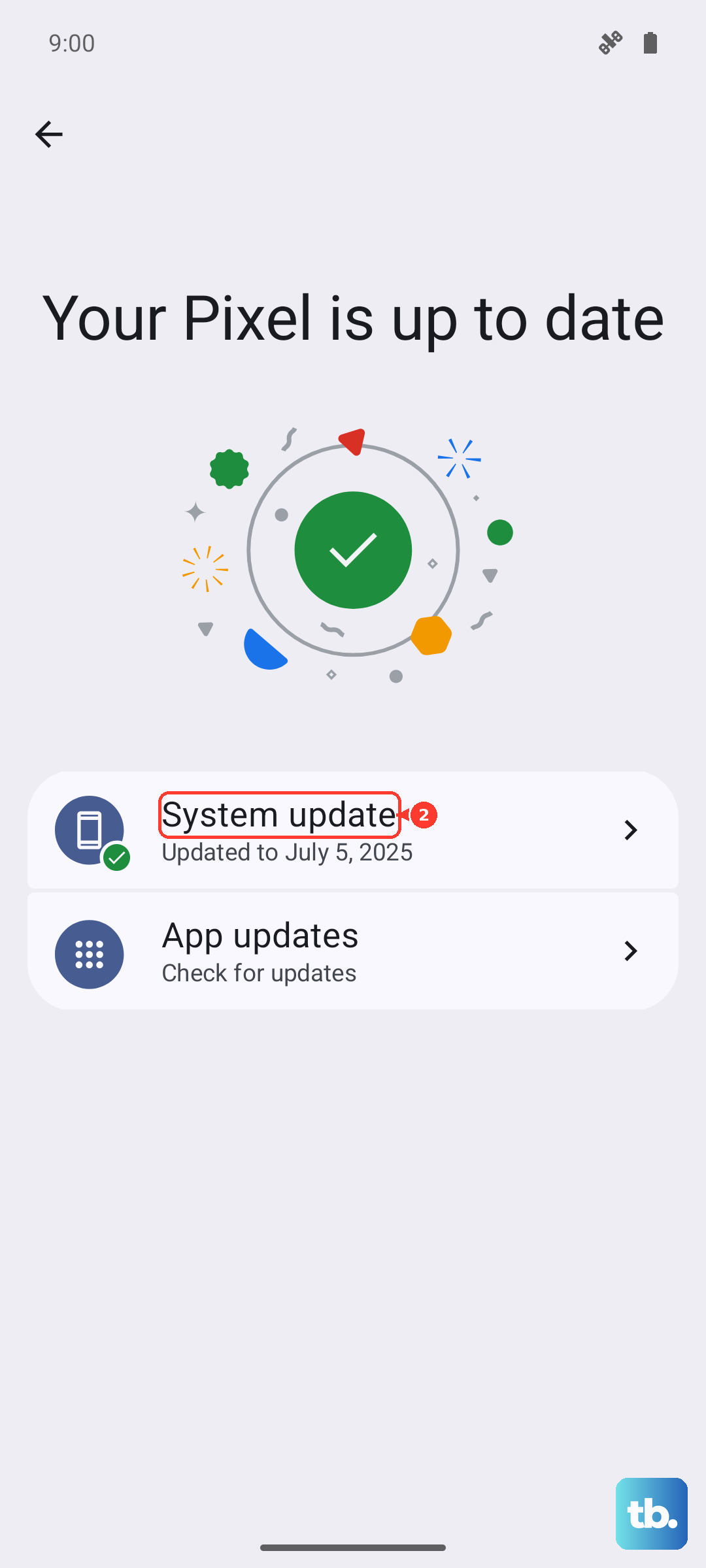
System updates frequently include fixes for camera bugs, so keeping the phone current is worth the few minutes it takes. Go to "Settings > System > Advanced > System updates" and follow the onscreen instructions to download and install any available update.
Keep one thing in mind before you proceed: "You can't downgrade to a previous software version after installing an update," so let the update finish once it begins.
Reset the phone, then reach out to Motorola
If none of the steps above restore sharp photos, a factory reset is the last software measure. This is destructive, so back up your photos, contacts, and anything else important first.
Motorola warns that "Resetting your phone erases all data and restores it to out-of-the-box condition."
When you can still open Settings, reset from there.
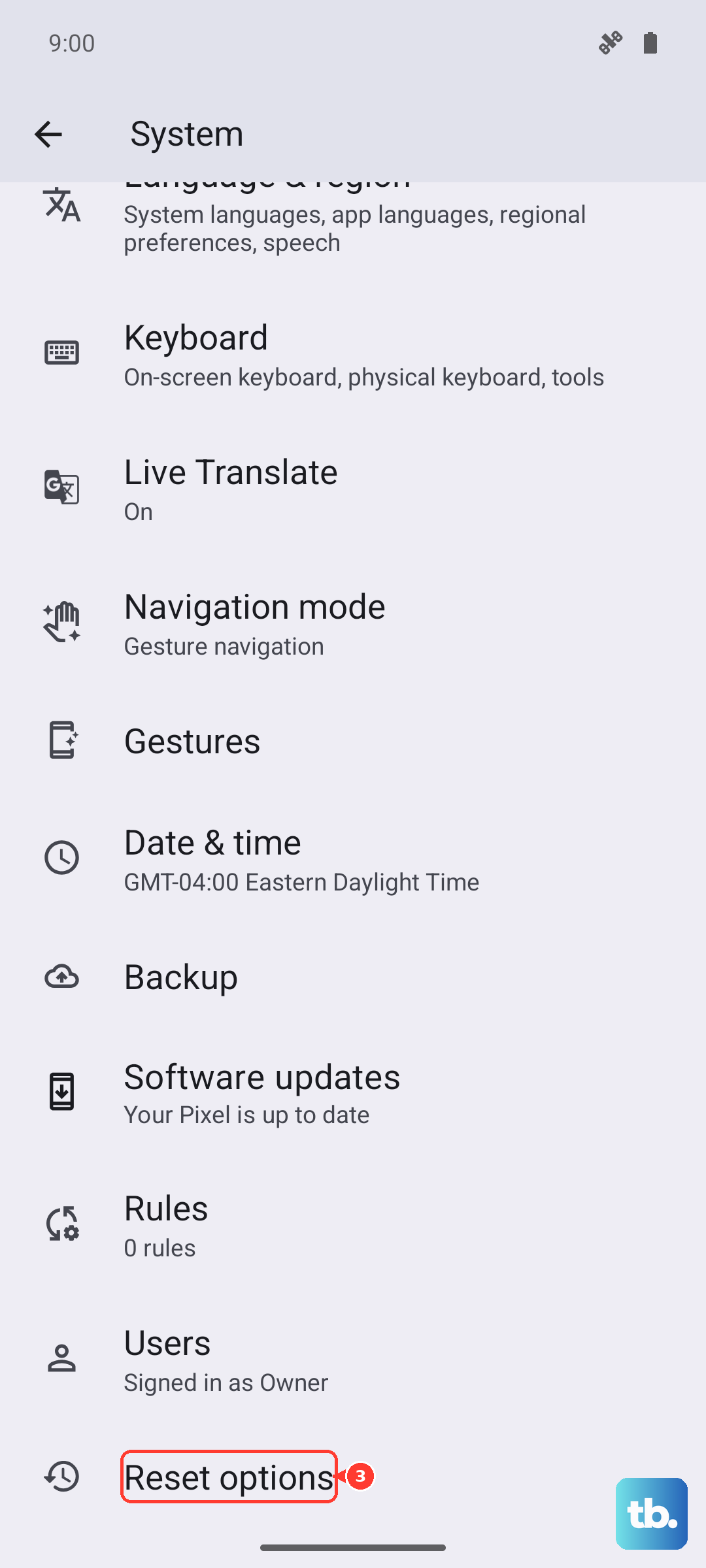
Go to "Settings > System."
Choose "Reset options > Erase all data (factory reset)."
Follow the prompts to confirm.
If Settings will not open, use the external Recovery-mode reset instead:
- 1.Charge the phone to at least 30 percent, then power it off.
- 2.Press and hold the Volume Down button and the Power button at the same time until the phone turns on.
- 3.Scroll to Recovery mode and select it.
- 4.Choose Factory data reset.
- 5.Select Reboot system now.
If your photos are still blurry after a full reset, the camera hardware may be physically faulty. At that point, contact Motorola Support to arrange a repair.
Frequently Asked Questions
Why are my Motorola Edge 40 photos blurry even after I cleaned the lens?
If the lens is clean but shots still look soft, the camera is probably focusing on the wrong spot or losing detail to zoom. Tap the viewfinder to set the focus where you want it, avoid zooming in, and check that the photo size is set to a higher resolution. If the problem stays, move on to restarting the phone and clearing the camera cache.
Does clearing the camera cache delete my saved data?
Clearing the cache only removes temporary files, so it is the safe option to try first. Going further with "Storage & cache > Clear storage" deletes all data saved in the app, and that action cannot be undone, so only use it if clearing the cache did not help.
Will force restarting the Edge 40 erase anything?
No. The force restart is done by pressing and holding the Power key for 10 to 20 seconds, and Motorola confirms that "Data on your phone will not be deleted." It only applies if the phone is frozen, otherwise, use the normal restart from the power menu.
What should I do if the camera is still blurry after a factory reset?
If photos remain blurry once the phone has been reset to out-of-the-box condition, the issue is most likely physical damage to the camera rather than software. Contact Motorola Support so they can arrange a hardware repair.