You hit record, jump on a call, or fire up a voice chat, and the other side hears nothing but silence. A dead microphone on Windows 11 usually traces back to a handful of common culprits: the wrong input device, a privacy permission that quietly blocks access, an audio service that stalled, or a driver that broke after an update. The good news is that almost all of these are software fixes you can work through in a few minutes.
Before changing any settings, it helps to know whether the microphone registers anything at all. Run a quick quick mic test in your browser, speak normally, and watch the level meter. If it moves, the hardware works and the fixes below will take care of the rest.
The fixes below are ordered from the easiest and safest to the more involved. Start at the top, test your mic after each step, and stop as soon as your voice comes through. Most of these steps apply to both Windows 11 and Windows 10, and where the path differs, both versions are listed.
Let Windows Diagnose the Problem First
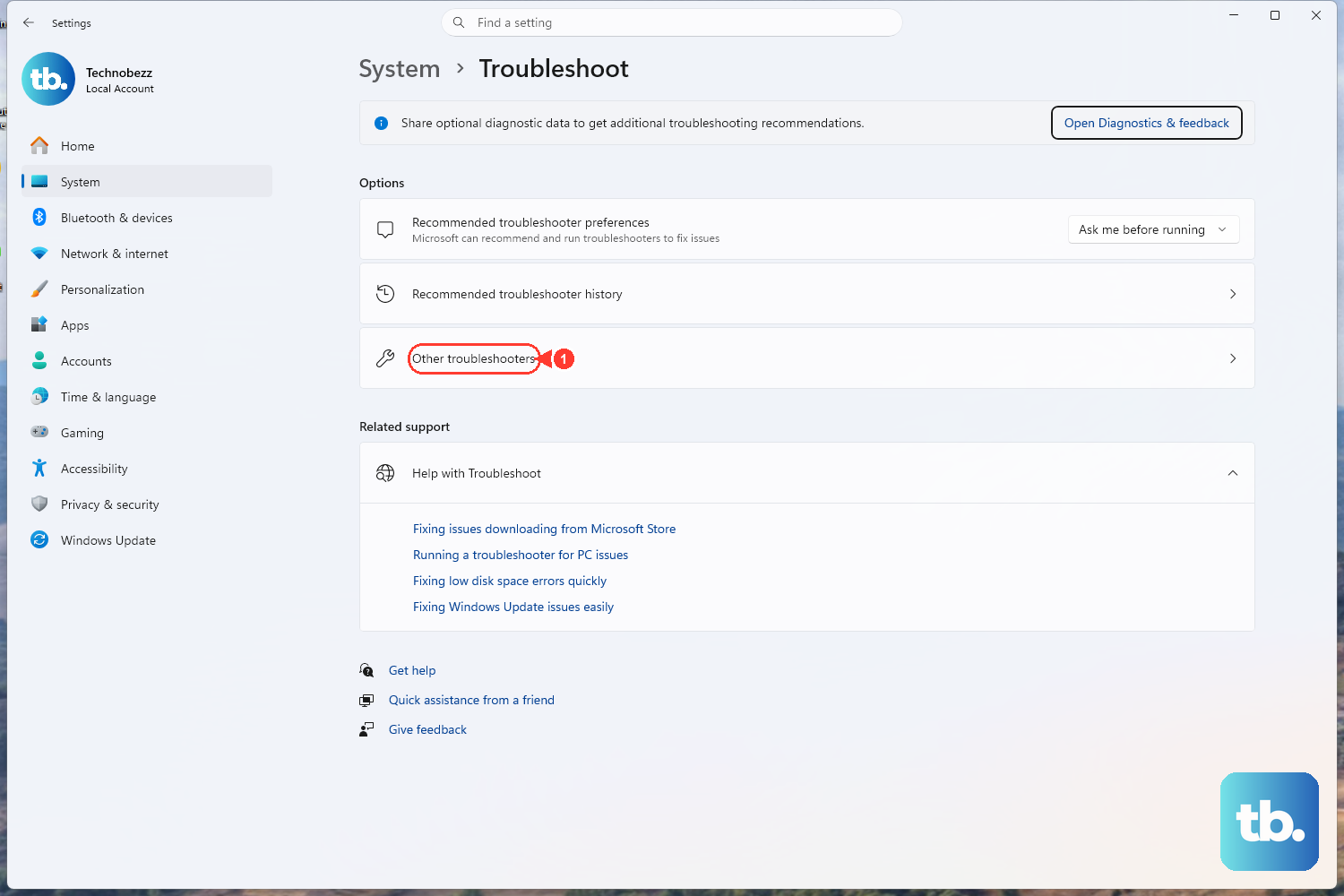
Before you touch any manual settings, let Windows scan for the issue and apply its own fixes. The built-in troubleshooter catches a surprising number of input problems automatically, which can save you from digging through menus.
On Windows 11, open the automated audio troubleshooter in the Get Help app, or go to Start > Settings > System > Troubleshoot > Other troubleshooters and select Run next to Audio.
On Windows 10, go to Start > Settings > Update & Security > Troubleshoot, then under Find and fix problems select Playing audio and Run the troubleshooter. The microphone-specific tool, Recording Audio, lives under Settings > Update & Security > Troubleshoot > Additional troubleshooters.
Let Windows detect and apply any fixes automatically before you change anything manually.
If the troubleshooter resolves it, you are done. If not, the steps that follow target the most likely causes one at a time.
Make Sure Windows Is Listening to the Right Mic
Many PCs have more than one input option: a built-in array mic, a webcam mic, a headset, and so on. If Windows is set to listen to a device that is not the one you are speaking into, you will get silence even though the hardware is fine.
On Windows 11, go to Start > Settings > System > Sound. Under Input, in the Choose a device for speaking or recording section, select the microphone you want to use.
For Windows 10, go to Start > Settings > System > Sound and make sure your microphone is selected under Choose your input device.
Pick the device that matches what you are actually speaking into, then test your mic again.
Run a Quick Mic Test and Check the Input Level
Windows has a built-in test that lets you confirm whether sound is being captured at all. This also catches the common case where the mic works but the input volume is set too low to register.
Go to Start > Settings > System > Sound.
Under Input, select your microphone and choose the > to the right of the device to open its properties page.
On Windows 11, under Input settings (Microphone test), select Start test and speak normally, then select Stop test and choose Play to hear what was captured. On Windows 10, use the Test your microphone option on the same page and speak to watch the level move.
If the level is too low or nothing was recorded, adjust the Input volume slider upward and test again.
If the test shows your mic is capturing sound but a specific app still cannot, the problem is almost certainly a permission setting, which is the next step.
Unblock App Access in Privacy Settings
Windows lets you control which apps may reach your microphone, and a single toggle turned off here will block sound for that app even when the hardware works perfectly. This is one of the most common reasons a mic that tests fine still fails inside a particular program.
On Windows 11, go to Start > Settings > Privacy & security > Microphone. Make sure Microphone access is turned on, then turn on Let apps access your microphone. For programs you did not get from the Store, also turn on Let desktop apps access your microphone.
On Windows 10, go to Start > Settings > Privacy > Microphone, select Change, and turn on Allow apps to access your microphone.
After enabling access, close and reopen the app that was failing so it picks up the new permission.
Restart the Audio Services That Power Your Mic
Windows audio relies on a few background services, and if one of them stalls, recording and input can stop working until the service is restarted. Cycling them often clears up a mic that suddenly went dead without any setting changes on your end.
In the search box on the taskbar, type services and open it.
Select each of these services in turn, right-click (or press and hold) and choose Restart: Windows Audio, Windows Audio Endpoint Builder, and Remote Procedure Call (RPC).
On Windows 11, confirm with Yes when prompted.
You can also open the same console directly by running services.msc. Restart all three services, then test the microphone once more.
Refresh the Audio Driver Through Device Manager
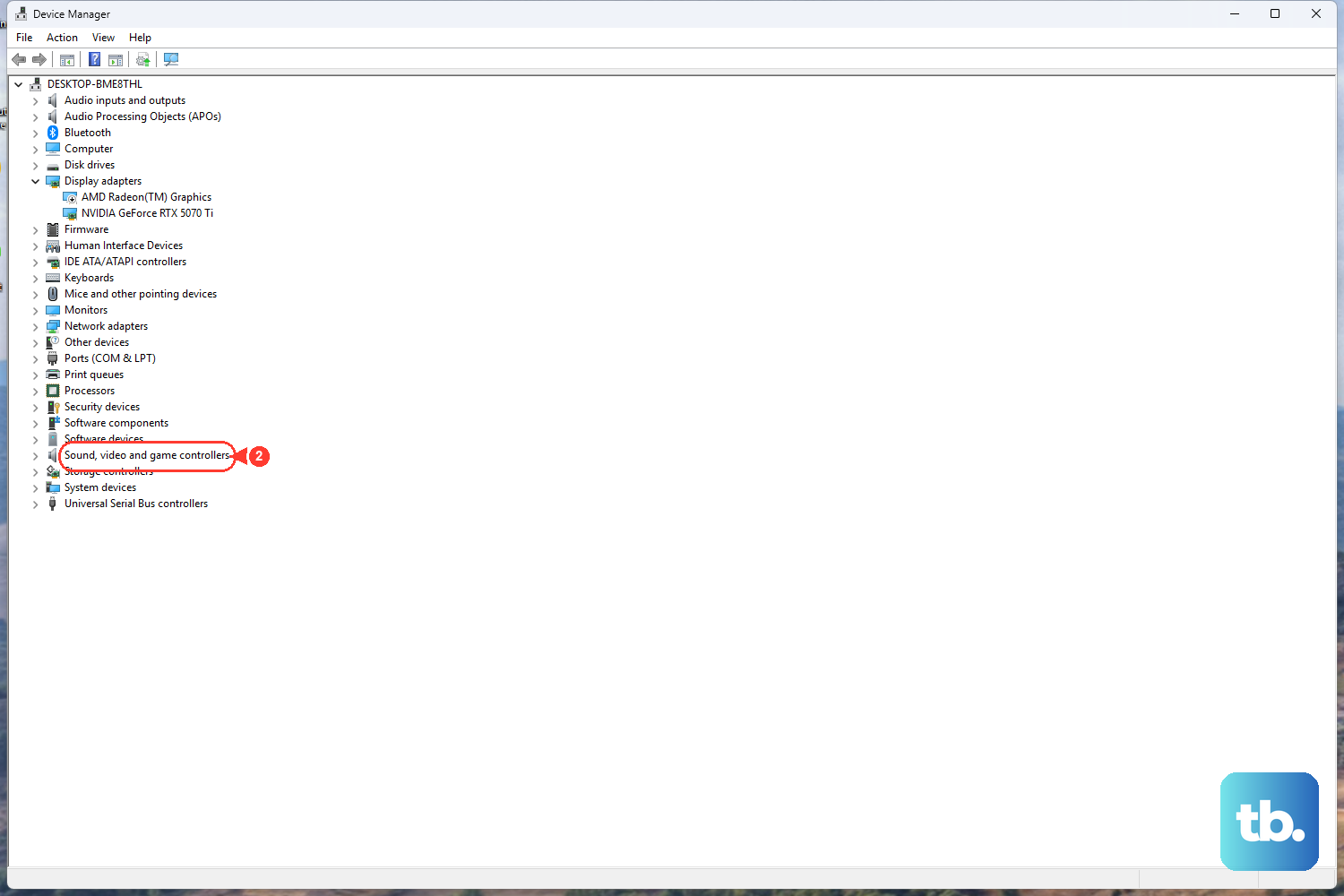
An outdated or glitchy audio driver can stop your microphone from registering input. Updating it through Device Manager lets Windows pull a current driver for your hardware.
Right-click the Start button and select Device Manager.
Expand Sound, video and game controllers, right-click your audio device, and select Update driver.
On Windows 11, select Search automatically for drivers. On Windows 10, select Search automatically for updated driver software.
Follow the prompts, then restart your PC.
Once Windows reboots, check whether your mic is back before moving on.
Roll Back the Driver if the Mic Died After an Update
If your microphone was working fine and then stopped right after a Windows or driver update, the new driver is the likely suspect. Windows keeps the previous version so you can revert to it.
Open Device Manager and expand Sound, video and game controllers.
Right-click the audio device and choose Properties.
On the Driver tab, select Roll Back Driver.
You must be signed in with administrator permissions to roll back a driver. If the Roll Back Driver option is greyed out, there is no previous version stored, and you should move on to reinstalling the driver instead.
Reinstall the Audio Driver From Scratch
When updating and rolling back both fail, removing the driver and letting Windows lay down a fresh copy can clear a corrupted install. Windows reinstalls the audio device automatically after a restart, so your hardware does not stay disabled.
- 1.Open Device Manager and expand Sound, video and game controllers.
- 2.Right-click the audio device and select Uninstall device.
- 3.Check Attempt to remove the driver for this device on Windows 11, or Delete the driver software for this device on Windows 10, then confirm.
- 4.Restart your computer. Windows will try to reinstall the audio device and driver automatically.
- 5.If the device does not reappear, right-click the Sound, video and game controllers section and select Scan for hardware changes.
This is the deepest software fix on the list, so reserve it for cases where the earlier steps came up empty.
Get a Bluetooth Headset Mic Talking Again
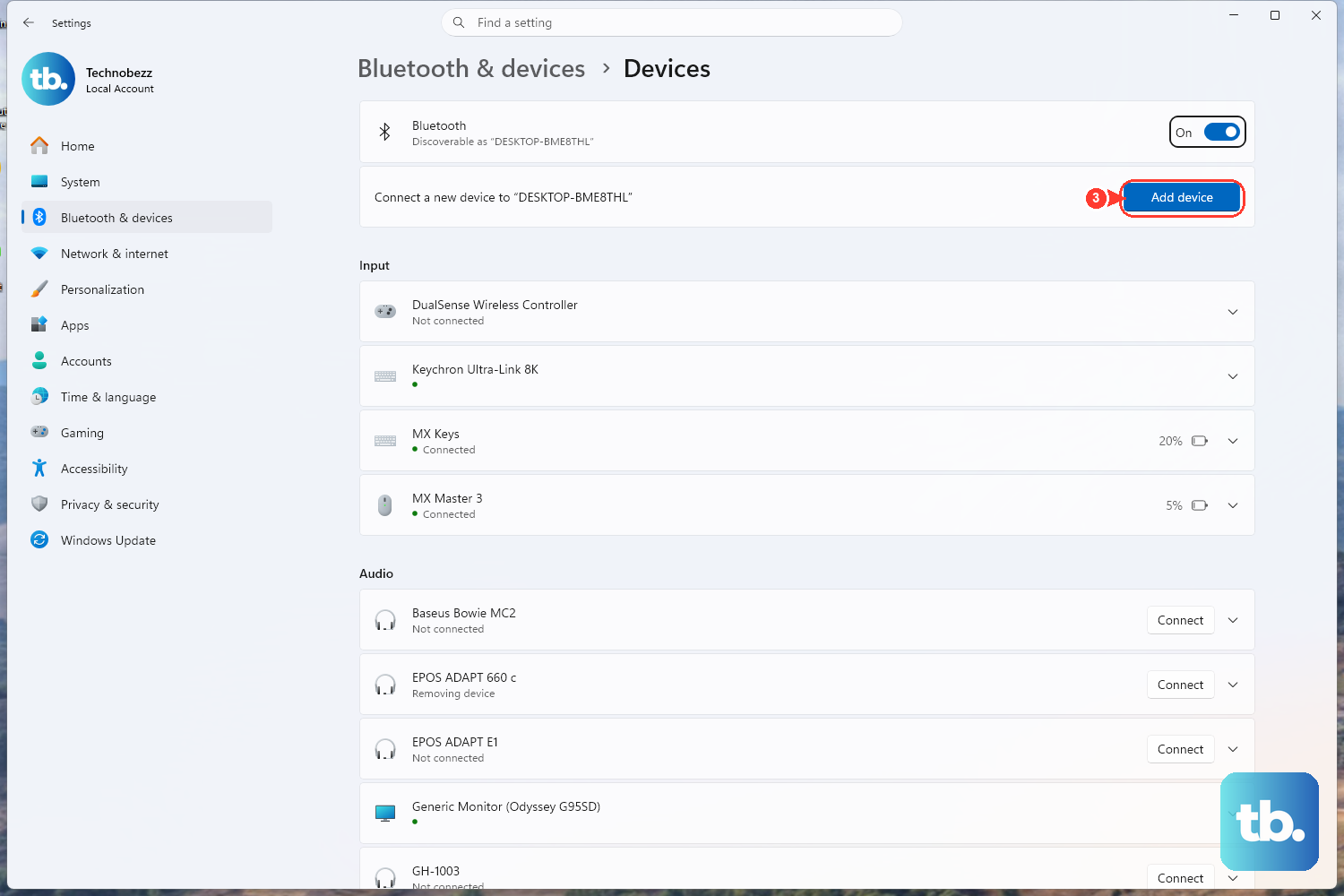
Wireless headset mics add their own layer of trouble, since the connection itself can drop or pair incorrectly. Start with the connection and the Bluetooth troubleshooter before re-pairing the device.
On Windows 11, confirm Bluetooth is on under Start > Settings > Bluetooth & devices. On Windows 10, check Start > Settings > Devices > Bluetooth & other devices.
Next, run the Bluetooth troubleshooter. On Windows 11, go to Start > Settings > System > Troubleshoot > Other troubleshooters and select Run next to Bluetooth. On Windows 10, go to Start > Settings > Update & Security > Troubleshoot > Bluetooth > Run the troubleshooter.
If it still fails, remove the device. On Windows 11, select More options for the device, then Remove device > Yes. On Windows 10, select the device, then Remove device > Yes.
Pair it again: put the headset in pairing mode, then on Windows 11 select Add device > Bluetooth and choose it. On Windows 10, go to Bluetooth & other devices > Add Bluetooth or other device > Bluetooth, choose it, and select Done.
A clean re-pair usually restores both audio and the mic on a wireless headset that had been connecting but not capturing sound.
Frequently Asked Questions
Why does my microphone work in one app but not another?
That pattern almost always points to a privacy permission rather than a hardware fault. Check Settings > Privacy & security > Microphone on Windows 11 (or Settings > Privacy > Microphone on Windows 10) and make sure microphone access is on for apps. For programs you installed outside the Store, also enable Let desktop apps access your microphone.
How do I confirm my mic is actually recording?
Use the built-in test. Go to Start > Settings > System > Sound, select your mic, and open its properties with the > arrow. On Windows 11, choose Start test, speak, select Stop test, then choose Play to hear what was captured. On Windows 10, use the Test your microphone option and speak to watch the input level move.
My mic broke right after a Windows update. What should I try first?
Open Device Manager, expand Sound, video and game controllers, right-click your audio device, choose Properties, and on the Driver tab select Roll Back Driver. You will need administrator permissions, and if the option is greyed out, reinstalling the driver is the next move.
Which services should I restart if the mic suddenly stopped?
Type services in the taskbar search box (or run services.msc), then right-click and Restart Windows Audio, Windows Audio Endpoint Builder, and Remote Procedure Call (RPC). On Windows 11, confirm with Yes when prompted.
My Bluetooth headset connects but the mic is silent. Now what?
Run the Bluetooth troubleshooter from Settings > System > Troubleshoot > Other troubleshooters on Windows 11 (or Settings > Update & Security > Troubleshoot > Bluetooth on Windows 10). If that does not help, remove the device and re-pair it by putting the headset in pairing mode and adding it again through Bluetooth settings.