
When your MacBook Pro 16-inch M5 Max won't charge, you might see the battery icon stuck or a "Not Charging" message even when it's plugged in. Let's get it charging again.
Start with the simplest check. Make sure the USB-C cable is firmly plugged into both the power adapter and your MacBook. I'd also check the wall outlet by plugging in another device, like a lamp, to confirm it's working.
Inspect Your Charger and Cable
Look over the USB-C cable and the power adapter block for any signs of damage, like fraying, kinks, or bent connectors. The M5 Max model can draw a lot of power, so using the original 140W USB-C Power Adapter or an equivalent high-wattage charger is crucial.
A lower-wattage charger might power the laptop when it's asleep but won't be able to charge the battery if you're doing intensive tasks. If you have access to another compatible high-wattage USB-C charger and cable, try them to rule out a faulty component.
Try a Different USB-C Port
Your MacBook Pro has multiple Thunderbolt / USB 4 ports. Unplug the charger and plug it into a different port on the laptop. Sometimes one port can have a connection issue while the others work perfectly fine.
This is a quick test that can immediately tell you if the problem is with a specific port on the MacBook itself.
Restart Your MacBook
A simple restart can clear up temporary software glitches that affect power management. Click the Apple menu in the top-left corner of your screen and select Restart.
After it boots back up, check if the battery icon shows the charging lightning bolt. This often resolves a false "Not Charging" status.
Check for macOS Updates
Apple releases updates that can fix bugs related to power and battery management. Go to System Settings > General > Software Update to see if any updates are available for macOS 26 Tahoe.
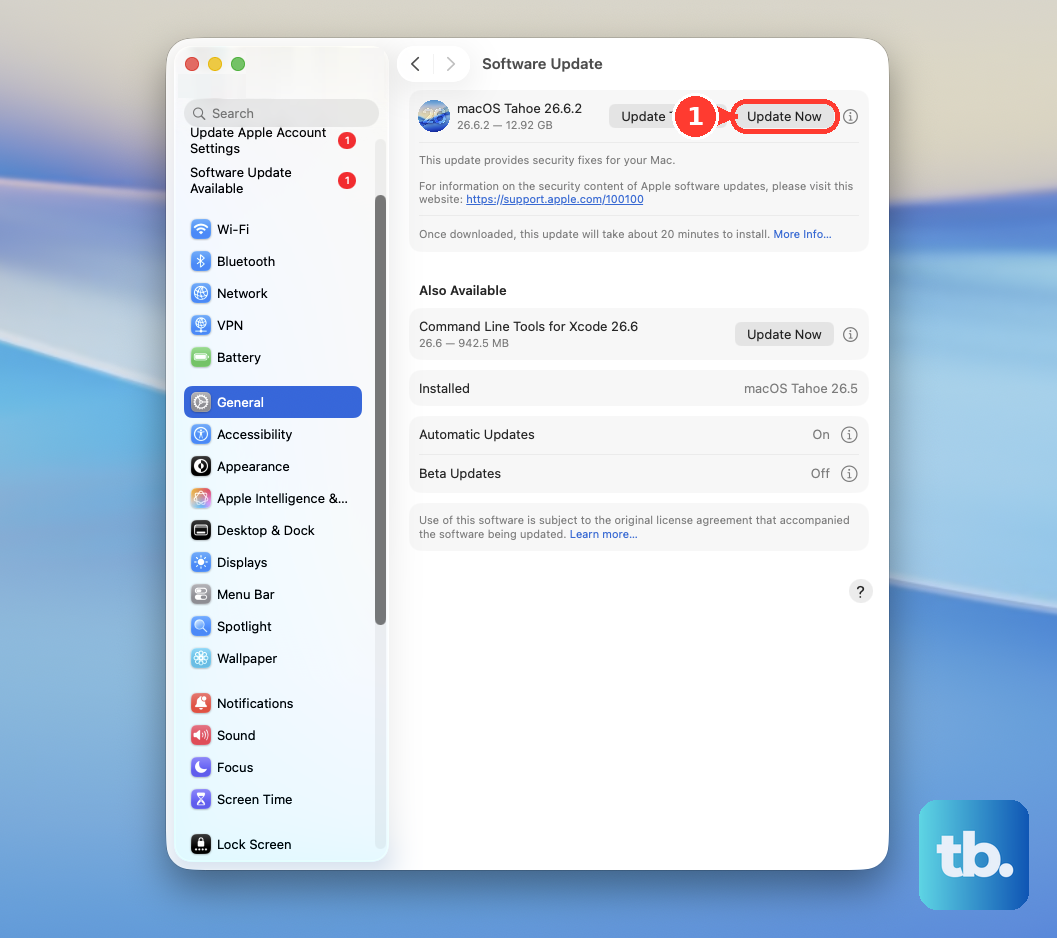
Installing the latest update is a good step, as these updates sometimes include specific fixes for charging behavior on new hardware like the M5 Max.
Check Battery Health Settings
Head to System Settings > Battery > Battery Health. Here you can see two important things. First, check the overall health status. If it says "Service Recommended," the battery itself may be the issue.
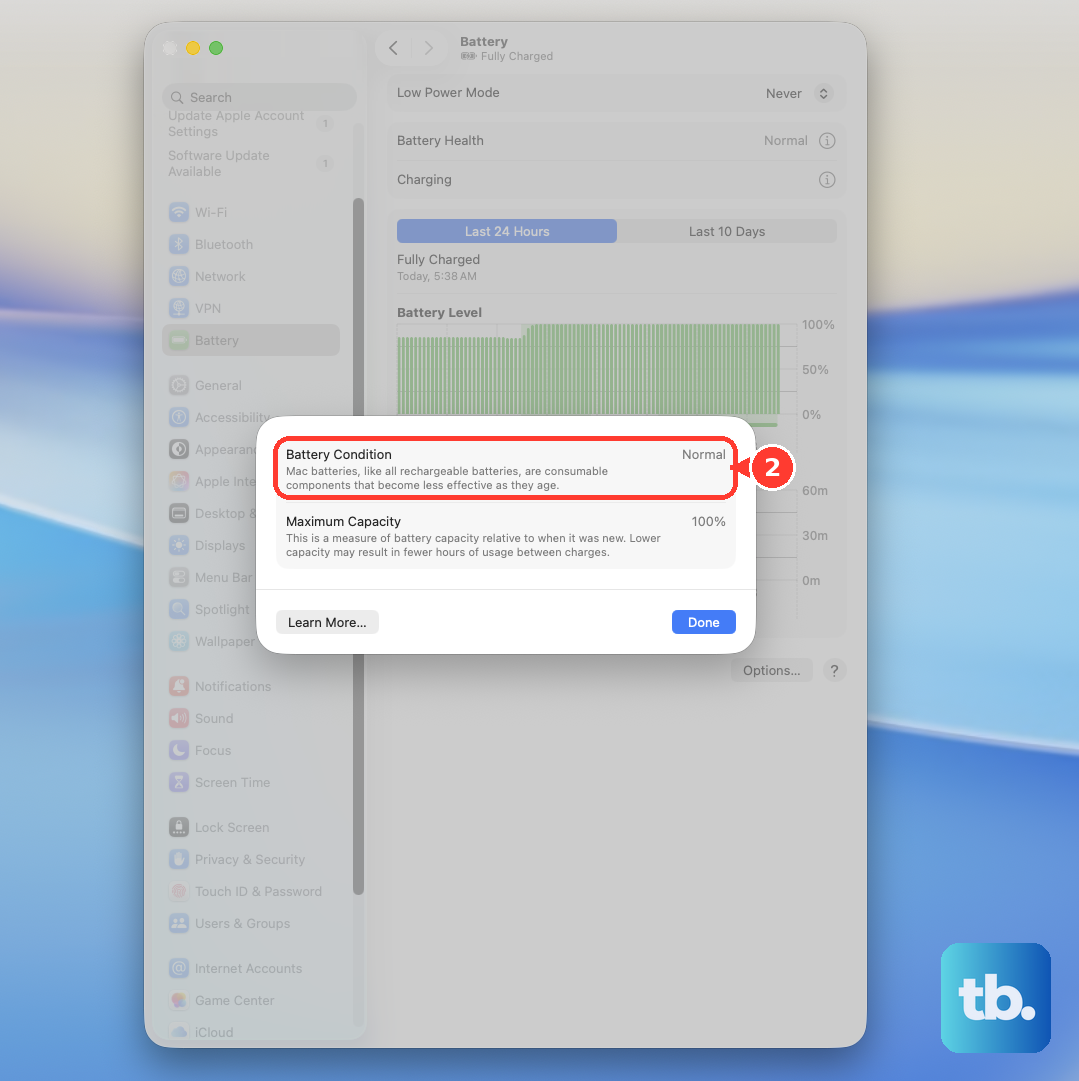
Second, look at the "Optimized Battery Charging" setting. When enabled, your MacBook might intentionally pause charging above 80% based on your usage patterns to extend battery lifespan. If you need a full charge now, you can temporarily turn this off.
Clean the USB-C Ports
Over time, pocket lint and dust can compact inside the USB-C ports, preventing the cable from making a proper connection. Shut down your MacBook and take a close look at the ports using a bright light.
Use a can of compressed air to blow out any loose debris. For stubborn lint, a dry, soft-bristled brush or a plastic (not metal) toothpick can be used with extreme care to gently dislodge it. Be very gentle to avoid damaging the delicate pins inside the port.
Manage Power-Intensive Tasks
The M5 Max chip is incredibly powerful, and under heavy loads like video exporting, 3D rendering, or driving multiple external displays, the system's power draw can be very high. In these scenarios, you might see the battery percentage hold steady or even drop slightly while plugged in, which can be normal.
For maximum sustained performance and to ensure the charger can keep up, you can enable High Power Mode in System Settings > Battery. This setting prioritizes performance over noise and battery life.
Reset the Power Management
For Apple Silicon Macs like your M5 Max, a full shutdown and brief wait can help reset the power systems. Shut down your MacBook completely via the Apple menu. Once it's off, wait about 30 seconds.
Then, press and hold the power button for a full 10 seconds to perform a force restart. Release the button and let the MacBook start up normally. This process can clear deeper power-related states that a standard restart doesn't touch.