
When your MacBook Pro 16-inch M5 Max is burning through its battery in a couple of hours, it can feel like you're tethered to the charger. The M5 Max chip is incredibly powerful, but that performance can come at a cost to battery life, especially under heavy workloads. Let's walk through the steps to get your runtime back on track.
Check Your Battery Health First
Head to Apple menu > System Settings > Battery. Click on the Battery Health button here. If you see "Service Recommended," the physical battery has degraded and likely needs replacement, which would explain poor performance.
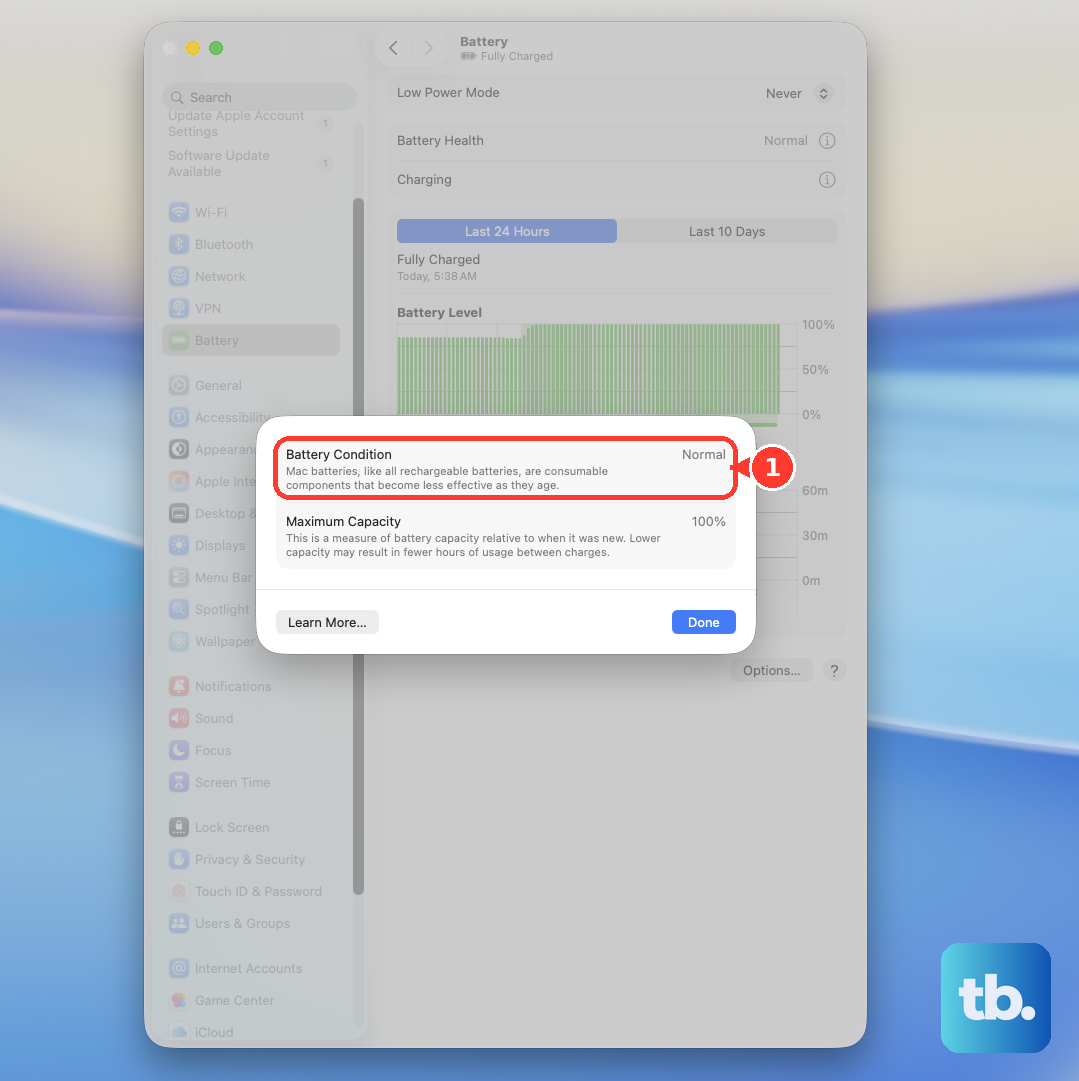
You can also get more detailed info by going to Apple menu > About This Mac > More Info > System Report > Hardware > Power. Look at the Cycle Count and Condition for a fuller picture of your battery's status.
Use Activity Monitor to Find the Culprit
Open Activity Monitor from your Utilities folder and click the Energy tab. This is your mission control for power usage. Sort the list by "Energy Impact" to instantly see which apps are the hungriest.
Pay special attention to the "Preventing Sleep" column. Any app marked "Yes" is actively stopping your Mac from going to sleep, which is a huge drain. I'd start by quitting anything here that you don't absolutely need running in the moment.
Adjust Your Performance Mode
For the M5 Max, you have a specific setting that affects power. Go to System Settings > Battery. Here, you'll find the "High Power Mode" option, which unlocks maximum performance for intensive tasks like video exports or 3D rendering.
This mode will significantly increase power draw and cause the fans to spin up. If you're not doing work that needs every ounce of the M5 Max, switch this setting to "Automatic" or "Low Power Mode" to conserve battery during everyday use.
Manage Your Display and External Monitors
The stunning 16-inch display is a major power user. Lower the brightness to a comfortable level using the F1 key. Also, check System Settings > Displays and ensure "Automatically adjust brightness" is on so it optimizes itself.
Remember, your M5 Max can drive up to four external displays. Each connected monitor adds to the GPU workload and power consumption. If you're on battery, consider disconnecting external displays or mirroring instead of extending your desktop.
Control Background Processes and Login Items
Background apps can sip power all day. Check System Settings > General > Login Items & Extensions. Remove any apps here that don't need to launch automatically when you start up your Mac.
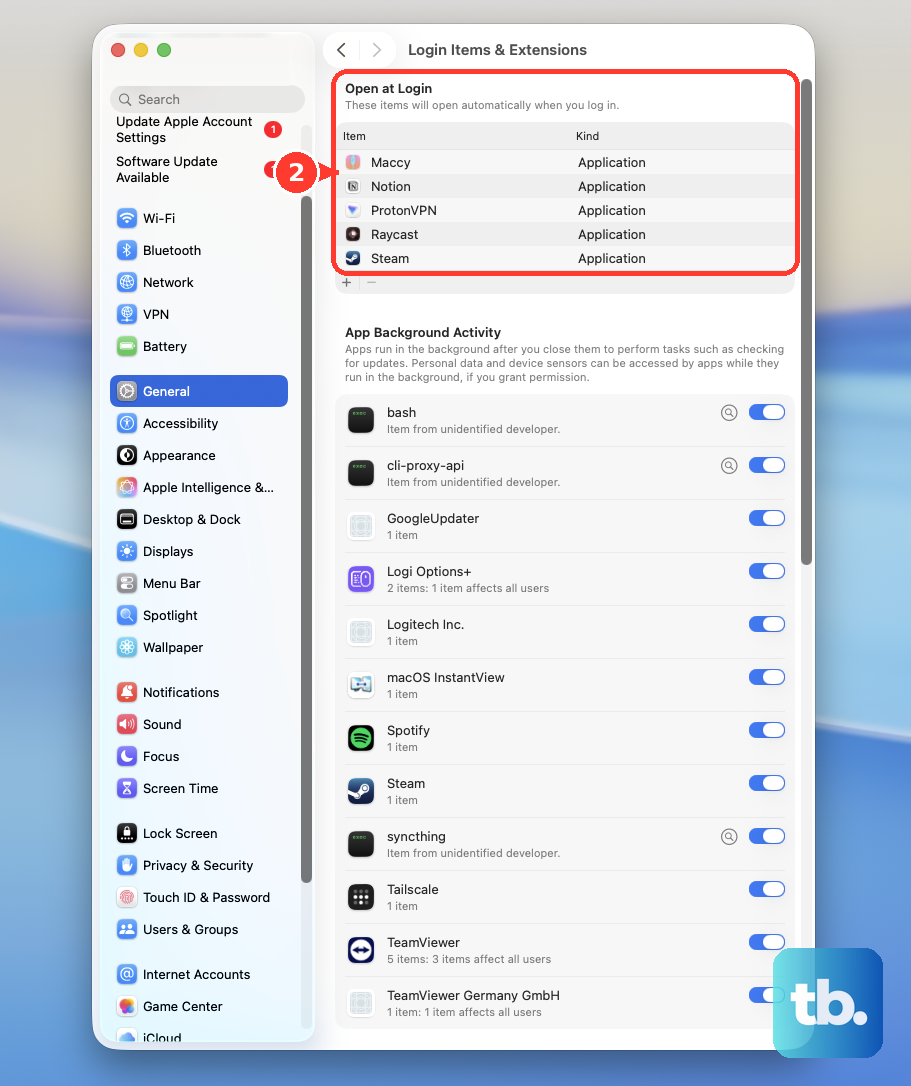
Also, look at menu bar icons. Each one represents a process running in the background. Cloud storage sync apps (like Dropbox or Google Drive), automatic updaters, and messaging apps are common culprits. Quit the ones you aren't using.
Disable Unnecessary Wireless Features
If you're not using them, turn off Bluetooth and Wi-Fi. Go to System Settings > Bluetooth and toggle it off. For Wi-Fi, you can click the Control Center icon in the menu bar and turn it off there.
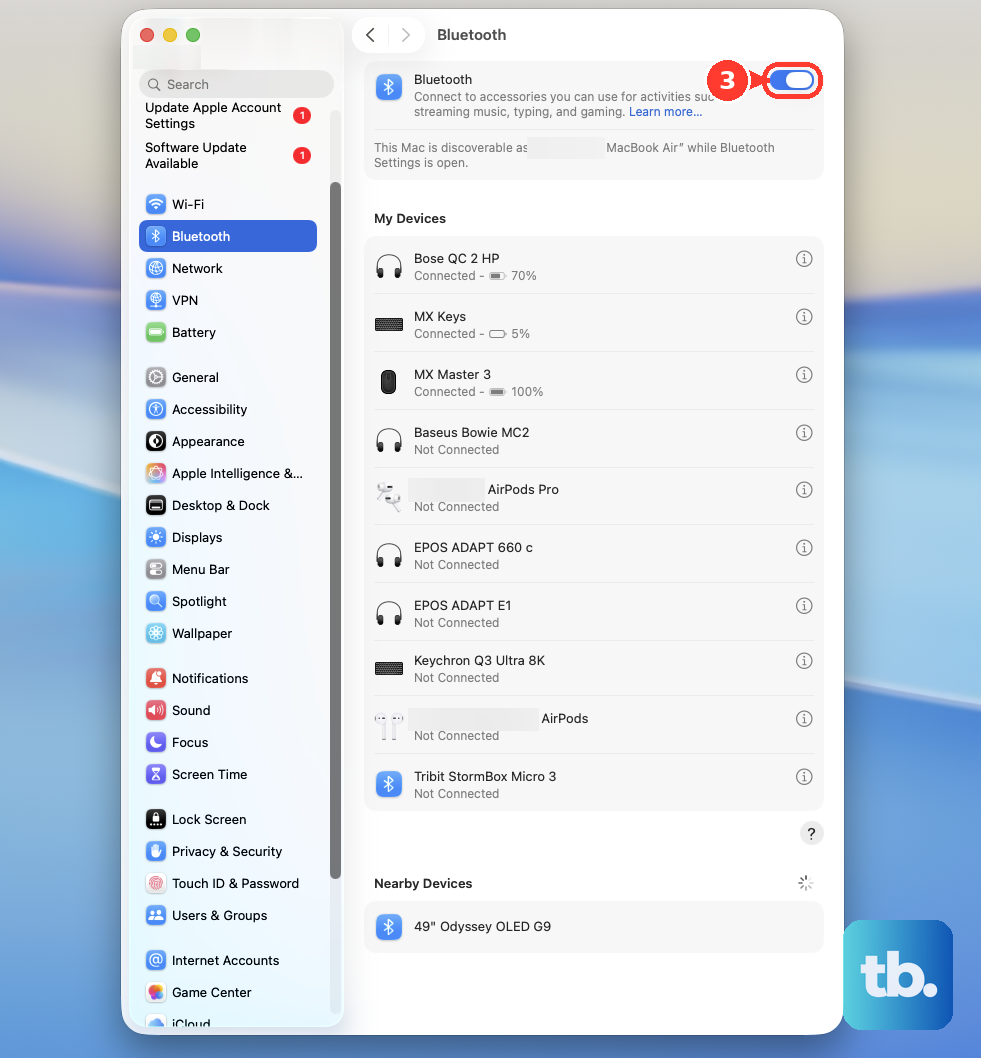
Also, consider limiting AirDrop. In a Finder window, go to AirDrop and set "Allow me to be discovered by" to "No One" when you don't need it. This stops your Mac from constantly broadcasting its availability.
Update to the Latest macOS
Apple releases software updates that often include power management improvements and bug fixes. Go to System Settings > General > Software Update to check for and install any available updates for macOS 26 Tahoe.
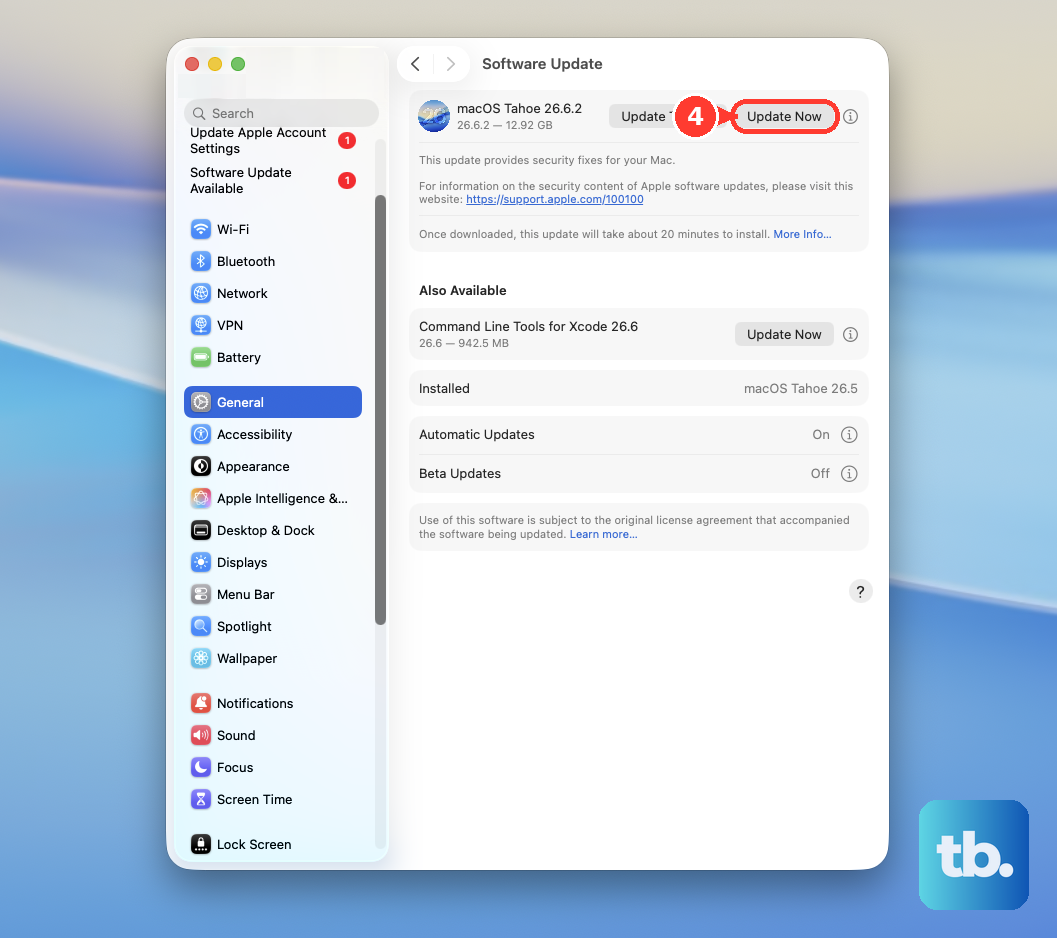
After a major update, it's normal for the system to do background tasks like re-indexing Spotlight, which can cause higher battery drain for a day or so. Give it a little time to settle down after installing.
Be Smart with Your Browser and Apps
Web browsers, especially with many tabs open, are notorious battery hogs. Each tab acts like a separate app. Try to keep your tab count low, and consider using Safari, which is generally more energy-efficient on Mac than Chrome or Edge.
For creative apps like Final Cut Pro or Blender, the M5 Max's GPU can draw a lot of power. Make sure you fully quit these applications when you're done with a session instead of just closing the window, as they may continue GPU-related processes in the background.
Perform a Simple Restart
Sometimes, a background process or software glitch can get stuck and cause excessive power drain. A full restart can clear this out. Save your work, then go to the Apple menu and choose Restart.
If you're experiencing a freeze or unresponsiveness, you can force a restart by pressing and holding the power button for about 10 seconds until the Mac shuts off, then pressing it again to turn it back on.