
When your MacBook Pro 14-inch M5 goes silent, it's almost always a quick settings fix or a software hiccup. Let's get your sound back.
Check Volume and Mute
First, tap the volume up key on your keyboard. Look at the sound icon in your menu bar. If you see a line through the speaker icon, your Mac is muted. Click the icon and drag the slider up.
Also, check the physical function keys. If the F12 key is lit up orange, the sound is muted. Press it once to turn the mute off.
Select the Right Output Device
Go to System Settings > Sound > Output. You'll see a list of available audio devices. Make sure "MacBook Pro Speakers" is selected.
If you recently unplugged headphones or an external monitor, your Mac might still be trying to send audio there. Selecting the internal speakers should route the sound back immediately.
Restart Your MacBook Pro
Click the Apple menu > Restart. This is the single most effective step for clearing temporary audio glitches, especially if the sound cut out after waking from sleep.
A full restart reloads the Core Audio framework and all related processes. I'd start with this if checking the volume didn't work.
Restart Core Audio in Terminal
If you don't want to restart your whole system, you can just restart the audio service. Open Terminal from your Utilities folder.
Type the command sudo killall coreaudiod and press Enter. You'll be prompted for your password. Type it and press Enter again. The audio should come back within a few seconds.
Check the App You're Using
Some apps, like Spotify, QuickTime, or Zoom, have their own independent volume controls. Make sure the volume is turned up within the app itself.
Also, open System Settings > Sound and play a test alert tone. If you hear that, the problem is isolated to one specific application.
Disconnect Bluetooth Audio
If your MacBook is connected to a Bluetooth speaker, headphones, or a car stereo, it will send audio there by default. Go to System Settings > Bluetooth.
Find any audio devices in the list and click the Disconnect button next to them. Your sound should automatically switch back to the laptop's speakers.
Run Apple Diagnostics
This is a good step to rule out a hardware issue with the speakers. Shut down your MacBook Pro completely. Press and hold the power button to turn it on, but keep holding it.
Release the button when you see the startup options window. Press and hold Command (⌘) + D on your keyboard. This will boot into Apple Diagnostics and test your hardware, including the audio components.
Update macOS
Audio driver issues are often patched in software updates. Go to System Settings > General > Software Update.
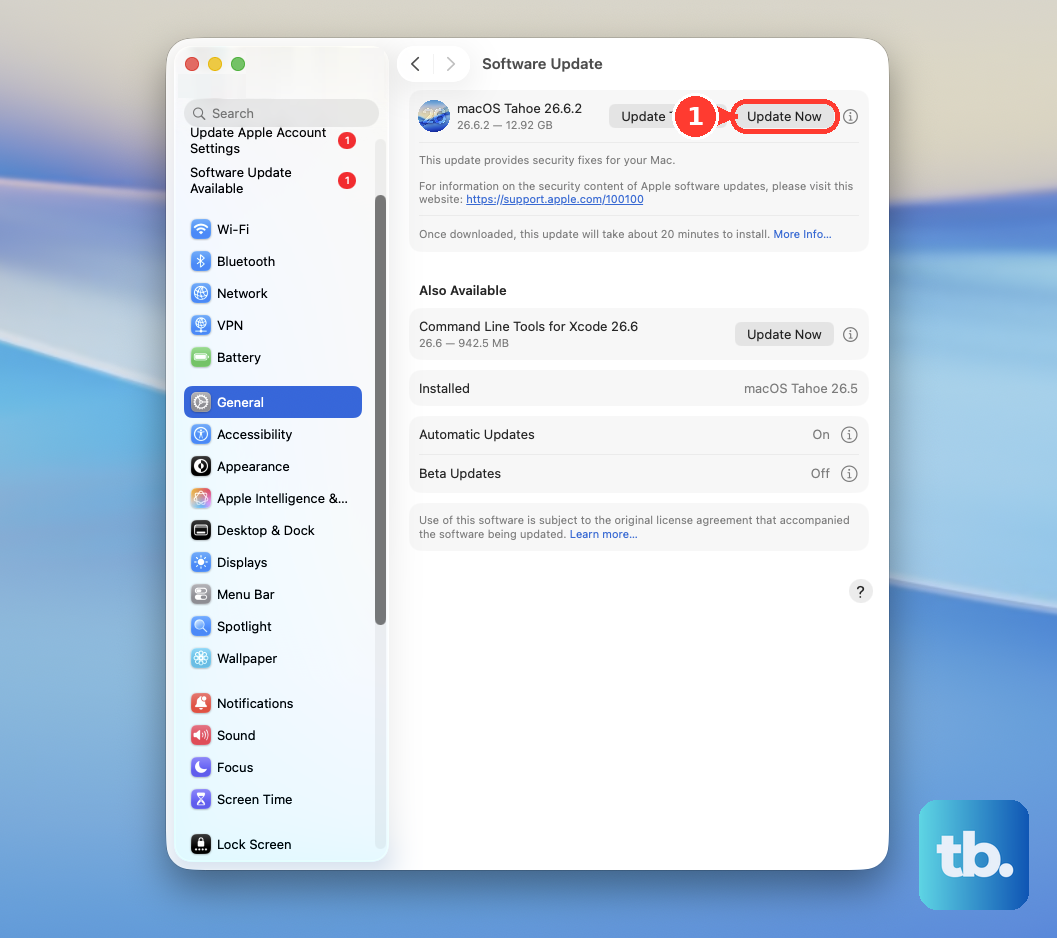
Install any available updates for macOS 26 Tahoe. After the update completes and your Mac restarts, test your sound again.
Check Sound Settings and Accessibility
There are a couple of obscure settings that can affect audio. First, go to System Settings > Sound and make sure "Play sound on startup" is enabled. While you're there, check the balance slider to ensure it's centered.
Next, go to System Settings > Accessibility > Audio. Make sure "Play stereo audio as mono" is turned off, as this can sometimes cause audio to seem missing or distorted.
Reset the Sound Controller
For Apple Silicon Macs like your M5 model, a specific type of restart can help. Shut down your MacBook Pro. Wait about 30 seconds.
Press and hold the power button for a full 10 seconds, then release it. Wait another few seconds, then press the power button normally to turn your Mac back on. This performs a deeper reset of system controllers, including audio.