
If your MacBook Air M3 is feeling sluggish, it's a frustrating experience for a machine known for its speed. Whether apps are slow to launch, animations are choppy, or the system just feels bogged down, there are several straightforward things you can check.
Restart Your MacBook Air
It sounds simple, but it's often the most effective first step. If you've been closing the lid and letting it sleep for days or weeks, a full restart clears out temporary files and resets system processes. Click the Apple menu in the top-left corner and select Restart.
Check for macOS Updates
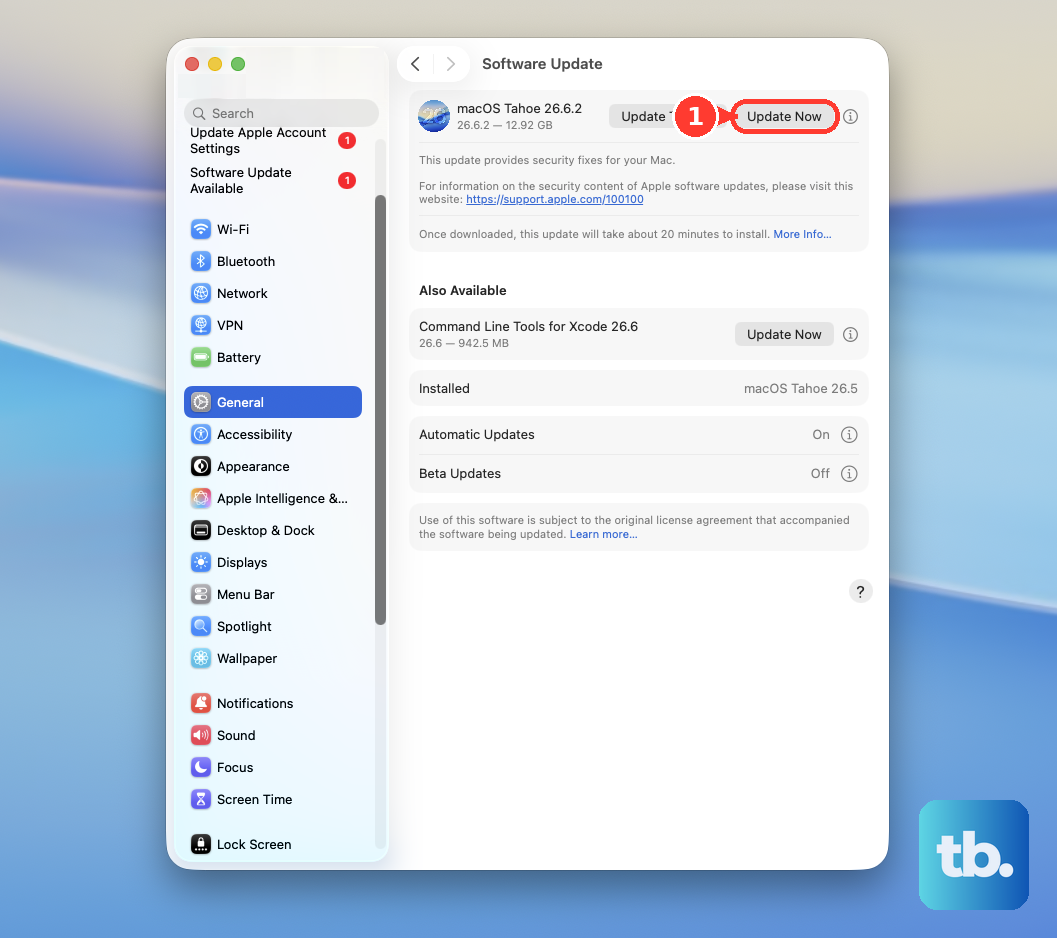
Apple frequently releases updates that include performance improvements. Go to System Settings > General > Software Update. Make sure you're running the latest version of macOS 26 Tahoe, as it may contain specific optimizations for the M3 chip that resolve lag issues.
See What's Using Your Resources
Open Activity Monitor from your Applications > Utilities folder. Click the CPU tab and sort by "% CPU" to see what's consuming the most power. I'd start here, as a single runaway process can slow everything down. You can quit a problematic app from this window.
Also, check the Memory tab. While the M3's unified memory is efficient, if you're consistently seeing high memory pressure (shown in red or yellow), you may have too many demanding apps open at once.
Free Up Storage Space
Your Mac needs room to breathe. Go to Apple menu > About This Mac > Storage. If your drive is nearly full, especially below 10-15% free space, system performance can suffer. Use the Manage button to review large files, empty the Trash, and consider enabling Optimize Mac Storage to move older files to iCloud.
Manage Startup and Login Items
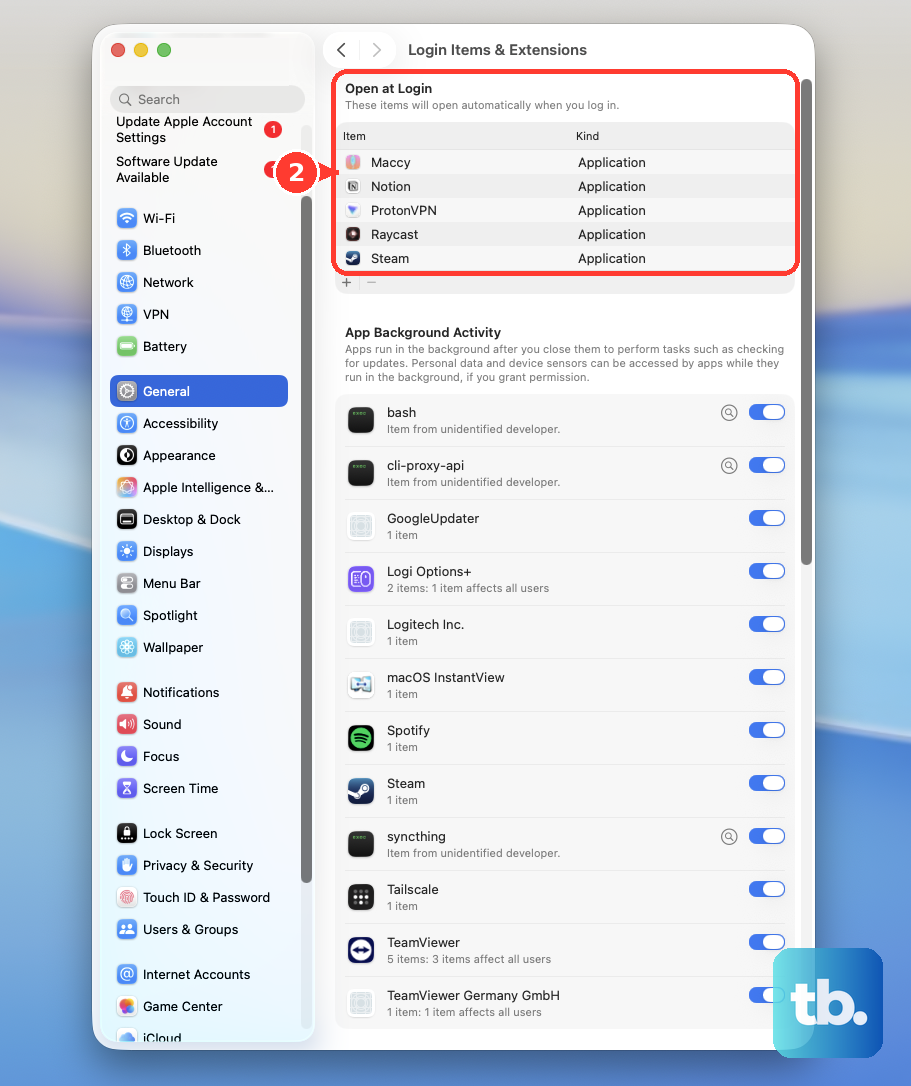
Apps that launch automatically when you log in can slow down your boot time and run in the background. Open System Settings > General > Login Items & Extensions. Review the list and remove any applications you don't need starting up with your computer by clicking the minus (-) button.
Boot in Safe Mode
Booting in Safe Mode performs a check of your startup disk and loads only essential system software. It's a great way to see if the problem is with macOS itself or something you've installed. Shut down your MacBook Air, then turn it on and immediately press and hold the Shift key.
Release the key when you see the login window. If your Mac feels faster in Safe Mode, the issue is likely a third-party app or login item. You can enter Safe Mode by holding Shift while clicking Continue in the startup options.
Reduce Visual Effects
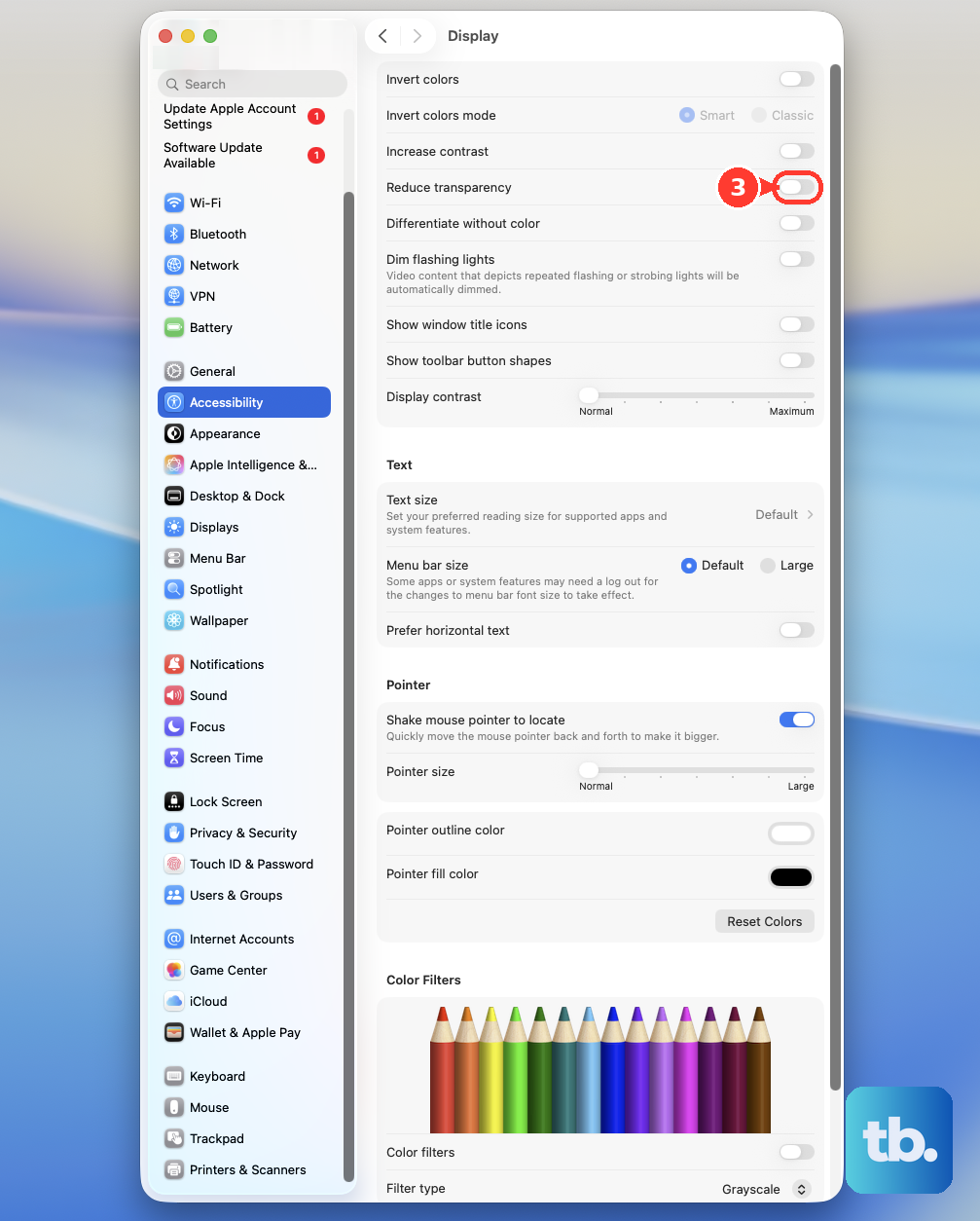
Some interface animations, while nice, can impact perceived performance. You can tone them down in System Settings > Accessibility > Display. Try enabling Reduce motion and Reduce transparency. This can make window movements and menu interactions feel snappier.
Check for Spotlight Indexing
After a major update or restoring from a backup, Spotlight will re-index your files, which uses CPU resources. You might see "mds" or "mdworker" processes in Activity Monitor. It's best to let this finish, which could take a few hours. You can pause it by adding your drive to the privacy list in System Settings > Spotlight > Privacy, then removing it later.
Reset with Apple Diagnostics
If you suspect a hardware issue might be causing the slowdown, you can run Apple Diagnostics. Shut down your MacBook Air, then turn it on and immediately press and hold the Power button. Keep holding it until you see the startup options window, then release. From there, you can access diagnostics to check for any underlying problems.
Review Browser Extensions and Tabs
A browser with dozens of tabs open, especially with heavy extensions, can consume a surprising amount of memory and CPU. Try closing tabs you aren't using. Also, review your browser extensions and disable any that aren't essential, as they can run scripts in the background that slow things down.
Consider Your Workflow and Memory
The MacBook Air M3 is incredibly capable, but if you're consistently pushing it with video editing, large code compilations, or having dozens of professional apps open, you might be hitting the limits of your specific memory configuration. Since memory is unified and not upgradeable after purchase, being mindful of your active workload can help. Try to close apps you're not actively using instead of just minimizing them.