
When your MacBook Air M3 won't charge, you might see the battery icon stuck at a certain percentage with a "Not Charging" status, or the MagSafe indicator light might not turn on at all. The fixes below are specific to the M3 model and the latest macOS.
Check the MagSafe Cable and Adapter
Start by inspecting the MagSafe 3 cable and the USB-C power adapter for any visible damage, like fraying or bent pins. If you have access to another compatible charger, try it. Your MacBook Air M3 needs at least a 30W adapter to charge properly, but a 35W dual-port or 70W adapter will work faster.
Make sure you're using the original Apple adapter or a certified third-party one. Some cheaper, uncertified chargers might power the laptop but won't initiate a charge, leaving the battery stuck.
Try a Different Outlet and USB-C Port
The wall outlet itself could be the issue. Plug your charger into a different outlet in another room to rule out a circuit problem. Also, if you're using a multi-port USB-C hub or dock for charging, try plugging the adapter directly into the MacBook's USB-C port instead.
Your MacBook Air M3 has two USB-C/Thunderbolt ports. If you're charging via one, try switching to the other port. One port might have accumulated lint or have a minor connection issue.
Restart Your MacBook
This is often the quickest fix. Click the Apple menu in the top-left corner and select Restart. A simple reboot can clear temporary software glitches that are preventing the power management system from recognizing the charger.
I've seen this resolve the "Not Charging" status on M-series Macs when the hardware is perfectly fine. It resets the communication between the battery, OS, and charging circuit.
Check Battery Health in System Settings
Go to System Settings > Battery > Battery Health. Here, you'll see the maximum capacity percentage. If it's significantly low (e.g., below 80%), the battery may be too degraded to hold a charge effectively.
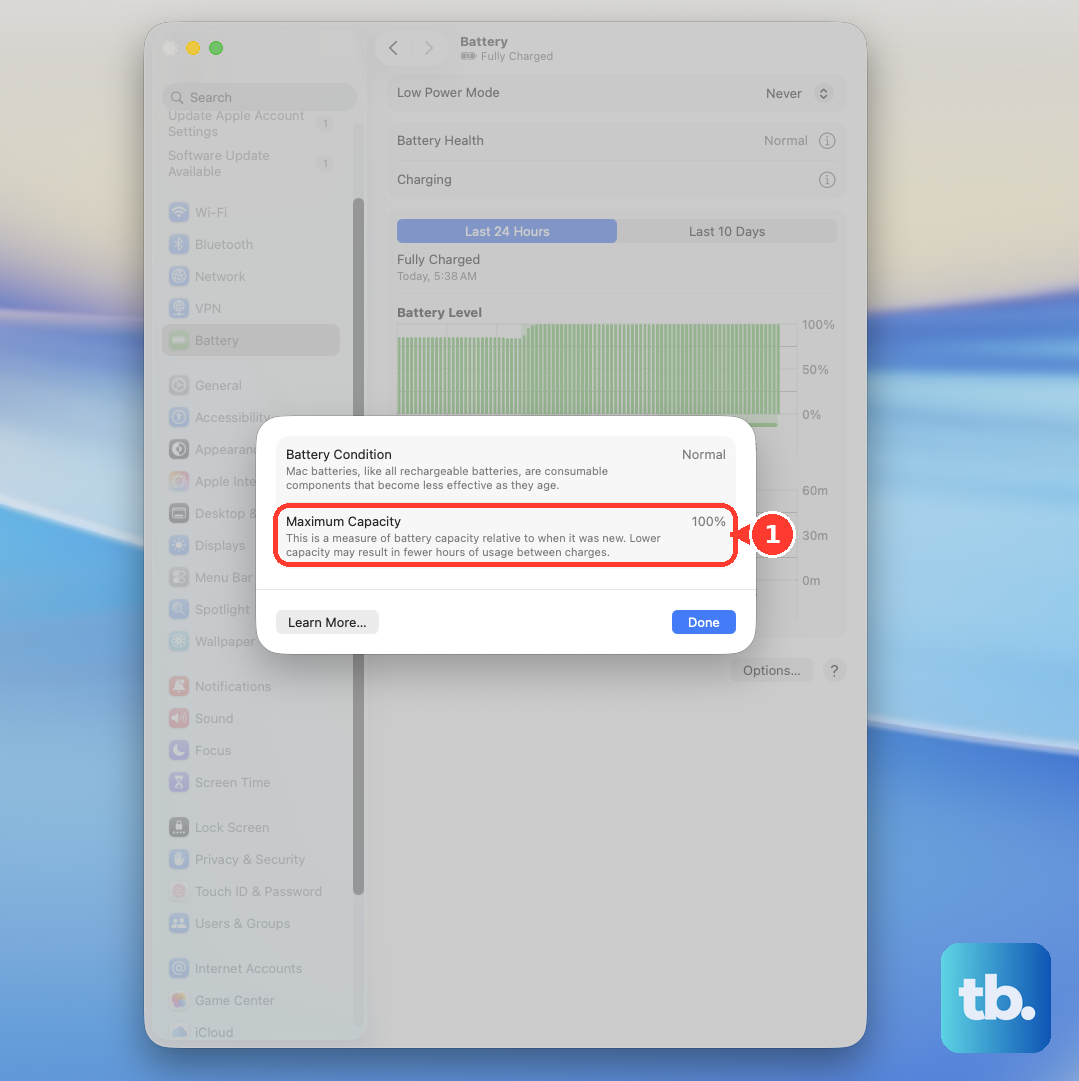
The system will also show a "Service Recommended" alert here if the battery needs replacement. You can view the exact cycle count by clicking the Apple menu > About This Mac > More Info > System Report > Power.
Clean the USB-C Ports Carefully
Lint and pocket debris can compact inside the USB-C ports, preventing the cable from seating fully. Shine a light into the ports and look for any obstruction.
Use a wooden or plastic toothpick to gently dislodge any debris. Avoid metal objects that could short the pins. A can of compressed air can blow out loose dust. Be very gentle to avoid damaging the delicate connectors.
Run Apple Diagnostics
Shut down your MacBook Air M3 completely. Press and hold the power button as you turn it on, and keep holding until you see the startup options window. Then, press and hold the Command (⌘) + D keys on your keyboard.
This boots into Apple Diagnostics, which will test the battery and charging system. If it finds an issue, it will provide a reference code and basic steps. This is a more targeted check than a standard restart.
Update macOS
Charging issues can sometimes be related to a software bug. Go to System Settings > General > Software Update to check for any available updates.
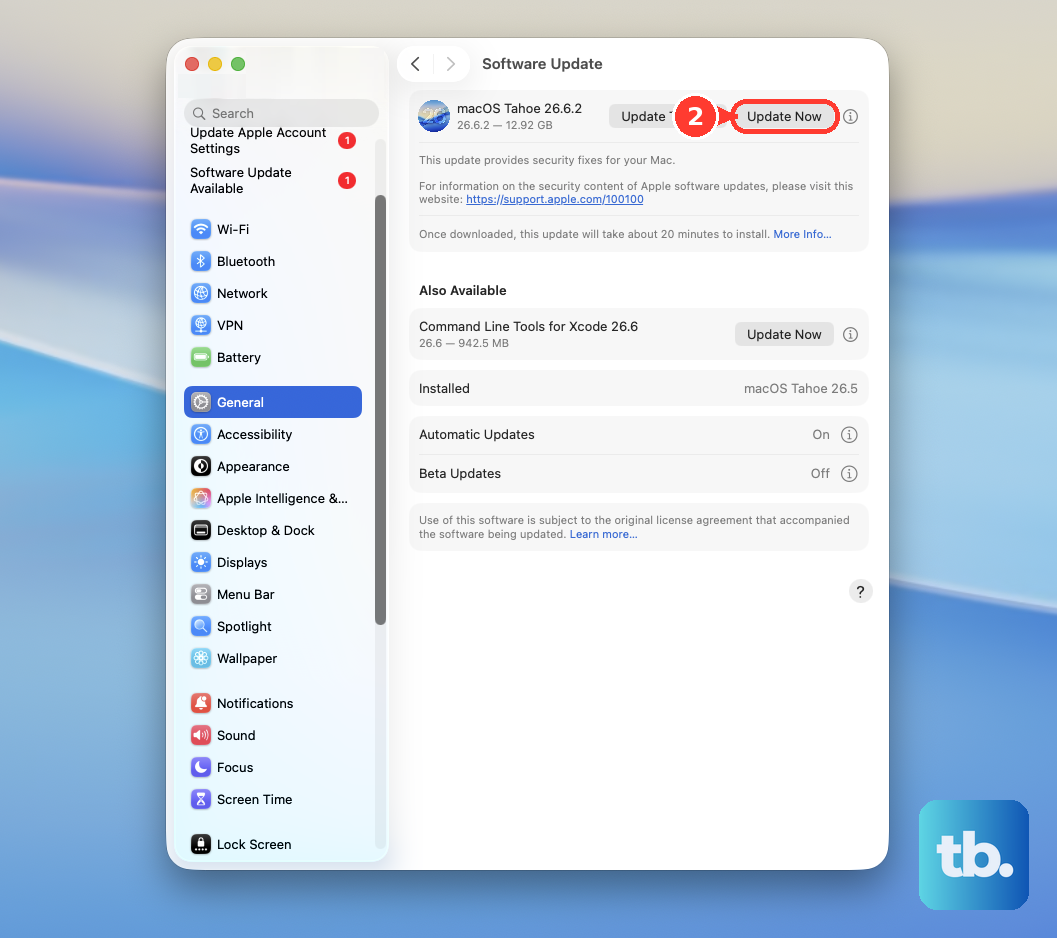
Apple has released specific macOS updates in the past to address power management and battery reporting issues. Installing the latest version of macOS 26 Tahoe could include a fix for your problem.
Check Optimized Battery Charging Settings
Your Mac might be working as intended. Go back to System Settings > Battery > Battery Health. If "Optimized Battery Charging" is enabled, your Mac learns your routine and may pause charging at 80% until it predicts you'll need a full charge.
This isn't a fault. If you need a full charge now, you can click "Charge to Full Now" in the battery menu bar icon. For a permanent fix to immediate charging, you can turn the feature off, though it's better for long-term battery health to leave it on.
Boot in Safe Mode
This can help determine if a third-party app or login item is interfering. Shut down your Mac, then turn it on and immediately press and hold the power button until you see the startup options. Select your startup disk, then press and hold the Shift key and click "Continue in Safe Mode."
If your MacBook charges normally in Safe Mode, the issue is likely caused by software you've installed. You can then restart normally and begin removing recent apps or kernel extensions.