
A slow MacBook Air 15-inch M4 can feel especially frustrating given the power under the hood. If your laptop is lagging, apps are slow to launch, or you're seeing the spinning beach ball more often than you'd like, these steps will help you get back to speed.
Restart Your MacBook Air
It sounds simple, but it's often the most effective first step. If you've been closing the lid and letting it sleep for days or weeks, a full restart clears out temporary system glitches and memory leaks. Just click the Apple menu in the top-left corner and select Restart.
Give it a minute to shut down and boot back up. This is a clean slate for macOS and can resolve a lot of temporary performance hiccups.
Check What's Using Your Resources
Open Activity Monitor from your Applications folder under Utilities. This tool shows you exactly what's happening behind the scenes.
Click the CPU tab and sort the list by "% CPU" to see what's using the most processor power. A single app or process stuck near 100% is a clear culprit. You can select it and click the stop button (a circle with an X) to force quit it.
Also, check the Memory tab. Your M4 MacBook Air has unified memory, and if you're consistently in the red "Memory Pressure" zone, your system is working too hard to manage data. This points to needing to close some apps or browser tabs.
Free Up Storage Space
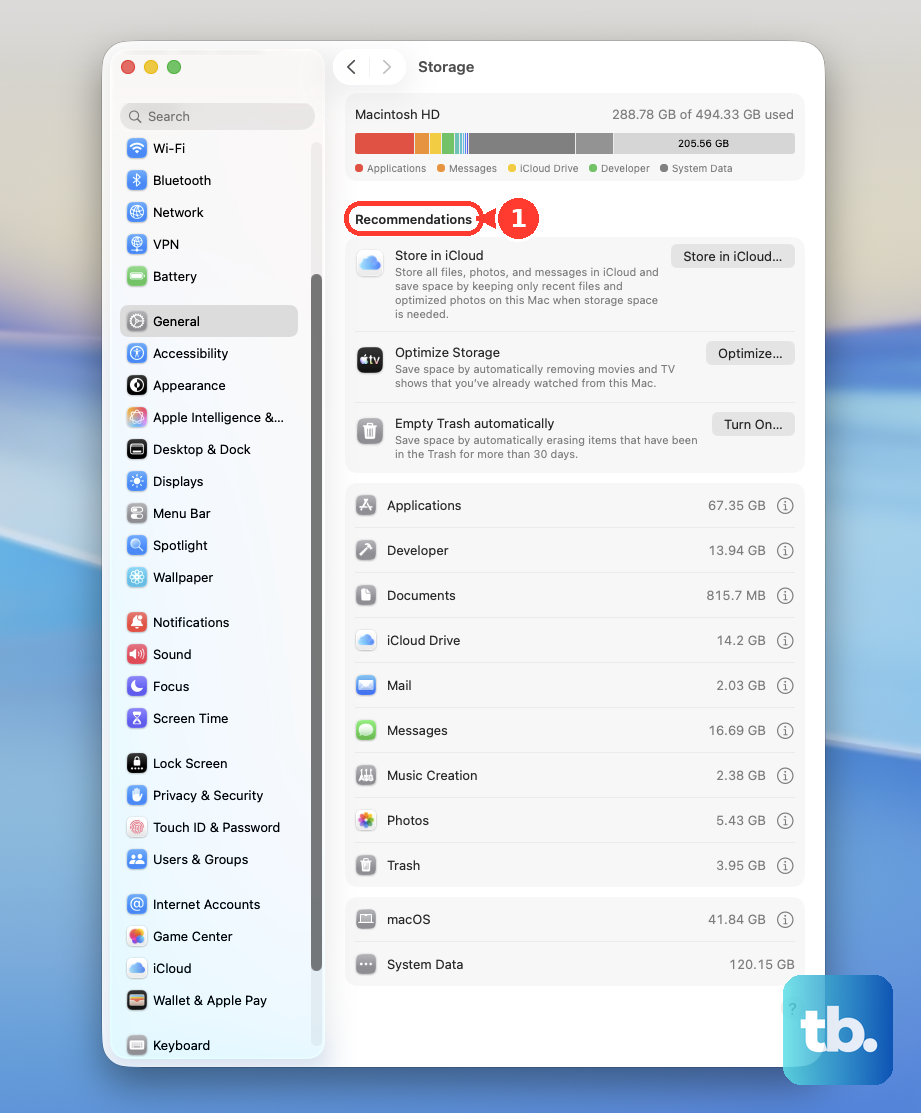
macOS needs free space on the SSD to function properly, for virtual memory and temporary files. Click the Apple menu > About This Mac > More Info > Storage Settings to see a breakdown.
Aim to keep at least 15-20% of your drive free. The Storage Settings panel offers recommendations like storing files in iCloud and emptying the Trash automatically. I'd start by reviewing your Downloads folder and clearing out any old installers or files you no longer need.
Manage Startup Programs
Too many apps launching when you log in can slow down your boot time and eat up RAM from the get-go. Open System Settings and go to General > Login Items.
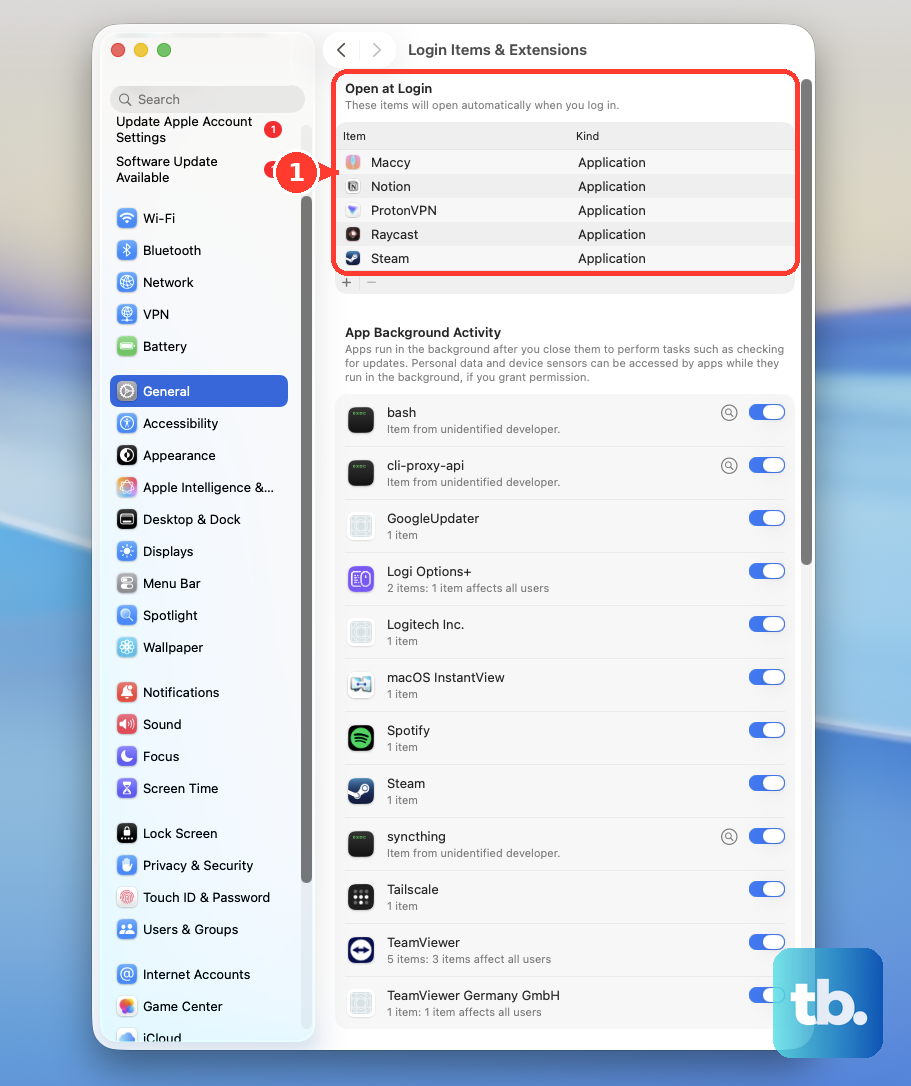
You'll see two lists: "Open at Login" and "Allow in the Background." Review these and remove any applications you don't need starting automatically by selecting them and clicking the minus (-) button. Things like cloud storage syncers or chat apps are common here.
Install the Latest macOS Updates
Apple regularly releases updates for macOS 26 Tahoe that include performance improvements and bug fixes. Go to System Settings > General > Software Update to check.
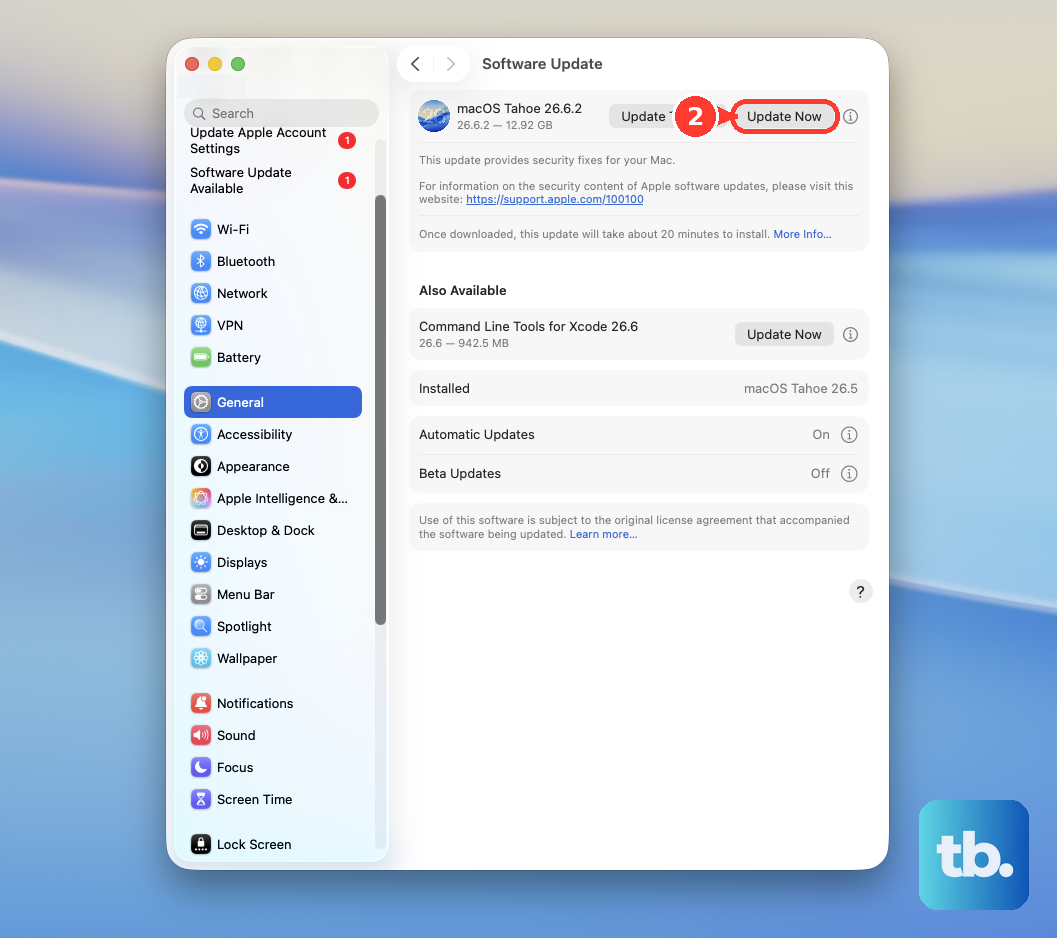
If an update is available, install it. It's a good idea to be on the latest version, as it often resolves underlying issues that could be causing slowdowns, especially after a recent major OS upgrade.
Run Apple Diagnostics
This built-in tool can check your MacBook Air's hardware for issues that might affect performance. Shut down your Mac completely, then press and hold the power button as you turn it on.
Keep holding until you see the startup options window. Press and hold Command (⌘) + D on your keyboard. This will boot into Apple Diagnostics and run a check. If any problems are found, it will provide reference codes and next steps.
Reduce Visual Effects
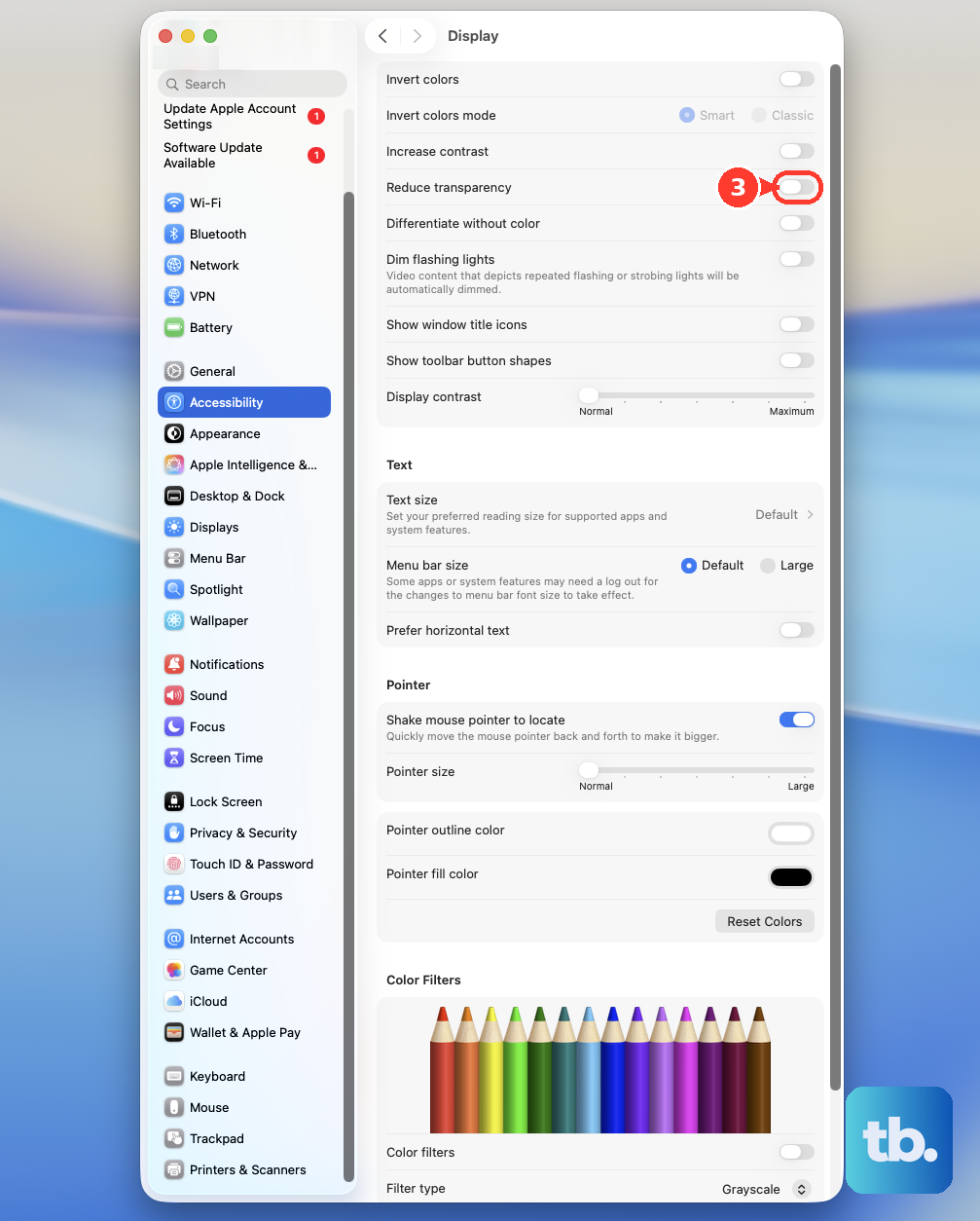
The beautiful transparency and animations in macOS come at a small performance cost. You can tone these down to free up some graphics resources. Go to System Settings > Accessibility > Display.
Turn on the switches for Reduce motion and Reduce transparency. This will make menus and windows snap into place instantly with less fading and sliding, which can make the whole system feel snappier.
Tame Your Browser
Modern web browsers, especially with dozens of tabs open, are massive memory hogs. Each tab is like its own little application. If you have 30 tabs open in Safari or Chrome, that's a huge drain on your MacBook Air's unified memory.
Make a habit of closing tabs you're done with. Consider using browser extensions that suspend inactive tabs to save RAM. Also, check for any particularly heavy websites that might be running complex scripts in the background.
Let Spotlight Finish Its Job
If you've just updated macOS or added a lot of new files, Spotlight might be re-indexing your drive. This process, called indexing, helps searches work fast but can temporarily slow down your Mac while it runs.
You might see "mds" or "mdworker" processes using CPU in Activity Monitor. The best fix is usually to just let it finish, which could take a few hours. You can check its progress by clicking the Spotlight icon (magnifying glass) in the menu bar; it will often show a progress bar.
Check for App-Specific Issues
Sometimes the slowdown isn't your Mac, but a single misbehaving application. If one particular app feels slow or causes the whole system to lag, check for updates to that app specifically.
Developers release patches for performance all the time. Also, consider the app's settings. For example, some video editing or design software has preview quality settings that can be lowered for smoother performance during editing.
If you notice performance varies when you adjust the angle of your 15-inch display, it could be related to how the system manages the larger screen and its integrated speakers. This is less common, but trying a different viewing angle can sometimes rule out a very specific hardware-software interaction.











