
When your MacBook Air 15-inch M4 won't charge, you might see the battery icon stuck or a "Not Charging" message in the menu bar. The first thing I'd try is a simple restart. Click the Apple menu > Restart. This can clear out a temporary software glitch that's preventing the system from recognizing the charger.
Inspect Your Charger and Cable
Take a close look at your USB-C cable and power adapter. Check for any fraying, kinks, or damage to the connectors. If you have access to another compatible USB-C charger, try it with your MacBook Air.
Make sure you're using a charger with sufficient power. While the MacBook Air is efficient, the larger 15-inch display can draw more power than the 13-inch model. Using an underpowered charger, especially while the laptop is in use, might only slow battery drain instead of charging it.
Test the Power Source and Port
Plug your charger into a different wall outlet to rule out a problem with the power source. Also, try plugging the cable into the other USB-C port on your MacBook Air.
Sometimes one port can have a connection issue while the other works perfectly. This is a quick way to check if the problem is with a specific port on the laptop itself.
Check for macOS Updates
Head to System Settings > General > Software Update. Apple frequently releases updates that fix power management and charging bugs. If there's an update available for macOS 26 Tahoe, installing it could resolve the issue.
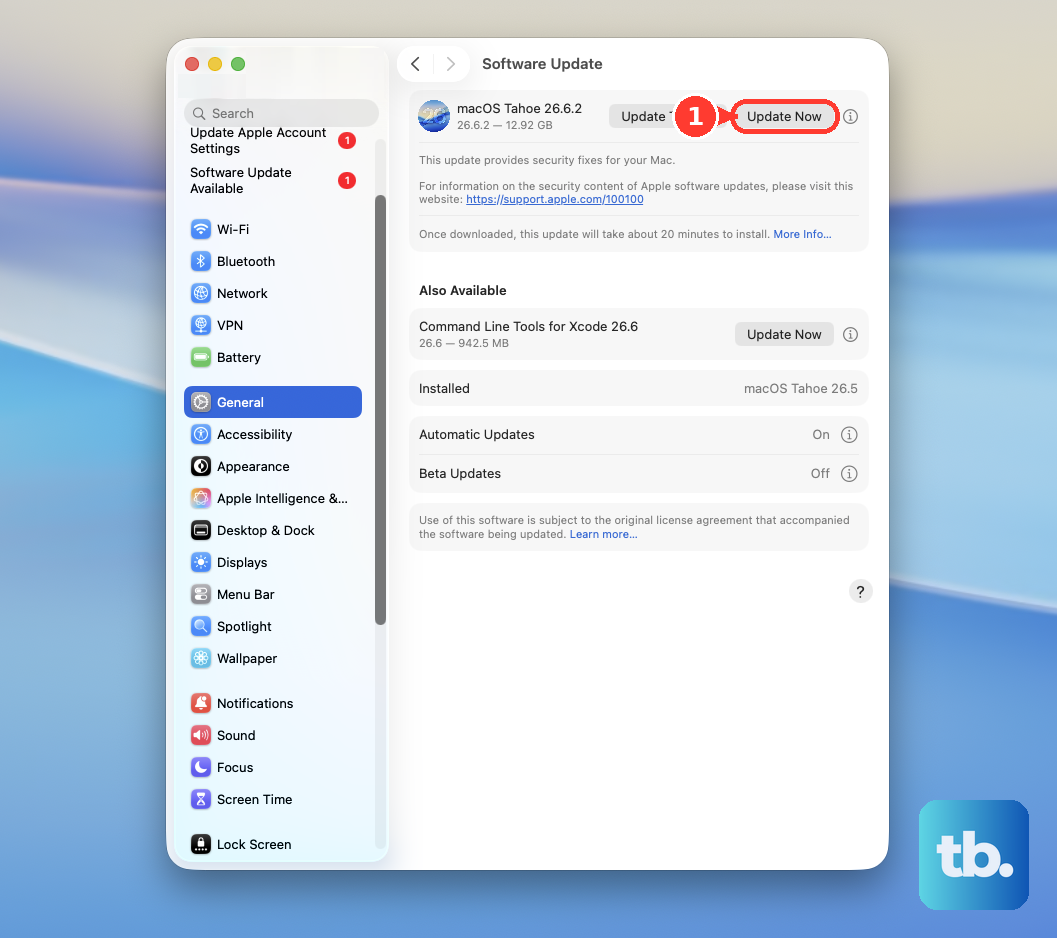
Some users have reported that specific software updates addressed charging behavior on new MacBook models, so this is always a worthwhile step.
Clean the USB-C Ports
Lint and pocket debris can easily get packed into the slim USB-C ports, preventing the cable from seating fully. Shine a light into the ports and look for any visible blockages.
You can gently use a wooden or plastic toothpick to dislodge any debris. A can of compressed air can also help blow out loose particles. Be very careful not to damage the delicate pins inside the port.
Review Your Battery Health Settings
Open System Settings > Battery > Battery Health. Here, you can see the overall condition of your battery. If it says "Service Recommended," the battery itself may be too degraded to hold a charge properly.
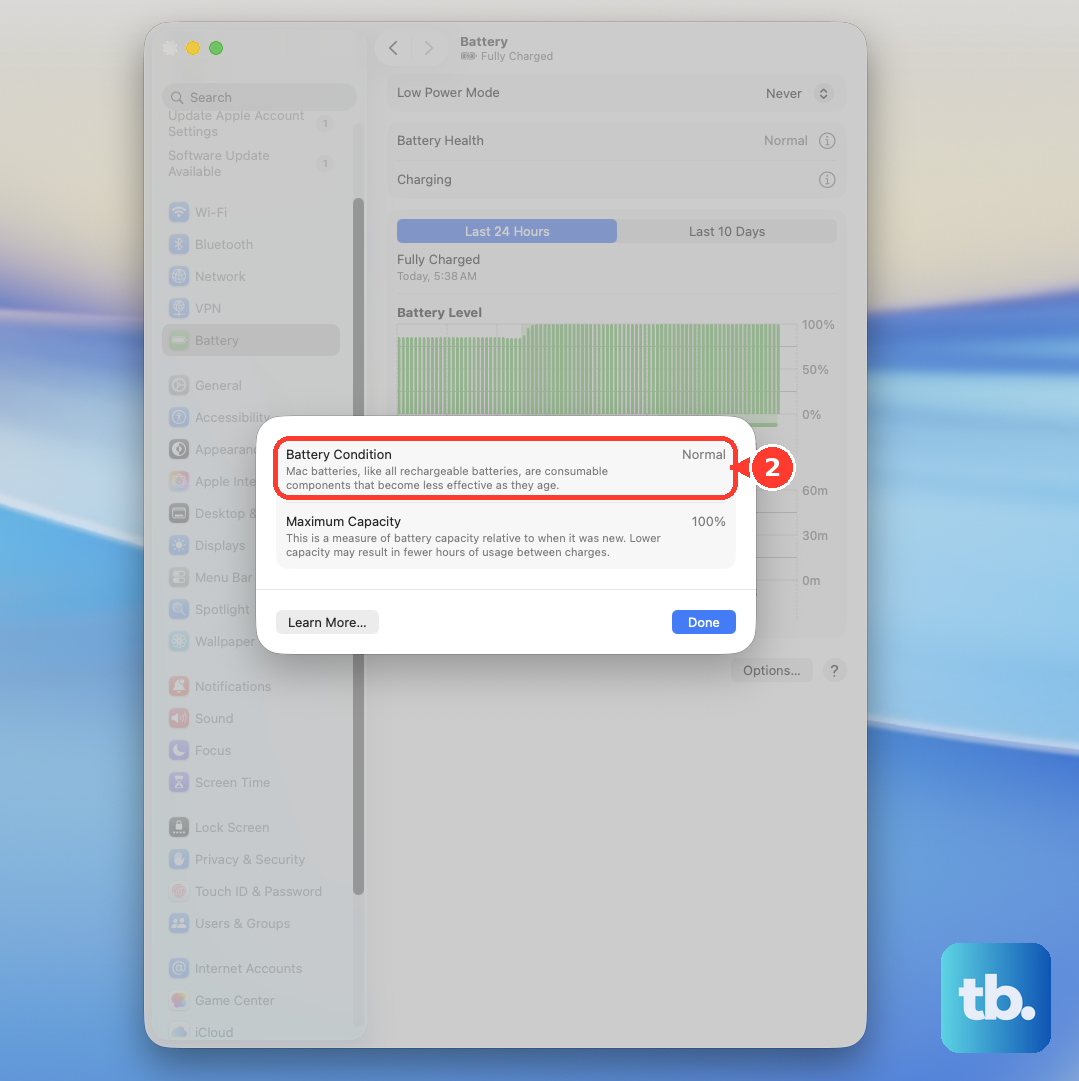
Also, check if "Optimized Battery Charging" is enabled. This feature learns your routine and may intentionally hold the charge at 80% to extend battery lifespan. If you need a full charge now, you can temporarily turn this off.
Run Apple Diagnostics
This built-in tool can check for hardware issues related to the battery and power system. First, shut down your MacBook Air completely.
Turn it back on and immediately press and hold the power button. Keep holding until you see the startup options window, then release. Press Command (⌘) + D on your keyboard to start Apple Diagnostics.
It will run a test and provide a reference code if any issues are found. This can give you a clearer idea if the problem is hardware-related.
Force a Restart
If your MacBook Air is unresponsive, a force restart can help. Press and hold the power button for about 10 seconds, then release.
Wait a few seconds, then press the power button again normally to turn it back on. This is different from a standard restart and can clear more persistent system states.
Reset the System Management
For Apple Silicon Macs like your M4 model, the old SMC reset process doesn't apply. The system manages these functions differently.
A full shutdown and wait period can serve a similar purpose. Shut down your MacBook Air, unplug all accessories including the charger, and wait for a full 60 seconds. Then, plug the charger back in and turn the laptop on. This allows the system's power management to fully reset.