
A Mac Studio M4 Max that's lagging can bring a high-end creative workflow to a frustrating halt. When a machine built for pro apps starts stuttering during playback or taking ages to export, it's time to track down the bottleneck.
Check Activity Monitor First
Open Activity Monitor from your Utilities folder. Click the CPU tab and sort by "% CPU" to see what's hogging power. The M4 Max is a beast, but a single runaway process can still cause hiccups. Look for apps you've closed that are still lingering, or background tasks like media indexing.
If you spot a culprit using 90% or more, select it and click the stop button (X) in the toolbar to force quit. Don't forget to check the Memory tab too. While unified memory is efficient, consistently hitting your swap usage indicates you're pushing your RAM configuration.
Free Up Storage Space
Head to Apple menu > About This Mac > Storage Settings. macOS needs breathing room on your SSD to manage cache and virtual memory smoothly. I'd recommend keeping at least 15-20% of your drive free, especially if you work with large project files.
For the Mac Studio, this often means clearing out old render files, unused applications, or massive libraries from completed projects. The Storage Settings panel can help identify and remove these large items. Enabling Optimize Mac Storage can also automatically offload older files you don't often use to iCloud.
Update macOS and Your Apps
Go to System Settings > General > Software Update. Make sure you're running the latest version of macOS 26 Tahoe. These updates frequently include performance tweaks and bug fixes that are crucial for stability with professional hardware and software.
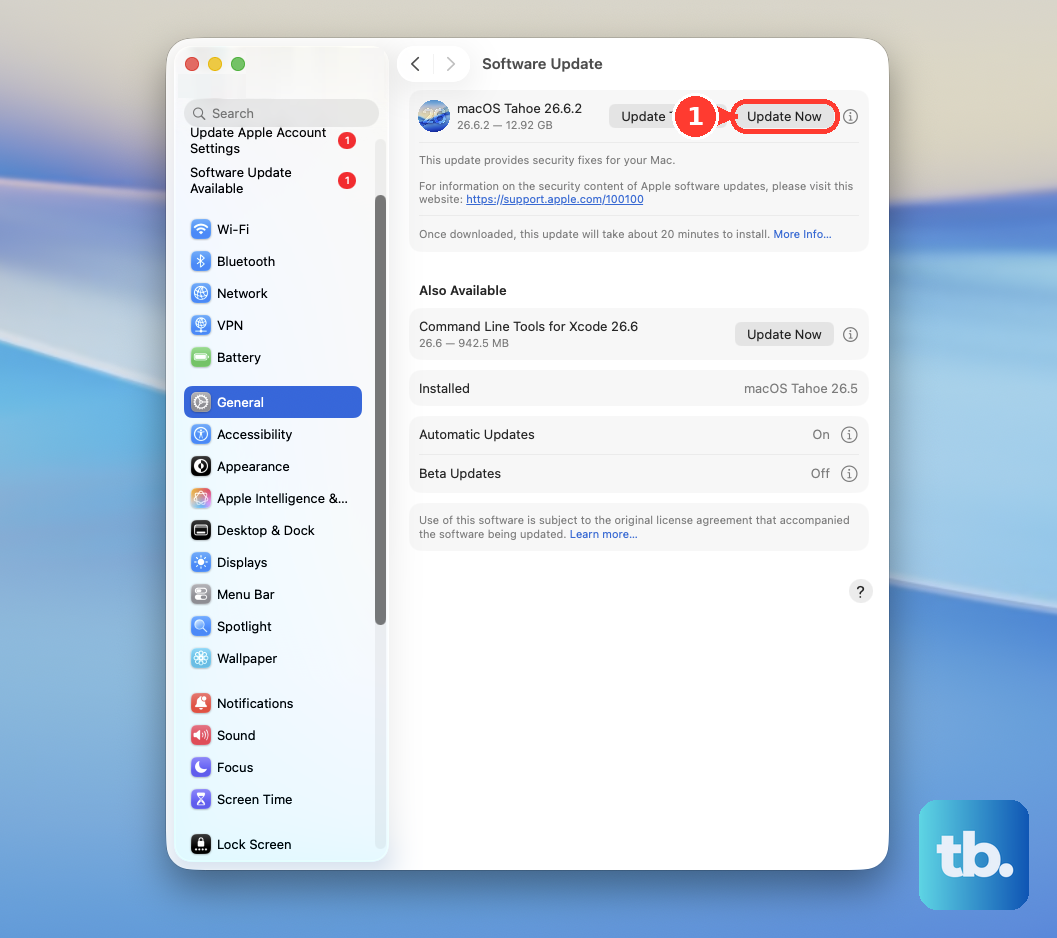
Also, check for updates within your creative apps like Final Cut Pro, DaVinci Resolve, or Logic Pro. Developers constantly optimize for new Apple Silicon chips, and running an old version can miss out on significant speed improvements for the M4 Max.
Manage Your Login Items
Too many apps launching at startup can slow down your boot and steal resources. Open System Settings > General > Login Items. Review the list under "Open at Login" and remove any applications you don't need immediately upon starting your Mac.
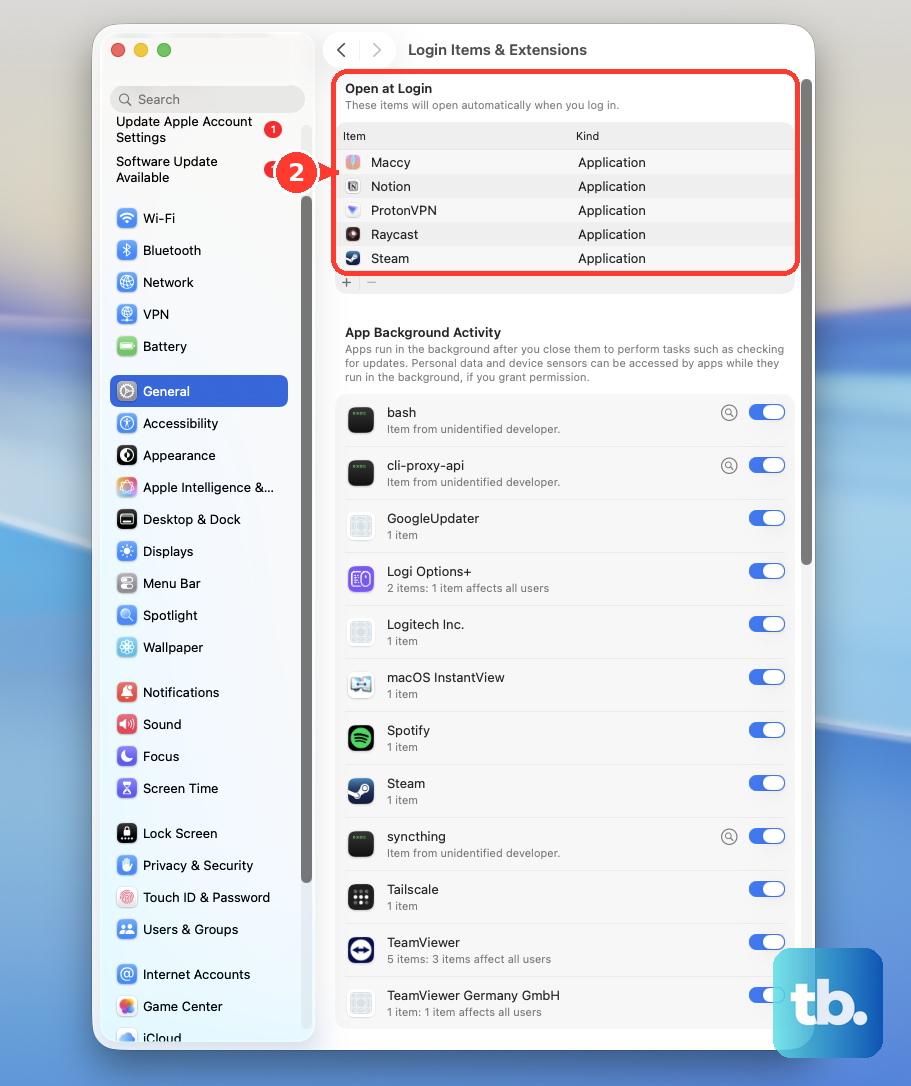
Common culprits include cloud storage sync clients, chat apps, and various utility helpers. Disabling them here doesn't delete the apps, it just prevents them from auto-starting. You can always launch them manually when you need them.
Restart Your Mac Studio
It sounds simple, but it works. If your Mac Studio has been sleeping for days or weeks between uses, a full restart clears out cached processes and memory leaks. Click the Apple menu > Restart.
For a more forceful reset if the system is unresponsive, press and hold the physical power button on the back of the Mac Studio for about 10 seconds until it shuts off. Wait a moment, then press it again to turn it back on. This is the equivalent of a force restart for Apple Silicon Macs.
Review Background Processes and Menu Bar Apps
Take a look at the top-right of your menu bar. Every icon there is a running app or process. Some, like Dropbox or Time Machine backups, can periodically spike CPU or disk usage and cause temporary slowdowns during your work.
You can often Control-click or right-click on these icons to quit them temporarily. Also, check System Settings > General > Login Items for "Allow in the Background" items. These are helpers that run even when the main app isn't open, and disabling non-essential ones can free up resources.
Optimize Your Display Setup
The Mac Studio M4 Max can drive up to five external displays, which is incredible but demanding. If you're experiencing UI lag or slow window rendering, the GPU might be strained. Try disconnecting displays you aren't actively using for your current task to see if performance improves.
Also, consider the resolution. Running multiple 5K or 6K displays will use more graphics power than 4K ones. You can adjust this in System Settings > Displays. Lowering the resolution on a secondary monitor can sometimes ease the load.
Check for Spotlight Indexing
After a major macOS update or when you add a new large external drive, Spotlight will re-index your files. This process, handled by "mdworker" or "mds" processes in Activity Monitor, can cause significant disk activity and slowdowns for several hours.
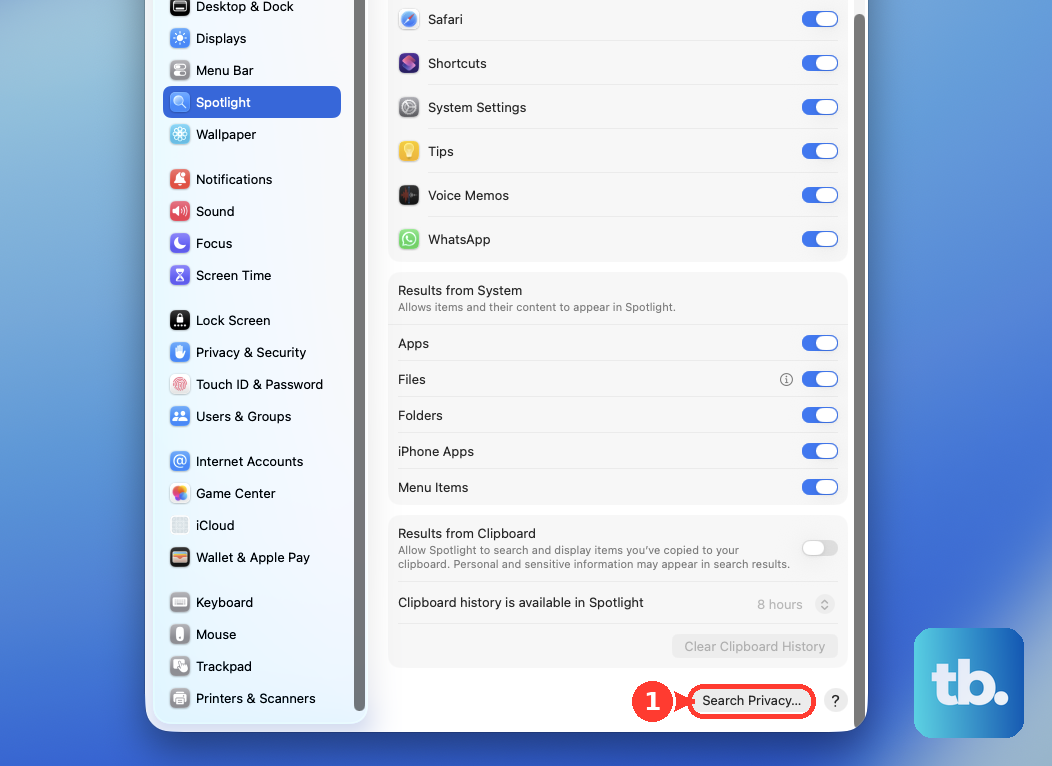
You can let it finish, or if you need maximum performance immediately, you can temporarily add your project drives to the Spotlight privacy list. Go to System Settings > Spotlight > Privacy, drag a folder or drive into the list, and indexing will stop for that location.
Reset Your macOS Environment
If slowdowns appeared after a specific change, you can test in a clean environment. Create a new user account on your Mac Studio via System Settings > Users & Groups. Log into the new account and see if the performance issues persist.
If the Mac runs fast in the new account, the problem is likely in your main account's settings, login items, or a corrupted preference file. You can then methodically move things back to your main account or use the new one for a fresh start.
Monitor Thermal and Power Workloads
The Mac Studio is designed for sustained performance, but intense workloads like 3D rendering or 8K video encoding will make the fans spin up. This is normal. However, if the system is thermal throttling in a very hot environment, performance can dip.
Ensure the vents on the back and bottom of your Mac Studio aren't blocked. Give it plenty of space for airflow. Also, be mindful of the known high power consumption under full load. If you're constantly pushing all cores to 100%, that's the expected behavior for the workload, not necessarily a problem with the Mac itself.