
When your Mac Studio M4 Max goes silent, it can bring a high-end creative workflow to a screeching halt. Whether you're editing a video timeline, mixing audio, or just trying to watch a tutorial, the lack of sound is a major disruption. The good news is, it's almost always a software or settings hiccup you can fix yourself.
If you are not sure whether it is the speakers or the software, run an online quick sound test first. Working test tones rule out a hardware fault in seconds.
Check the Menu Bar Volume
First, look at the sound icon in your menu bar. If you see a line through the speaker icon, your system is muted. Click the icon and make sure the volume slider is up. You can also press the volume up key on your keyboard to be sure.
Sometimes, a specific app might have its own volume muted. Check the volume controls within the app you're using, like Final Cut Pro, Logic Pro, or your web browser.
Verify the Audio Output Device
This is the most common culprit, especially on a machine designed for pro audio setups. Click the Apple menu, go to System Settings > Sound > Output.
Make sure the correct device is selected. Your Mac Studio might be trying to play sound through a disconnected HDMI monitor, a Bluetooth headset that's out of range, or an audio interface that's powered off. Select "Mac Studio Speakers" to route audio back to the internal speaker.
Restart the Core Audio Daemon
If the output is correct but there's still no sound, a core system process might be stuck. You can restart just the audio system without rebooting your entire machine.
Open Terminal from your Applications folder. Type sudo killall coreaudiod and press Return. You'll need to enter your administrator password. The audio should cut out and come back within a few seconds.
Perform a Full Restart
A simple restart clears out a lot of temporary glitches. Click Apple menu > Restart. This is particularly effective if the audio stopped working after the Mac woke from sleep or after you connected or disconnected a display.
For a more thorough reset, you can use the power button on the back of the Mac Studio. Press and hold it for about 10 seconds until the unit powers off completely, then press it again to turn it back on.
Update macOS to the Latest Version
Audio driver issues are often addressed in system updates. Go to System Settings > General > Software Update and install any available updates for macOS 26 Tahoe.
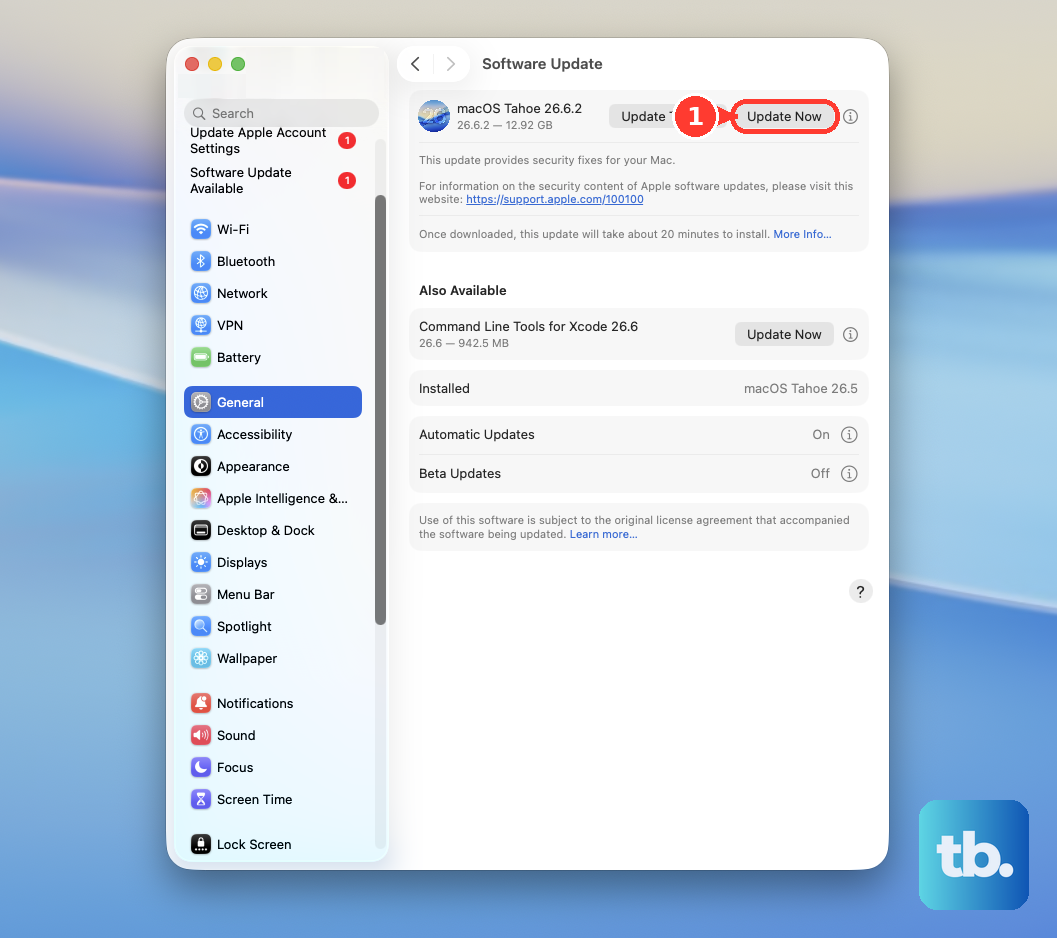
I've seen updates resolve weird audio bugs that other fixes couldn't touch. It's always a good step to ensure you're running the most stable build, especially on a pro machine.
Check for App Conflicts and Permissions
If audio works in some apps but not others, the problem might be app-specific. Try playing a system sound, like the alert tone in Sound settings, to test the baseline.
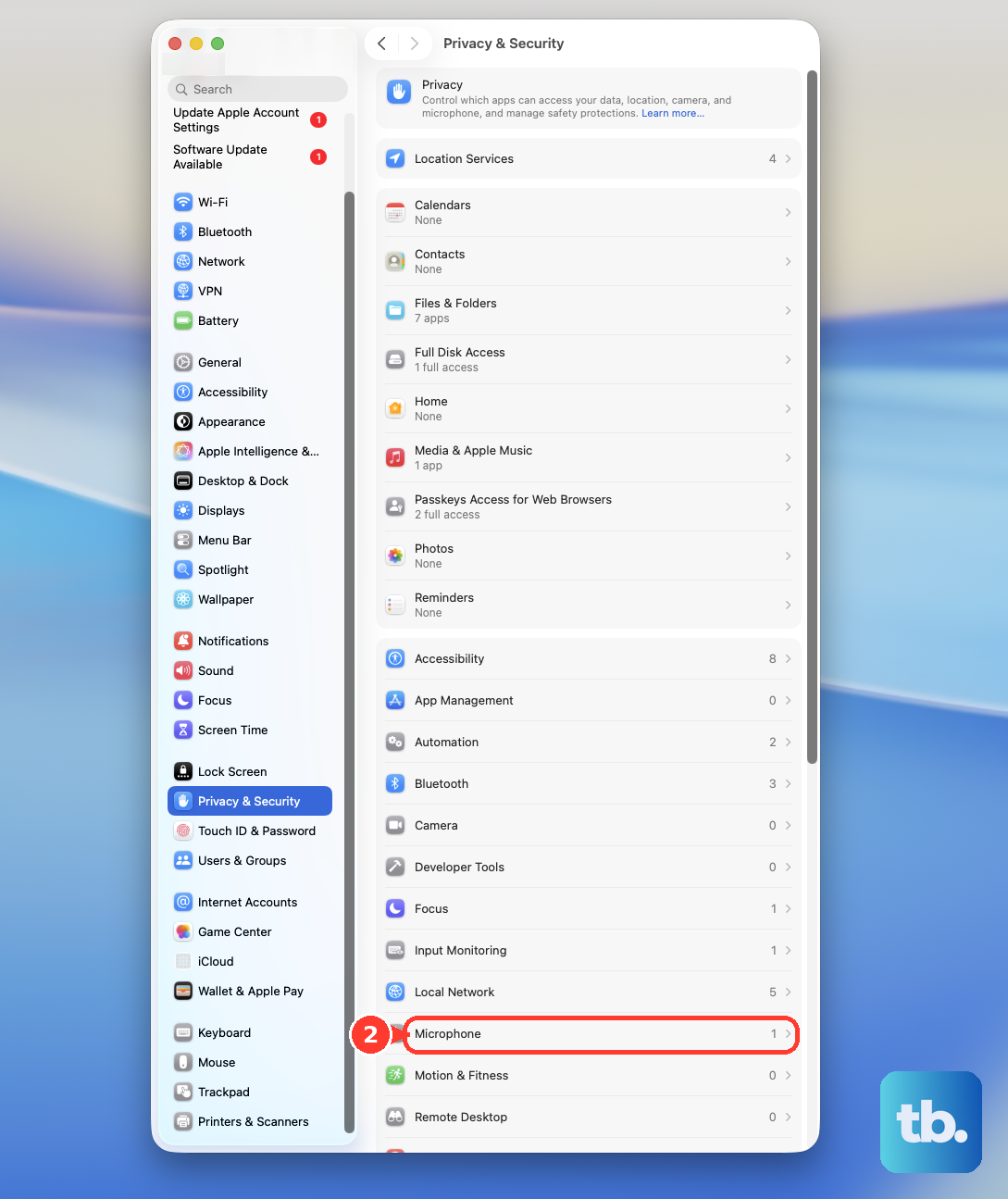
Also, check microphone and audio permissions. Go to System Settings > Privacy & Security > Microphone (and Audio if listed) and ensure the app you're using has permission to access audio inputs and outputs.
Inspect Audio MIDI Setup
For advanced audio routing, check the Audio MIDI Setup utility. You can find it in Applications > Utilities. In the Audio Devices window, make sure your desired output device is enabled and its format settings look correct.
This is where you'd check if sample rates or formats are mismatched, which can sometimes cause no audio output. For most basic issues, you won't need to touch this.
Disconnect External Audio and Displays
Unplug all external devices, USB audio interfaces, HDMI or Thunderbolt monitors, and Bluetooth headphones. Then, test the sound through the Mac Studio's internal speaker.
If the sound returns, reconnect devices one by one to identify which one is causing the conflict. A faulty HDMI cable or a monitor handshake issue can sometimes steal the audio signal.
Create a New User Account to Test
If nothing else works, create a new user account on your Mac Studio. Go to System Settings > Users & Groups, click the Add Account button, and set it as an Administrator.
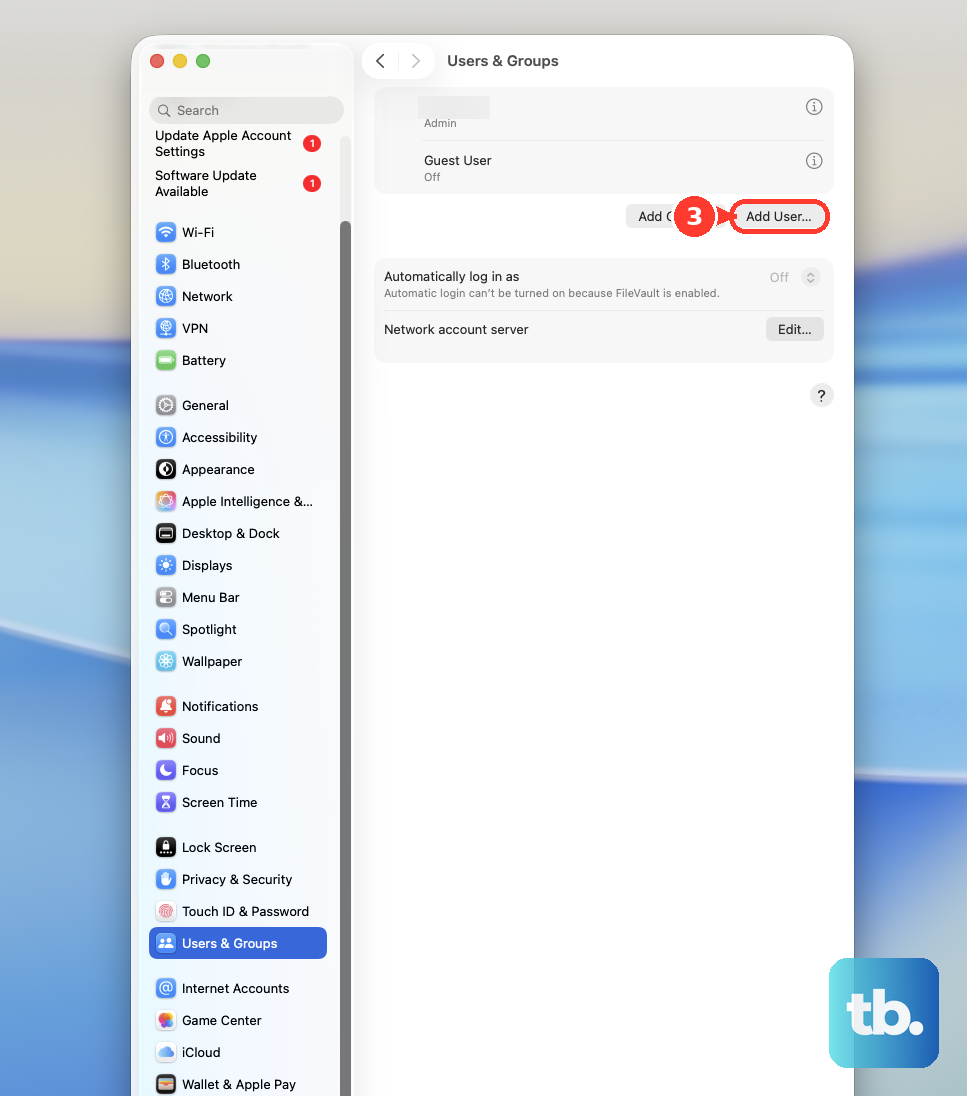
Log into the new account and test the audio. If it works there, the problem is likely a corrupted preference file or login item in your main user account. You can then migrate your files or troubleshoot the specific account.