
When your Mac Pro M2 Ultra goes silent, it can be jarring, especially on a machine built for professional audio work. The issue is almost always a quick settings toggle or a software hiccup, not a hardware failure with the expensive internal components.
Check the Output Device in System Settings
This is the most common fix. Click the Apple menu and go to System Settings > Sound > Output. Look at the list of devices. Your Mac might be trying to send audio to a disconnected monitor over HDMI, a Bluetooth headset that's off, or a virtual audio device from a PCIe card. Select "Mac Pro Speakers" from the list to route sound back to the internal speakers or your connected studio monitors.
Restart the Core Audio Daemon
If the output is correct but there's still no sound, a background audio service might have crashed. You can restart it without rebooting your entire system. Open Terminal from your Applications folder or via Spotlight. Type the command sudo killall coreaudiod and press Return. Enter your administrator password when prompted. The audio should return within a few seconds.
Perform a Full Restart
If the Terminal command doesn't work, a full restart is your next best step. Click Apple menu > Restart. This clears the audio framework from memory and reloads it fresh. I've found this especially effective if the sound cut out after the Mac woke from sleep or after installing a new piece of software or a PCIe card.
Verify App-Specific and System Volume
Don't forget to check the volume within the specific app you're using, like Logic Pro, Final Cut Pro, or your web browser. Also, look at the volume slider in your menu bar. Make sure it's not all the way down and that the mute icon (a speaker with a slash through it) isn't showing. You can also check System Settings > Sound to ensure alert sounds are enabled and set to the right output.
Disconnect External Audio and Bluetooth
Your Mac Pro can handle many audio outputs simultaneously. Go to System Settings > Bluetooth and disconnect any headphones or speakers you aren't using. Also, physically unplug any audio interfaces, HDMI cables to monitors, or other external sound devices. This forces macOS to revert to its default internal output.
Run Apple Diagnostics
For peace of mind, you can run a hardware check. Shut down your Mac Pro. Press and hold the power button on the top of the tower as you turn it on. Keep holding until you see the startup options window, then release. Press and hold Command (⌘) + D on your keyboard. This boots into Apple Diagnostics and will check for any hardware issues with the audio components. It takes just a few minutes.
Update macOS to the Latest Version
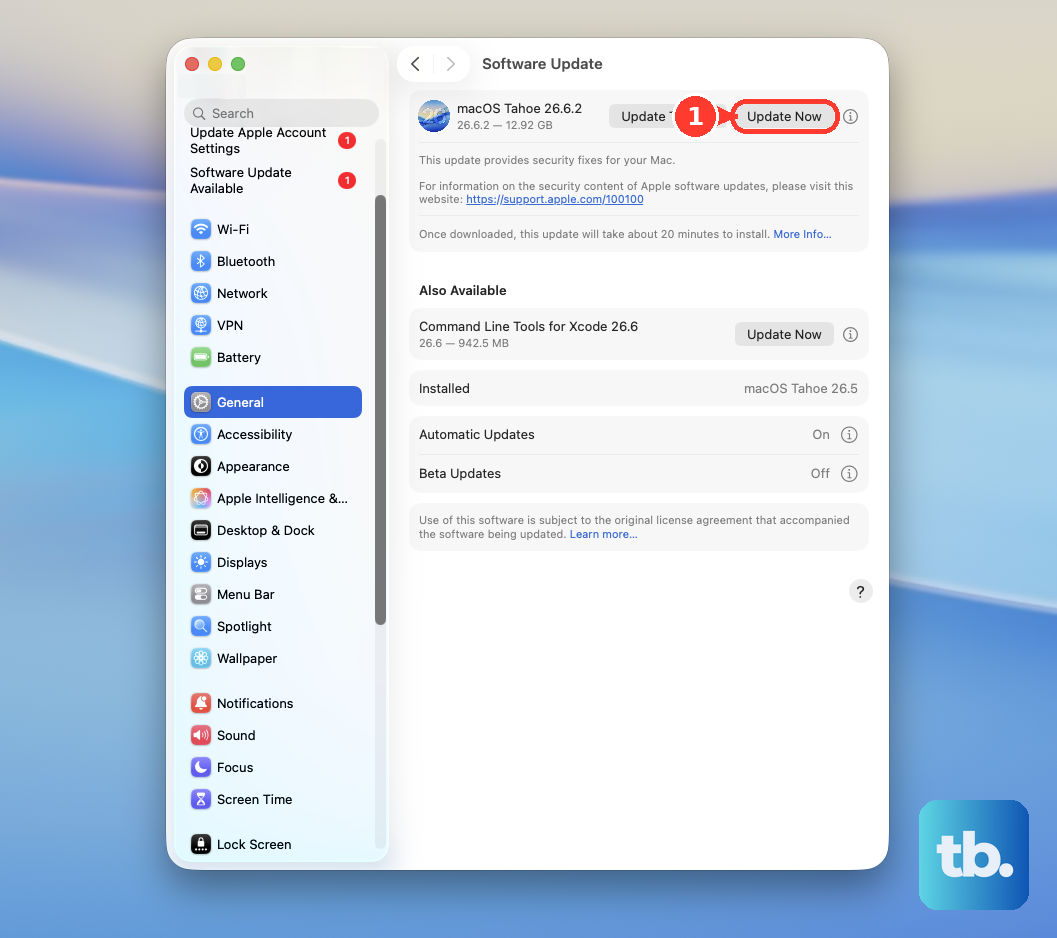
Audio driver bugs are often patched in system updates. Go to System Settings > General > Software Update. Make sure you're running the latest version of macOS 26 Tahoe. If an update is available, install it. It's a good idea to back up your work first, especially with a machine used for critical projects.
Check for PCIe Card Conflicts
The Mac Pro M2 Ultra's expandability is a major feature, but it can introduce conflicts. If you recently installed a new audio interface, capture card, or other PCIe expansion card, try shutting down and removing it. Boot up again and see if your core audio returns. This helps isolate if the new card is causing a driver conflict. Remember, Apple limits support to specific, validated PCIe card types.
Reset the Sound Settings
If you've customized a lot of audio settings, you can reset them to default. First, note any important configurations. Then, in the Finder, press Command + Shift + G and go to the folder ~/Library/Preferences/. Look for files named com.apple.audio.* and move them to your Desktop. Restart your Mac. This will reset all audio preferences, and macOS will create new default files. You can move the old files back if this doesn't help.