
When your Mac Mini M4 Pro starts to lag, it's a jarring experience for a machine that's supposed to be so powerful. Apps might take a few seconds to bounce in the dock, windows could stutter when you move them, or you might see the spinning pinwheel more often than you'd like. The good news is, a few targeted checks can usually get it back to its snappy self.
Restart Your Mac Mini
It sounds simple, but it's often the most effective step. If you've been putting your Mac Mini to sleep for weeks without a full restart, background processes and memory can get gummed up. Click the Apple menu in the top-left corner and choose Restart.
This gives the system a clean slate. For a more forceful restart if the system is unresponsive, press and hold the power button on the bottom of the Mac Mini for about 10 seconds until it shuts off, then press it again to turn it back on.
Check What's Using Your Resources
Open Activity Monitor. You can find it quickly by pressing Command+Space to open Spotlight and typing its name. Once it's open, click the CPU tab and sort the list by "% CPU" to see what's at the top.
Look for any single process that's consistently using a very high percentage. Common culprits can be a runaway browser tab, a background indexing task, or a buggy app. If you find one, select it and click the stop button (octagon) in the toolbar to quit it.
Also, switch to the Memory tab. The M4 Pro has unified memory, so while it's efficient, having very little "Memory Pressure" (shown at the bottom) in the green is key for smooth performance. If it's yellow or red, something is using too much RAM.
Make Sure You Have Free Storage Space
macOS needs room to breathe. If your startup drive is nearly full, the system struggles to create temporary files and manage memory, which leads to slowdowns. Click the Apple menu > About This Mac > More Info > Storage Settings.
Aim to keep at least 15-20% of your drive free. The Storage Settings panel can help by recommending ways to optimize, like storing files in iCloud or automatically removing watched TV shows and movies. I'd start by clearing out old downloads and checking for large files you no longer need.
Update macOS
Apple regularly releases updates for macOS 26 Tahoe that include performance improvements and bug fixes. Go to System Settings > General > Software Update and install any available updates.
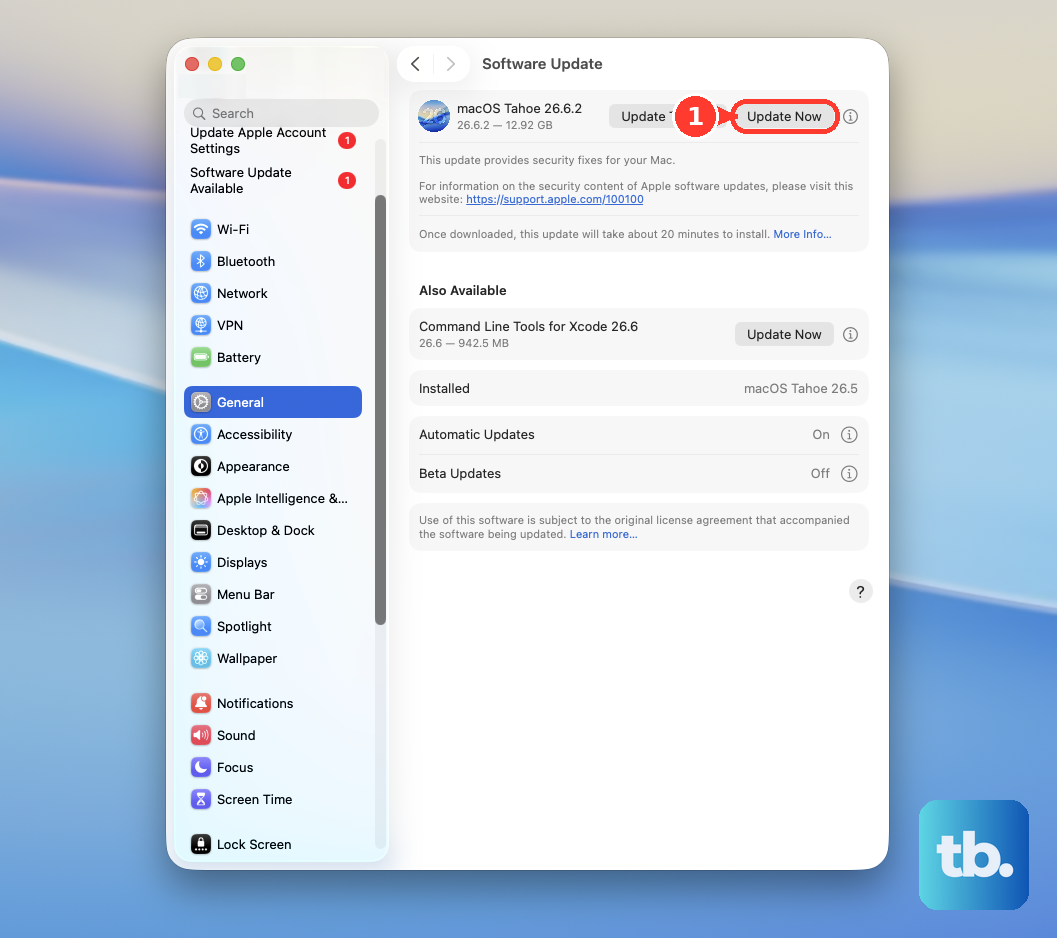
This is especially important after the initial setup of a new Mac Mini, as there are often early software patches. Keeping your system up to date ensures you have the latest optimizations for the M4 Pro chip.
Manage Your Startup and Background Apps
Apps that launch automatically when you log in can slow down your boot time and constantly use resources in the background. Open System Settings and go to General > Login Items.
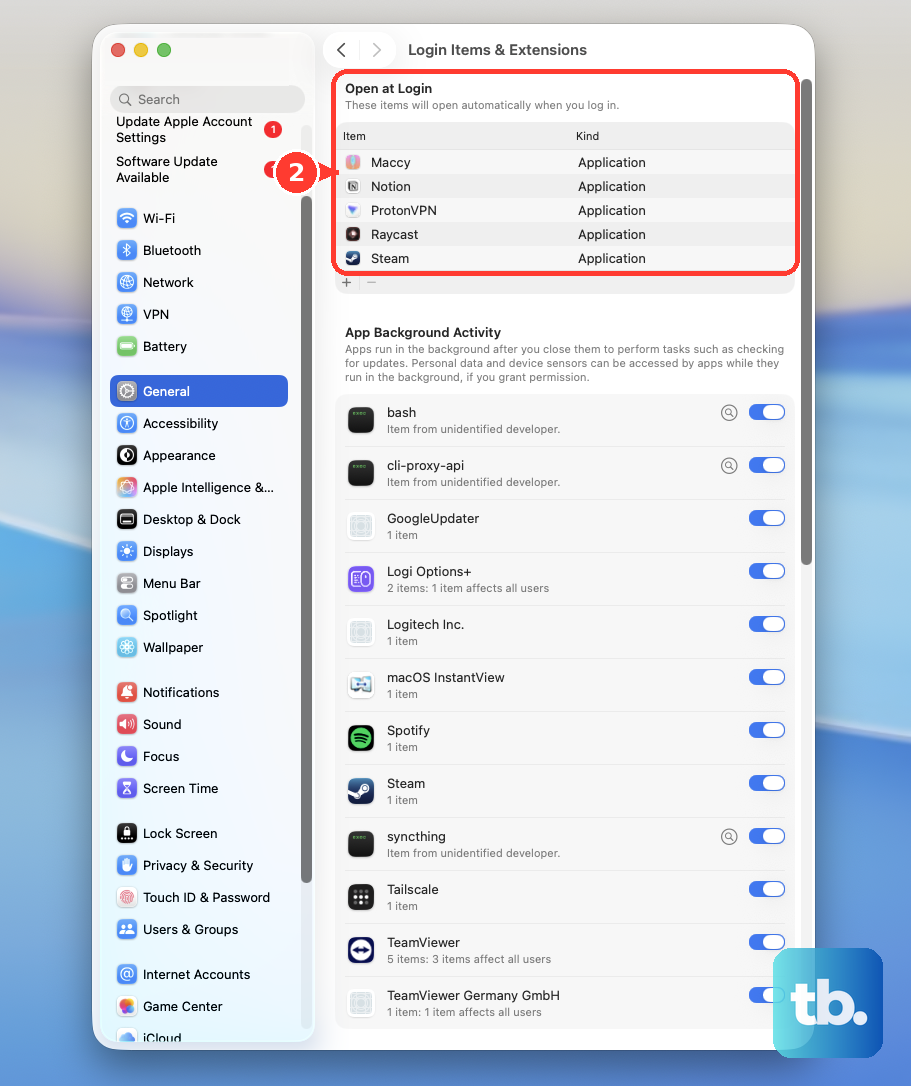
Review the list under "Open at Login." Remove any apps you don't need starting immediately by selecting them and clicking the minus (-) button. Also, check the "Allow in the Background" column and disable permissions for apps that don't need to be constantly active.
Check for Spotlight Indexing
After a major update or if you've just transferred a lot of data, Spotlight will re-index your drive. You might see processes named "mds" or "mdworker" using CPU in Activity Monitor.
This is normal, but it can cause temporary sluggishness. The best approach is to let it finish, which could take a few hours if you have a very large drive. You can check its progress by clicking the Spotlight icon in the menu bar; it will often show a progress bar.
Review Your Connected Displays and Peripherals
The Mac Mini M4 Pro supports up to three external displays, which is fantastic, but driving all of them at high resolutions can be demanding. If you're experiencing lag, try disconnecting one display temporarily to see if performance improves.
Also, be mindful of what's plugged into those Thunderbolt 5 ports on the back. Some docks, especially early Thunderbolt 5 models, have had compatibility variations that can sometimes cause system instability. Try running with just your essential peripherals (keyboard, mouse, and one display) connected directly to see if a dock is contributing to the issue.
Reduce Visual Effects
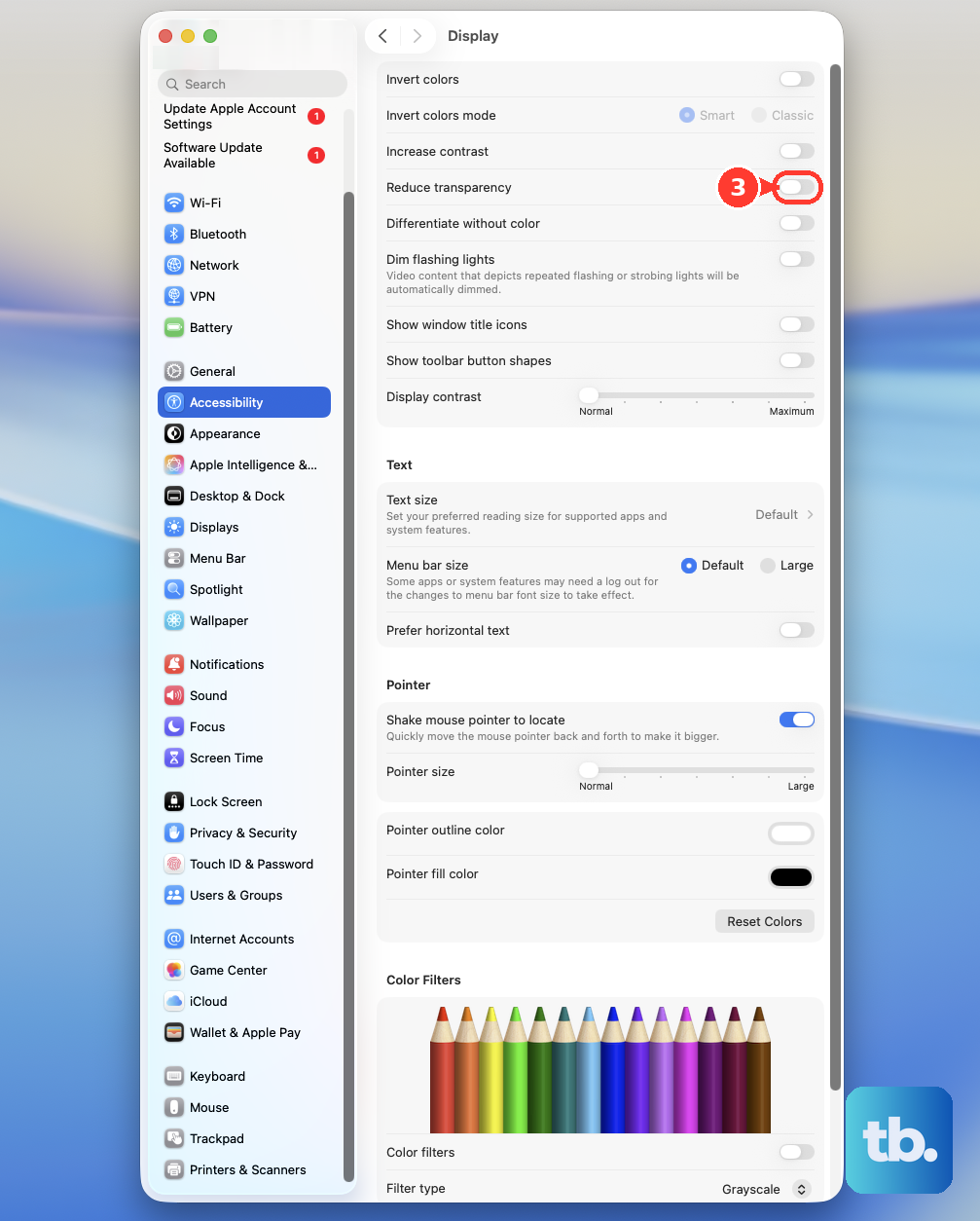
If you're pushing the graphical limits with multiple 4K or 5K displays, toning down some macOS visuals can free up GPU resources. Go to System Settings > Accessibility > Display.
Turn on Reduce motion and Reduce transparency. This minimizes window animations and makes menus solid instead of slightly see-through, which can make the overall interface feel more responsive.
Monitor for Overheating
The M4 Pro model is known to output more heat than the standard M4. While it's designed to handle this, sustained high temperatures in a poorly ventilated space can cause the system to throttle performance to cool down.
Make sure your Mac Mini has plenty of open space around it, especially the rear vent. Don't place it in an enclosed cabinet or directly on top of a carpet. You can use an app like iStat Menus to monitor the internal temperature if you're curious.
Reset the macOS System Management Controller (SMC)
On Apple Silicon Macs like the M4 Pro, the SMC is reset automatically with certain actions. The most reliable way is to shut down the Mac completely. Wait about 30 seconds, then press and hold the power button on the bottom for another 10 seconds.
Release the button, then wait another few seconds before pressing it normally to turn your Mac Mini back on. This can resolve odd issues related to power, thermal management, and peripheral connectivity that might manifest as lag.