
When Bluetooth keeps dropping on your Mac Mini M4 Pro, it can leave your wireless keyboard, mouse, and headphones useless right in the middle of your work. The disconnects are often brief but frequent, making any wireless peripheral feel unreliable.
This is a common headache with Apple Silicon Macs, and the M4 Pro's architecture can sometimes complicate things. The good news is a few targeted fixes usually get everything stable again.
Toggle Bluetooth Off and On
Start with the simplest step. Click the Bluetooth icon in your menu bar and choose "Turn Bluetooth Off." Wait about ten seconds, then click it again to turn it back on.
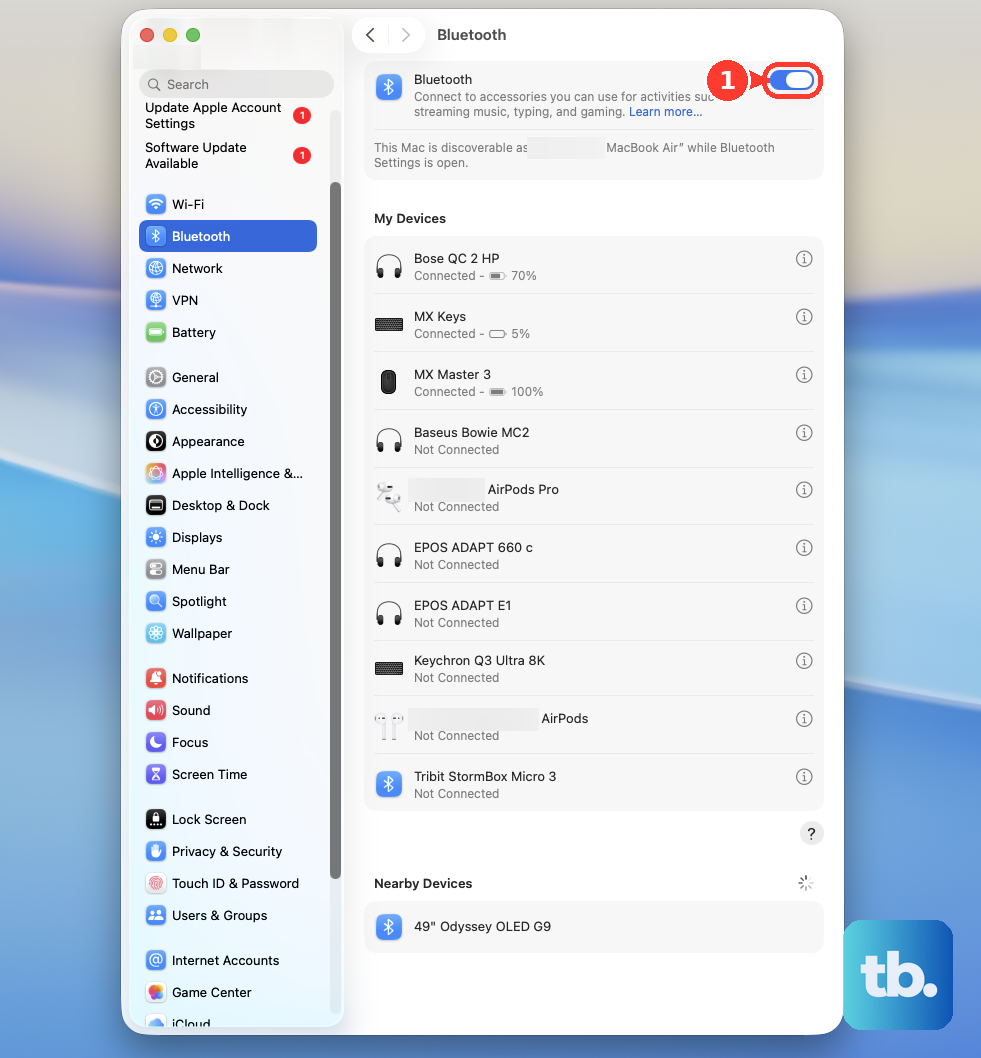
If you don't see the Bluetooth icon, you can do this from System Settings > Bluetooth. Just click the toggle next to "Bluetooth" to turn it off, wait, and turn it back on.
Restart Your Mac Mini
This is often the most effective single action you can take. Click the Apple menu > Restart.
A full restart clears out any corrupted connection states in memory and reloads the Bluetooth stack from scratch. I'd start with this if toggling Bluetooth didn't help.
Forget and Re-Pair the Problem Device
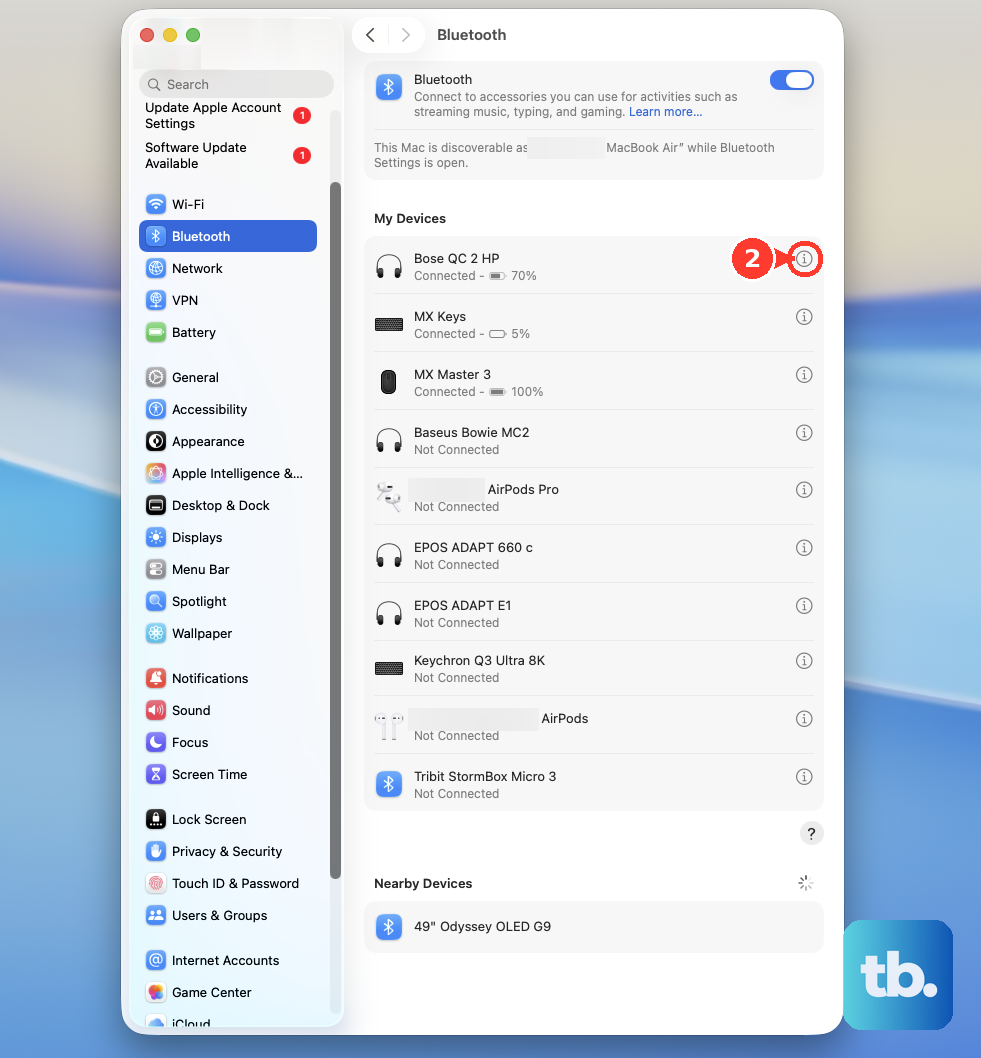
Go to System Settings > Bluetooth. Find the device that's disconnecting and click the Info button (the small "i") next to it. Click Forget This Device and confirm.
Now, put your keyboard, mouse, or headphones back into pairing mode. On your Mac, click "Pair" or "Connect" next to the device's name in the Bluetooth settings list. This creates a fresh, clean connection profile.
Reset the Bluetooth Module
Hold down the Shift and Option keys on your keyboard, then click the Bluetooth icon in the menu bar. A new debug menu will appear.
From that menu, select Reset the Bluetooth module. This performs a deep reset of the Bluetooth hardware and controller without deleting your paired devices. Your Mac will restart automatically after this action.
Check for Wireless Interference
The M4 Pro Mac Mini can run quite warm, and its internal antennas are in a compact space. Other electronics can easily interfere with the Bluetooth signal.
Move any USB 3.0 hubs, external drives, routers, or speakers away from your Mac Mini. Also, try to avoid having a wireless phone charger or a microwave operating nearby, as these use the same 2.4GHz frequency band.
Update macOS to the Latest Version
Apple is constantly refining wireless drivers. Go to System Settings > General > Software Update to check for any available updates.
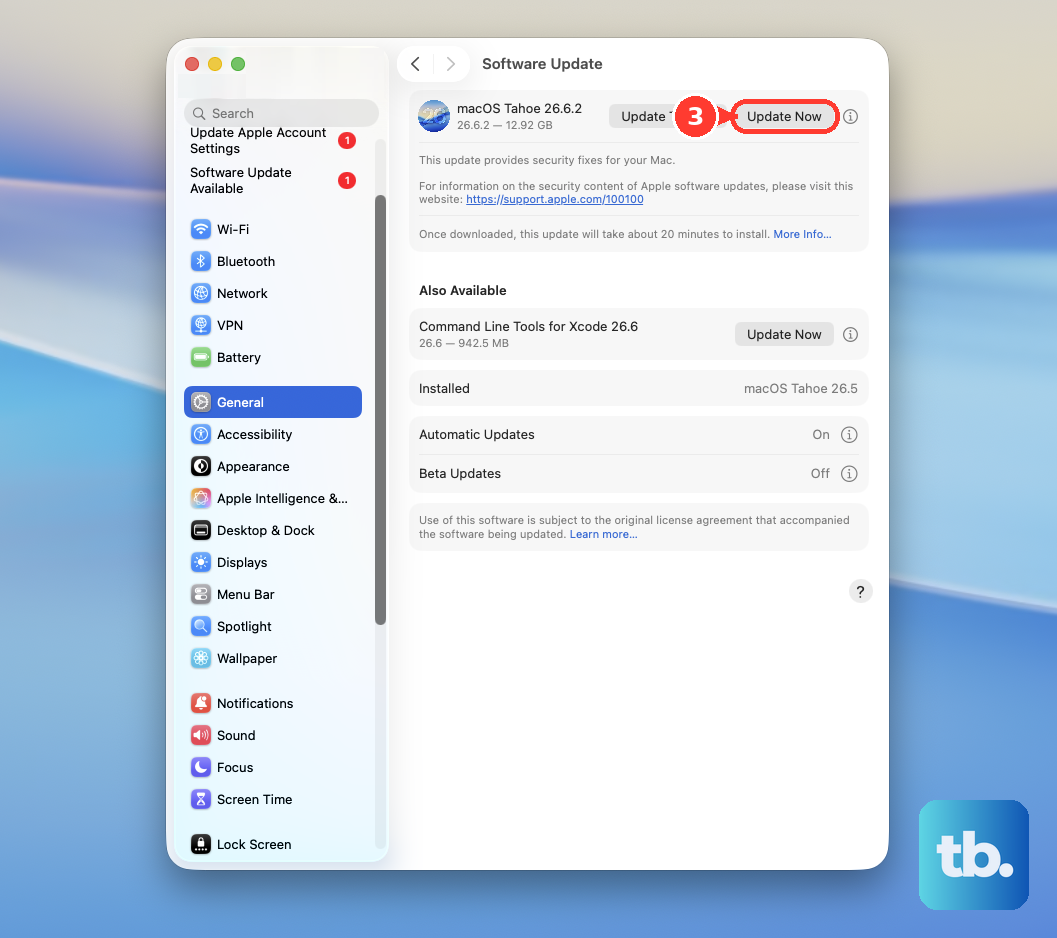
Since you're on macOS 26 Tahoe, make sure you have the very latest point update installed. These often include specific fixes for Bluetooth stability on Apple Silicon models like the M4 Pro.
Delete Corrupted Bluetooth Preferences
If the issue persists, the system file that stores your Bluetooth settings might be corrupted. Open a new Finder window, press Command + Shift + G, and type this exact path: /Library/Preferences/.
Look for a file named com.apple.Bluetooth.plist. Drag this file to your Trash. You will need to enter your administrator password. After moving it, restart your Mac Mini.
macOS will generate a brand new, default preferences file when it boots up. Be aware you will need to re-pair all your Bluetooth devices after this step.
Test in Safe Mode
To rule out software conflicts from third-party apps, boot into Safe Mode. Shut down your Mac Mini completely. Press and hold the power button on the bottom until you see "Loading startup options."
Select your main drive, then press and hold the Shift key on your keyboard. Click "Continue in Safe Mode" while still holding the key. If your Bluetooth connections are stable in Safe Mode, a login item, background app, or kernel extension is likely causing the problem.
Review Connected Peripherals and Ports
All the ports on the back of the M4 Pro Mac Mini are Thunderbolt 5. While powerful, compatibility with some docks and hubs can vary and sometimes introduce system instability.
Try disconnecting all peripherals from your Mac Mini except for power and your display. Test your Bluetooth devices. If they work, reconnect your other accessories one by one to identify if a specific dock or drive is causing the conflict.