
A ThinkPad X1 Carbon that's become sluggish is incredibly frustrating, especially when you're counting on its reliability. The slowdown often creeps in over time, but it's rarely a sign of hardware failure. Most of the time, it's a software or configuration issue you can fix yourself.
Perform a Full Restart
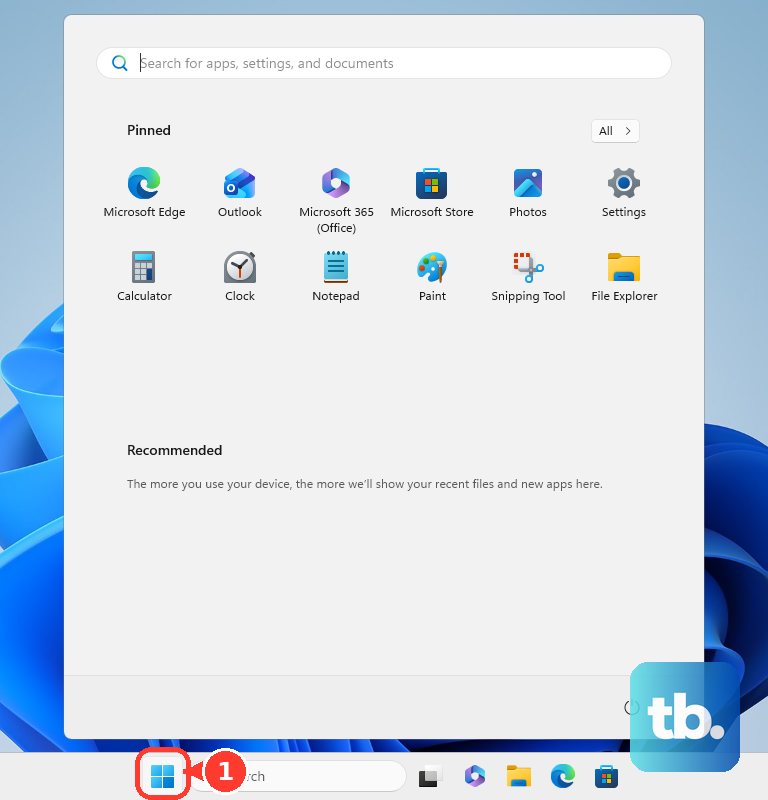
If you're in the habit of just closing the lid, your X1 Carbon might not be getting a true restart for weeks. Windows accumulates background processes and temporary glitches. Click Start > Power > Restart to give the system a fresh start. This simple step clears out memory and can resolve temporary slowdowns instantly.
Use Task Manager to Find the Culprit
Press Ctrl + Shift + Esc to open Task Manager. Click on the CPU, Memory, or Disk columns to sort by what's being used the most. Look for any single process using an unusually high percentage. On the X1 Carbon, I've seen the Windows Search Indexer or certain antivirus scans cause spikes. You can right-click on non-essential, high-usage tasks and select End task.
Clean Up Startup Programs
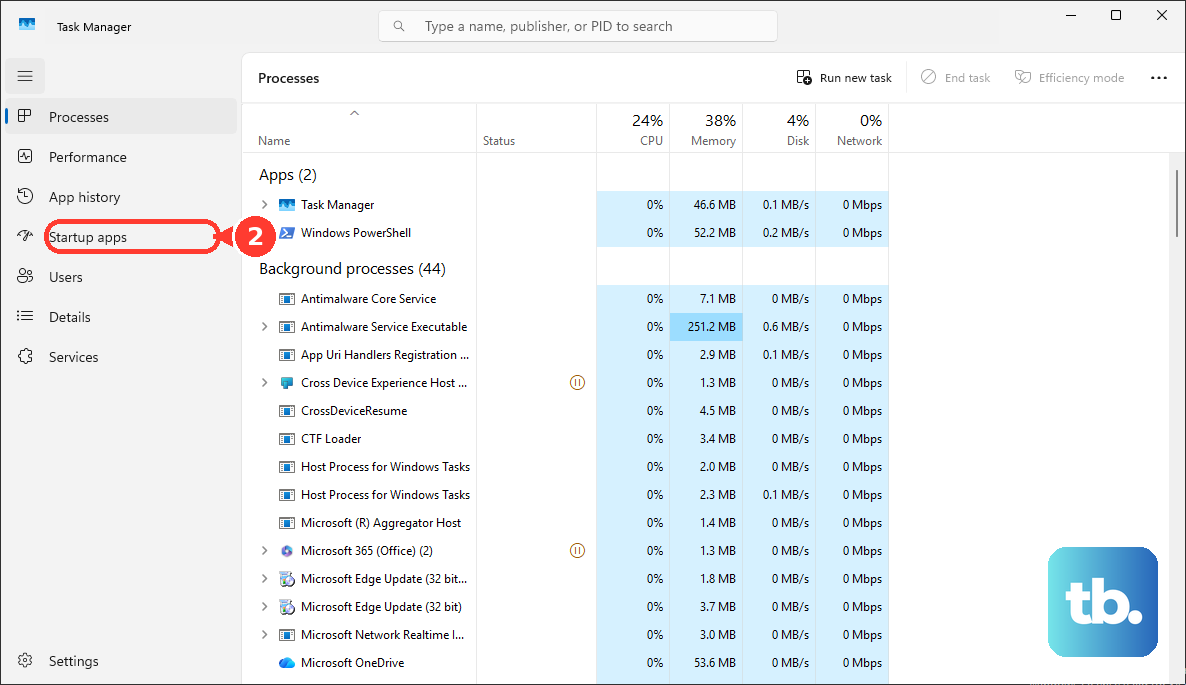
Too many apps launching at boot will slow down your startup and run in the background. Go back to Task Manager and click the Startup apps tab. Disable anything you don't need immediately upon logging in, like chat clients, cloud storage sync tools, or media helpers. The Lenovo Vantage software is useful to keep, but other manufacturer utilities might not be necessary.
Free Up Storage Space on the SSD
Modern SSDs slow down when they get too full. Open Settings > System > Storage to see how much space is left on your C: drive. For best performance, try to keep at least 20% free. Click on Temporary files and clean out items like Windows Update cleanup files and your recycle bin. The Storage Sense feature can automate this for you.
Run a Full Malware Scan
Background malware is a classic cause of unexplained system drag. Open Windows Security from the Start menu, go to Virus & threat protection, and run a Full scan. While the built-in Windows Defender is solid, if you have a third-party suite installed, make sure its scans are up to date.
Update Everything with Lenovo Vantage
Outdated drivers are a major culprit for performance issues and bugs specific to your hardware. Open the Lenovo Vantage app (or Lenovo Commercial Vantage on business models). Go to the Updates section and install all available driver, BIOS, and firmware updates. This is also where you can manage battery conservation modes to help long-term health.
Don't forget Windows updates themselves. Go to Settings > Windows Update and install any pending feature or quality updates. An outdated system can conflict with newer drivers.
Check Your Power Plan Settings
Windows might be throttling your CPU to save battery, even when plugged in. Click the battery icon in your system tray and move the slider to Best performance. For more control, search for "Edit power plan" in the Start menu, click Change advanced power settings, and ensure the processor power management is set to 100% for both minimum and maximum states when plugged in.
Disable Unnecessary Visual Effects
Search for "Adjust the appearance and performance of Windows" in the Start menu. In the Visual Effects tab, you can select Adjust for best performance to turn everything off. If that's too stark, manually uncheck the most demanding effects like animations, shadows, and transparency. This frees up CPU and GPU resources for your actual work.
Investigate Known Hardware Quirks
The X1 Carbon has a few known issues that can impact performance. One is Thunderbolt dock detection problems after waking from sleep, which can cause system hangs. A full restart usually resolves it. Another is driver conflicts with the optional WWAN (cellular) module. If you have one, ensure its drivers are updated via Lenovo Vantage.
For deeper hardware checks, you can press F10 at boot (before the Windows logo appears) to launch the Lenovo Diagnostics tool. This can test your memory, storage, and other components for failures.
Consider a Windows Refresh
If all else fails and the slowness seems to be general system bloat, a refresh can help. Go to Settings > System > Recovery and click Reset PC. Choose Keep my files to reinstall Windows while preserving your personal data. Remember, this will remove all your installed applications, so you'll need to reinstall them afterward.
For the most stubborn software issues, accessing the BIOS can be useful. Restart your X1 Carbon and press F1 repeatedly as it boots to enter ThinkPad Setup. If your function keys are swapped, you might need to press Fn + F1 instead. Be cautious in here, but you can often load default settings if a configuration change is causing problems.