
A slow ThinkPad T14 feels like you're trying to run through mud. That legendary ThinkPad speed is gone, replaced by laggy apps and a frustratingly slow response. Before you assume the hardware is failing, know that most slowdowns are caused by software or settings that you can fix yourself.
Restart Your ThinkPad
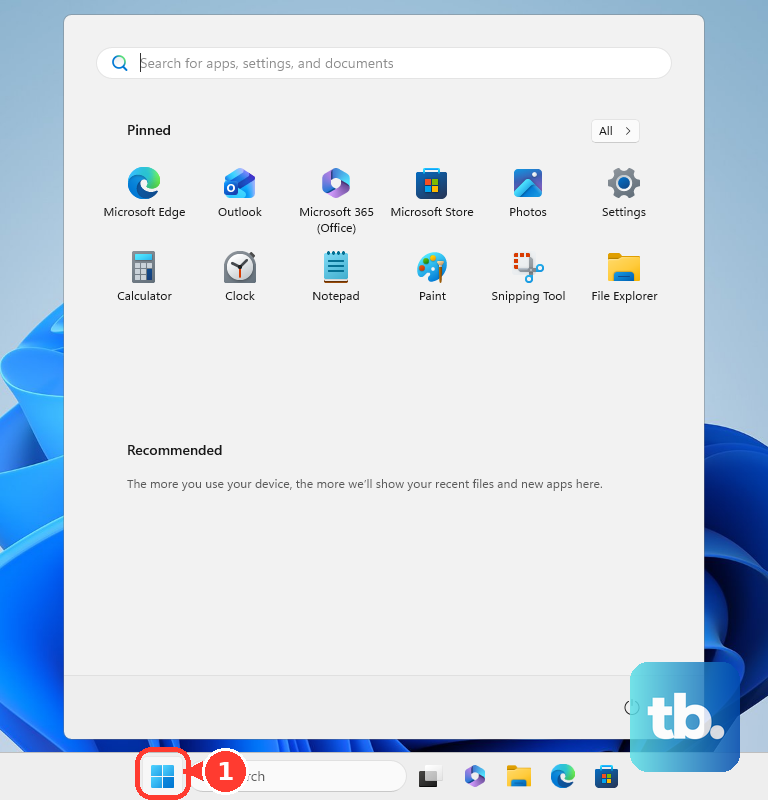
If you just close the lid and let it sleep for days, background processes and memory leaks can pile up. Click Start > Power > Restart. Don't just choose Shut down, as Windows Fast Startup doesn't fully clear the system memory. A proper restart is the quickest way to clear out temporary slowdowns.
Use Task Manager to Find the Culprit
Press Ctrl + Shift + Esc to open Task Manager. Click the CPU, Memory, or Disk columns to sort by what's being used the most. Look for any single process using an unusually high percentage. Right-click on non-essential hogs and select End task. I've often seen background Windows Search indexing or a single Chrome tab cause this.
Stop Apps from Launching at Startup
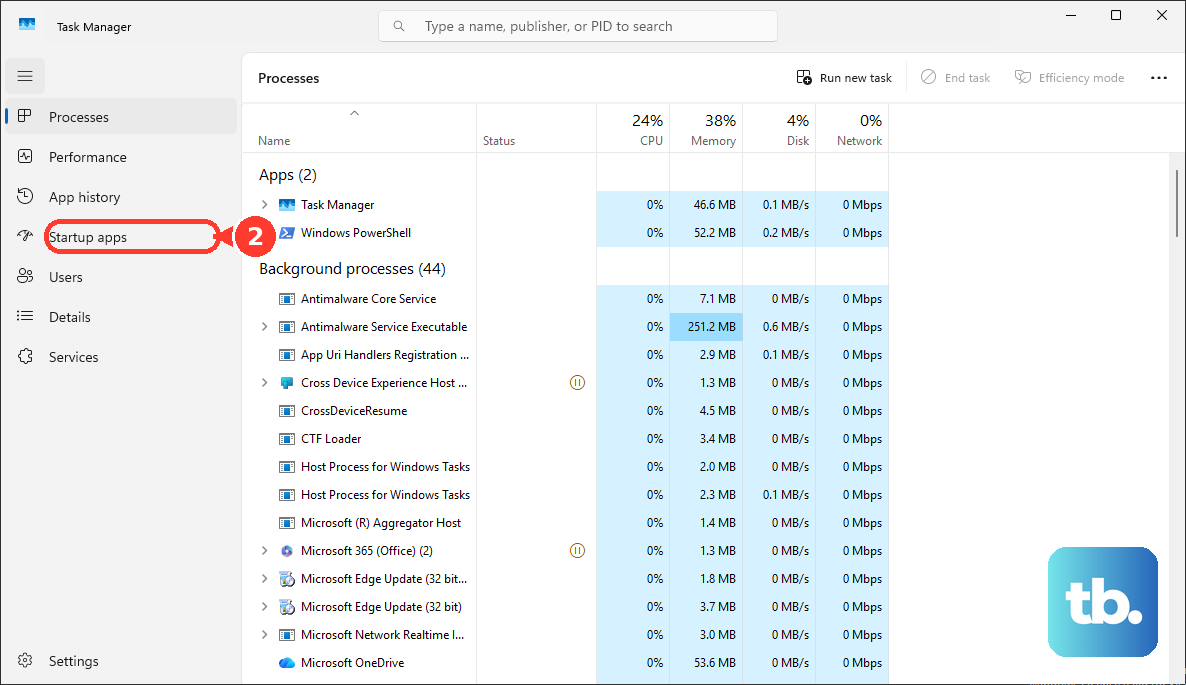
In Task Manager, go to the Startup apps tab. Here you'll see everything that launches when Windows boots. Right-click and disable applications like Slack, Spotify, or Adobe Creative Cloud that you don't need immediately. Each disabled app frees up RAM and shaves seconds off your boot time.
Free Up Space on Your SSD
A drive that's over 85% full can seriously slow down your system. Go to Settings > System > Storage. Turn on Storage Sense to let Windows automatically clean temporary files. You can also click Temporary files to manually remove update leftovers and empty the recycle bin.
Run a Full Malware Scan
Open Windows Security from the Start menu. Go to Virus & threat protection and click Scan options. Choose Microsoft Defender Antivirus (offline scan) for the most thorough check. This type of scan will restart your PC and can catch deeply hidden malware that causes performance drag.
Update Everything with Lenovo Vantage
This is a critical step for ThinkPads. Open the Lenovo Vantage app. Go to the System Update section and run a scan. This app finds and installs ThinkPad-specific drivers, BIOS updates, and firmware that generic Windows Update misses. An outdated BIOS or chipset driver is a common culprit for T14 sluggishness.
Check Your Power Plan Settings
Click the battery icon in your system tray and drag the slider to Best performance. For more control, go to Settings > System > Power & battery. If your T14 is plugged in but still slow, it might be stuck on a power-saving plan. The "Best performance" mode ensures the CPU isn't being unnecessarily throttled.
Disable Unnecessary Visual Effects
Search for "Adjust the appearance and performance of Windows" in the Start menu. In the Visual Effects tab, select Adjust for best performance. This turns off animations, shadows, and transparency. While the T14 can handle these effects, disabling them frees up resources for your actual work, especially if you're multitasking heavily.
Consider a Hardware Upgrade
The T14's performance is often limited by its RAM and storage. If your model has 8GB of RAM soldered on, check if it has an open SO-DIMM slot to add more memory. The single biggest speed upgrade, however, is ensuring you're using an NVMe SSD. If your unit came with a slower SATA SSD or, less likely, an HDD, swapping in a fast NVMe drive will transform its responsiveness.
Reset Windows as a Last Resort
If all else fails, a refresh can help. Go to Settings > System > Recovery and click Reset PC. Choose Keep my files to reinstall Windows while preserving your personal data. This removes all installed applications and system bloat, giving you a clean slate. Remember to back up anything critical before proceeding.
For ThinkPad-specific issues, remember you can press F1 during startup to enter the BIOS, where extensive hardware settings are managed. If your T14 is from a workplace, an enterprise BIOS password set by your IT department could be locking you out of certain performance-related settings.