
A blinking or flickering screen on your Lenovo Legion Pro 16 is incredibly distracting and can make gaming or work impossible. The issue might appear as rapid flashes, intermittent blackouts, or horizontal lines tearing across the display. Let's get it fixed.
Update Your Graphics Drivers
Outdated or corrupted GPU drivers are the most common cause of screen flickering on gaming laptops. For your Legion Pro 16, you should get drivers directly from the source. Visit the NVIDIA website for your GeForce GPU and the Intel website for the integrated graphics. Use the automatic detection tool or manually select your laptop model to download the latest Game Ready or Studio drivers.
After downloading, run the installer and choose the "Custom" installation option. Select "Perform a clean installation," which will remove old driver files before installing the new ones. This can resolve conflicts that cause the display to blink.
Use the Legion Space App
Open the Legion Space app, which is central to managing your laptop's performance. Navigate to the performance or settings section and check your current power profile. Sometimes, an unstable overclock or an aggressive performance mode can cause display instability.
Try switching between the different modes using the Fn + Q shortcut. If you're in Performance mode and experiencing flickering, switch to Balanced or Quiet mode to see if the issue stops. This can indicate a thermal or power delivery issue under heavy load.
Adjust Your Display Refresh Rate
Your Legion Pro 16 likely has a high-refresh-rate panel. Right-click on your desktop and select Display settings. Scroll down and click Advanced display.
Look at the Choose a refresh rate dropdown menu. If it's set to the maximum (like 165Hz or 240Hz), try selecting a lower standard refresh rate, such as 144Hz or 60Hz. Apply the change and see if the blinking stops. Incompatibility between certain applications and the high refresh rate can sometimes cause flickering.
Check the MUX Switch Setting
The Legion Pro 16 features a MUX switch that lets you choose between hybrid graphics mode (which uses both the integrated and dedicated GPU) and dGPU-only mode. Switching this setting requires a reboot. You can find this option in the Legion Space app or within the laptop's BIOS.
If you're in dGPU mode, try switching to Hybrid mode, or vice versa. A flickering screen can sometimes be related to how the laptop is routing the display signal between the two graphics processors. I've seen this resolve flickering for users who recently changed this setting.
Disable Hardware Acceleration in Apps
Many applications, like web browsers and Discord, use hardware acceleration to offload tasks to your GPU. When this feature conflicts with your drivers, it can cause screen tearing and blinking. In Chrome, go to Settings > System and turn off Use hardware acceleration when available.
Remember to restart the application after making this change. Do this for any app where you notice the flickering is most pronounced, such as a specific game or video player.
Boot Into Windows Safe Mode
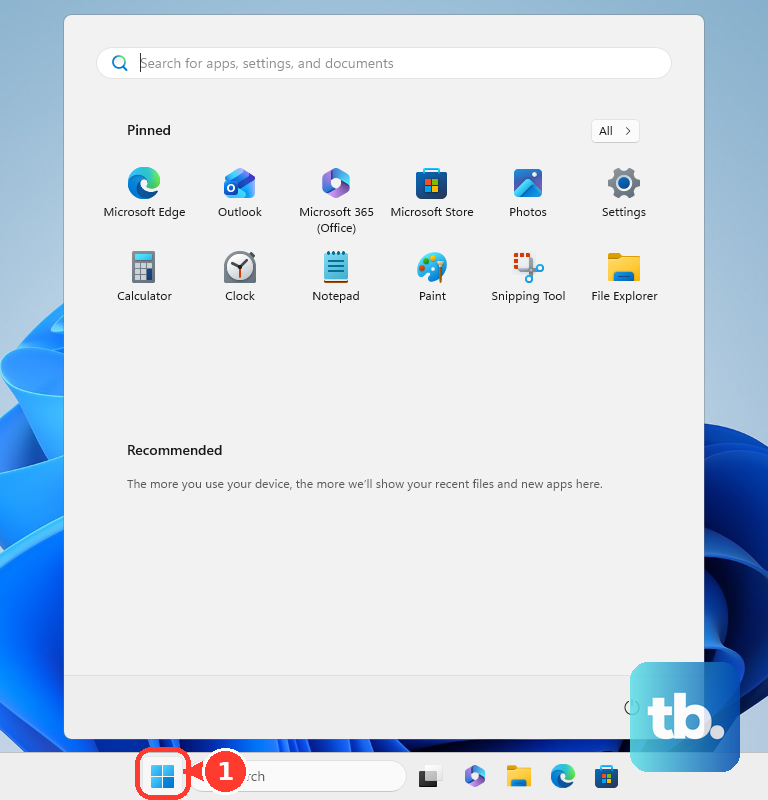
This test will tell you if the problem is with Windows itself or a driver you've installed. To access Safe Mode, click the Start menu, hold Shift, and click Restart. After the reboot, choose Troubleshoot > Advanced options > Startup Settings > Restart.
When your laptop restarts again, press 4 or F4 to enable Safe Mode. If the screen does not blink in Safe Mode, then a third-party driver or startup program is the culprit. You can then use Safe Mode to uninstall recent graphics drivers or software.
Roll Back a Recent Display Driver
If the blinking started right after you updated your GPU drivers, rolling back to the previous version is a quick fix. Press Windows Key + X and select Device Manager. Expand Display adapters, right-click on your NVIDIA GeForce GPU, and select Properties.
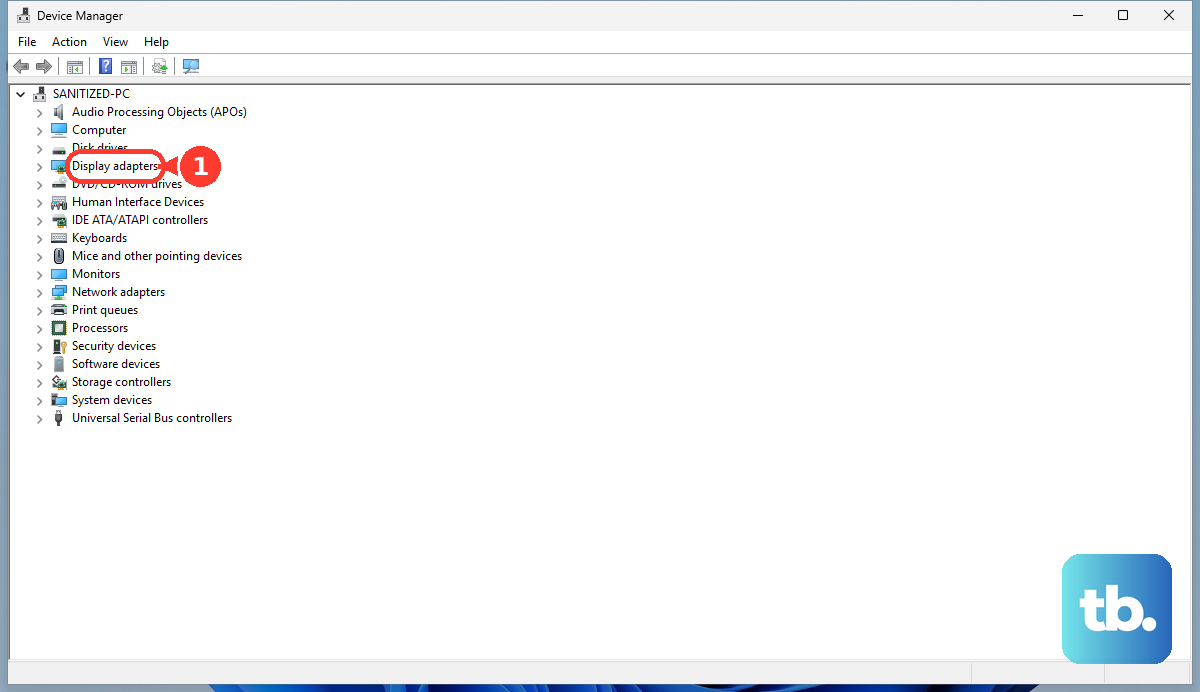
Go to the Driver tab and click Roll Back Driver. Follow the prompts. If the button is grayed out, Windows doesn't have the old driver stored, so you'll need to manually install an older version from the NVIDIA website instead.
Manage Thermal Performance
The Legion Pro 16 is powerful, and known GPU thermal throttling in Balanced mode can sometimes cause visual glitches under sustained load. Ensure your laptop has plenty of ventilation. Don't use it on a soft surface like a bed or blanket that can block the bottom intake vents.
Consider using a cooling pad for intensive gaming sessions. You can also use Legion Space to manually ramp up the fan speed in a custom profile to keep temperatures lower and potentially stabilize the display output.
Perform a Display Cable Check
This is a less common but possible hardware cause. If the blinking or flickering gets worse when you physically move the laptop screen or open and close the lid, the internal display ribbon cable could be loose or damaged.
This connection runs from the motherboard through the hinges to the display panel. Diagnosing or repairing this yourself is difficult and could void your warranty. If all software fixes fail and the issue is tied to screen movement, this is likely the cause.