
When your Lenovo Legion Pro 16 hits a Blue Screen of Death (BSOD), it's Windows forcing a crash to prevent damage from a serious error. On a gaming laptop, this is often tied to a GPU driver conflict, a memory issue, or a problem with the system's thermal management under heavy load. The specific stop code on the screen gives you a clue, but the fixes below are your best bet to get back in the game.
Restart and See if It Happens Again
The first thing to do is restart your laptop. A single BSOD can be a random glitch, especially if you were just installing a game or an update. If your Legion Pro boots up normally and runs fine, you can probably chalk it up to a one-time hiccup. If the blue screen comes back immediately or during your next gaming session, you've got a recurring problem that needs attention.
Write Down the Stop Code
Before you restart, take a quick photo of the screen or jot down the error code. Common ones you might see on a Legion include VIDEO_TDR_FAILURE, which is often GPU-related, or MEMORY_MANAGEMENT, which points to RAM. Having this code can help you search for more specific fixes later, but the general steps here will cover most bases.
Boot Into Safe Mode
If the laptop keeps crashing before you can log into Windows, you'll need to boot into Safe Mode. On the Legion Pro 16, you can do this by holding the Shift key while you click the Restart option in the Windows power menu. After it reboots, navigate to Troubleshoot > Advanced options > Startup Settings > Restart. When it restarts again, press the 4 key to enable Safe Mode. This loads Windows with only essential drivers, which can help you undo recent changes that might be causing the crash.
Check for Overheating and Adjust Performance Modes
Gaming laptops like the Legion Pro 16 generate a lot of heat. A BSOD during an intense gaming session is a classic sign of thermal throttling gone wrong, where the CPU or GPU gets too hot and the system crashes to protect itself. I'd start by checking your performance mode. Press Fn + Q to cycle through the modes; try running in Quiet or Balanced instead of Performance to see if the crashes stop. Also, make sure the laptop's vents are clear of dust and it's sitting on a hard, flat surface for proper airflow.
Update Your Graphics and Chipset Drivers
Outdated or buggy drivers are the most common culprit for BSODs on a gaming machine. For your NVIDIA GPU, avoid using generic Windows Update drivers. Go directly to the NVIDIA website or use the NVIDIA app to get the latest Game Ready Driver. You should also visit Lenovo's support site for your specific Legion Pro 16 model to download the latest chipset, audio, and network drivers. Installing these in a clean install mode can prevent conflicts.
Uninstall Recent Software or Windows Updates
Think about what changed right before the blue screens started. If you just installed a new game, anti-virus program, or a Windows update, that could be the trigger. Go to Settings > Windows Update > Update history > Uninstall updates to remove the latest quality update. To remove a recently installed app, go to Settings > Apps > Installed apps and uninstall it from there.
Use the Legion Space App for Stability
Don't forget about the Legion Space app that comes with your laptop. It's your control center for system tuning. Open it and check your performance profiles. Sometimes a custom profile can get corrupted. Try resetting to a default profile like "Balanced." You can also use the app to manually control fan speeds, which can help with thermal stability if you're experiencing crashes linked to heat.
Run a Memory Diagnostic
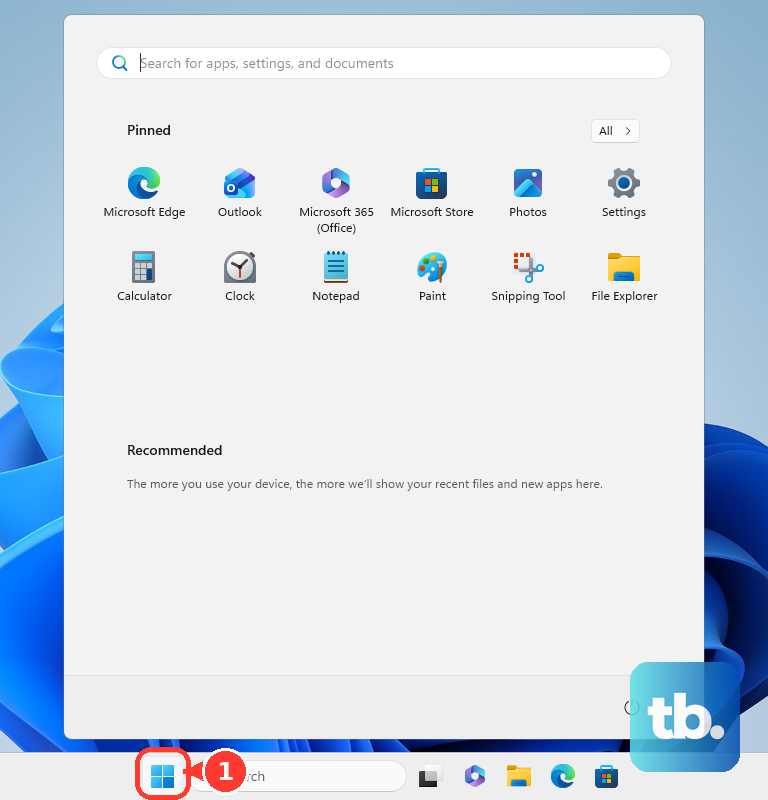
Faulty RAM can cause all sorts of crashes. Search for Windows Memory Diagnostic in the Start menu and run it. Choose Restart now and check for problems. Your laptop will reboot and run a test, showing the results when Windows loads again. If it reports errors, you may need to reseat the RAM modules inside your laptop or, in some cases, replace them.
Scan for Corrupted System Files
Corrupted Windows system files can lead to stop errors. Open the Start menu, type cmd, right-click on Command Prompt, and select Run as administrator. In the black window, type the command sfc /scannow and press Enter. This will scan and attempt to repair any corrupted system files. If it finds issues it can't fix, run DISM /Online /Cleanup-Image /RestoreHealth first, then try the sfc command again.
Check Your SSD Health
A failing SSD can also cause system crashes. Open an Administrator Command Prompt like in the previous step. This time, type chkdsk C: /f /r and press Enter. It will schedule a disk check for the next restart. This scan looks for bad sectors and file system errors on your main drive. Let it run; it can take a while depending on your drive's size.
Reset Your PC (Keep Your Files)
If you're still facing persistent blue screens after all that, a Windows reset is a strong option. This reinstalls Windows while letting you keep your personal files, though you'll need to reinstall your games and apps. Go to Settings > System > Recovery and click Reset PC. Choose Keep my files and follow the prompts. This often clears out deep-seated driver conflicts or system corruption that other tools can't touch.
Access the BIOS or Recovery via Novo Button
If you can't even get into Windows to try these fixes, your Legion Pro 16 has a physical Novo button. Turn the laptop completely off. Then, using a paperclip or sim eject tool, press the small Novo button on the right side of the laptop (next to the power port). This will boot you into a menu where you can select BIOS Setup (by pressing F2) to check settings, or System Recovery to access advanced startup options for troubleshooting.