You press the Side button, the Apple logo glows to life, and then nothing happens. The logo just sits there, or the screen fades dark and bright again while the phone refuses to reach the Home Screen. A boot that stalls on the logo is one of the more alarming things an iPhone can do, but in most cases you can fix it yourself without losing a single photo.
One detail to clear up first: Apple never shipped a phone called the iPhone SE 4. The device most people mean by that name launched as the iPhone 16e, Apple's entry-level model announced in February 2025. It uses Face ID and a Side button (no Home button and no Touch ID), an A18 chip, and a USB-C port, so every boot-recovery step below is written for that hardware. If you actually own an iPhone SE 2nd or 3rd generation, the same fixes apply, but use the button sequence that matches your model.
Top up the battery before you assume the worst
A phone that looks frozen on the logo is sometimes just critically low on power, with barely enough charge to flash the logo and not enough to finish booting. Plug the iPhone 16e into a wall adapter using its USB-C cable and leave it alone for at least an hour before you try anything more involved.
Apple's own guidance is blunt about this: "If your iPhone doesn't turn on, charge your iPhone for one hour and then try again." Use a known-good cable and a wall outlet rather than a laptop port or a flaky car charger, since a weak source can keep you stuck in the same loop.
Force a restart to clear a frozen boot
If charging does not free things up, a force restart is the next safe move. It interrupts a stuck startup and makes the iPhone begin again, and it does not erase anything on the phone. On the iPhone 16e, which is a Face ID model with a Side button, the sequence is a specific three-step press.
- 1.Press and quickly release the volume up button.
- 2.Press and quickly release the volume down button.
- 3.Press and hold the side button until you see the Apple logo.
Keep holding that final button for around 10 seconds, even if the screen goes dark along the way, then let go once the Apple logo appears. The timing matters; tapping the volume buttons too slowly can cause the sequence to fail, so move through the first two presses quickly.
Watch the progress bar before you panic
Sometimes the phone is not actually stuck; it is quietly working through an update or an internal repair. If you see a progress bar under the Apple logo, give it real time before you decide the boot has failed.
Apple advises that you "make sure that the progress bar on your iPhone screen hasn't moved for at least one hour" before escalating. If the bar is still creeping forward, even slowly, leave the phone plugged in and let it finish. Only when "the progress bar hasn't moved for more than one hour" should you "connect your device to a computer, then put your device into recovery mode," which the later steps cover.
Install the iOS update waiting in the wings
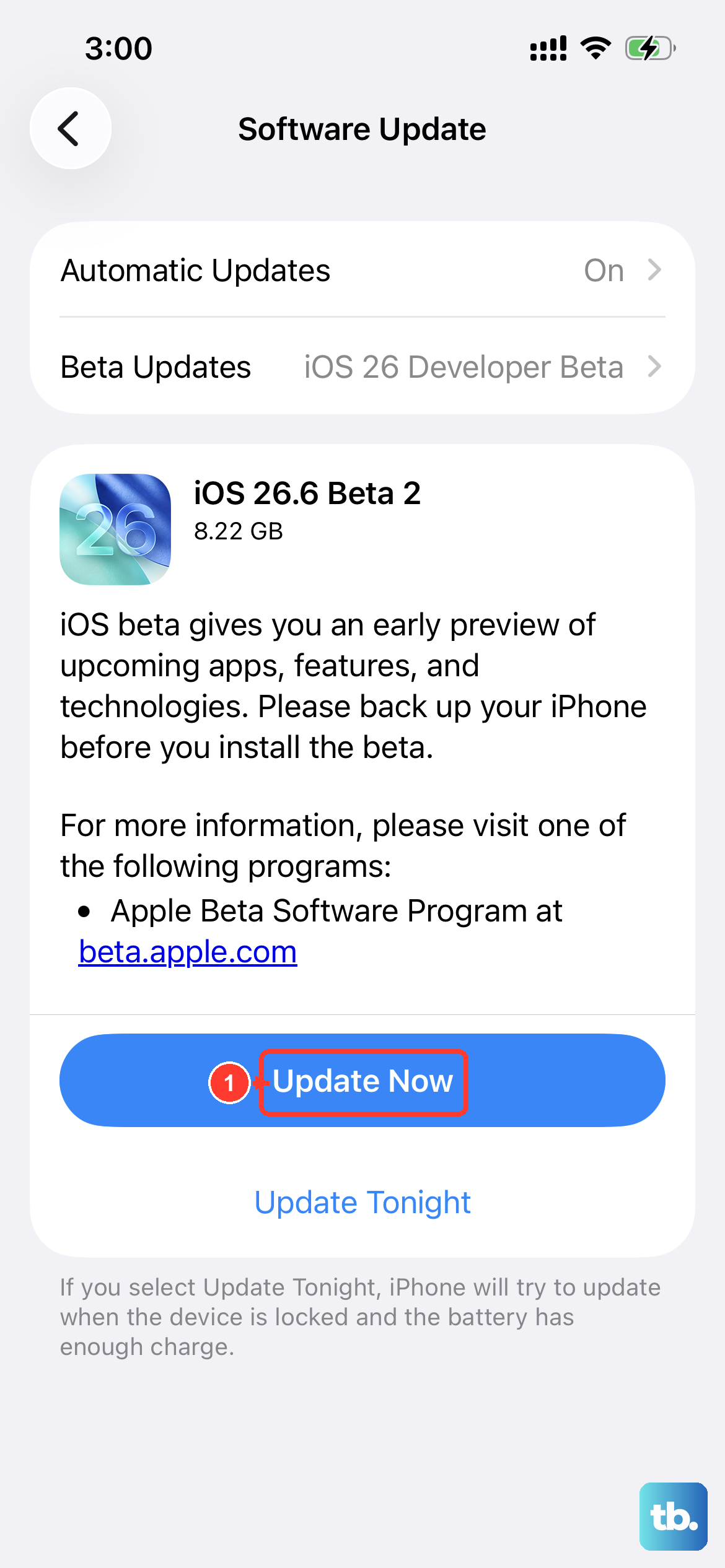
If your iPhone makes it past the logo on its own, do not stop there; a pending software update may be exactly what prevents the next stall. Outdated system software can carry the bug that interrupted startup in the first place, and installing the latest version often clears it.
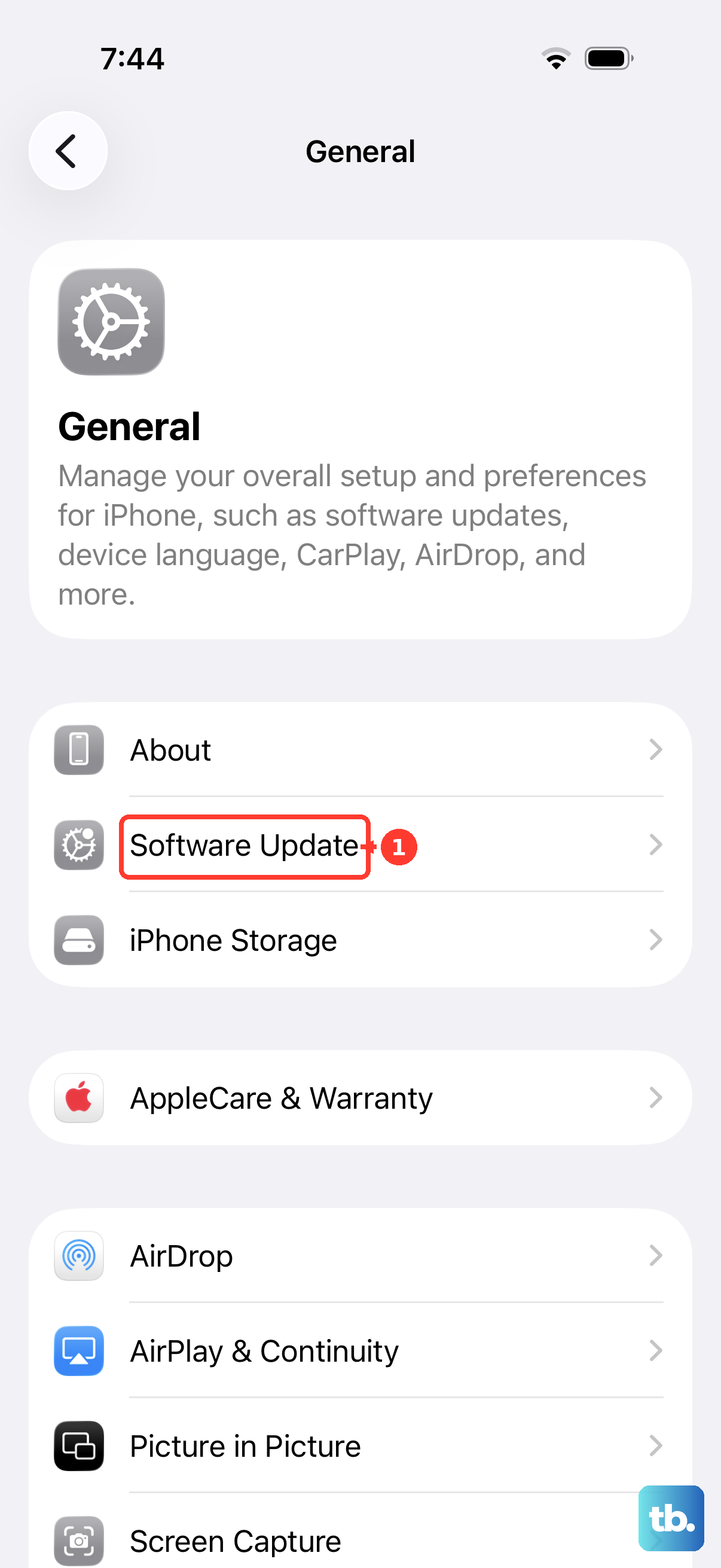
Open Settings > General > Software Update, then tap Download and Install and follow the onscreen instructions. The iPhone 16e shipped on iOS 18.3 and supports later iOS releases, so it is worth checking even if you updated only recently.
Reinstall iOS with recovery mode and keep your data
When the phone will not boot at all, recovery mode lets a computer reinstall iOS for you, and the Update option does this without erasing your content. You will need a Mac or a Windows PC along with the USB-C cable. On a Mac running macOS Catalina 10.15 or later, open Finder; on a Windows PC, open the Apple Devices app (use iTunes if your Mac runs macOS Mojave 10.14 or earlier, or on a PC without the Apple Devices app).
- 1.Connect the iPhone 16e to the computer with its cable.
- 2.Press and release the Volume Up button.
- 3.Press and release the Volume Down button.
- 4.Press and hold the Side button. Keep holding the Side button until you see the recovery mode screen.
When the computer detects the phone and offers a choice, select Update. That tells the software to reinstall iOS while keeping your data in place, which is why it is worth trying before any erase-based fix.
Restore in recovery mode when an update is not enough
If the Update path runs but the phone still hangs on the logo, the same recovery-mode flow offers a Restore option as a deeper fix. Be careful here, because Restore is destructive.
DATA-LOSS WARNING: Restore erases the device and installs the latest iOS, so back up your data first if the phone is reachable at all. Repeat the recovery-mode steps above, connect to Finder or the Apple Devices app, and choose Restore instead of Update. Once it finishes, you can set the iPhone up again and, if you have a backup, bring back your photos, apps, and settings from it.
Erase and start fresh if the phone still acts up
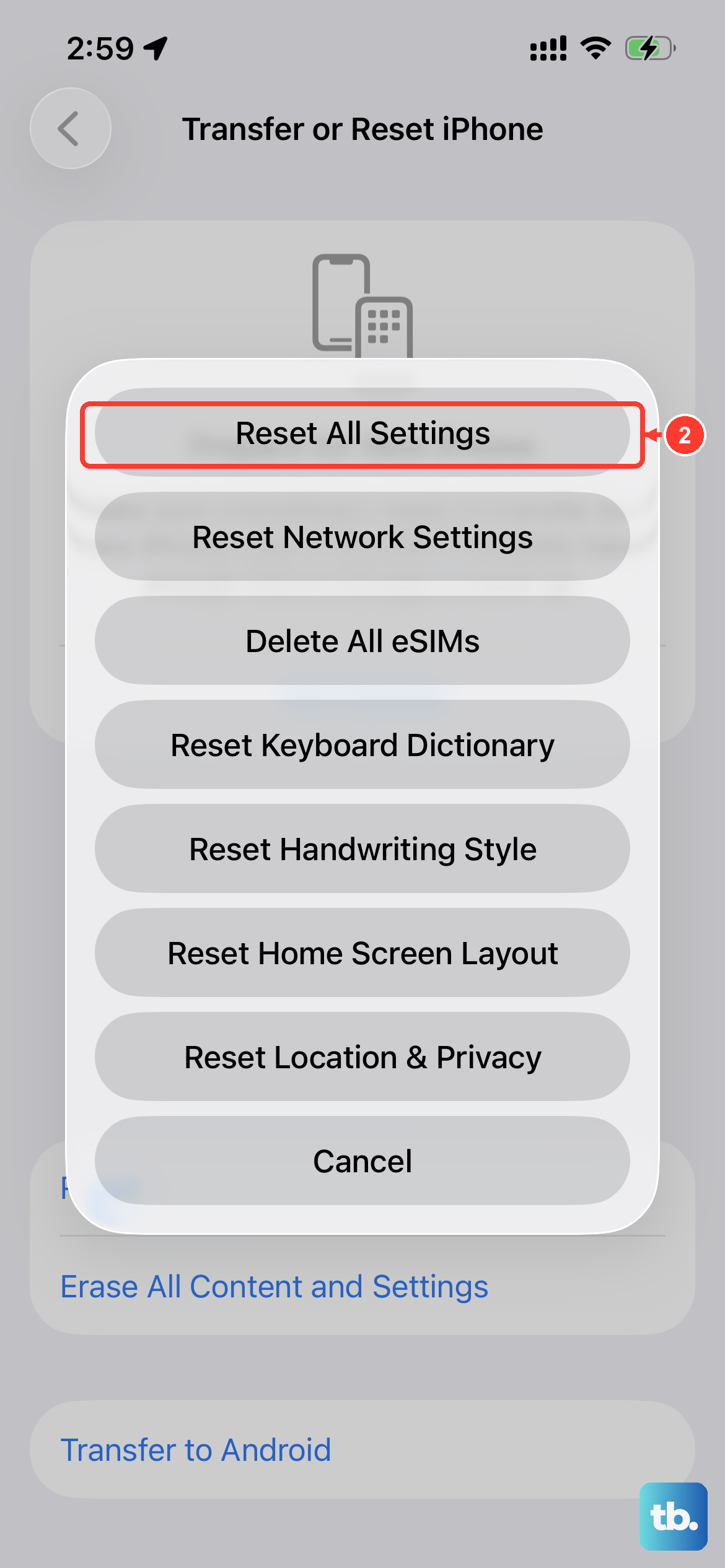
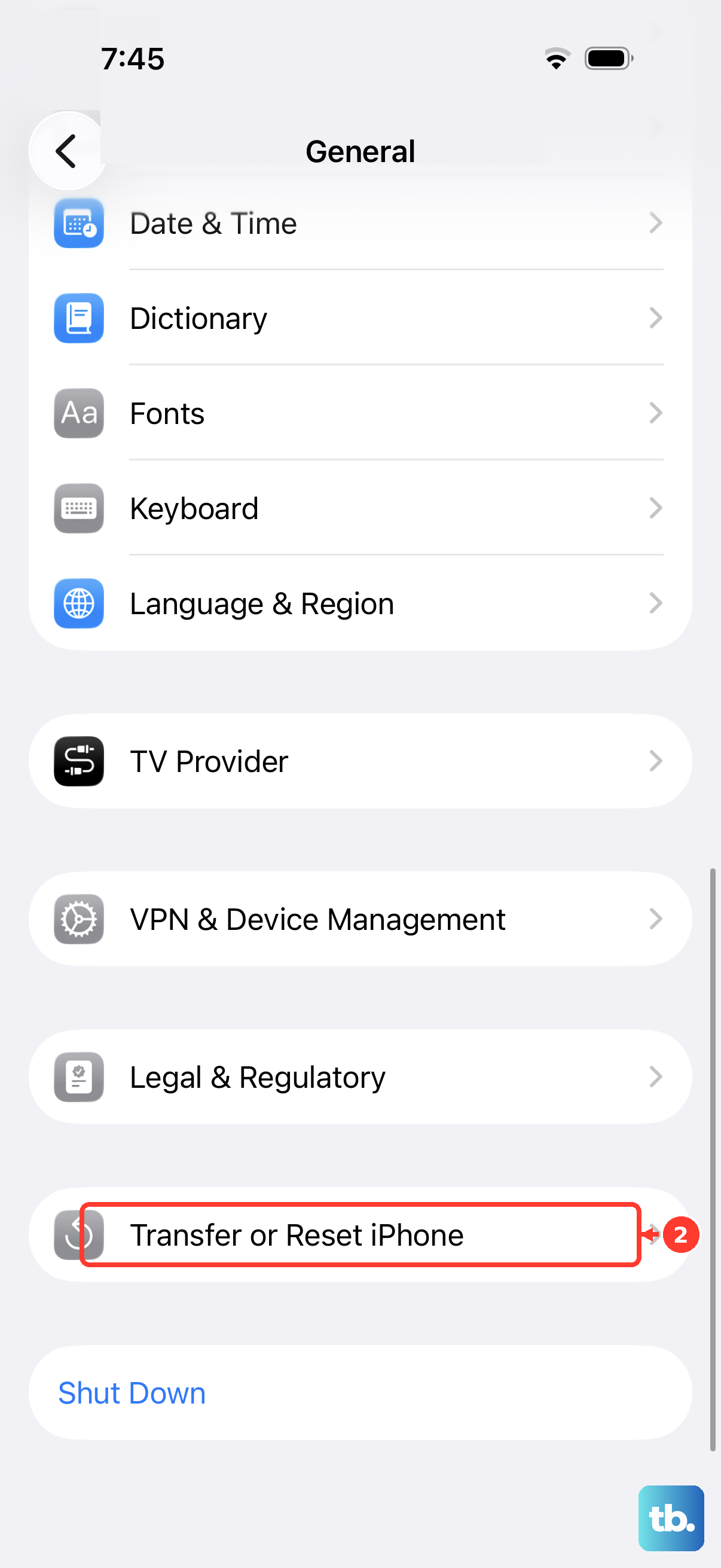
This step only applies if your iPhone 16e actually boots but keeps misbehaving after startup, since you need to reach the menus to use it. A full in-device factory reset wipes lingering software problems by returning everything to factory condition.
DATA-LOSS WARNING: this removes your content and settings, so back up first. Go to Settings > General > Transfer or Reset iPhone > Erase All Content and Settings and follow the prompts. If you would rather not lose your data, choose the gentler Settings > General > Transfer or Reset iPhone > Reset > Reset All Settings instead, which clears your settings while keeping your personal content.
When to hand it to Apple
If you have charged the phone, forced a restart, waited out the progress bar, and run both Update and Restore without success, the problem may be hardware rather than software. Once the home fixes are exhausted like this, the phone may simply need service.
At that point, reach out through Apple Support to start a repair or talk through your options, rather than continuing to cycle the same steps. Have your phone's details handy so the conversation moves faster.
Frequently Asked Questions
Is there really no iPhone SE 4?
Correct. Apple never released a phone with that exact name. The entry-level successor to the iPhone SE line is the iPhone 16e, announced in February 2025, and the fixes here are written for it. If you own an iPhone SE 2nd or 3rd generation, use the button sequence that matches your specific model.
Will a force restart delete my photos or apps?
No. A force restart simply interrupts a stuck startup and makes the phone boot again; it does not erase your content. The steps that do erase data are the Restore option in recovery mode and Erase All Content and Settings, both of which carry a clear data-loss warning.
What is the difference between Update and Restore in recovery mode?
Update reinstalls iOS while keeping your data, which is why it is the first recovery-mode option to try. Restore erases the device and installs the latest iOS, so save it for when Update does not resolve the problem and back up beforehand if you can.
How long should I wait at the Apple logo before doing anything?
If a progress bar is showing, Apple's guidance is to make sure it has not moved for at least one hour before escalating. If the bar has been frozen for more than an hour, connect the phone to a computer and move on to recovery mode.
Do I need a computer to fix a stuck iPhone 16e?
Not always. Charging, a force restart, and waiting out the progress bar need no computer at all. You only need a Mac or Windows PC for the recovery-mode Update and Restore steps, done through Finder or the Apple Devices app (or iTunes on older systems).