A screen that strobes, dims for no reason, or shows faint banding turns even simple tasks like reading a message into a strain on your eyes. If the display on your iPhone keeps flickering, the encouraging news is that most cases trace back to software or a setting you can change yourself, and only a minority come down to the panel itself.
To narrow down whether the screen or the signal is at fault, open a screen test and step through its patterns. A clean result shifts suspicion to the cable or source device.
One quick point before you start. Apple has never released a phone called the "iPhone SE 4," so if that is the name you have in mind, you almost certainly own one of two real devices. The fixes below work the same way on both, so you do not need to know which one you have to begin.
First, confirm which iPhone you are holding
The most recent phone Apple sells under the SE name is the iPhone SE (3rd generation), which uses a Retina HD LCD screen. The device Apple released in February 2025 as the de facto SE successor is the iPhone 16e, which has a 6.1-inch Super Retina XDR OLED display.
That hardware difference does not change the troubleshooting. Both phones run iOS 26 (the latest version at the time of writing is iOS 26.5, which covers iPhone 11 through iPhone 16e), and both use the same Settings paths and the identical force-restart sequence. Work through the steps in order, starting with the safest, and stop as soon as the flicker clears.
Wipe the screen and unplug anything attached
Before you touch a single setting, rule out the physical causes. Smudges, water, dust, and even a poorly fitted case or screen protector can make a display look like it is flickering or responding unevenly.
- 1.Make sure the screen is clean and free of debris or water.
- 2.Remove any cases or screen protectors.
- 3.Disconnect any Lightning or USB-C accessories.
If the flicker stops the moment you remove a charger or cable, the accessory is the likely culprit. Try a different outlet, a different cable, or a different charger before you plug anything back in.
Toggle Auto-Brightness off and on
If the brightness seems to pulse or never quite settle, the adaptive brightness feature may not be adapting correctly, which can read as a flicker. The official guidance is to turn Auto-Brightness off and then back on to reset the behavior.
Go to Settings > Accessibility > Display & Text Size and toggle Auto-Brightness off, wait a moment, then turn it back on. Keep in mind that leaving Auto-Brightness off can increase power consumption, so switch it on again once the display is behaving normally.
Dial back the display effects in Accessibility
iOS includes several display settings that can calm a busy or unstable-looking screen. They are not destructive, so you can turn them on to test and reverse them later if you prefer the standard look.
Start with Settings > Accessibility > Display & Text Size > Reduce Transparency, which improves contrast by reducing transparency and blurs on some backgrounds. You can also enable Settings > Accessibility > Display & Text Size > Reduce White Point, which tones down the intensity of bright colors.
Then open Settings > Accessibility > Motion > Reduce Motion to cut the animation and motion effects that can make a struggling display look worse. Test the phone for a few minutes after each change so you can tell which setting actually helped.
Power the phone off and on again
A standard restart clears the temporary glitches behind a surprising number of display problems, and it costs you nothing. Turn the iPhone off and then back on using the standard restart procedure for your model.
Give the screen a few minutes of normal use afterward to see whether the flicker returns. If it is gone, you are done; if it comes back or the screen is frozen, move on to a force restart.
Force restart a frozen or flickering display
When the screen is frozen, unresponsive, or still flickering after a normal restart, a force restart interrupts the system without erasing anything. The sequence is the same for the iPhone SE (3rd generation) and the iPhone 16e.
- 1.Press and quickly release the volume up button.
- 2.Press and quickly release the volume down button.
- 3.Press and hold the side button.
- 4.When the Apple logo appears, release the side button.
Do not let go of the side button when the screen first goes dark. Keep holding it until the Apple logo appears, and only then release.
Install the latest iOS 26 update
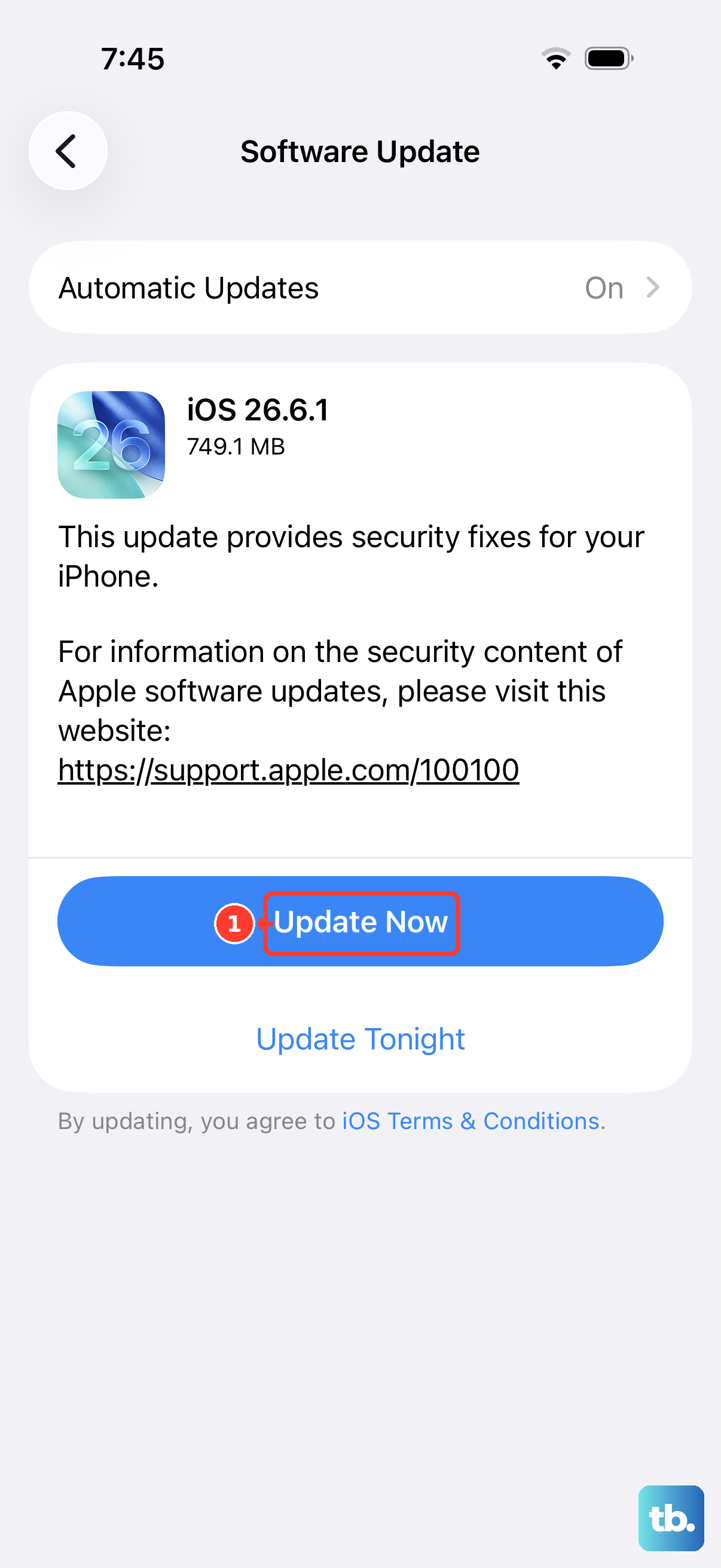
Display bugs are often resolved in software, so an out-of-date system can be the entire problem. Both the iPhone SE (3rd generation) and the iPhone 16e are supported on the current iOS 26 line.
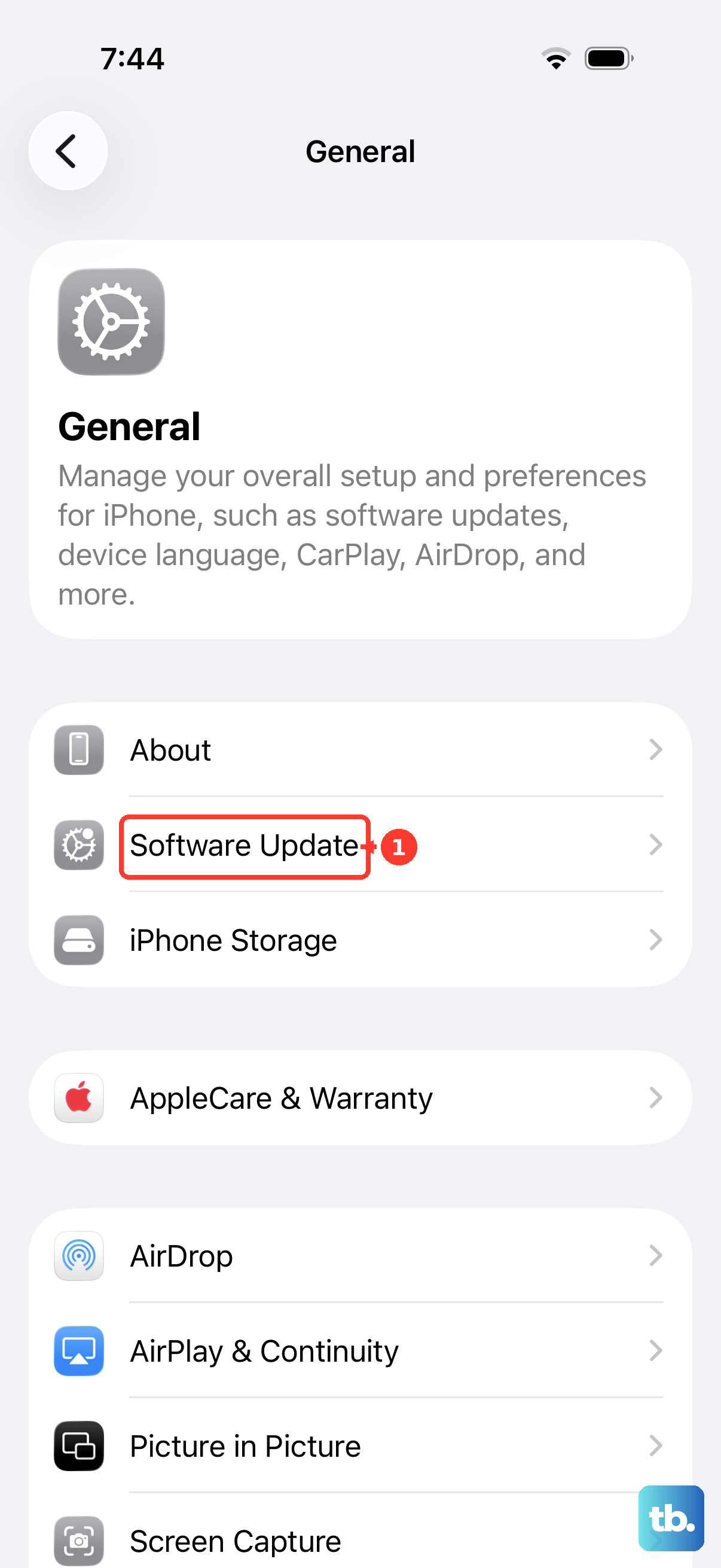
Go to Settings > General > Software Update and install any available update. This step is safe for your content, because when you update to the latest version of iOS, your data and settings remain unchanged.
Back up, then erase all content and settings
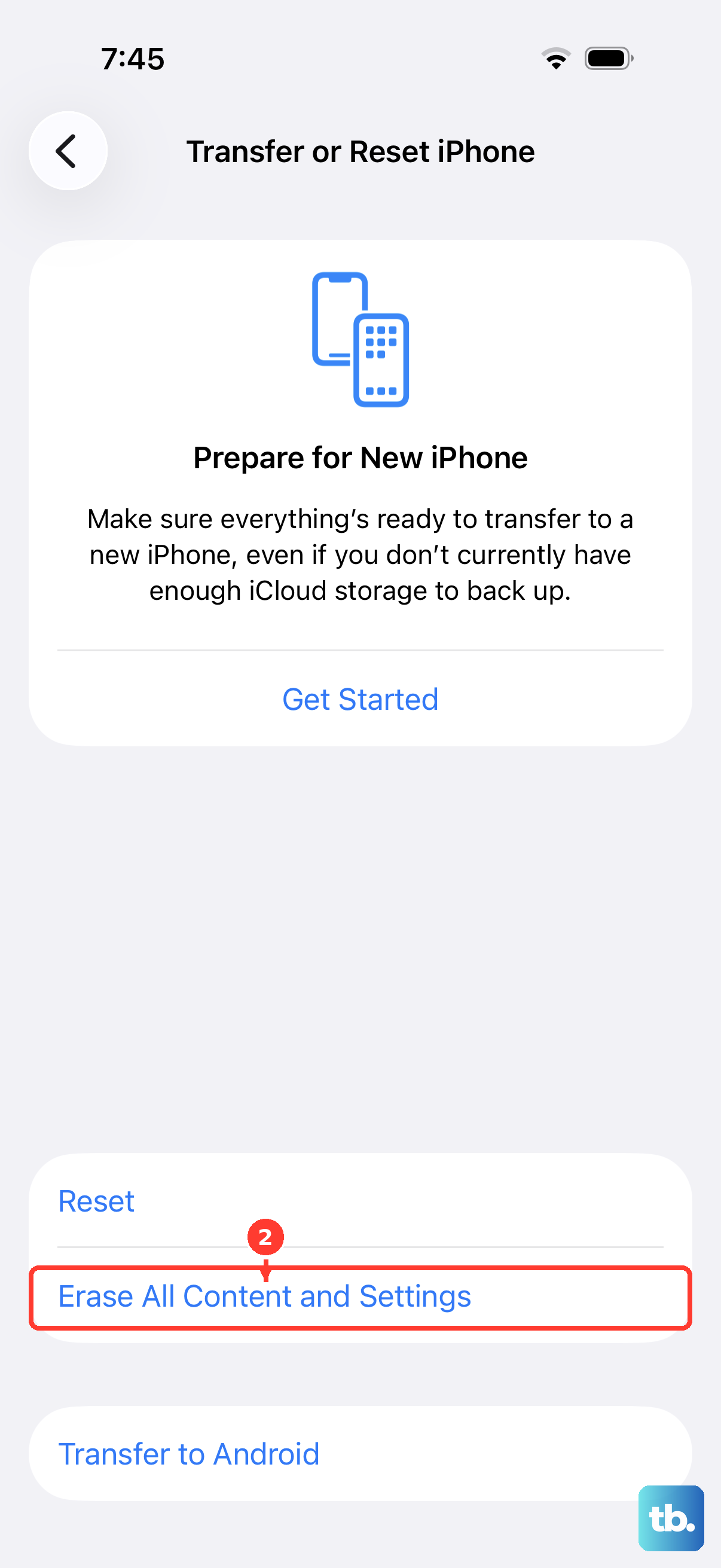
If the flicker survives every step above, a full reset is the last thing to try in software before you involve a technician. This step is destructive, so read the warning carefully before you act.
Erasing the iPhone completely wipes the device, including your Apple Pay cards, photos, contacts, music, and apps, and restores it to factory settings. Back up first so you can put everything back afterward; you can back up to iCloud on the phone, or over a cable using a Mac (Finder) or the Apple Devices app on Windows.
Once your backup is safe, go to Settings > General > Transfer or Reset iPhone > Erase All Content and Settings and enter your passcode or Apple Account password if you are asked. Set the phone up again and check whether the display is stable before you restore your data, since a clean device tells you whether software was ever the cause.
When to book a screen inspection
If the screen still is not working after the software steps, the issue is most likely hardware, and the official guidance is that you may need to set up service. A flicker that survives a clean wipe, a force restart, an update, and a full erase is a strong sign that the panel or its connection needs a closer look.
At that point, contact Apple Support to set up service and have the screen inspected. Describe exactly what you have already tried so the process moves faster.
Frequently Asked Questions
Is there really no iPhone SE 4?
Correct. Apple has never released a phone called the iPhone SE 4. The most recent SE model is the iPhone SE (3rd generation), and the iPhone 16e, released in February 2025, is its de facto successor. The flicker fixes here apply to both devices.
Will updating or force restarting erase my photos and data?
No. A force restart does not delete anything, and updating to the latest version of iOS leaves your data and settings unchanged. Only the Erase All Content and Settings step wipes the device, which is exactly why you back up first.
Does an iPhone have a Safe Mode I can use to test for a bad app?
No. iOS does not have a Safe Mode the way Android does, so there is no safe-mode step for an iPhone. Work through the restart, update, and, if needed, erase steps instead.
Should I leave Auto-Brightness off to stop the flicker?
It is fine to toggle Auto-Brightness off and on to reset the behavior, but leaving it off can increase power consumption. Once the display is steady, turning it back on is the better everyday setting.
Can I update or restore my iPhone using a computer?
Yes. You can update or restore over a cable using a Mac (Finder) or the Apple Devices app on Windows, which is handy for backing up before an erase or recovering a phone that is misbehaving.











