
When your iPhone SE 4's keyboard stops suggesting words as you type, it can really slow you down. The predictive text bar might just sit there blank, or the suggestions could be completely off. This is usually a quick software hiccup, and there are a few reliable ways to get it working again.
Restart Your iPhone SE 4
This is almost always the first thing I'd try. A simple restart clears out temporary glitches in iOS 18 that can cause the keyboard to act up. It only takes a minute and solves a surprising number of issues.
To restart your iPhone SE 4, press and quickly release the Volume Up button. Then, press and quickly release the Volume Down button. Finally, press and hold the Side button until you see the Apple logo appear on the screen.
Toggle Predictive Text Off and On
Sometimes the feature just needs a quick refresh. Head into your Settings app and tap on General. From there, go to Keyboard.
You'll see a switch for "Predictive Text." Tap it to turn the feature off. Wait a second, then tap it again to turn it back on. Open any app and start typing to see if the suggestions have returned.
Check Your Keyboard Settings
It's worth a quick look to make sure nothing got accidentally changed. Go back to Settings > General > Keyboard. Scroll down and ensure "Auto-Correction" is enabled.
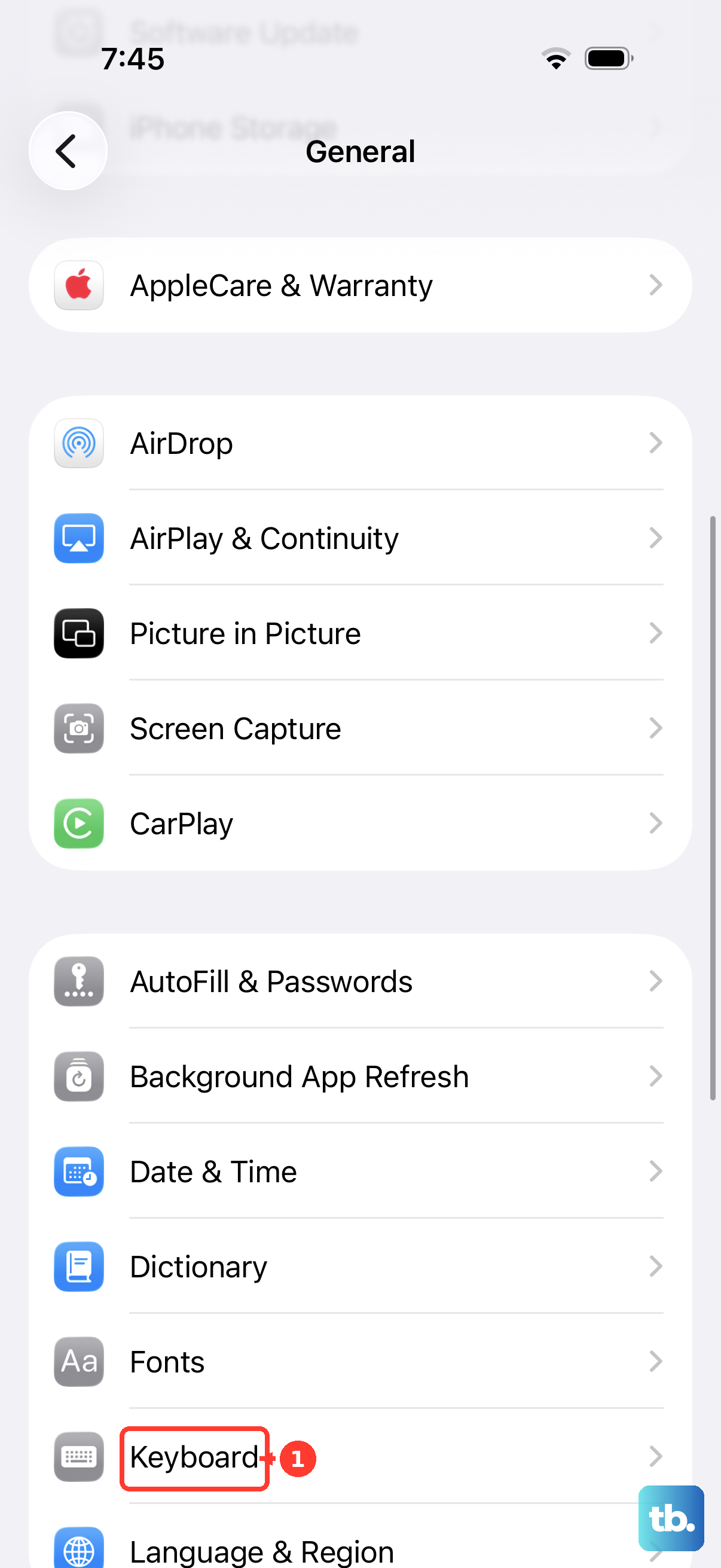
Also, verify that "Check Spelling" is turned on. While you're there, look at the list of keyboards under "Keyboards." If you have multiple languages or third-party keyboards installed, try switching to just the standard English keyboard to test.
Update iOS to the Latest Version
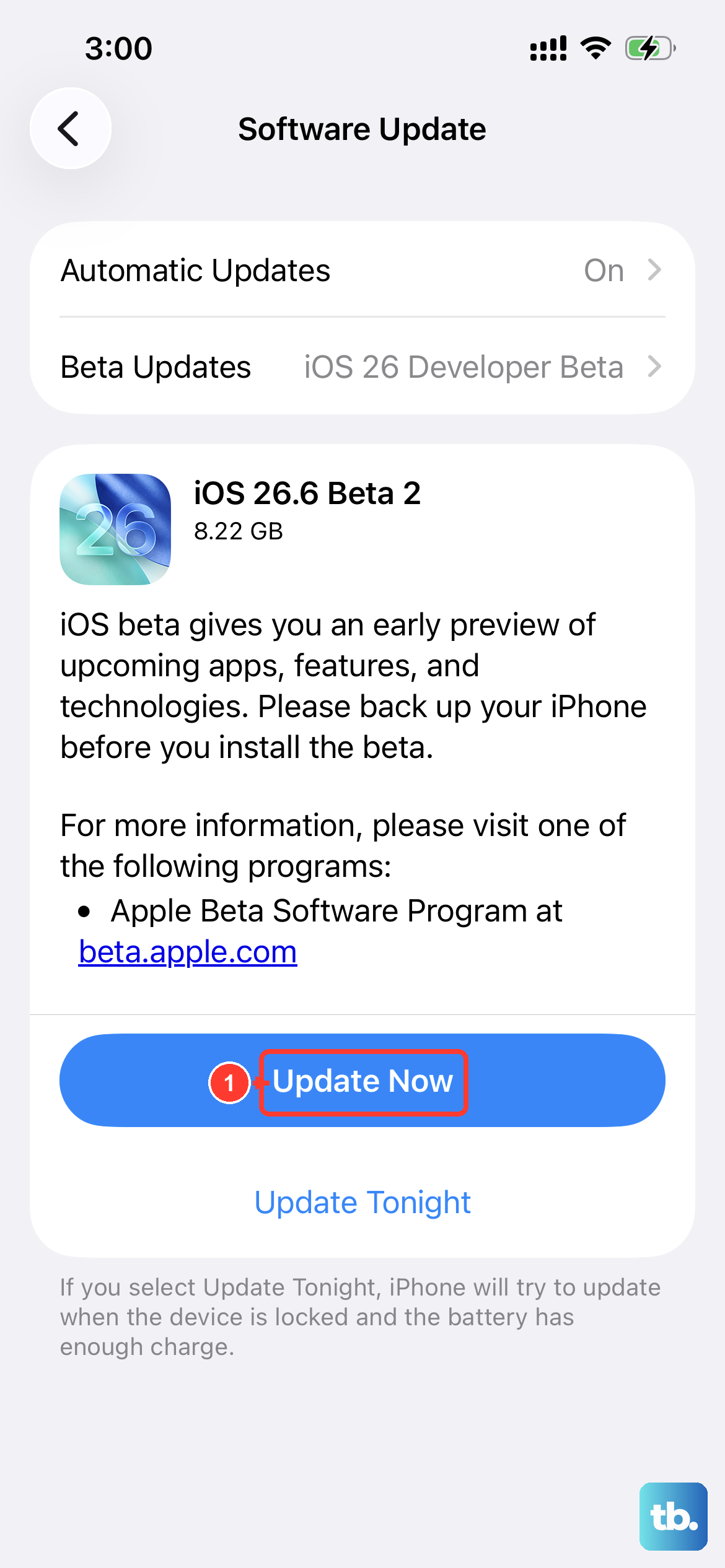
Apple frequently releases updates that fix bugs, including ones related to the keyboard and system intelligence. Making sure you're on the latest available version of iOS is a good step.
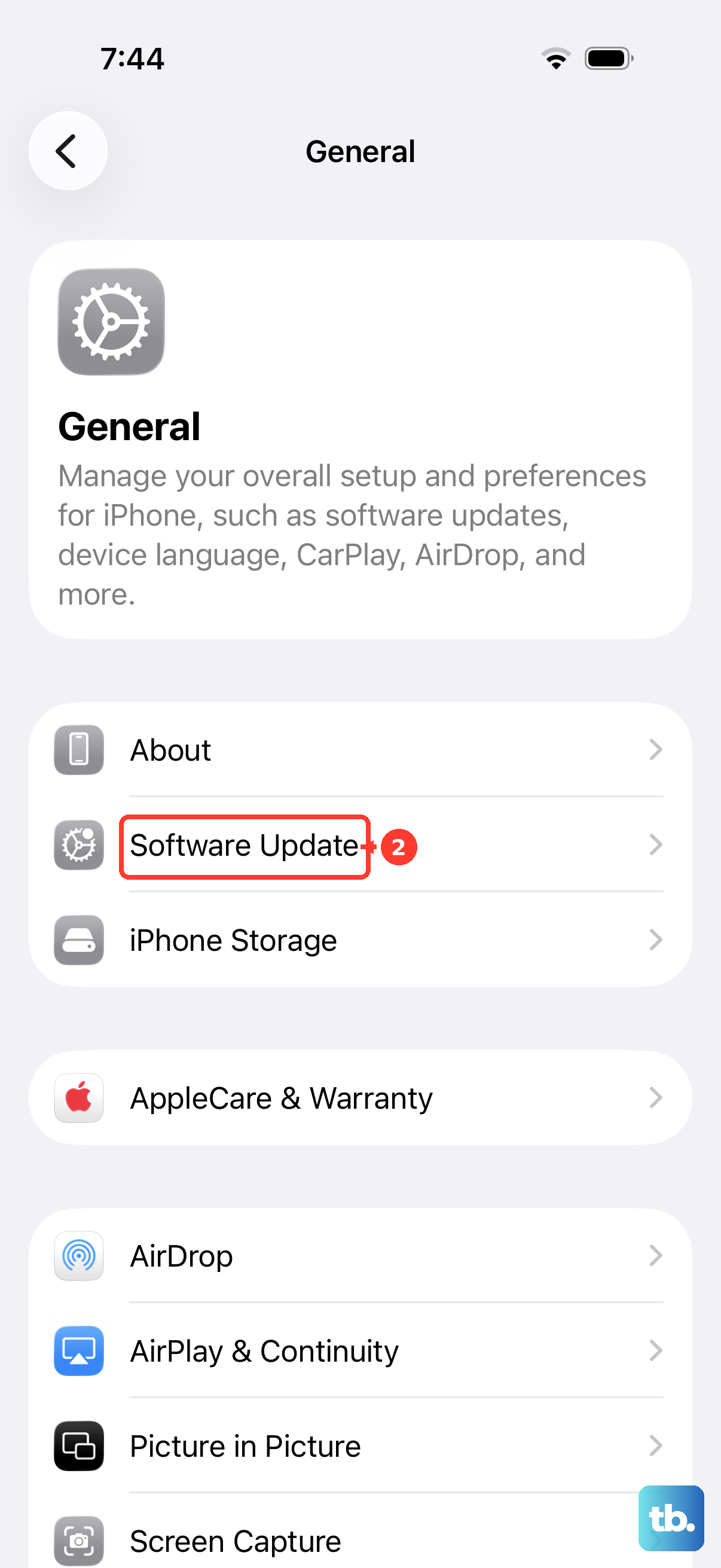
Open Settings and tap General, then Software Update. If an update is available, tap "Download and Install." I'd recommend doing this while your phone is connected to Wi-Fi and a charger, like a 20W USB-C PD charger for the fastest speed.
Reset All Keyboard Dictionary
If the suggestions are just weird or persistently wrong, resetting the keyboard dictionary can help. This clears all the words you've added that aren't in the standard dictionary. Be aware, you will lose any custom words you've taught your phone.
To do this, go to Settings > General > Transfer or Reset iPhone. Tap on Reset. From the list of options, choose Reset Keyboard Dictionary. You'll need to enter your passcode to confirm.
Check Your Language & Region Settings
The predictive text engine relies on your language settings. If these are incorrect, the suggestions won't make sense. Open Settings and go to General > Language & Region.
Make sure your "iPhone Language" is set correctly (like English). Also, check that your "Region" matches your location, as this can influence vocabulary and phrasing suggestions.