
A blurry camera on your iPhone SE 4 can turn a great shot into a disappointing one. The single rear camera means you don't have a backup lens to switch to, so getting it clear is key. Before you worry about a hardware issue, there are several simple things to check first.
Clean the Camera Lens
Start with the most obvious fix. Grab a soft, lint-free microfiber cloth and gently wipe the camera lens on the back of your iPhone SE 4. Fingerprints, smudges, and dust are the number one cause of hazy, blurry photos. I'd avoid using your shirt or a paper towel, as they can leave micro-scratches on the lens coating over time.
Remove Your Case
Take your phone out of its case and snap a test photo. Some cases, even well-known brands, can have a camera cutout that's slightly misaligned or a lip that's too deep, causing it to partially cover the lens. Also, check that you haven't accidentally left a plastic film or a separate camera lens protector on the glass.
Tap to Focus Properly
Open the Camera app and tap directly on your subject on the screen. You'll see a yellow square appear, confirming the focus point. The iPhone SE 4's camera might try to focus on the background if your subject is off-center. For more control, press and hold on the screen to lock the focus and exposure with AE/AF Lock.
Close and Reopen the Camera App
Swipe up from the bottom of your screen to enter the app switcher, then swipe the Camera app away to close it completely. Reopen it and try taking a photo again. A temporary software glitch in the app can cause the autofocus to malfunction or the image processing to produce soft, blurry results.
Restart Your iPhone SE 4
If the app restart didn't help, a full phone restart is the next step. Press and quickly release the Volume Up button, then press and quickly release the Volume Down button. Finally, press and hold the Side button until you see the Apple logo appear. This clears the phone's memory and resets the camera software stack.
Check for Moisture or Condensation
Moving from a cold environment to a warm one can cause condensation to form inside the camera lens or on the sensor, leading to foggy pictures. If you've just come inside on a cold day, let your iPhone SE 4 sit at room temperature for 15-20 minutes. Don't try to blow on the lens, as that just adds more moisture.
Update to the Latest iOS
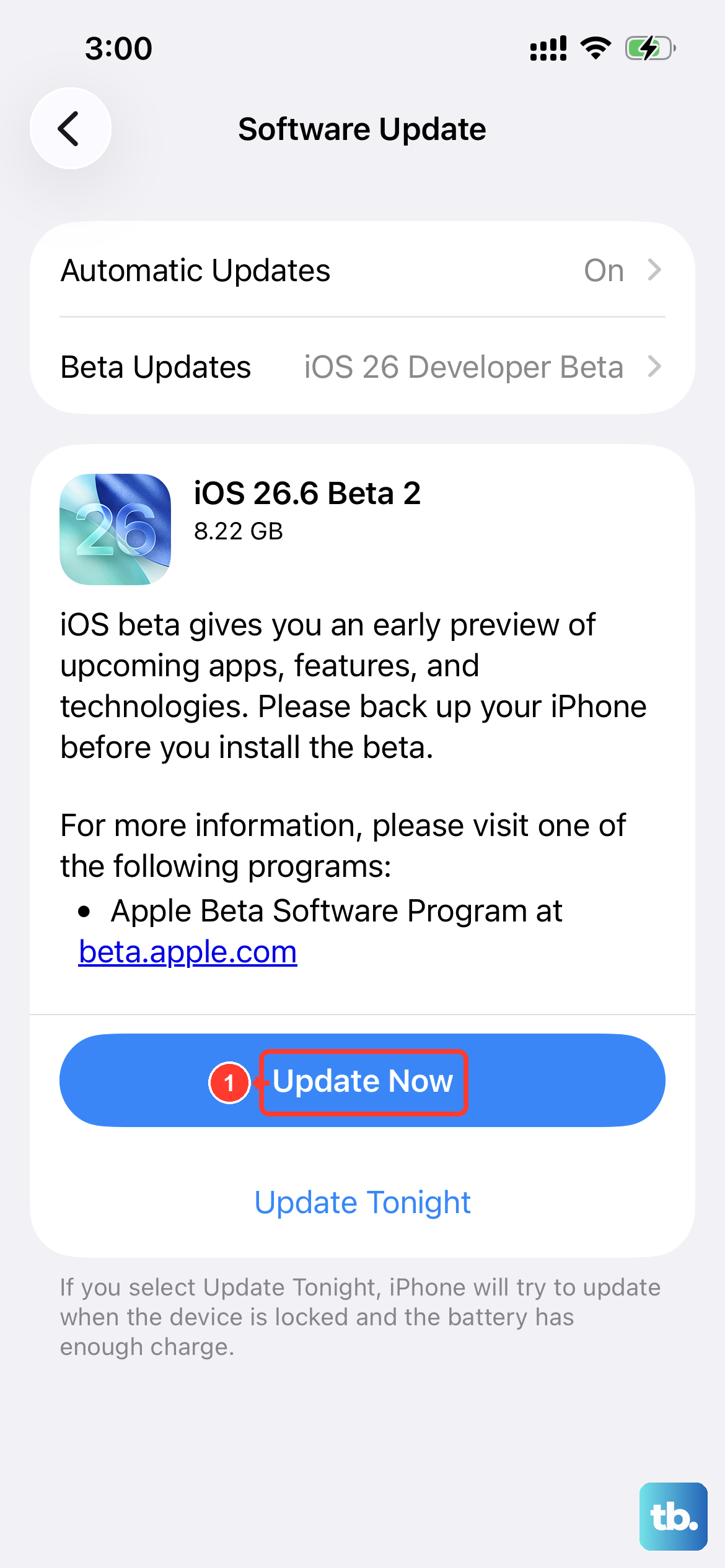
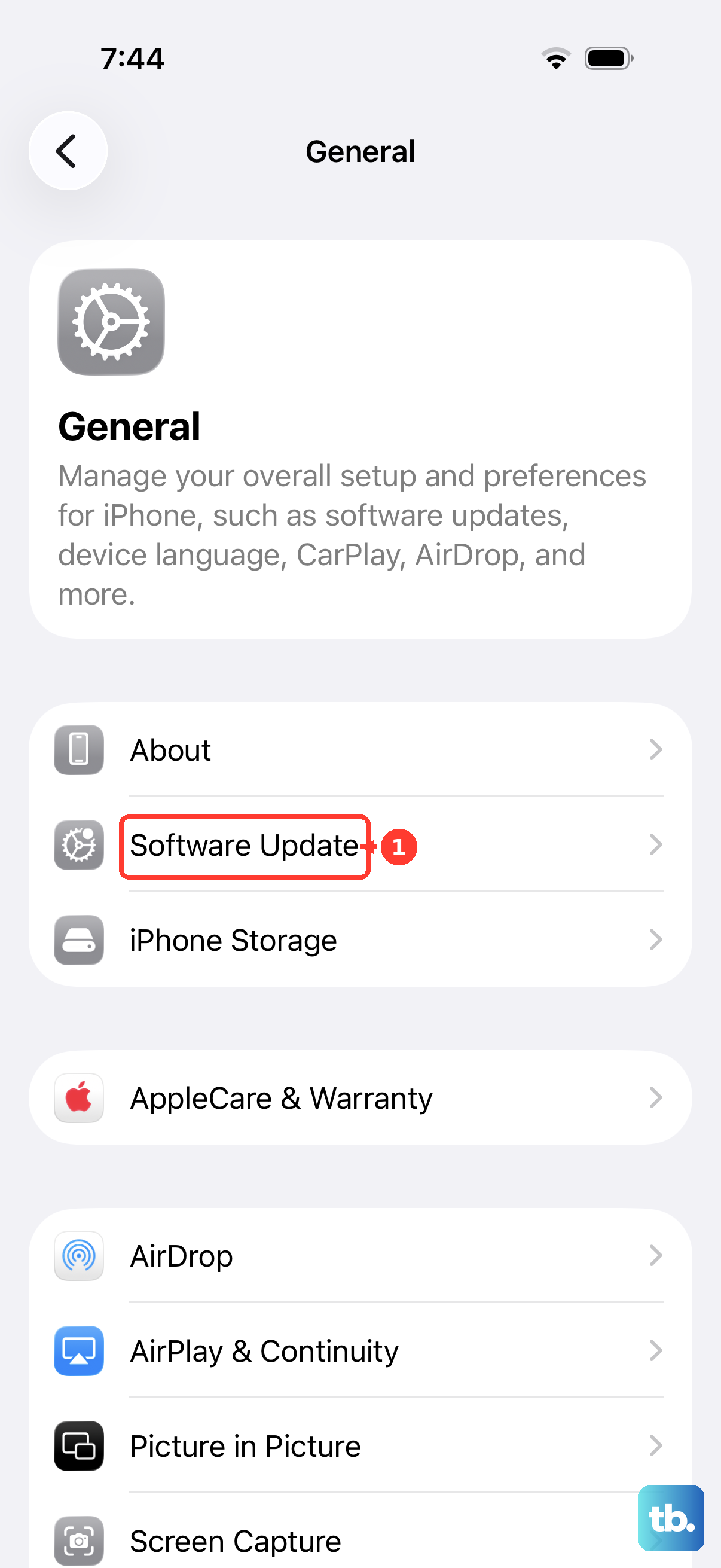
Go to Settings > General > Software Update. Apple regularly releases updates that include camera processing improvements and bug fixes. Since your iPhone SE 4 runs iOS 18, there's a good chance any known camera focus issues have already been addressed in a recent patch.
Reset Your Camera Settings
If you've changed a lot of settings, one of them might be interfering. Go to Settings > Camera. Scroll down and tap Preserve Settings. Toggle all the switches off. This will reset the Camera app to its default state every time you open it, which can clear up any problematic custom configurations.
Check for a Lens Cleaning Alert
On iOS 18 and later, your iPhone can detect when the lens is dirty. If you see a notification pop up in the Camera app that says your lens needs cleaning, that's your phone telling you the smudge is the problem. Wipe it clean with a microfiber cloth and the alert should disappear, along with the blur.
Consider Your Lighting
The iPhone SE 4's camera needs decent light to focus quickly and accurately. In very dim conditions, the shutter speed slows down, making any slight hand movement cause motion blur. Try turning on a lamp or moving to a brighter area. You can also tap and hold to lock focus, which can help the camera stabilize in low light.