
When your iPhone 17 doesn't respond to "Hey Siri" or "Hey Google," it can feel like a step backward. The voice assistant that's supposed to be hands-free suddenly requires you to pick up the phone. Let's get it listening again.
Start With a Quick Restart
Before diving into settings, give your iPhone 17 a fresh start. This clears temporary software glitches that can affect the microphones or Siri's processing. Press and quickly release the Volume Up button, then quickly press and release the Volume Down button. Finally, press and hold the Side button until you see the Apple logo appear.
Verify Your Voice Assistant is Enabled
It sounds obvious, but the first place to check is the settings. For Siri, open Settings > Siri & Search. Make sure both "Listen for 'Hey Siri'" and "Press Side Button for Siri" are toggled on.
If you're using Google Assistant, you need to check its app. Open the Google Assistant app, tap your profile picture, go to Settings > Voice Match, and ensure "Hey Google" is enabled. On iOS 26, the Google app needs microphone permissions, which you can verify in Settings > Google.
Check for Audio Feature Conflicts
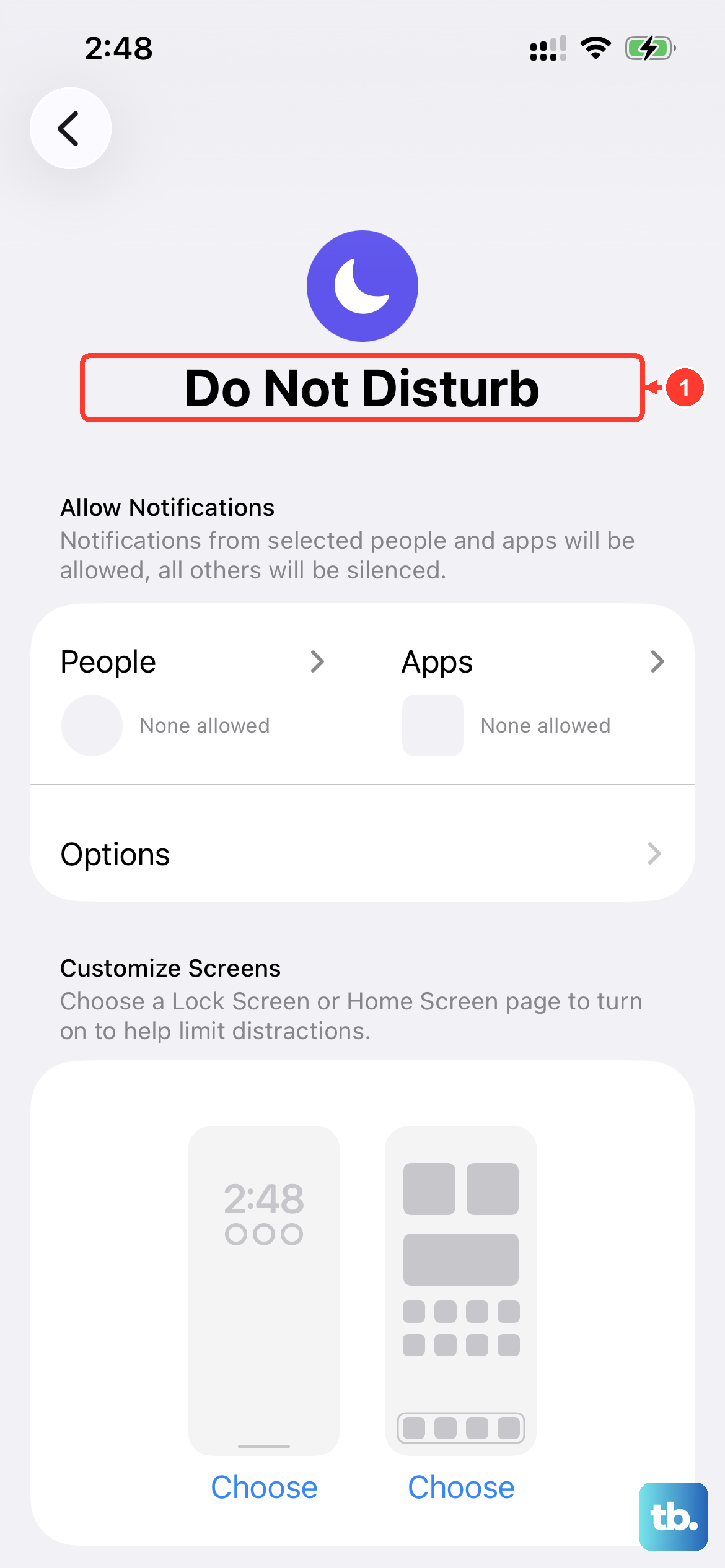
Several iOS features can interfere with the "Hey" trigger phrase. The most common is Sound Recognition, an accessibility tool that listens for specific sounds like alarms or doorbells. When it's active, it disables "Hey Siri" to avoid conflicts.
To check, go to Settings > Accessibility > Sound Recognition and make sure it's turned off. Also, see if you have any Focus modes, like Do Not Disturb, that might be silencing or limiting Siri's responses.
Retrain Siri to Recognize Your Voice
Background noise, changes in your voice, or an imperfect initial setup can confuse Siri. Retraining it is straightforward and often fixes recognition issues. Go to Settings > Siri & Search and toggle "Listen for 'Hey Siri'" off and then back on.
You'll be guided through the setup process again. Speak each phrase clearly in your normal voice. I've found this resolves about half of the "Hey Siri" problems people encounter, especially after a major iOS update.
Inspect Your Microphones
The iPhone 17 has multiple microphone arrays. If they're blocked, neither Siri nor Google Assistant will hear you. Check the primary mic at the bottom next to the USB-C port, the front mic near the speaker, and the rear mics by the camera.
Look for pocket lint, dust, or a case that's misaligned and covering the ports. Gently clean them with a soft, dry brush. Avoid using compressed air or sharp objects, as you could push debris further in or damage the sensitive components.
Review App and Microphone Permissions
For Google Assistant to work, the Google or Google Assistant app needs full microphone access. Head to Settings > Google (or the app name) and tap Microphone. Ensure permission is set to "Allow."
While you're there, check that Siri has access too. Go to Settings > Siri & Search and look at "Allow Siri When Locked." If this is off, Siri won't respond unless your phone is unlocked and awake.
Disconnect Conflicting Bluetooth Devices
If your iPhone is connected to AirPods, a car stereo, or a smart speaker, it might be routing the microphone input there. Siri or Assistant could be waiting for a command from that external mic.
Try turning Bluetooth off temporarily from the Control Center or by going to Settings > Bluetooth. See if "Hey Siri" works with just the phone's internal mics. If it does, you know the issue is with the accessory connection.
Update to the Latest iOS 26 Version
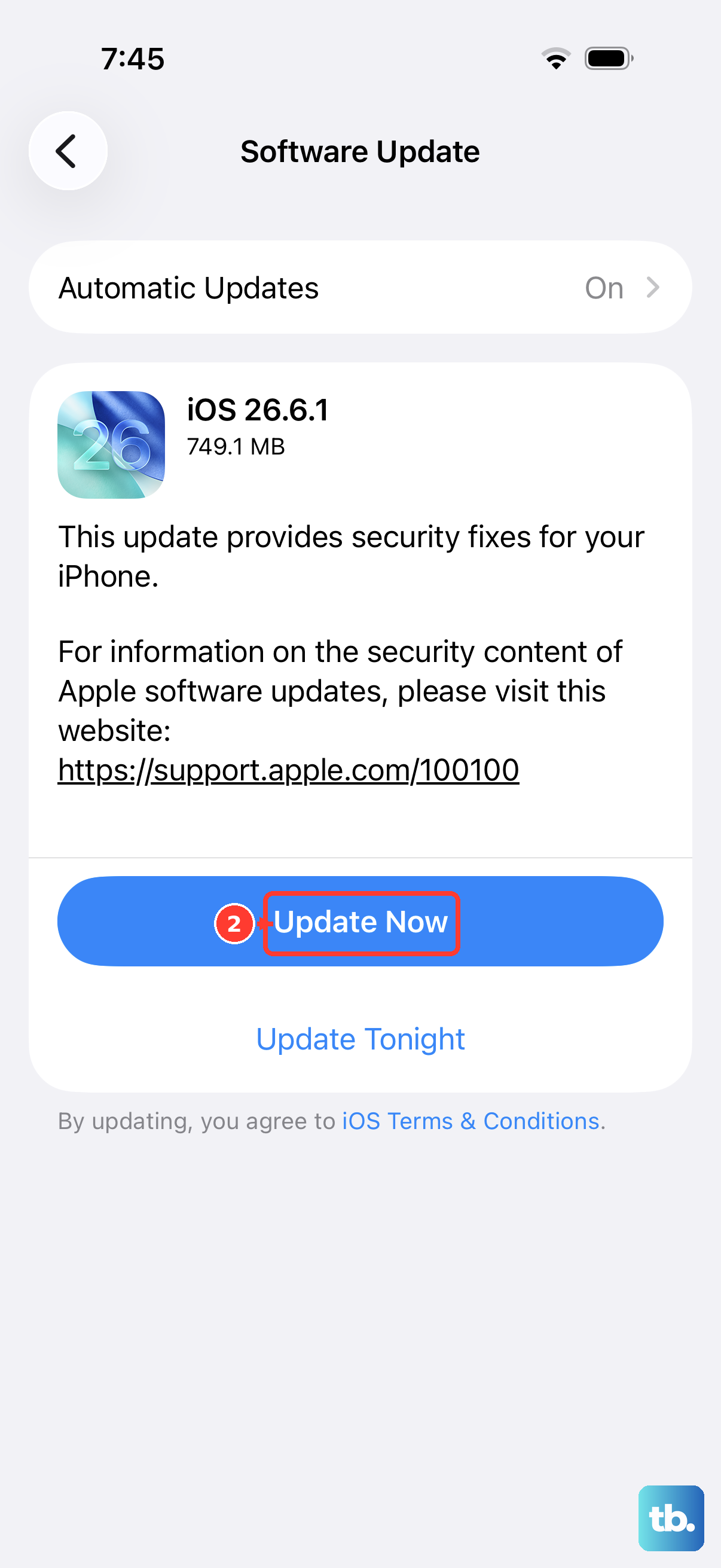
Software bugs can temporarily break voice features. Apple is constantly issuing updates with fixes. Go to Settings > General > Software Update and install any available update.
It's a good idea to plug your phone into power and connect to Wi-Fi first. After the update completes, give the phone a few minutes to re-index and settle, then test "Hey Siri" again.
Reset All Settings on Your iPhone 17
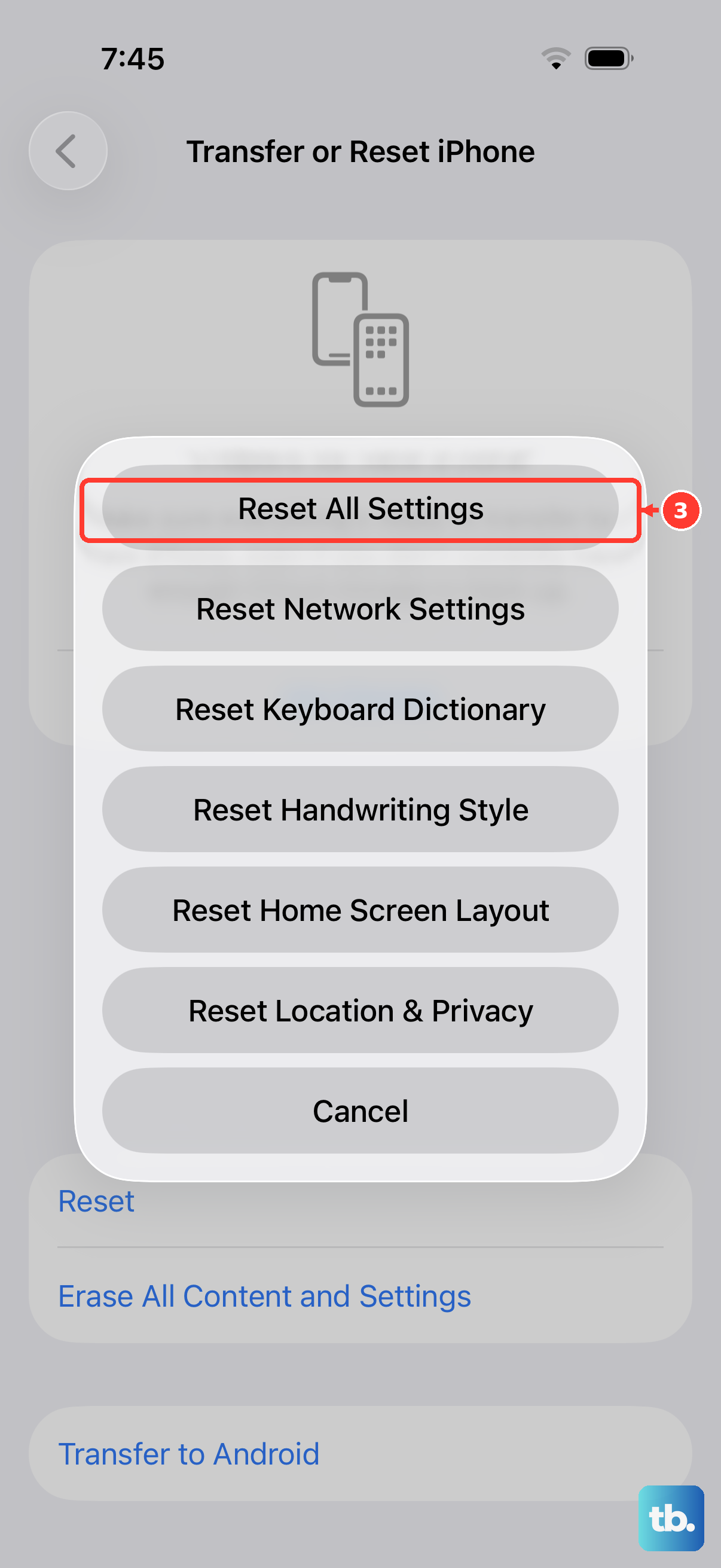
This is a more thorough step if the simpler fixes haven't worked. It will reset all your preferences, like Wi-Fi passwords, wallpaper, and privacy permissions, back to default without erasing your personal data.
Go to Settings > General > Transfer or Reset iPhone > Reset, and choose "Reset All Settings." Your phone will restart. You'll need to re-enable "Hey Siri" and "Hey Google" afterward, but this often clears deep-seated configuration errors.
Check Your Internet Connection
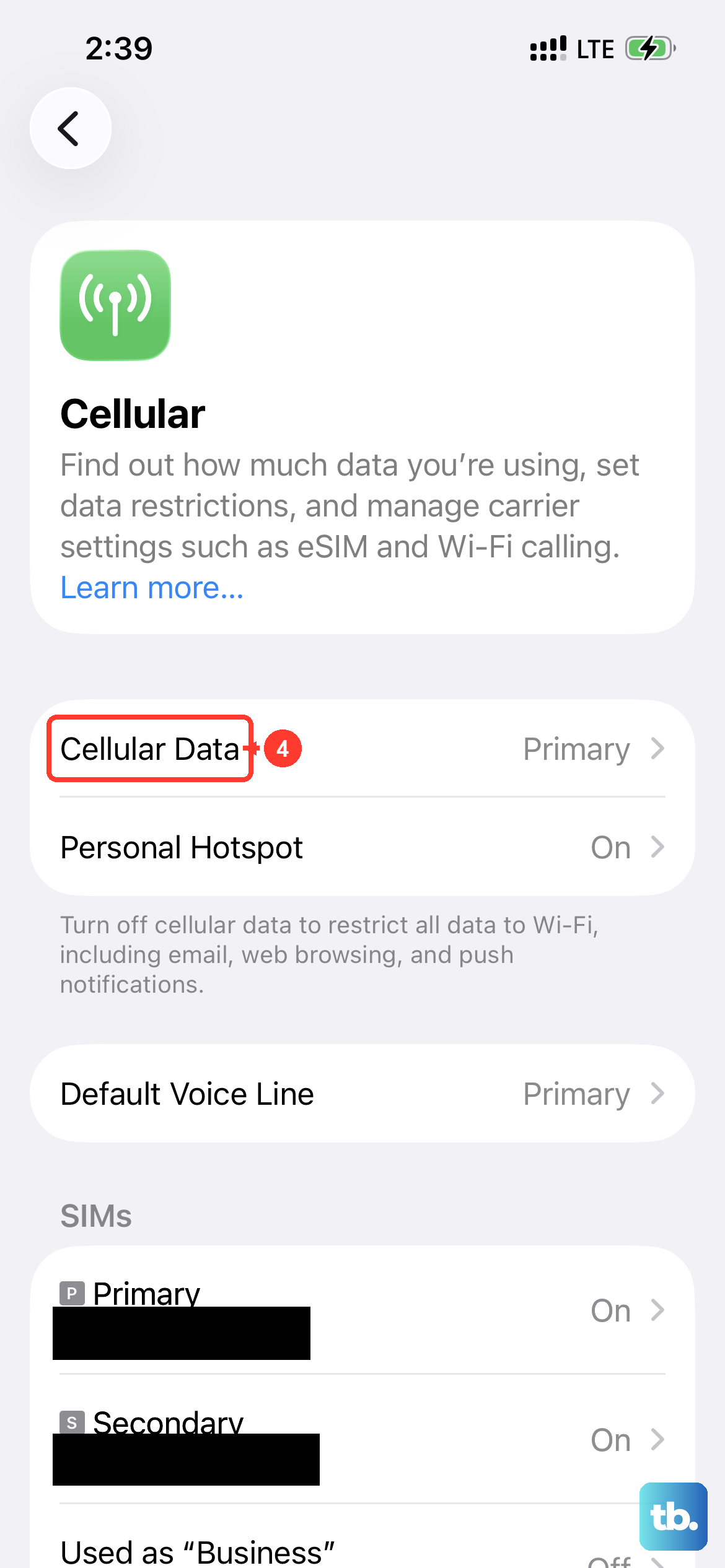
While Siri on iOS 26 handles many basic commands directly on the device, more complex queries, web searches, and Google Assistant entirely require a stable internet connection. A poor Wi-Fi or cellular data signal can cause a delayed or missing response.
Try asking a simple on-device command like "Hey Siri, set a timer for one minute." If that works but "Hey Siri, what's the weather tomorrow?" does not, your connection is likely the culprit. Toggle Airplane Mode on and off to reset the radios.