Your iPhone 17 has a gorgeous Super Retina XDR display, so when the screen starts flickering, shimmering, or pulsing, it is impossible to ignore. Sometimes the flicker shows up only on bright white screens, sometimes during fast-scrolling animations, and sometimes it seems random. The good news is that most display flicker comes from a temporary software hiccup, a brightness setting that keeps adjusting, or an accessory getting in the way, and you can sort those out yourself in a few minutes.
Before adjusting cables and settings, run a quick online monitor test in your browser. Its fullscreen patterns make problems like flicker, banding, and uniformity issues much easier to spot and describe.
Apple does not publish a single article dedicated to "screen flickering" on the iPhone 17. Instead, the official guidance treats flicker as part of general screen troubleshooting, with several accessibility display settings that can calm a jittery picture, and, if nothing helps, a possible hardware issue that needs service. The fixes below follow that same logic, starting with the easiest and safest steps and ending with the official reset and repair paths.
Start With the Screen, the Case, and Anything Plugged In
Before you touch any settings, rule out the physical causes. A dirty screen, an ill-fitting screen protector, or a connected accessory can all make the display behave strangely, and these are the quickest things to eliminate.
Make sure the screen is clean and free of any debris or water.
Next, remove any cases or screen protectors that might be pressing on or interfering with the display.
Then disconnect any USB-C accessories from the phone.
If the screen works correctly after removing an accessory, try a different outlet, cable, or charger.
If the flicker disappears the moment you unplug a charger or peel off a screen protector, you have found your culprit. Swapping an accessory for a known-good one is a fast, no-risk test before you move on to software steps.
Restart the iPhone 17 to Clear a Temporary Glitch
A normal restart clears temporary software glitches that can affect the display, and it is the safest reset you can do because nothing is erased. This is the right first move when the screen flickers intermittently but the phone is otherwise responsive.
Press and hold either volume button and the side button until the power-off slider appears.
After that, drag the slider, then wait 30 seconds for the device to turn off.
To turn it back on, press and hold the side button until you see the Apple logo.
Give the phone a minute to fully boot, then watch the screen on a bright white background such as a notes page or a blank web page. If the flicker is gone, you were dealing with a passing software hiccup.
Force Restart When the Screen Is Frozen or Unresponsive
If the display is flickering so badly that the iPhone 17 will not respond and you cannot turn it off and on normally, use a force restart instead. This is a harder reset that can recover a stuck device, and on a Face ID iPhone like the iPhone 17 the button sequence is specific, so follow it exactly.
Press and quickly release the volume up button.
Immediately press and quickly release the volume down button.
Then press and hold the side button until you see the Apple logo (this might take longer than 10 seconds).
Keep holding the side button even if the screen goes dark or the flicker continues at first; releasing too early restarts the timing. Once the Apple logo appears, you can let go.
Install the Latest iOS 26 Update
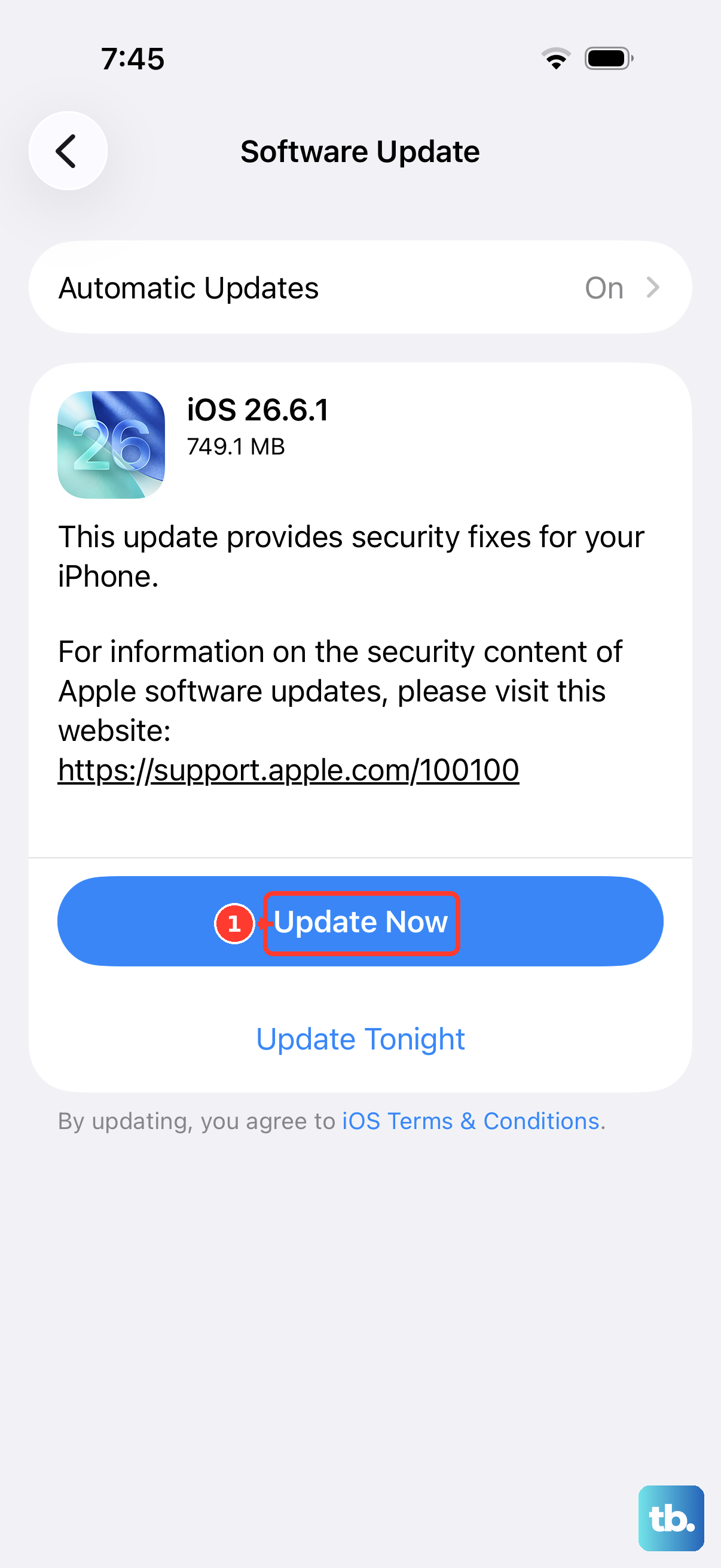
Software updates fix bugs that can cause display issues, and the iPhone 17 runs iOS 26, so keeping it current is one of the most effective things you can do. Before you start, back up your device, then connect to power and Wi-Fi so the update can finish without interruption.
Go to Settings > General > Software Update.
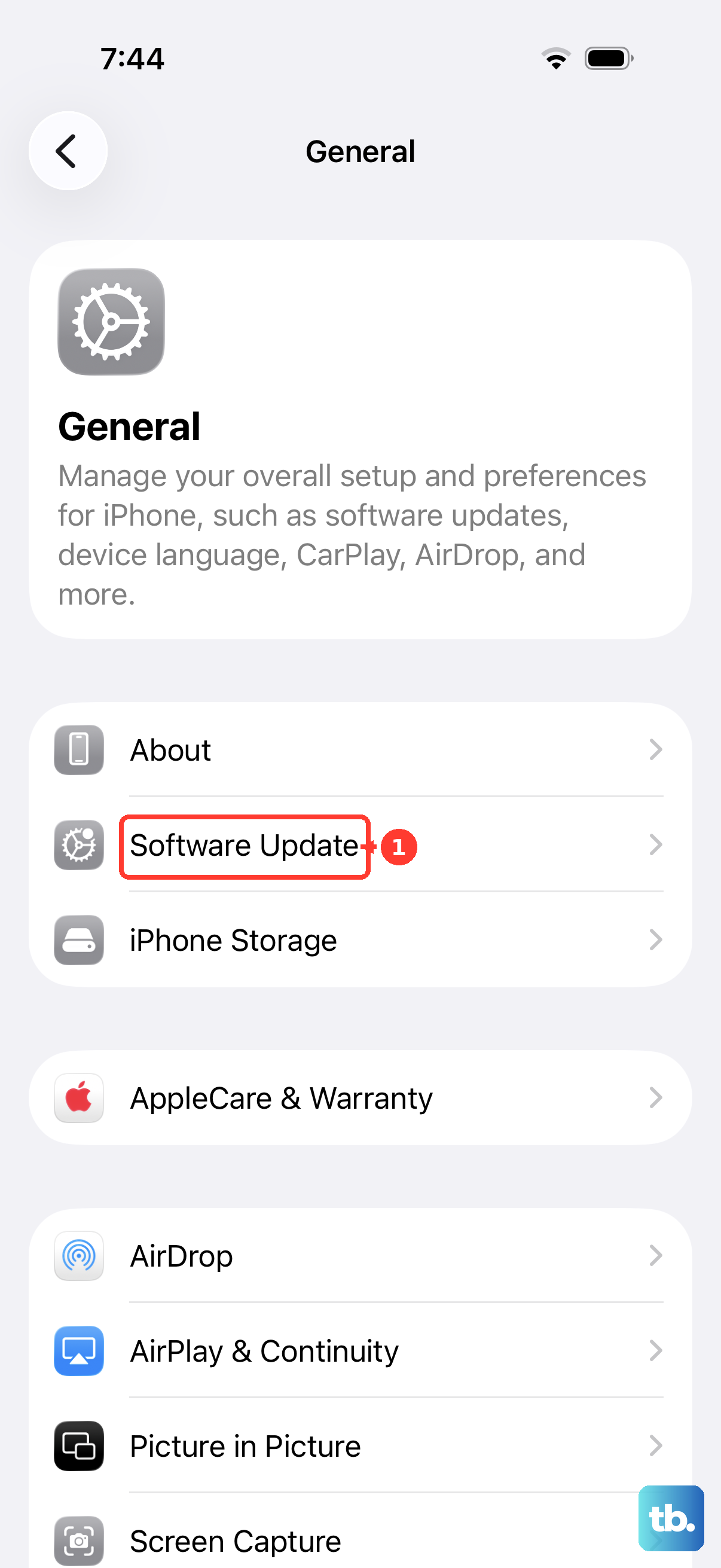
On this screen, the installed iOS version and any available update are shown.
If an update is available, tap Download and Install, then follow the onscreen instructions.
If a display-related bug was introduced in an earlier build, a newer iOS 26 release may already include the fix, so check here even if you updated recently.
Stop the Brightness From Constantly Shifting
Auto-Brightness adjusts the screen brightness to match the light around you, and that constant shifting can sometimes look like a flicker, especially when you move between bright and dim rooms. Toggling the feature changes whether the phone manages brightness on its own.
Go to Settings > Accessibility > Display & Text Size, scroll to Auto-Brightness, and tap to turn it on or off. Try the screen with the feature off to see if the pulsing brightness settles down. Keep in mind that turning Auto-Brightness off may increase power consumption, so you may want to set a comfortable manual brightness level afterward.
Calm High-Refresh Animations With Reduce Motion and Limit Frame Rate
The iPhone 17 has a ProMotion display with an adaptive refresh rate up to 120Hz, and if your flicker seems tied to fast scrolling or busy animations, dialing that motion back can help. There are two settings worth trying together here.
Go to Settings > Accessibility > Motion and turn on Reduce Motion to cut animation effects across the system. You can also turn on Limit Frame Rate, which sets the maximum frame rate of the display to 60 frames per second. If the flicker only appears during high-refresh-rate motion, capping the rate at 60 fps is a direct way to test whether the refresh behavior is the cause.
Tame Flashing and Strobing in Videos
If the flickering you are seeing is actually flashing or strobe effects inside video content rather than the display itself, the iPhone 17 has a feature built for exactly that. It automatically dims the display when flashes or strobe effects are detected.
Go to Settings > Accessibility > Motion > Dim Flashing Lights to turn it on. This is helpful when the harsh flashing comes from a movie, clip, or game rather than from a hardware problem.
Soften Bright and Transparent Areas That Shimmer
Sometimes the trouble appears only on bright or transparent backgrounds that seem to shimmer or vibrate. Two display accessibility options can make those areas easier on the eyes, and both live in the same place.
Go to Settings > Accessibility > Display & Text Size, then turn on Reduce Transparency to improve contrast by reducing transparency and blurs on some backgrounds. In the same section, turn on Reduce White Point to reduce the intensity of bright colors. You can enable one or both and see whether the shimmer eases up; if it does, you can leave them on as a comfortable everyday setting.
Erase All Content and Settings as Your Last Software Step
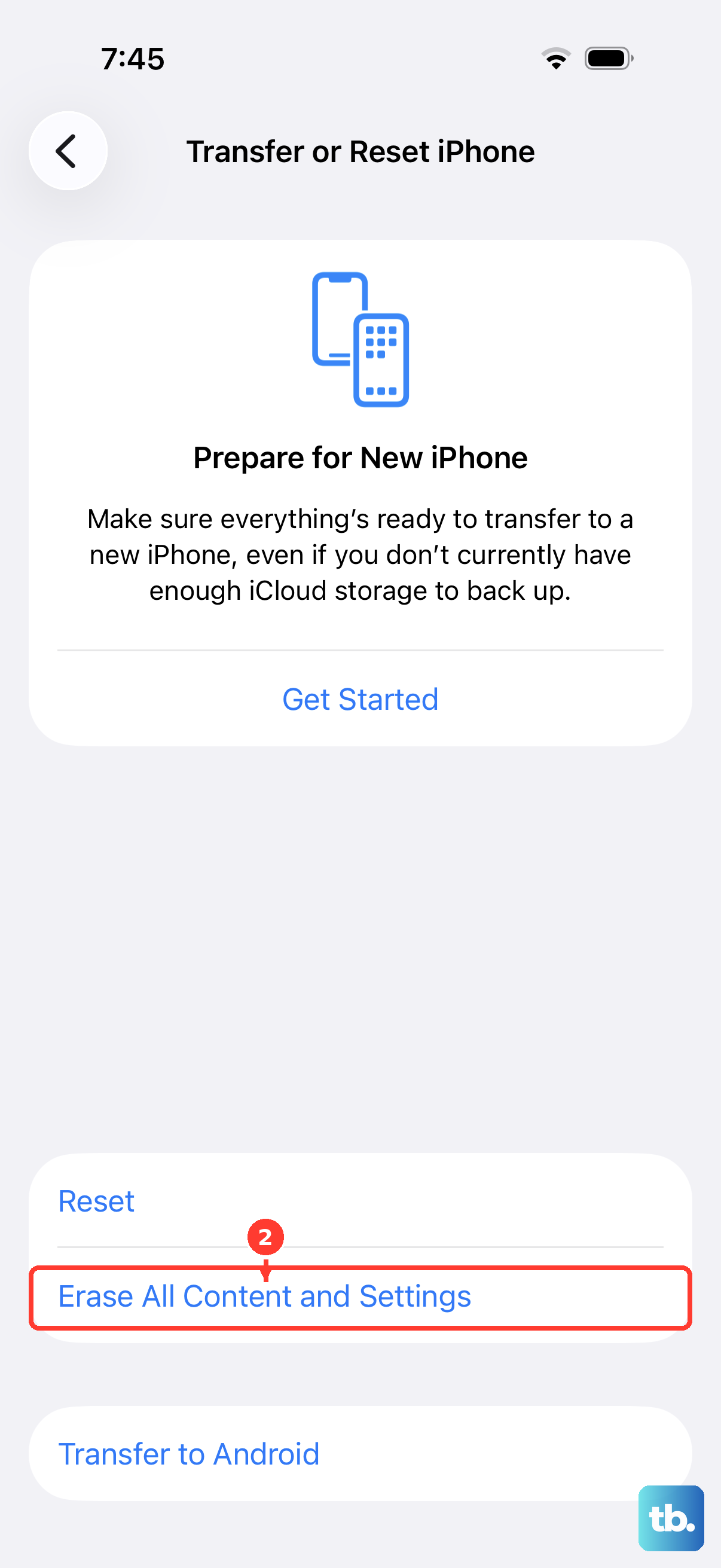
If none of the gentler fixes work and you suspect deep software corruption, a factory reset is the final software step before you treat the problem as hardware. This is a destructive action, so read the warning carefully first.
Warning: erasing the iPhone restores it to factory settings and erases your personal information, content, and settings, so back up your iPhone first so you can restore everything afterward.
- 1.Back up your iPhone so you can restore your data later.
- 2.Go to Settings > General > Transfer or Reset iPhone > Erase All Content and Settings.
- 3.Tap Continue, then choose whether to keep or delete your eSIM.
- 4.Enter your device passcode and your Apple Account password to confirm.
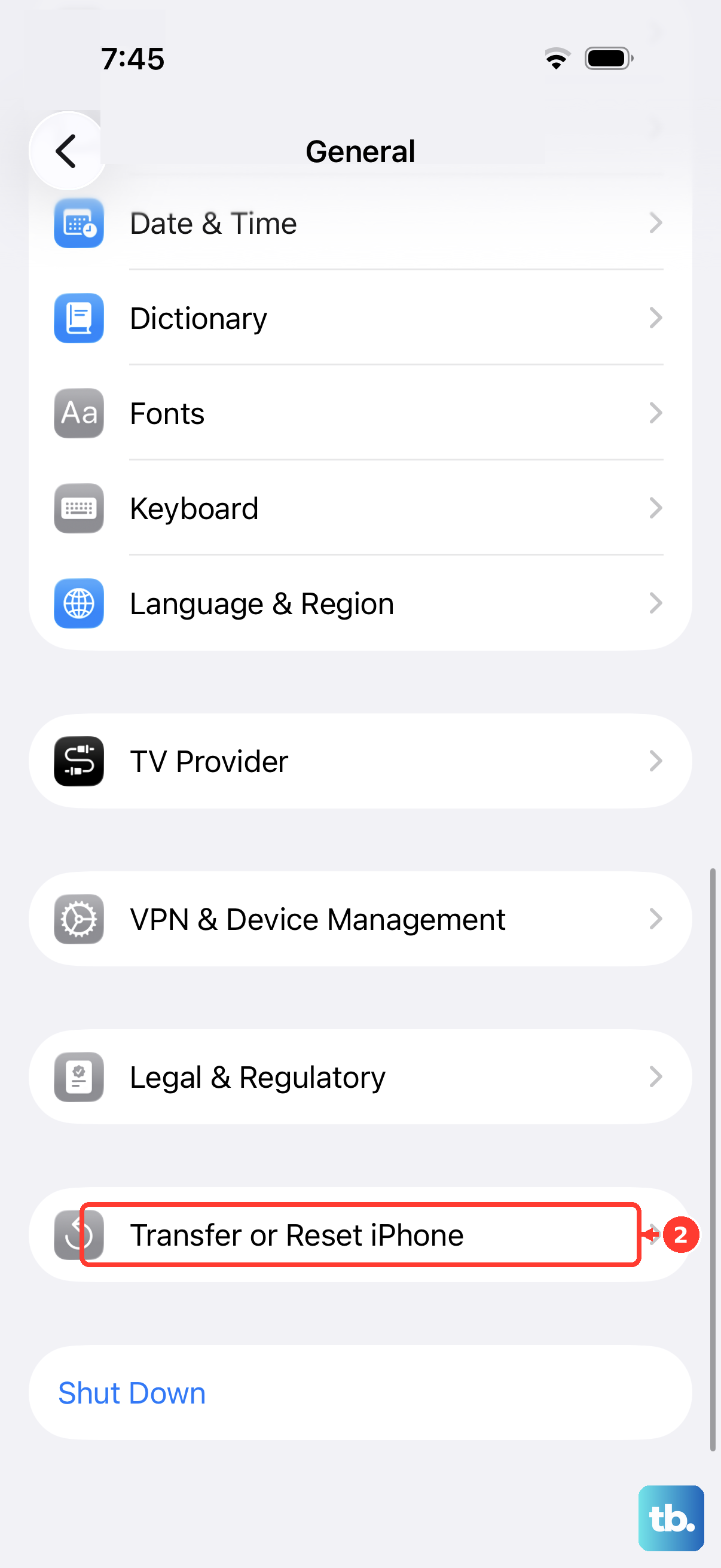
Once the iPhone restarts, you can set it up fresh or restore from the backup you made. If the flicker survives a clean erase and setup, that is a strong sign the problem is hardware rather than software.
When Flickering Continues, Get the Display Checked
If the display still is not working correctly after all of the steps above, it may be a hardware issue rather than something you can fix in software. At that point, the official guidance is to get the iPhone serviced rather than keep experimenting.
Set up service through Apple Support, or visit an Apple Store or an Apple Authorized Service Provider for iPhone screen service and repair. Bringing along a note of which fixes you already tried can help the technician narrow down the problem faster.
Frequently Asked Questions
Is iPhone 17 screen flickering always a hardware problem?
No. Flicker is often caused by a temporary software glitch, a brightness setting that keeps adjusting, an accessory, or a video with flashing effects, all of which you can address yourself. It is treated as a possible hardware issue only after the software and accessory steps fail to fix it.
Will turning off Auto-Brightness stop the flicker?
It can help if the apparent flicker is really the brightness constantly shifting to match your surroundings. Go to Settings > Accessibility > Display & Text Size, scroll to Auto-Brightness, and tap to turn it off, but be aware this may increase power consumption.
What is the correct force restart sequence for the iPhone 17?
Press and quickly release the volume up button, press and quickly release the volume down button, then press and hold the side button until you see the Apple logo. This might take longer than 10 seconds, so keep holding until the logo appears.
Does limiting the frame rate to 60 fps affect flicker?
It can, if the flicker is tied to the display's high refresh rate or to fast animations. Go to Settings > Accessibility > Motion and turn on Limit Frame Rate to set the maximum frame rate of the display to 60 frames per second, optionally alongside Reduce Motion.
Will a factory reset erase my data when I try to fix flickering?
Yes. Erase All Content and Settings restores the iPhone to factory settings and erases your personal information, content, and settings, so always create a backup first so you can restore everything afterward.