
When your iPhone 17 Pro Max won't send texts, it's incredibly frustrating. You might see a red exclamation point, watch a message hang on "Sending" forever, or get no notification at all that it failed. The good news is, this is almost always a quick software or connection glitch you can fix yourself.
Restart Your iPhone 17 Pro Max
This is the first thing I'd try. A simple restart clears out temporary software bugs that can block the Messages app. Press and quickly release the Volume Up button, then quickly press and release the Volume Down button. Finally, press and hold the Side button until you see the Apple logo appear and then let go.
Your phone will reboot. Once it's back on, try sending a text again. This single step resolves the majority of sending problems by refreshing your connection to the cellular network and Apple's iMessage servers.
Check Your Cellular and Wi-Fi Signal
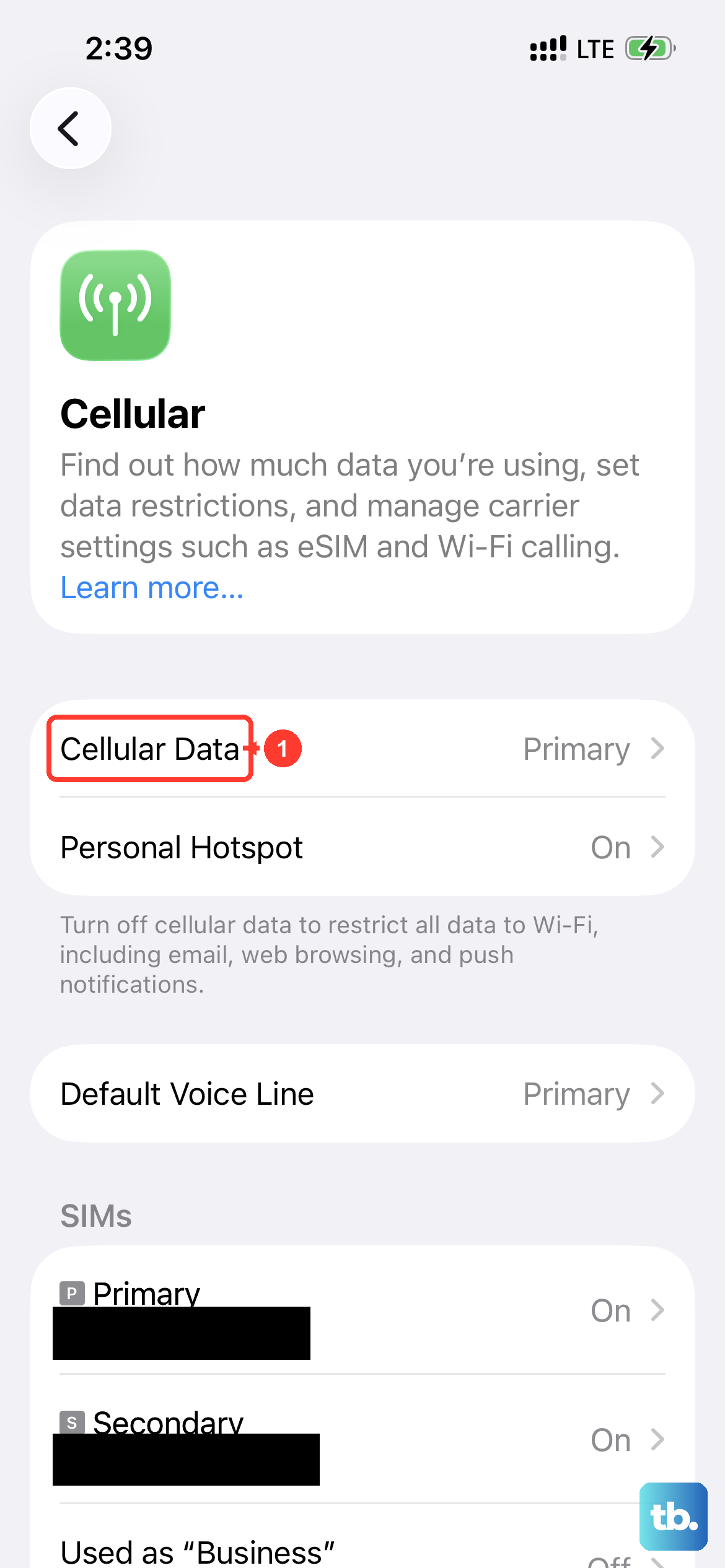
Text messages need a path to travel. iMessages (blue bubbles) require Wi-Fi or cellular data. Regular SMS/MMS (green bubbles) need a cellular signal. Look at the top of your screen. If you see "No Service" or just one bar, you've found the problem.
Move to a different location or go near a window. You can also quickly toggle Airplane Mode on from the Control Center, wait 10 seconds, and turn it off. This forces your iPhone 17 Pro Max to search for the strongest available signal and can re-establish a lost connection.
Verify iMessage and Apple's System Status
If you're only having trouble with blue bubble messages, the issue might be with Apple's service. Open Safari and go to apple.com/support/systemstatus. Look for iMessage in the list. If there's a yellow or red dot next to it, there's a known outage.
While you wait for Apple to fix it, you can send as a regular text. Press and hold the failed blue message bubble and tap "Send as Text Message." Also, go to Settings > Apps > Messages and toggle the iMessage switch off. Wait a full minute, then turn it back on to re-register your number with Apple.
Reset Your Network Settings
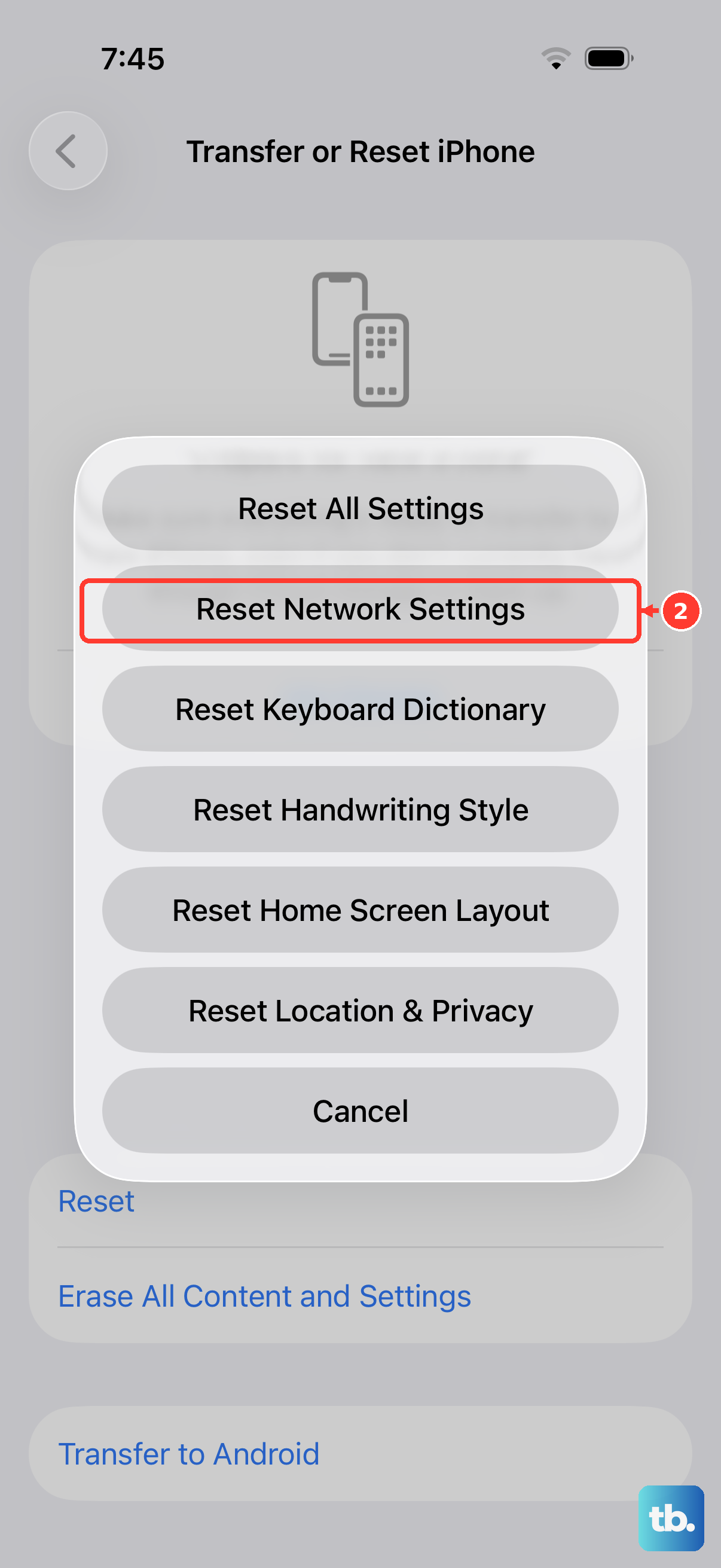
This is a deeper fix for persistent issues where messages fail to send over both cellular and Wi-Fi. Go to Settings > General > Transfer or Reset iPhone > Reset. Tap "Reset Network Settings." You'll need to enter your passcode to confirm.
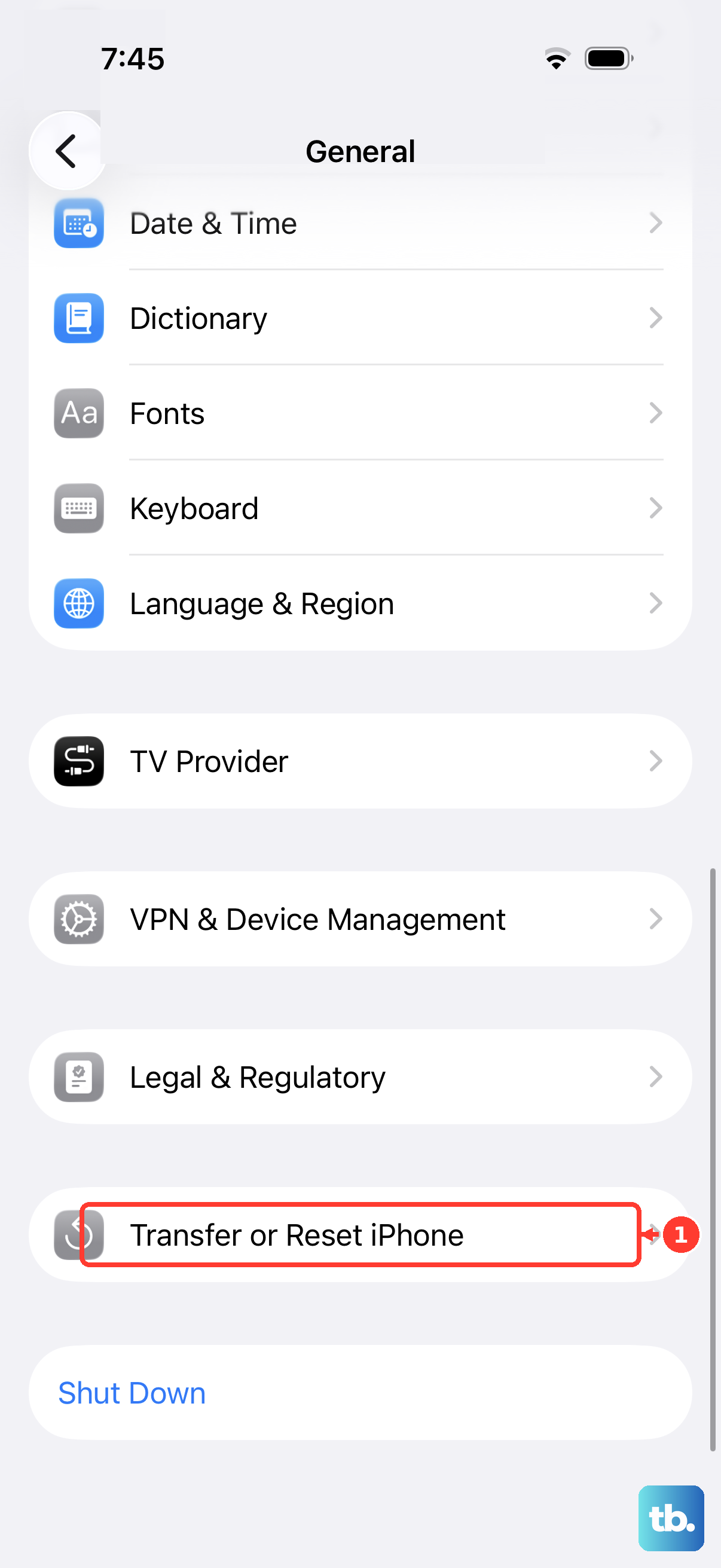
This action erases all saved Wi-Fi networks, passwords, VPN settings, and cellular preferences. Your iPhone 17 Pro Max will restart and rebuild these connections from scratch. It's very effective at clearing out corrupted network data that can block messaging.
Check Your Message Settings and Block List
Sometimes the fix is in the settings. Go to Settings > Apps > Messages. Make sure "MMS Messaging" is enabled if you're trying to send photos or group texts. Also, verify "Send as SMS" is on so messages can fall back to regular text when iMessage fails.
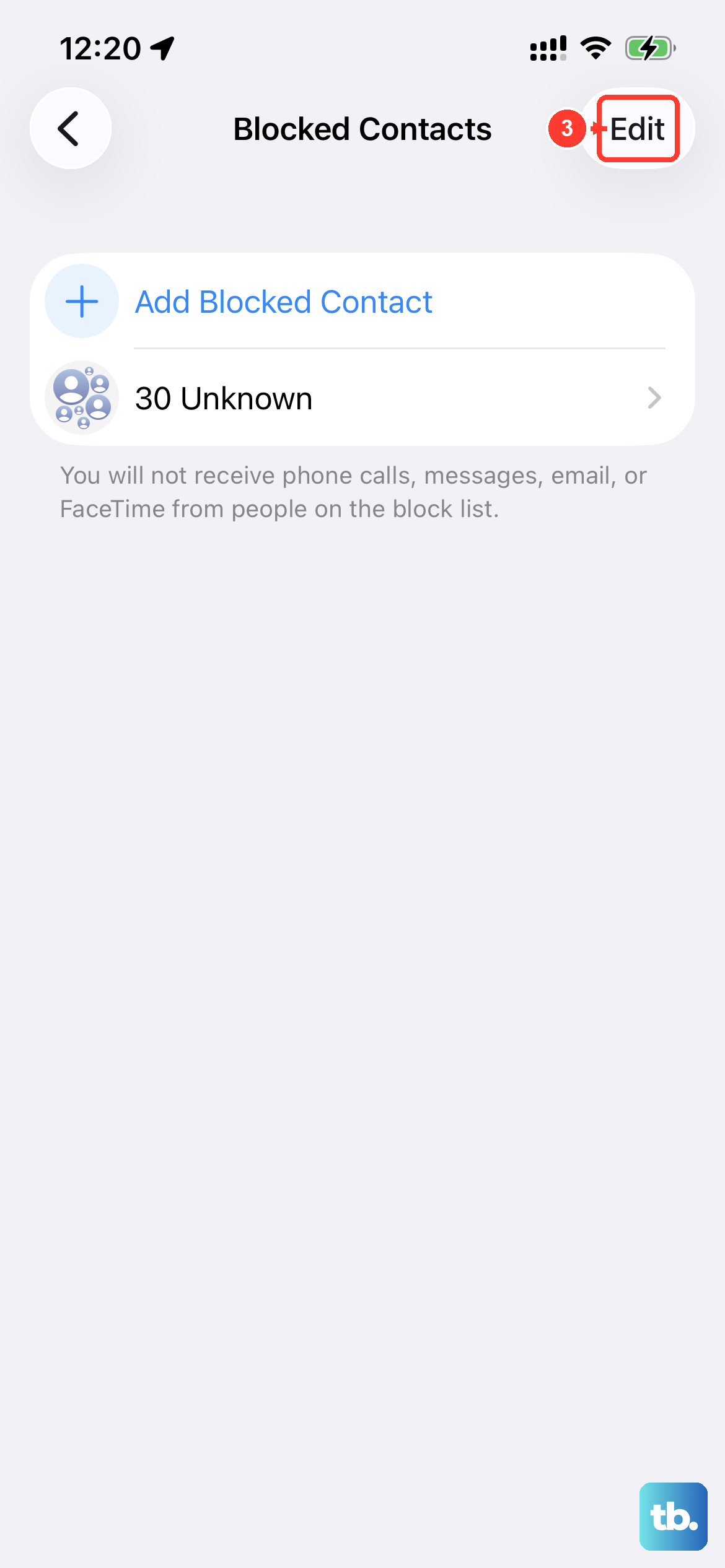
If texts fail to send to one specific person, you might have accidentally blocked them. In the same Messages settings menu, tap "Blocked Contacts." If you see their name or number there, swipe left and tap "Unblock."
Update Carrier Settings and iOS
Your carrier occasionally sends small updates that fix connectivity and messaging bugs. Go to Settings > General > About. If a carrier settings update is available, a prompt will appear on this screen. Tap to update.
You should also check for a full iOS update. Navigate to Settings > General > Software Update. Installing the latest version of iOS 26 can patch the exact software issue causing your texting problem.
Contact Your Wireless Carrier
If you've tried everything and texts still won't send, the problem is likely on your carrier's end. There could be a temporary network issue in your area, or a provisioning error with your account where the messaging service was accidentally suspended.
Give them a call or use online chat. Ask them to verify that SMS and MMS messaging is fully active on your line. They can often refresh your connection on their network, which usually solves the problem immediately.