
If your iPhone 17 Pro Max is refusing to send pictures or videos, it's a frustrating roadblock. On iOS 26, MMS issues usually come down to a few specific settings or a temporary network hiccup. Let's get your messages flowing again.
Toggle iMessage Off and On
This is often the quickest fix. iMessage can sometimes interfere with sending standard MMS, especially in group chats with non-iPhone users. Go to Settings > Apps > Messages and turn the iMessage switch off.
Wait about thirty seconds, then turn it back on. This refreshes the connection to Apple's servers and can clear up the sending glitch immediately. I'd start with this one, as it solves the problem more often than not.
Check Your Cellular Data Connection
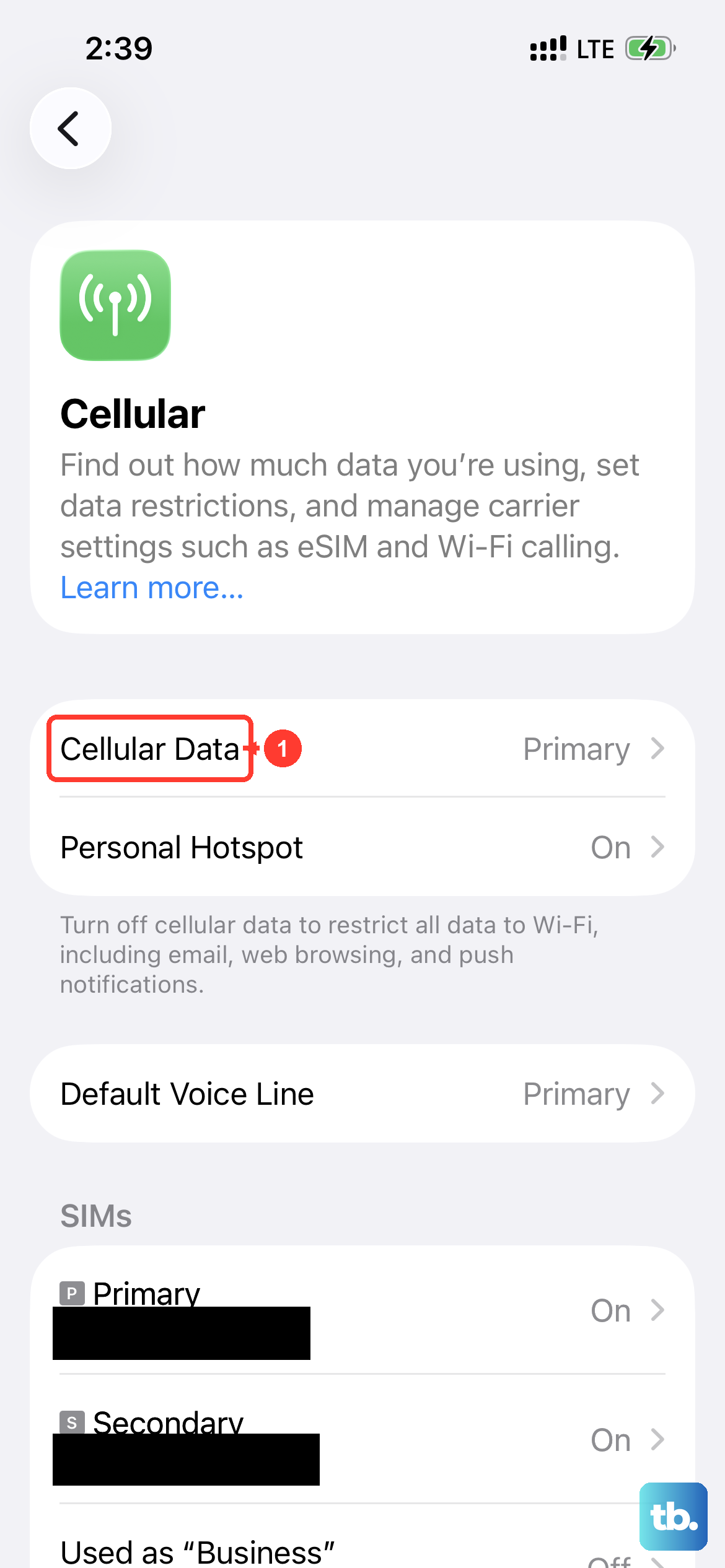
MMS doesn't send over Wi-Fi; it requires an active cellular data connection. Swipe down from the top-right corner to open Control Center and make sure the cellular data icon is blue.
If you have a weak signal, try moving to a different location. You can also try turning Airplane Mode on for 15 seconds and then off again to force the phone to reacquire the network, which takes about a minute total.
Verify MMS is Enabled in Settings
It sounds obvious, but this setting can get turned off. Open Settings, scroll down and tap Messages. Scroll down to the "SMS/MMS" section.
Ensure that MMS Messaging is switched on. Also, check that Send as SMS is enabled; this allows a message to fall back to MMS if iMessage fails.
Update Your Carrier Settings
Carrier updates are small files that help your iPhone 17 Pro Max work properly with your network's features, including MMS. To check for one, go to Settings > General > About.
If an update is available, a prompt will appear. These updates install in seconds and don't require a restart, but they can resolve sending issues directly related to your carrier's configuration.
Restart Your iPhone 17 Pro Max
A simple restart clears out temporary software bugs that might be hanging up the Messages app. Press and quickly release the Volume Up button, then press and quickly release the Volume Down button.
Finally, press and hold the Side button until you see the Apple logo appear, then release. This force restart sequence is the most effective way to reboot the iPhone 17 Pro Max on iOS 26.
Reset All Network Settings
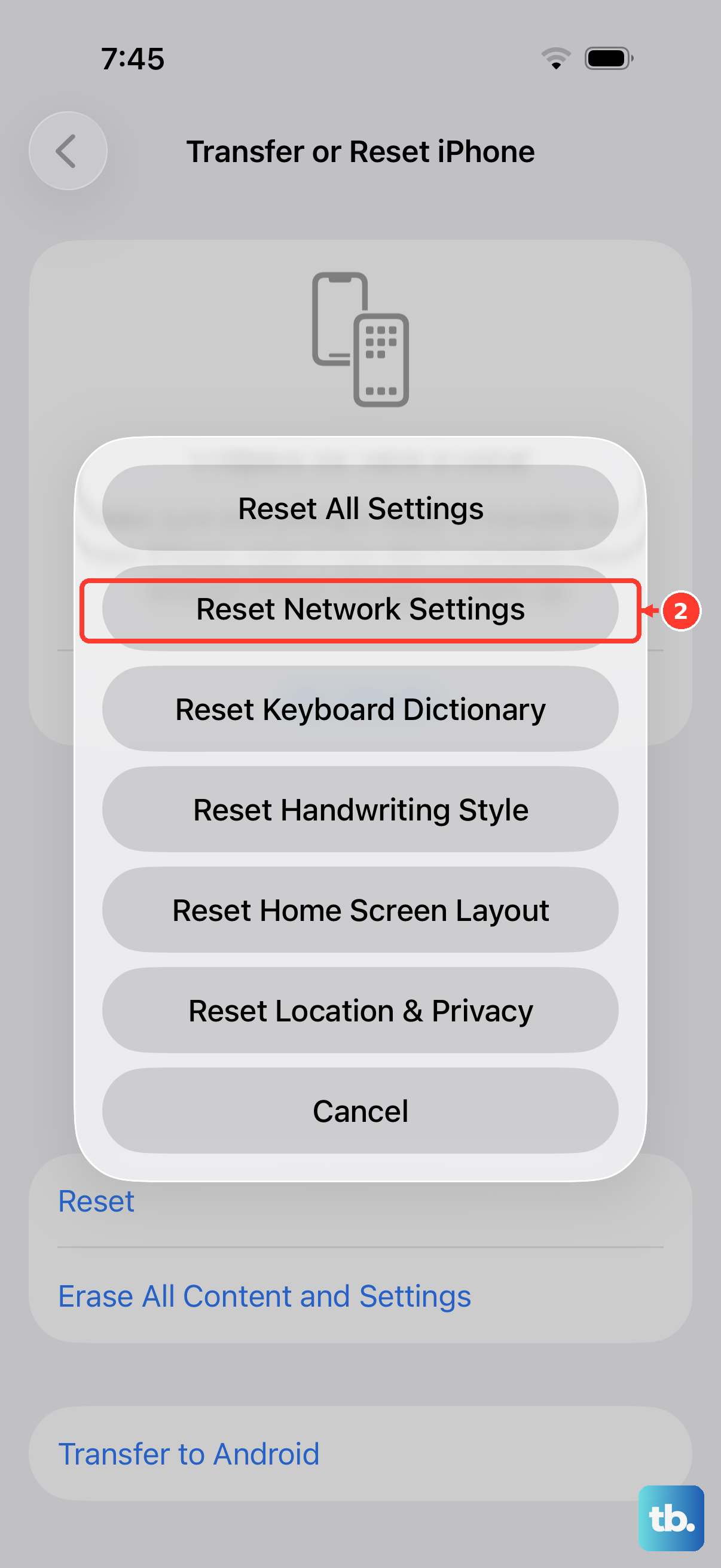
This is a deeper fix for persistent network-related problems. It will erase all Wi-Fi passwords, Bluetooth pairings, and VPN settings, so be prepared to re-enter those. Go to Settings > General > Transfer or Reset iPhone.
Tap Reset and then choose Reset Network Settings. Your phone will restart. After it boots up, test MMS again on cellular data.
Check for an iOS Update
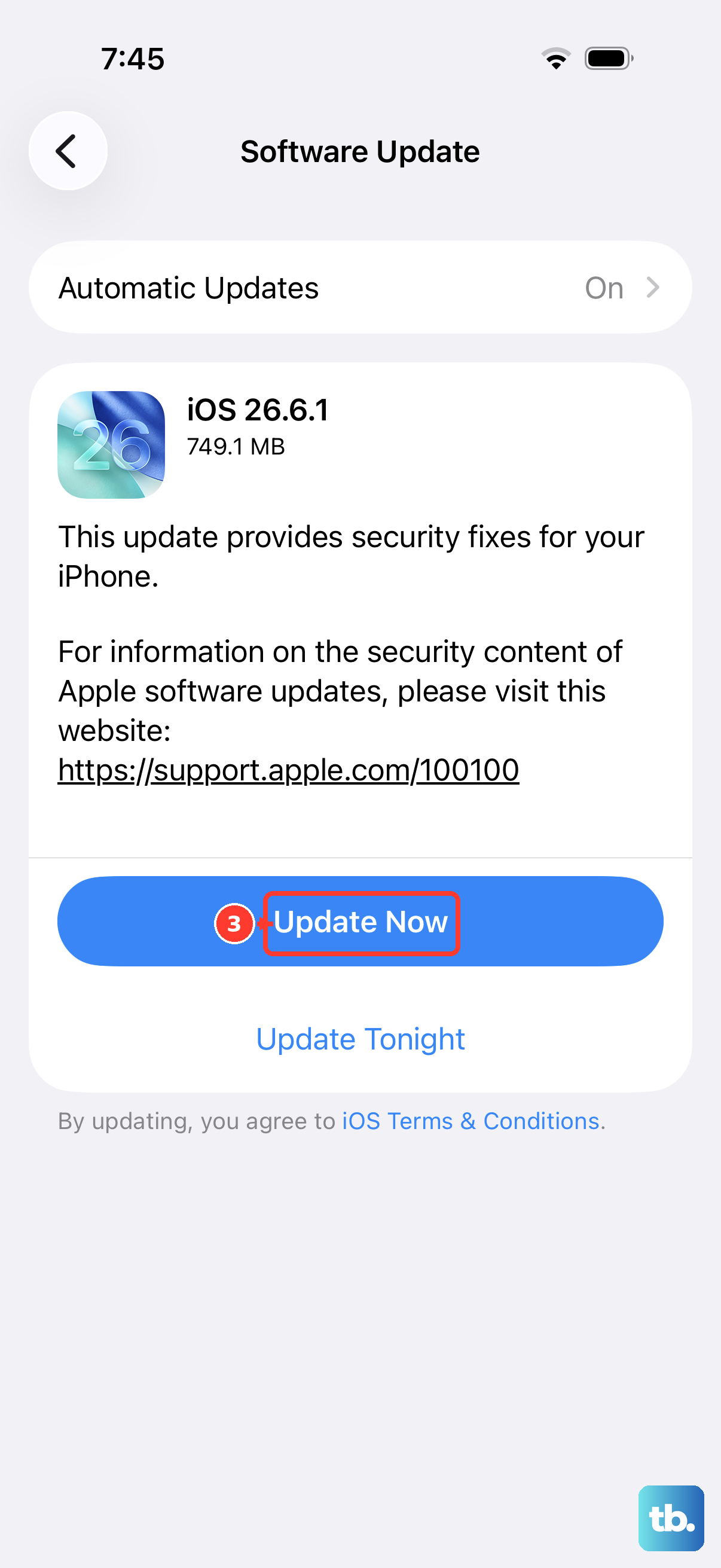
Apple frequently releases iOS updates that patch bugs, including ones that affect messaging. Open Settings > General > Software Update.
If an update for iOS 26 is available, download and install it. The large battery in the 17 Pro Max means you can do this without worrying about running out of power mid-update, even on a slower charger.
Ensure the Contact Number is Correct
If you're trying to send an MMS to a contact saved in your phone, the issue might be with how the number is formatted. Open the Contacts app and find the person you're messaging.
Tap Edit and verify their phone number is entered correctly with the area code. Sometimes a number saved without the country code (+1 for the US, for example) can cause delivery failures.
Free Up Storage Space on Your Device
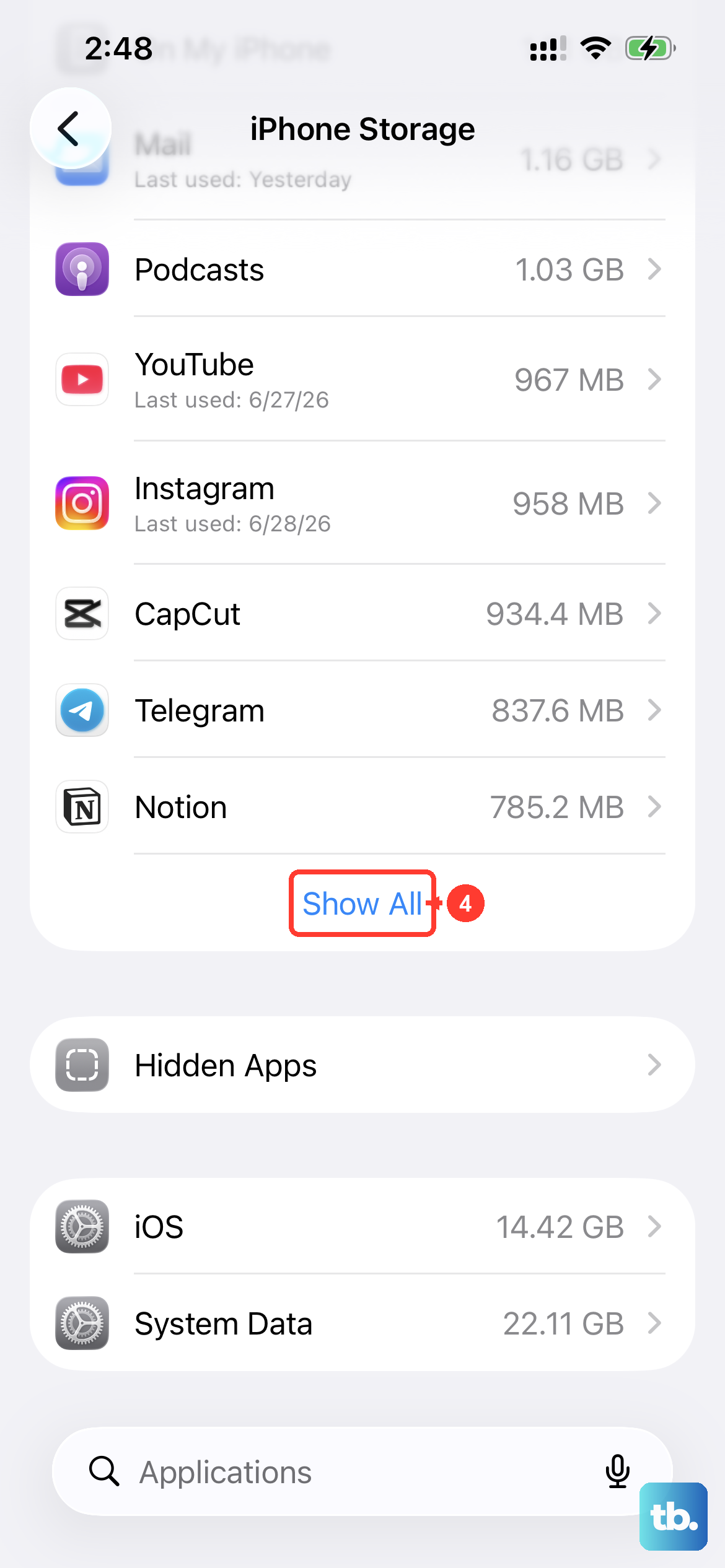
While the iPhone 17 Pro Max has ample storage, if you're completely full, the system may struggle to process new media for sending. Go to Settings > General > iPhone Storage.
The system will show recommendations. You can offload unused apps or review large message attachments. Clearing just a gigabyte or two of space can often resolve the issue.
Remove and Reinsert the SIM Card
For physical SIM cards, a poor connection can cause data issues. Use the SIM eject tool that came with your phone (or a small paperclip) to open the tray on the left side of the frame.
Take the SIM card out, gently blow on the tray to remove any dust, and reinsert the card. If you're using an eSIM, you can try turning the eSIM line off and back on in Settings > Cellular instead.