You plugged your laptop in expecting your iPhone 17 Pro Max to share its data, and nothing happens. Maybe the Personal Hotspot toggle is greyed out, your other device won't see the network, or it connects and then drops. The good news is that hotspot trouble on this phone is almost always a settings, carrier, or connection hiccup rather than a broken radio, and the fixes below move from the quickest, safest checks to the official reset paths only if you truly need them.
Before you start, here is one thing worth knowing. Personal Hotspot on the iPhone 17 Pro Max shares your phone's cellular data to create a temporary Wi-Fi network. Because it relies on your cellular plan, it requires a wireless carrier that supports Personal Hotspot, and additional fees may apply. That means availability depends on your carrier and plan, not the hardware. Keep that in mind as you work through the steps.
Make Sure Personal Hotspot Is Actually Switched On
It sounds obvious, but the most common reason a hotspot fails is that the feature is simply off, or other devices were never allowed to join. The toggle you need is "Allow Others to Join," and without it your iPhone won't broadcast a network at all.
- 1.Open the Settings app and tap Personal Hotspot (or tap Cellular, then Personal Hotspot).
- 2.Tap or turn on "Allow Others to Join." This is the toggle that activates the hotspot so other devices can connect.
- 3.Note the Wi-Fi network name (it matches your iPhone's name with a hotspot icon) and the Wi-Fi password shown on this screen.
If you have never used the feature, you may instead see Settings > Cellular > Set Up Personal Hotspot, which is the initial setup entry. Tap into it and follow the prompts to get the hotspot configured for the first time.
Confirm Your Carrier and Plan Allow Tethering
If Personal Hotspot is missing entirely or greyed out, the cause is almost always on the carrier side rather than the phone. Apple's guidance is direct. If you can't find or turn on Personal Hotspot, check that your wireless carrier enabled it and that your wireless plan supports it.
Personal Hotspot requires a wireless carrier that supports it, and additional fees may apply. Some plans treat tethering as a separate, paid feature, and it has to be provisioned on your account before the option will appear. If the toggle is absent or unselectable, contact your wireless carrier to confirm tethering is enabled on your plan.
Restart Both the iPhone and the Device You're Connecting
A quick restart clears the temporary network glitches that stop two devices from finding each other. This is a safe, no-risk step that resolves a surprising number of hotspot failures.
Restart the iPhone 17 Pro Max that is providing the hotspot, and also restart the device you're trying to connect, such as a laptop or tablet. Once both are back up, turn the hotspot on again and try the connection from the start.
Toggle Wi-Fi Off and On, Then Rejoin the Network
Sometimes the iPhone is broadcasting perfectly and the problem sits with the connecting device's Wi-Fi handshake. Forcing it to look again, and re-entering the password carefully, fixes mismatched or stale connection attempts.
- 1.On the device trying to connect, turn Wi-Fi off and then back on.
- 2.Select the correct network (it matches your iPhone's name with a hotspot icon).
- 3.Enter the Wi-Fi password exactly as shown on the iPhone, paying attention to capitalization and any characters that are easy to confuse.
If you ever need to confirm or change that password on the iPhone, tap "Wi-Fi Password" in Personal Hotspot settings, then set a password that is at least eight characters long.
Switch On Maximize Compatibility for Stubborn Devices
If newer devices connect but an older laptop, tablet, or accessory refuses to join, the issue may be the band your hotspot is using. The iPhone 17 Pro Max includes a setting that drops it down to a more widely supported configuration.
In Settings > Personal Hotspot, turn on "Maximize Compatibility." On iPhone 12 or later, this turns off 5GHz (and, if applicable, 6GHz), restricts the hotspot to 2.4GHz, and enforces a WPA2 Personal security mode so more client devices can connect.
There is one trade-off to expect. Because it limits the hotspot to the slower band, turning this on may reduce hotspot performance for connected devices. Use it when reliability matters more than peak speed, and turn it back off once the older device is no longer connecting.
Update to the Latest Version of iOS
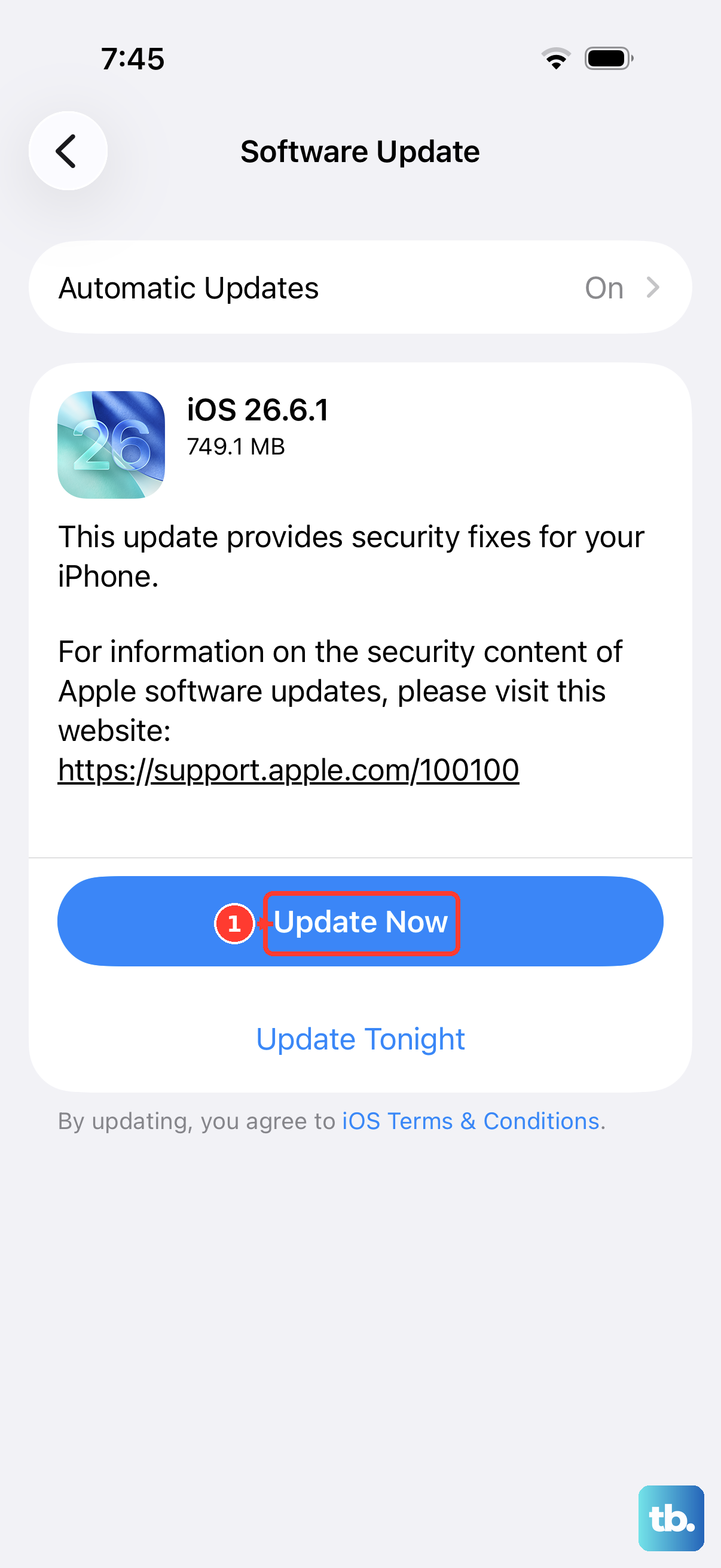
Running an outdated version of iOS can leave you exposed to networking bugs that newer releases have already corrected. Keeping the iPhone 17 Pro Max current is a low-effort fix that often resolves intermittent hotspot problems.
Go to Settings > General > Software Update. If an update is available, tap Download and Install and follow the onscreen instructions. Let the phone finish and restart, then test the hotspot again.
Force Restart the iPhone 17 Pro Max if It Stops Responding
If the hotspot screen is frozen or the phone has become unresponsive while you're troubleshooting, a force restart clears the state without erasing any of your data. Follow the exact button sequence below in order.
- 1.Press and quickly release the volume up button.
- 2.Press and quickly release the volume down button.
- 3.Press and hold the side button. When the Apple logo appears, release the side button.
Once the phone boots back up, return to Settings > Personal Hotspot and try enabling "Allow Others to Join" again.
Reset Network Settings to Clear Bad Configurations
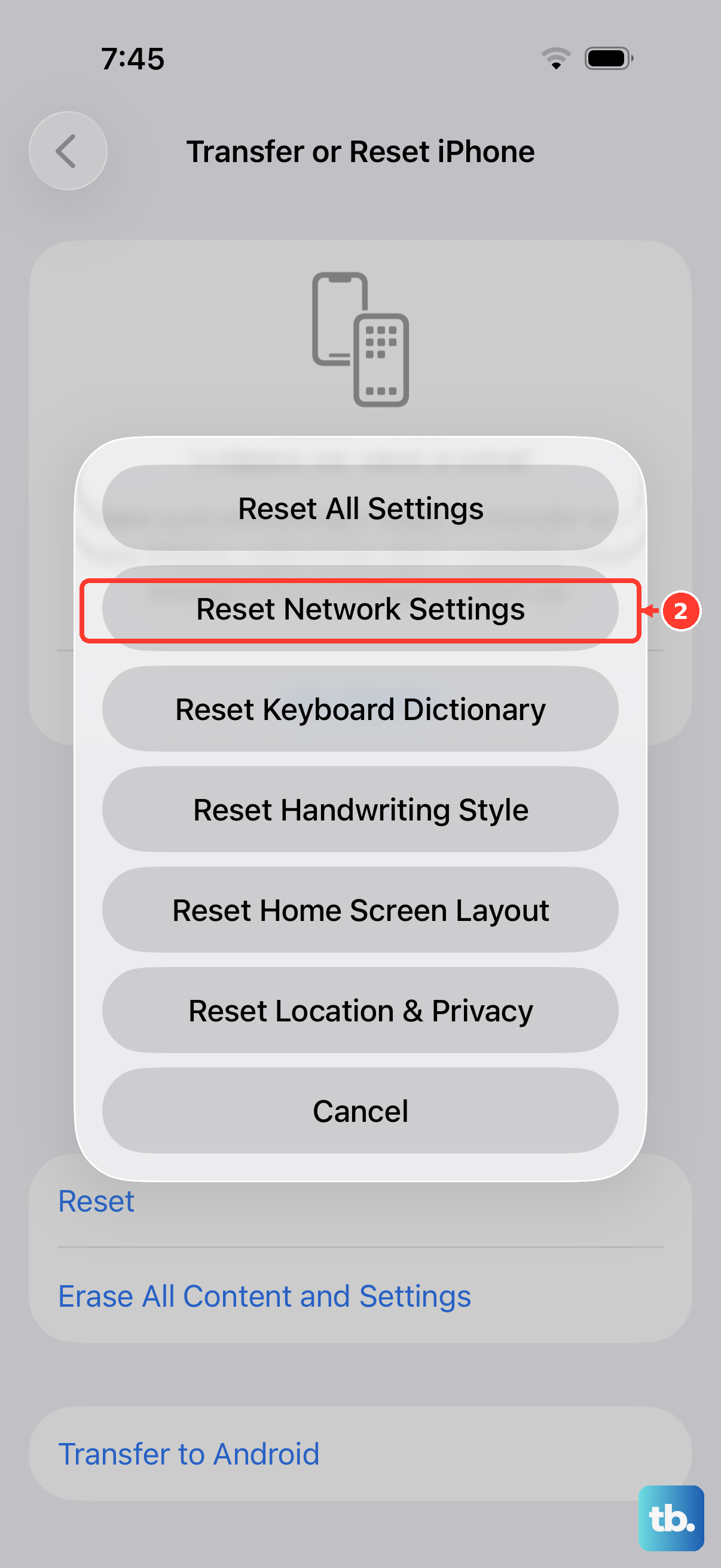
When the basics check out but the hotspot still misbehaves, a corrupted network configuration may be to blame. Resetting network settings wipes those configurations clean without touching your photos, messages, or apps.
Go to Settings > General > Transfer or Reset iPhone > Reset > Reset Network Settings. This resets Wi-Fi networks and passwords, cellular settings, and VPN and APN configurations, and it does not delete your personal data or media.
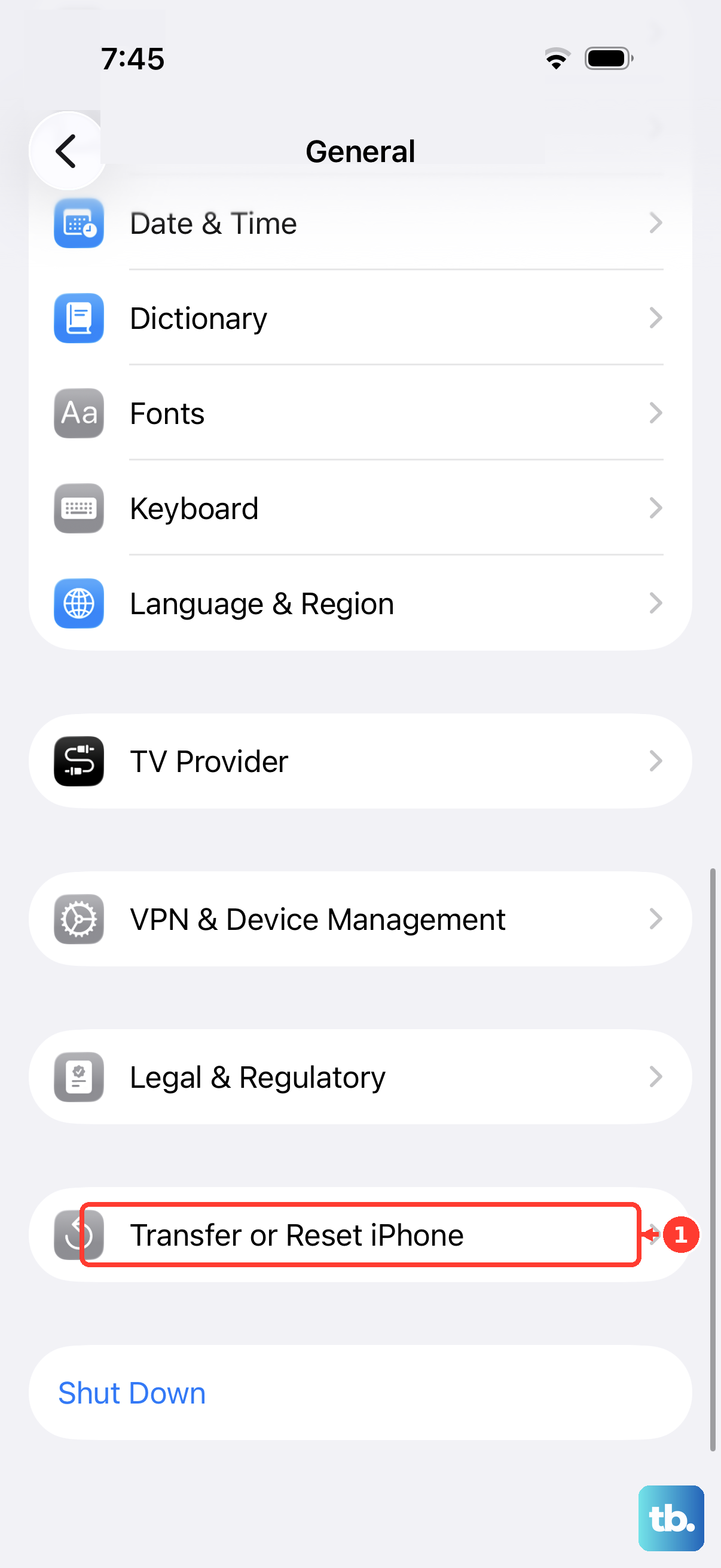
After the phone restarts, you'll need to re-enable Personal Hotspot and reconnect to your saved Wi-Fi networks, since those passwords were cleared as part of the reset.
Erase All Content and Settings as a Last Resort
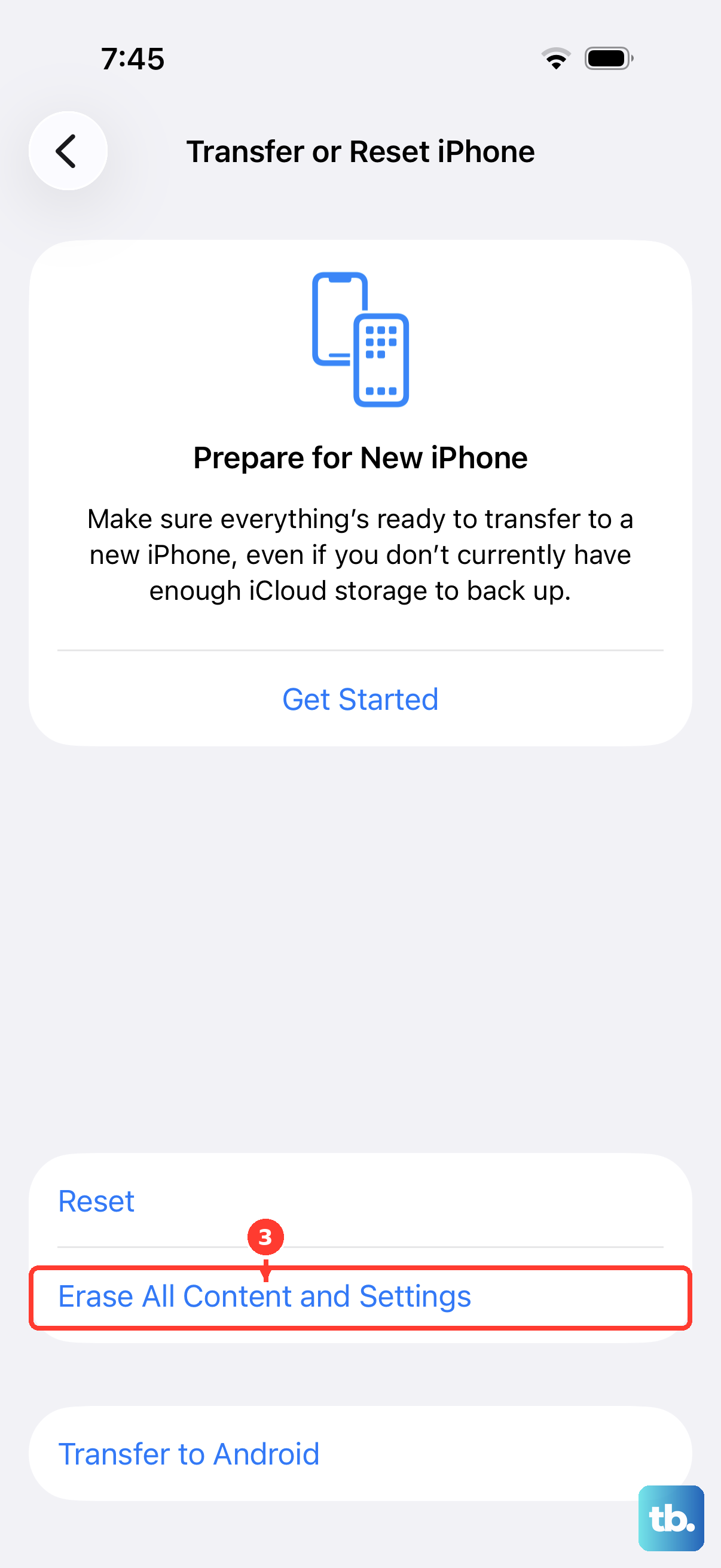
If nothing above has worked, a full factory reset is the final software step, and it should only be used when other options are exhausted. This is a destructive action, so read the warning carefully before you begin.
Back up the iPhone first, then go to Settings > General > Transfer or Reset iPhone > Erase All Content and Settings. Warning: this erases all content and data and restores the iPhone to factory settings, so make sure you have a current backup before you continue. Enter your device passcode and your Apple Account password if asked.
You'll also be asked whether to keep or erase your eSIM. If you choose to erase the eSIM, you must contact your carrier to reactivate cellular service, so only erase it if your carrier has confirmed that is appropriate for your situation.
When to Call Your Carrier or Apple Support
If Personal Hotspot still doesn't work after every step above, the problem is likely beyond what you can fix from the Settings app. At that point, two calls will get you the right help.
Contact your wireless carrier to confirm tethering is enabled on your account, since plan-level provisioning is the single most common blocker for this feature. Then contact Apple Support for further hardware or software help if the carrier confirms tethering is active but the hotspot still won't function.
Frequently Asked Questions
Why is Personal Hotspot greyed out or missing on my iPhone 17 Pro Max?
This usually means tethering isn't enabled on your plan. Apple advises that if you can't find or turn on Personal Hotspot, you should check that your wireless carrier enabled it and that your wireless plan supports it. Contact your carrier to confirm tethering is provisioned on your account.
Does using Personal Hotspot cost extra?
It can. Personal Hotspot requires a wireless carrier that supports it, and additional fees may apply depending on your plan. Check with your carrier so you understand any charges before relying on the feature.
Why won't an older laptop connect to my hotspot?
Older devices sometimes can't join the higher-frequency band. In Settings > Personal Hotspot, turn on "Maximize Compatibility," which on iPhone 12 or later restricts the hotspot to 2.4GHz and enforces WPA2 Personal security so more client devices can connect. Be aware this may reduce hotspot performance for connected devices.
Will resetting network settings delete my photos or apps?
No. Reset Network Settings (Settings > General > Transfer or Reset iPhone > Reset > Reset Network Settings) clears Wi-Fi networks and passwords, cellular settings, and VPN and APN configurations, but it does not delete your personal data or media. You will need to re-enter saved Wi-Fi passwords and re-enable Personal Hotspot afterward.
What happens to my eSIM if I do a factory reset?
During Erase All Content and Settings, you can choose whether to keep or erase your eSIM. If you erase the eSIM, you must contact your carrier to reactivate cellular service, so back up first and only erase the eSIM if you're prepared to set up cellular again.