Your iPhone 17 Pro Max has locked up, the screen won't respond to a single tap, and swiping does nothing no matter how hard you press. A frozen display on Apple's flagship phone is almost always a temporary software hiccup rather than a hardware failure, which is good news because the fix is usually quick and safe. The trick is knowing which steps to try first so you can wake the screen without losing any of your data. Work through the fixes below in order, starting with the gentlest and most effective one and saving the drastic measures for last.
Force restart the phone first, because it fixes most freezes
A force restart is the single most reliable way to revive a frozen or unresponsive iPhone 17 Pro Max, and because it does not erase anything, it is always the right place to start. This model uses Face ID with volume buttons and a Side button, so it follows Apple's standard three-button sequence. The key detail is that the first two presses are quick taps and only the final button is held down.
- 1.Press and quickly release the volume up button.
- 2.Press and quickly release the volume down button.
- 3.Press and hold the side button until you see the Apple logo (this might take longer than 10 seconds), then release.
Do not give up too early on that last step. The Apple logo can take more than ten seconds of continuous holding to appear, and letting go before it shows up means you have to start the whole sequence over. Once the logo appears, the phone is rebooting on its own and you can stop pressing.
Give a black screen at least an hour on power
If the force restart does nothing and the screen stays completely black, the most common culprit is a battery that has drained too low to respond. Connect the iPhone to power using your charging cable and adapter, then leave it alone. The official guidance is to charge for up to one hour before expecting a reaction.
A deeply discharged battery sometimes shows a low-battery image instead of the normal screen. If you see that, keep the phone on power for at least 30 minutes before trying anything else. Once it has taken on enough charge, you can attempt the force restart sequence again with a much better chance of success.
Rule out the cable, adapter, and charging port
When the phone refuses to charge or wake at all, the problem may be the accessories rather than the iPhone itself. Inspect the charging cable and the USB power adapter for visible damage such as fraying, breakage, or bent prongs. A damaged cable or adapter can stop power from reaching the battery even when everything looks connected.
Next, confirm that every connection is firm, including cable to adapter, adapter to wall outlet, and cable to phone. Then look into the charging port on the bottom edge of the device, where lint and pocket debris love to collect, and gently clear out anything you find. After checking all of this, let the iPhone charge for 30 minutes and watch for signs of life.
Do a clean restart once the screen responds again
After your iPhone wakes up, a normal power-off and power-on cycle clears out lingering glitches more thoroughly than simply unlocking it and carrying on. This is different from the force restart above, because here you actually shut the phone all the way down before turning it back on.
- 1.Press and hold either volume button and the side button until the power-off slider appears.
- 2.Drag the slider, then wait 30 seconds for the device to turn off completely.
- 3.Press and hold the side button (on the right side of your iPhone) until you see the Apple logo.
Waiting the full 30 seconds matters because it lets the phone power down cleanly rather than restarting mid-shutdown. When the Apple logo appears after you press the side button, the iPhone is booting fresh.
Install the latest iOS to clear software bugs
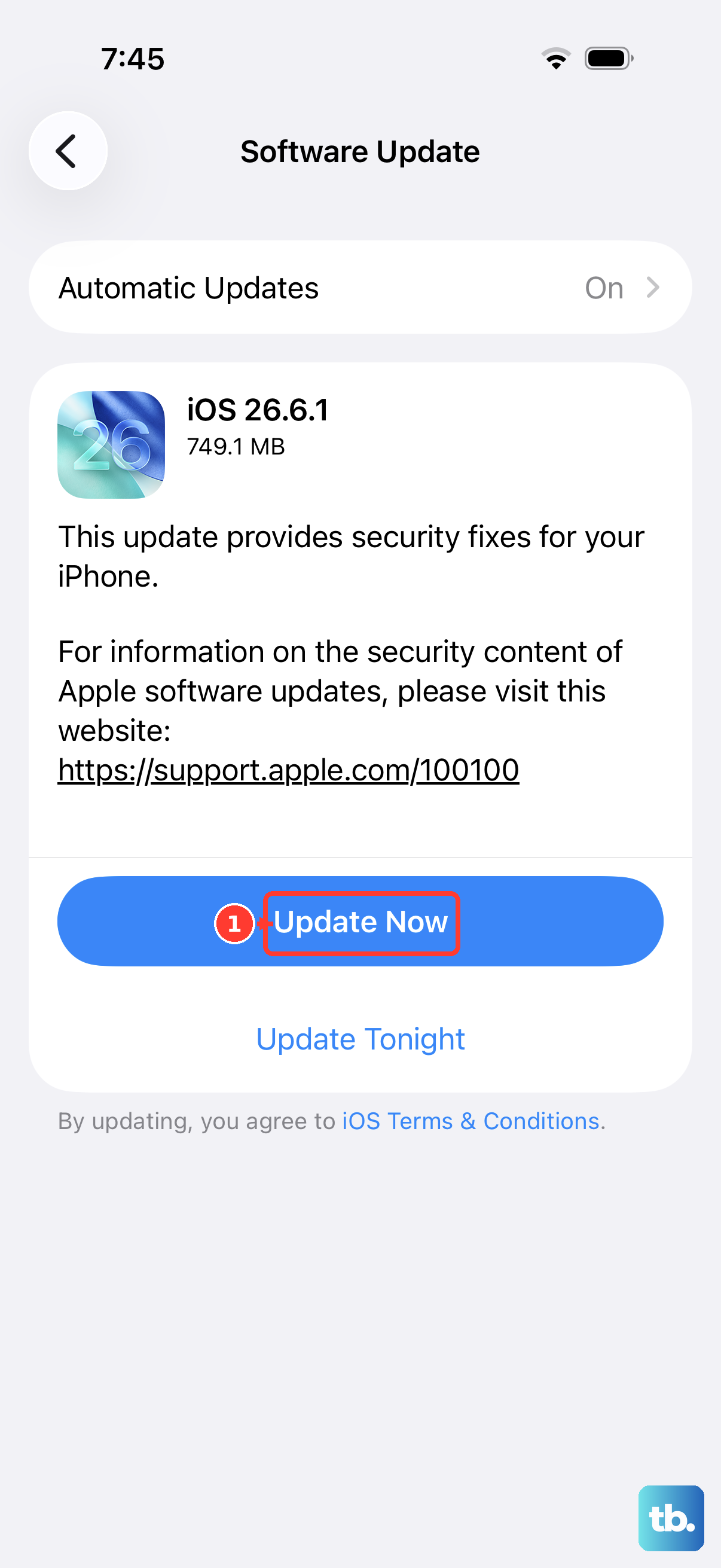
Repeated freezing is frequently traced to a software bug, and Apple ships fixes for those problems through iOS updates. Your iPhone 17 Pro Max runs iOS 26 and supports updating over the air, so installing the newest version is one of the most worthwhile fixes once the screen is cooperating again.
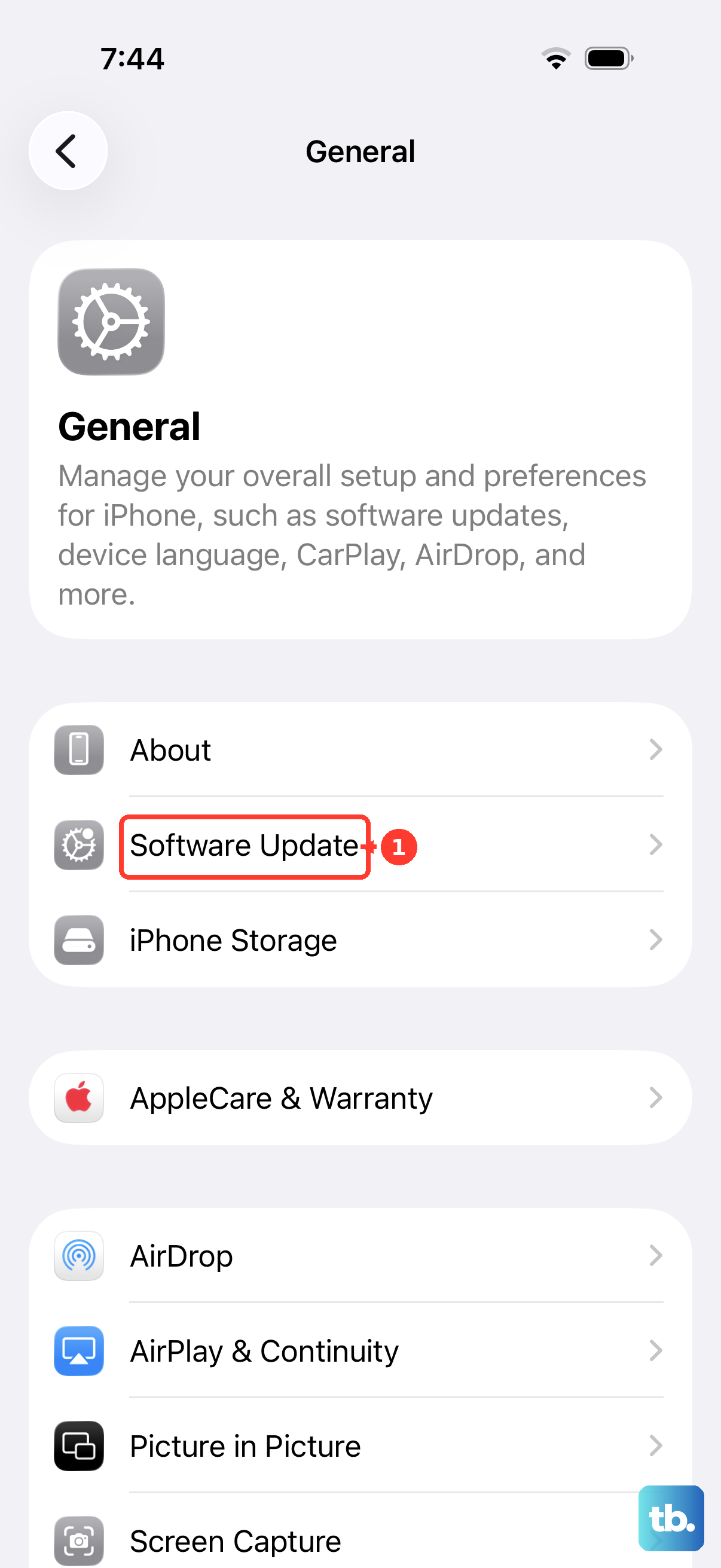
Before you start, back up your data, plug the phone into power, and connect it to Wi-Fi so the download does not stall. Then go to Settings, then General, then Software Update. If an update is available, tap Download and Install and follow the onscreen instructions.
What to do if the freeze happened during an update
Updates have their own stuck moments, and the worst thing you can do is yank the phone off power when it appears frozen mid-install. If the iPhone seizes up while an update is in progress, keep it connected to a power source and give it time to finish, because the process can look stalled when it is still working.
If the device ran out of power partway through, the cure is similar. Connect it to power, turn it on, and allow the interrupted update or restore to complete on its own. Patience here often resolves what looks like a permanent freeze.
Update or restore from a computer when wireless fails
Sometimes the over-the-air route simply will not work, either because the update keeps failing or because the phone stays frozen and never reaches the Settings app. In that case you can update or restore using a computer instead. Connect the iPhone to a Mac and use Finder, or connect it to a Windows PC and use the Apple Devices app or iTunes.
From there you can either update the software, which keeps your data, or restore it, which reinstalls iOS, to break the phone out of a stuck state. Updating is the less drastic of the two, so reach for it before a full restore whenever the option is offered.
Erase all content and settings as a last resort
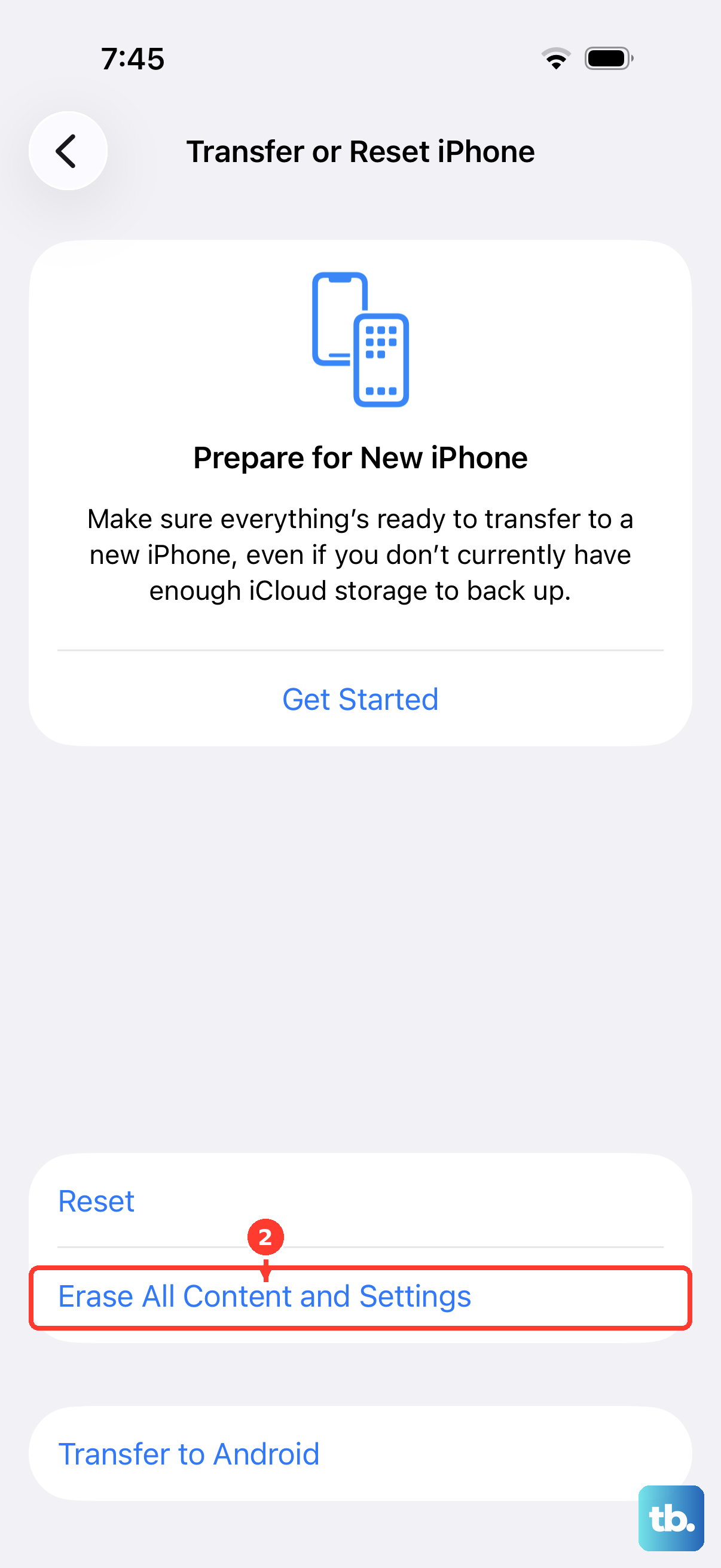
If your iPhone keeps freezing no matter what you try, a factory reset wipes out whatever corrupted software is causing the trouble. This is genuinely a last resort because it is destructive. Back up your data first, because erasing all content and settings securely removes all of your personal information, content, and settings and returns the phone to factory defaults.
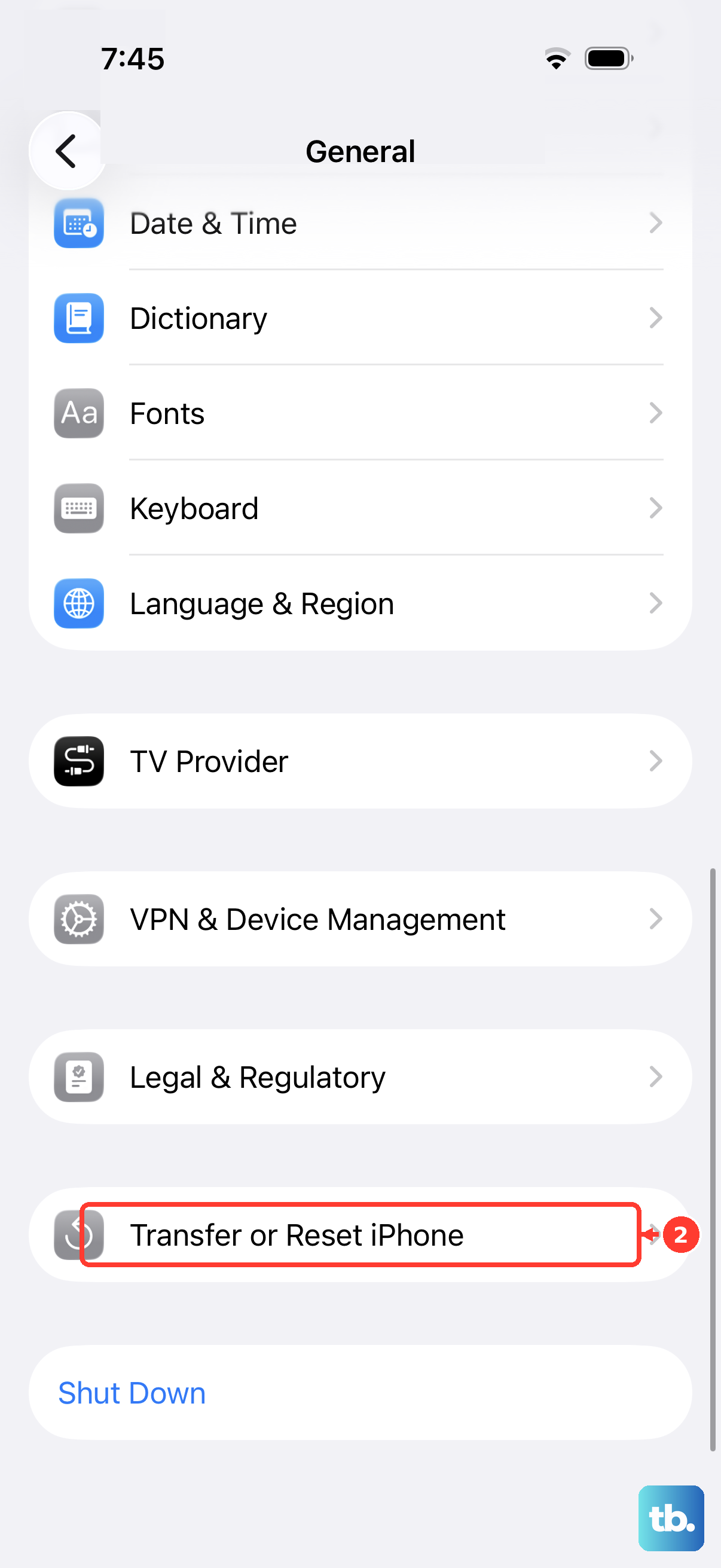
Once you have a backup, go to Settings, then General, then Transfer or Reset iPhone, then Erase All Content and Settings. Tap Continue, choose whether to keep or erase your eSIM (the iPhone 17 Pro Max is eSIM only, with no physical SIM tray), and enter your passcode and Apple Account password. The phone will then erase itself and restart as if it were new, ready for you to restore from that backup.
When it is time to contact Apple for service
If you have worked through every fix above and the iPhone still won't turn on, stays frozen, or refuses to charge, the issue may be hardware rather than software. At that point the device likely needs professional attention. Use Apple Support to arrange a repair or further diagnosis. Reaching out is the right move once the do-it-yourself steps are exhausted, rather than continuing to retry sequences that aren't working.
Frequently Asked Questions
Will a force restart on my iPhone 17 Pro Max delete my photos or apps?
No. A force restart simply reboots the phone and does not erase any of your data, which is why it is the first fix to try on a frozen screen. The only step in this guide that erases your content is Erase All Content and Settings, and that one requires you to confirm with your passcode and Apple Account password.
How long should I hold the side button during a force restart?
Keep holding the side button until the Apple logo appears, which can take longer than 10 seconds of continuous pressing. If you release too soon, nothing happens and you will need to repeat the full sequence from the volume up button.
My screen is totally black and a force restart did nothing, so what now?
Connect the iPhone to power and leave it charging for up to one hour, because a battery that is too low can leave the screen unresponsive. If a low-battery image appears, keep it on power for at least 30 minutes, then try the force restart again.
The phone froze in the middle of an iOS update, so should I unplug it?
No, leave it connected to power and let the update finish, since the process can look stuck when it is still working. If it ran out of power during the update, plug it back in, turn it on, and allow the update or restore to complete.
Does the iPhone 17 Pro Max charge fast enough to recover quickly?
Yes. With a 40W adapter or higher (sold separately) it can fast charge up to 50% in about 20 minutes, and it also supports MagSafe up to 25W and Qi2 up to 25W. Keep in mind that Optimized Battery Charging may pause charging at 80%. If you need a full charge sooner, touch and hold the Lock Screen notification and then tap Charge Now.