You lined up the perfect shot on your iPhone 17 Pro Max, tapped the shutter, and the photo came out soft, hazy, or out of focus. It is a frustrating result on a phone built around a 48MP Fusion Main camera, a 48MP Fusion Telephoto, and a 48MP Fusion Ultra Wide, all sitting under a Sapphire crystal lens cover. The good news is that most blur on this model traces back to a smudged lens, a focus mistake, or a temporary software glitch, and you can work through the fixes yourself before assuming the hardware is at fault.
The steps below are ordered from the easiest and safest to the most involved, ending with a full reset and the official support path. Try them in order and test the camera after each one, since the first few solve the majority of blurry-photo cases.
Start With the Glass Touching Your Photos
A blurry photo is most often caused by a dirty or smudged lens, so this is always the first thing to check. Fingerprints, pocket lint, and oily residue scatter light before it ever reaches the sensor, and they soften every shot no matter how steady your hands are.
According to the official support guidance, if the photo is blurry, clean the front and back camera lenses with a microfiber cloth. Use a soft, slightly damp, lint-free cloth (for example, a lens cloth). Avoid getting moisture in any openings, and do not use compressed air, abrasive materials, or cleaning products, since those can damage the lens cover or push moisture inside.
Take Off Anything Sitting in Front of the Camera
Cases, screen films, and stick-on accessories are a common and easily missed cause of soft images. A poorly aligned case can creep into the frame, and a clip-on lens or protector can add a layer of distortion the camera cannot focus through.
The official guidance is to remove any case, film, or accessory (such as a polarizer, extender, or magnifier) that might block the camera or flash or that places a magnet near the camera. Take these off completely, then shoot a test photo with the bare phone to see if the blur clears.
Let the iPhone Tell You the Lens Is Smudged
Because the iPhone 17 Pro Max is an iPhone 15 and later model, it includes the Lens cleaning hints feature. The phone detects when your lens is smudged and suggests you clean it for the clearest possible picture, which is a useful nudge when you have not noticed a fingerprint yourself.
If you see this hint appear, clean the lens using the cloth method described above. You can manage the feature in Settings > Camera, where you can turn Lens cleaning hints off if you would rather not see the alert.
Tap the Screen to Fix the Focus
The camera normally sets focus and exposure for you automatically, but sometimes it locks onto the wrong part of the scene and leaves your subject soft. You can correct this directly in the viewfinder.
Open Camera and tap the screen where you want to move the focus area, then drag up or down next to the focus area to adjust the exposure. If you are taking several shots of the same subject and want the focus to stay put, touch and hold the focus area until you see AE/AF Lock, then tap the screen to unlock the settings when you are done.
Get Close-Up Shots in Sharp Focus
If only your close-up photos look blurry, it is usually a focus-distance issue rather than a fault. The iPhone 17 Pro Max handles macro photography with its Ultra Wide camera, and when you move in close, Camera switches to that lens automatically.
When you get as close as 2 cm to your subject, Camera automatically switches to the Ultra Wide camera for macro. A macro icon appears on screen when you are in range; tap it to turn automatic macro switching off, and tap it again to turn it back on. Backing up slightly or letting macro engage usually sharpens a close subject that refuses to focus.
You can also control this behavior in Settings > Camera, where you can turn Macro Control off. To keep your choice between sessions, go to Settings > Camera > Preserve Settings and turn on Macro Control.
Narrow Down Which Camera Is Affected
Figuring out whether the blur affects one camera or all of them tells you a lot about the cause. The official guidance is that if your device has a front and rear camera, you should check whether one or both are not working, and you switch cameras by tapping the rotate button.
If only one camera produces blurry images, the problem is likely tied to that lens, an accessory, or that specific module rather than a software issue affecting the whole system. If every camera is soft, a software step further down this list is more likely to help.
Give the Camera App a Fresh Start
A simple restart can clear a temporary glitch in the Camera app, and restarting the iPhone is one of the standard camera troubleshooting steps. This is a safe, non-destructive step that resets background processes and often revives a camera that has started behaving strangely.
Power the phone off and back on in the normal way, then open Camera and take a test photo to check whether the blur is gone.
Force Restart a Frozen Camera
If the Camera app is unresponsive and a normal restart will not work, a force restart can break the lockup on your iPhone 17 Pro Max. Because this is a Face ID model with no Home button, follow this exact sequence.
- 1.Press and quickly release the volume up button.
- 2.Press and quickly release the volume down button.
- 3.Press and hold the side button until you see the Apple logo (this might take longer than 10 seconds).
Let the phone boot fully, then open Camera again. A force restart does not erase your photos or settings; it only forces the system to reload.
Install the Latest iOS Update
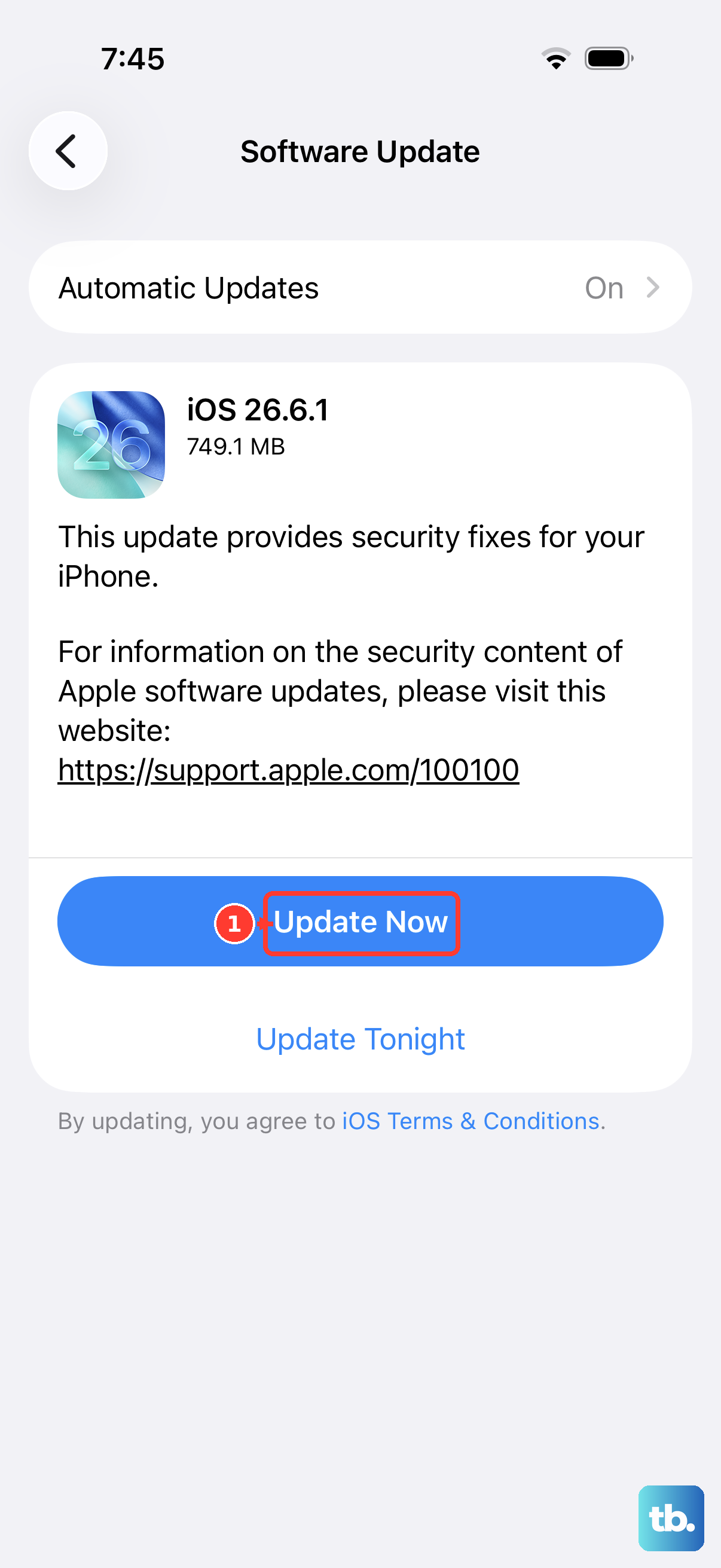
Software updates can fix camera-related bugs, so keeping iOS current is a standard troubleshooting step. Your iPhone 17 Pro Max ships with iOS 26, and staying on the latest version ensures you have any later corrections that address focus or processing issues.
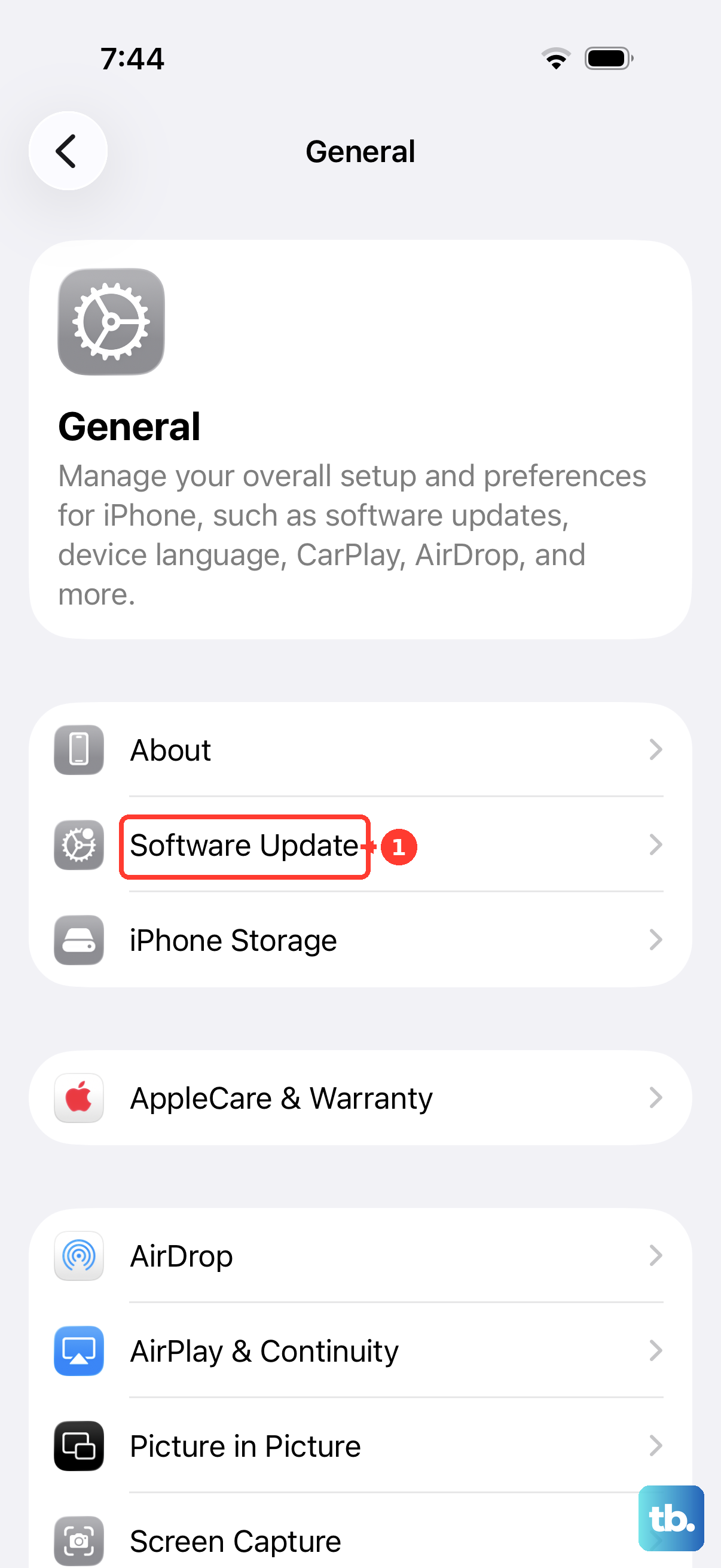
Go to Settings > General > Software Update. If an update is available, tap Download and Install, then follow the onscreen instructions. Keep the phone connected to power and Wi-Fi while it installs.
Erase All Content and Settings as a Last Software Step
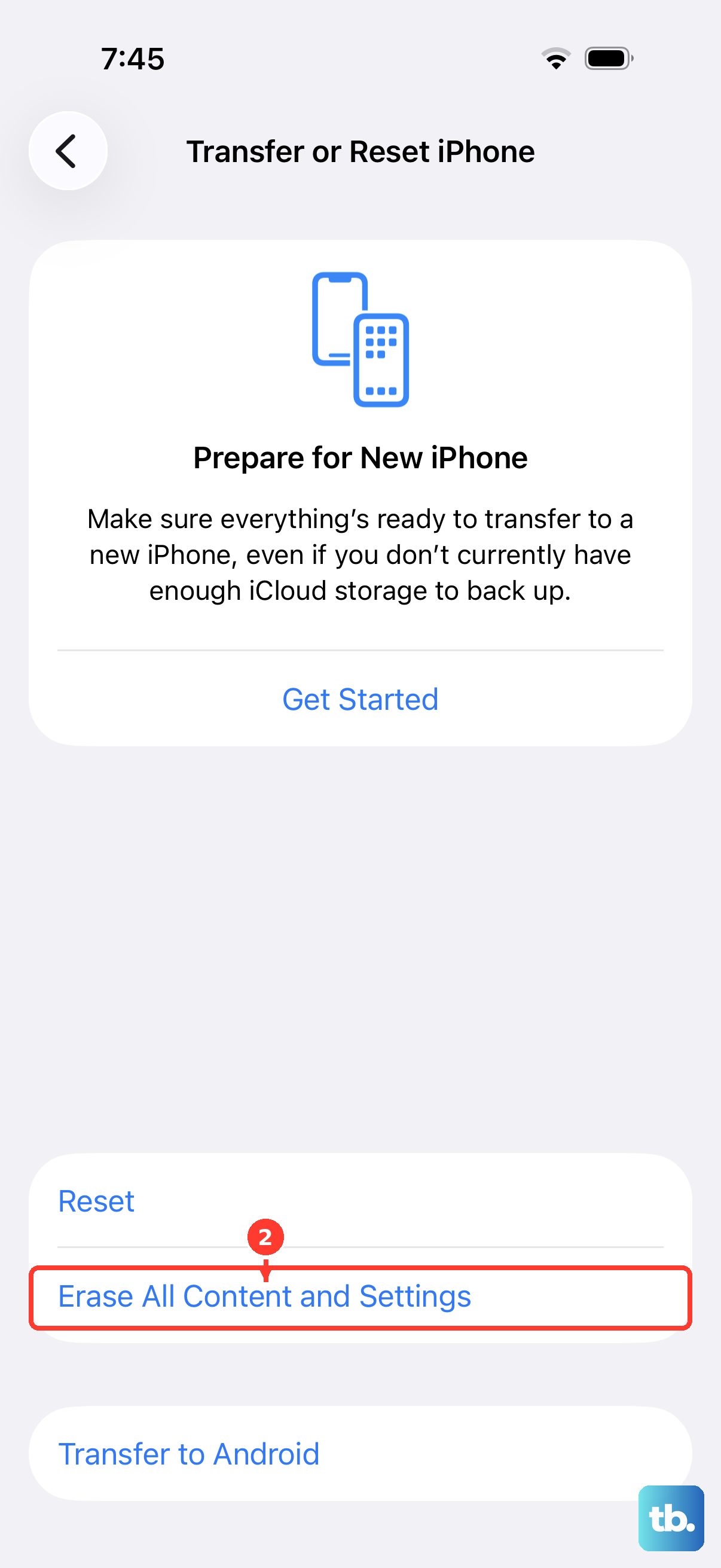
If nothing above has helped and you suspect a deeper software problem, a factory reset is the final software option. This step permanently removes everything on the phone, so you must create a backup first; otherwise your photos, apps, and settings will be lost.
Once your backup is saved, go to Settings > General > Transfer or Reset iPhone > Erase All Content and Settings > Continue, then enter your passcode and your Apple Account password. The iPhone permanently removes all content and settings and is restored to factory settings, after which you can restore from your backup and test the camera on a clean system.
When to Hand It Over to Apple
If the lens is clean, no case or accessory is blocking it, and none of the software steps make a difference, you may be dealing with a hardware issue. The official advice in that situation is to contact Apple Support so the device can be checked or serviced. No separate diagnostic app is needed; the built-in steps above cover everything you can do at home before service.
Frequently Asked Questions
Why are only my close-up photos blurry on the iPhone 17 Pro Max?
Close-up blur is usually a focus-distance issue. When you get as close as 2 cm, Camera automatically switches to the Ultra Wide camera for macro, and a macro icon appears on screen. Tap that icon to turn automatic switching off or on, back up slightly, or open Settings > Camera to manage Macro Control.
What is the safest first thing to try when photos look blurry?
Clean the front and back camera lenses with a soft, slightly damp, lint-free cloth such as a lens cloth. A smudged lens is the most common cause of blur. Avoid getting moisture in openings, and do not use compressed air, abrasive materials, or cleaning products.
How do I force restart the iPhone 17 Pro Max if the camera freezes?
Press and quickly release the volume up button, press and quickly release the volume down button, then press and hold the side button until you see the Apple logo (this might take longer than 10 seconds). This does not delete your photos or settings.
Does the iPhone 17 Pro Max warn me when the lens is dirty?
Yes. As an iPhone 15 and later model, it includes Lens cleaning hints, which detect when the lens is smudged and suggest cleaning it for the clearest possible picture. You can turn the alert off in Settings > Camera.
Will a factory reset definitely fix a blurry camera?
Not necessarily. Erasing all content and settings only helps if the cause is software, and it permanently removes everything, so back up first. If the camera is still blurry after a clean reset, the issue is likely hardware, and you should contact Apple Support.