
When your headphones stop working with your iPhone 17 Pro, it can ruin everything from your workout playlist to an important call. The issue might be with wired headphones plugged into the USB-C port, or with your favorite Bluetooth pair like AirPods. The fixes are usually straightforward, so let's get started.
A browser based quick headphone test makes this easy to confirm. If both sides play test tones correctly there, the headphones are fine and the problem is in the device or app.
Restart Your iPhone 17 Pro
This is the quickest fix for a lot of weird audio glitches. To restart, press and quickly release the Volume Up button, then press and quickly release the Volume Down button. Finally, press and hold the Side button until you see the Apple logo appear. A simple restart clears out temporary software bugs that can mess with audio routing.
Check the Physical Connection and Volume
For wired headphones, make sure the plug is fully seated in the USB-C port. For wireless models, ensure they have a charge. Then, press the Volume Up button on your iPhone to make sure the sound isn't muted. Also, check that Silent mode isn't turned on via the Action button on the left side or from Control Center.
Open Control Center by swiping down from the top-right corner and look at the volume slider. If it's all the way down, your headphones will be quiet no matter what.
Clean the USB-C Port
Lint and pocket debris are the biggest enemies of the USB-C port. If your wired headphones aren't being detected, this is a likely culprit. Gently use a wooden or plastic toothpick to clean out the port, being careful not to damage the center connector.
You can also use a can of compressed air. A clean port ensures a solid physical connection for both audio and, incidentally, for that fast 60W charging.
Forget and Re-Pair Your Bluetooth Headphones
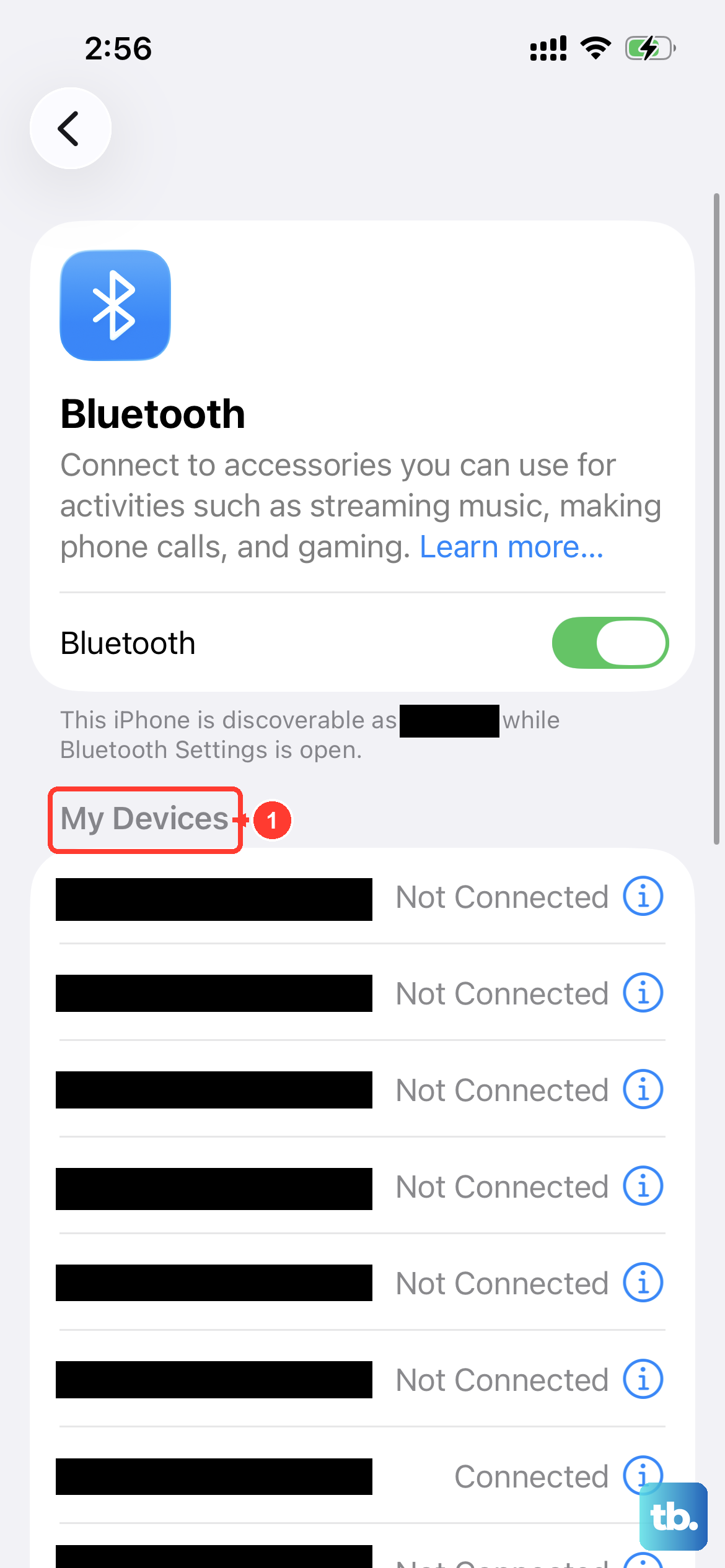
Go to Settings > Bluetooth. Find your headphones in the "My Devices" list and tap the info (i) icon next to them. Tap Forget This Device and confirm. This removes the old connection profile.
Now, put your headphones back into pairing mode (check their manual for how) and select them again from the Bluetooth menu on your iPhone. A fresh pairing often solves persistent connection drops or choppy audio.
Verify the Audio Output Selection
Sometimes your iPhone 17 Pro sends sound to the wrong place. Open Control Center, then press and hold the audio card in the top-right corner. A menu will pop up showing all available outputs, like your iPhone speaker, AirPods, or a HomePod.
Make sure your headphones are selected here. You can also tap the AirPlay icon within apps like Apple Music or Spotify to manually choose your headphones.
Toggle Bluetooth Off and On
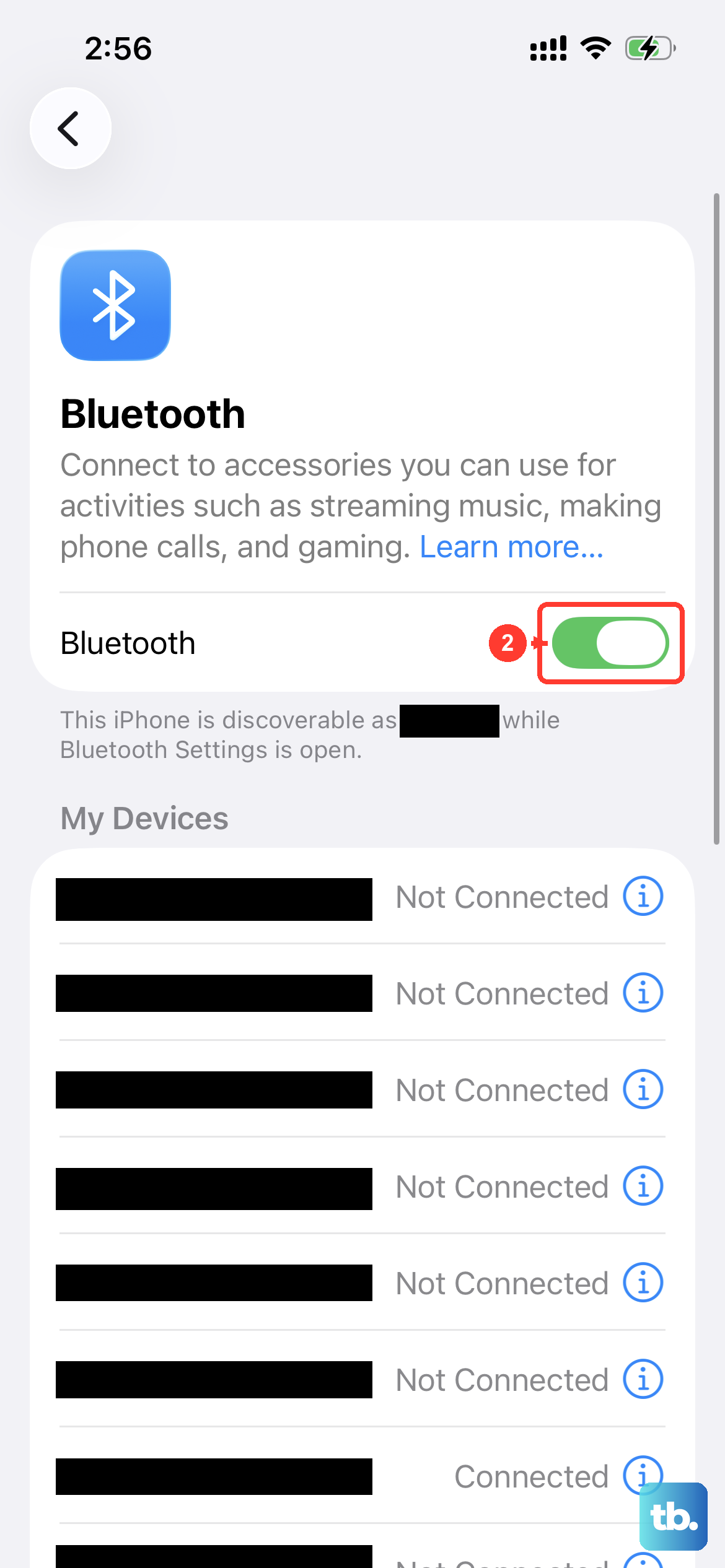
A quick refresh of the Bluetooth radio can work wonders. Head to Settings > Bluetooth and tap the toggle to turn it off. Wait about ten seconds, then turn it back on.
This forces the system to re-scan for devices and can resolve issues where headphones are connected but no audio is playing through them.
Check for Software Updates
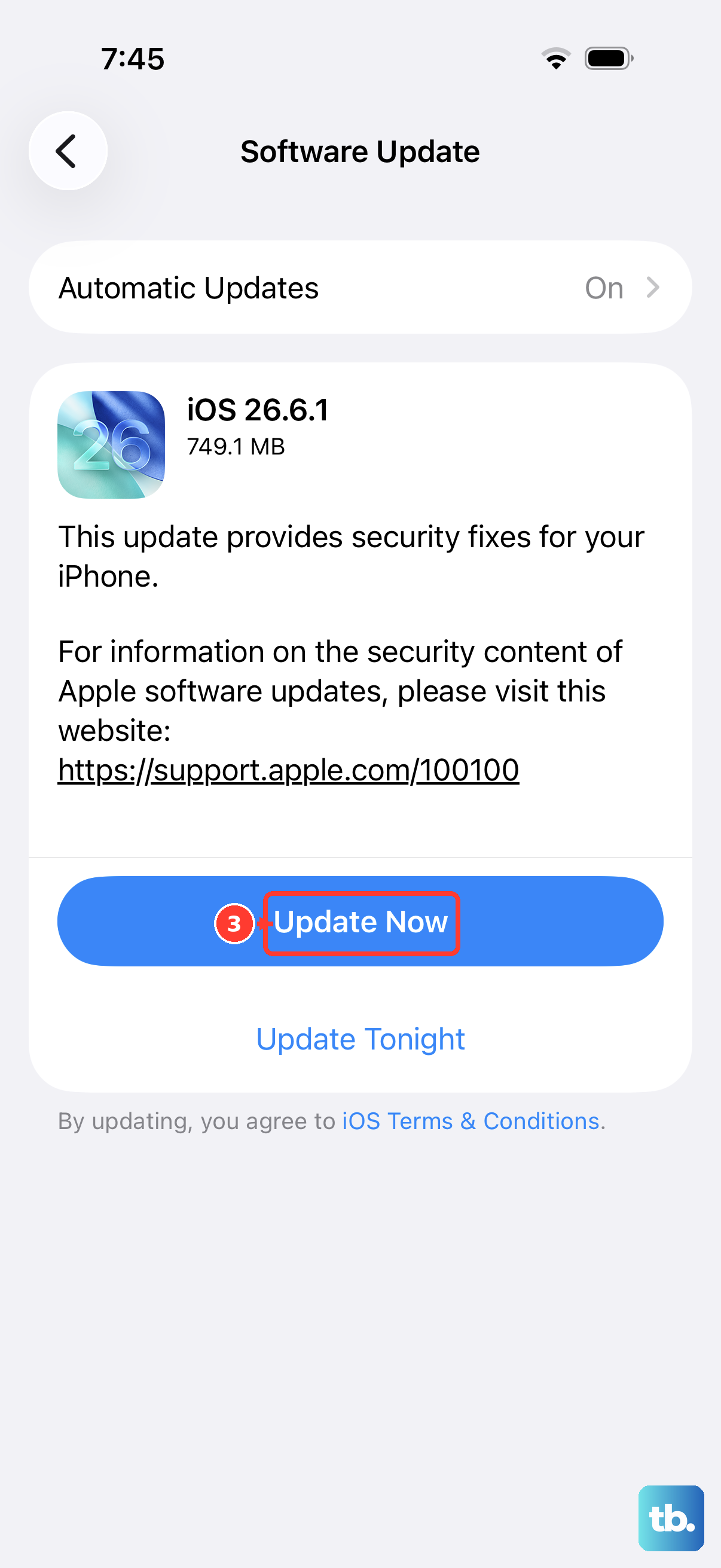
Apple frequently releases iOS updates that fix bugs, including ones related to Bluetooth audio and USB-C accessory support. On your iPhone 17 Pro, go to Settings > General > Software Update.
If an update is available, install it. This is also how firmware updates for AirPods and many Beats headphones are delivered, so keeping iOS 26 updated is key.
Address Stuck Headphone Mode
If your phone shows a headphone icon in the status bar when nothing is plugged in, it's stuck in headphone mode. First, clean the USB-C port thoroughly as described above. Then, plug and unplug a pair of wired headphones a few times.
If that doesn't work, a restart usually clears it. In persistent cases, moisture detection in the port can sometimes cause this, so let the phone dry out completely if it's been exposed to liquid.
Reset All Settings
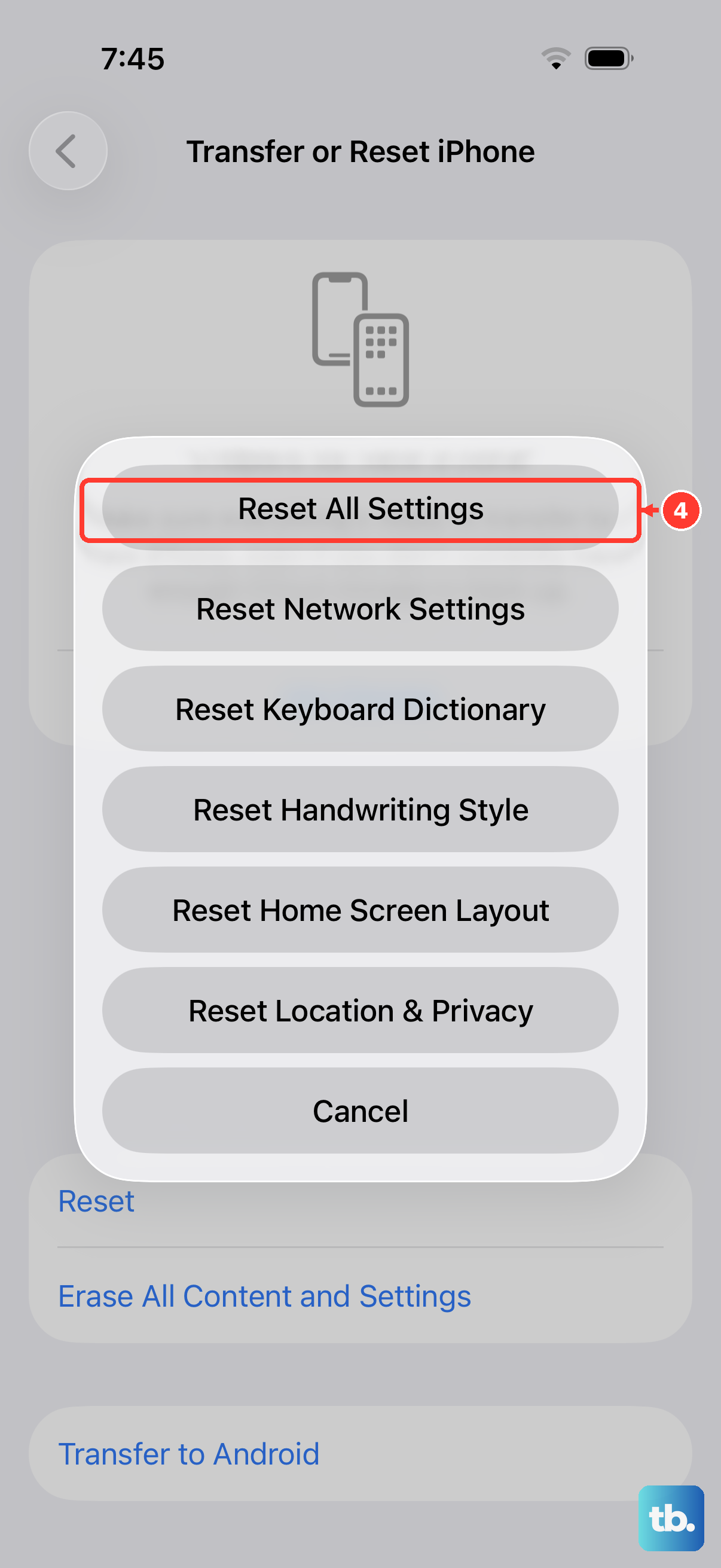
This is a more comprehensive step if nothing else has worked. Go to Settings > General > Transfer or Reset iPhone > Reset > Reset All Settings.
This will not erase your personal data like photos or messages, but it will reset all system preferences. You'll need to re-pair Bluetooth devices and re-enter Wi-Fi passwords, but it can eliminate deep-seated configuration errors affecting audio.
Test with Different Headphones and Accessories
To isolate the problem, try a different pair of wired headphones with your iPhone's USB-C port. Also, try pairing a different set of Bluetooth headphones. If the new pair works fine, the issue is likely with your original headphones.
If multiple headphones have the same problem, it points to an issue with the phone itself. I'd also check if any cases, particularly thick MagSafe ones, are preventing a wired plug from seating fully in the port.